
ShowMyPC is a free and open-source remote access and screen-sharing application designed to connect computers over the internet. While offering a straightforward approach to remote collaboration, its functionality is limited compared to more feature-rich commercial alternatives. This review delves into ShowMyPC’s strengths and weaknesses, examining its setup, features, performance, and overall value proposition.
Setting Up and Using ShowMyPC
ShowMyPC boasts a relatively simple installation process. Users only need to download and install the software on their computer, after which they can initiate connections. However, the ease of setup for the host computer isn’t entirely mirrored for participants. For screen sharing, all participants require the software installed on their machines unless opting for the premium version’s web link option, a significant drawback for the free version.
Initiating a screen share involves clicking the “Start a Meeting” button. The host can then choose whether to allow remote users access to their mouse, keyboard, and files. The application generates a unique password for each session, which the host must share with the participants via email, messaging app, or another communication channel. This password eliminates the need for IP addresses, as ShowMyPC leverages SSH port forwarding to establish connections. The remote access process is equally straightforward; clicking “View Remote PC” and entering the password initiates the connection.
ShowMyPC’s Features and Performance: A Mixed Bag
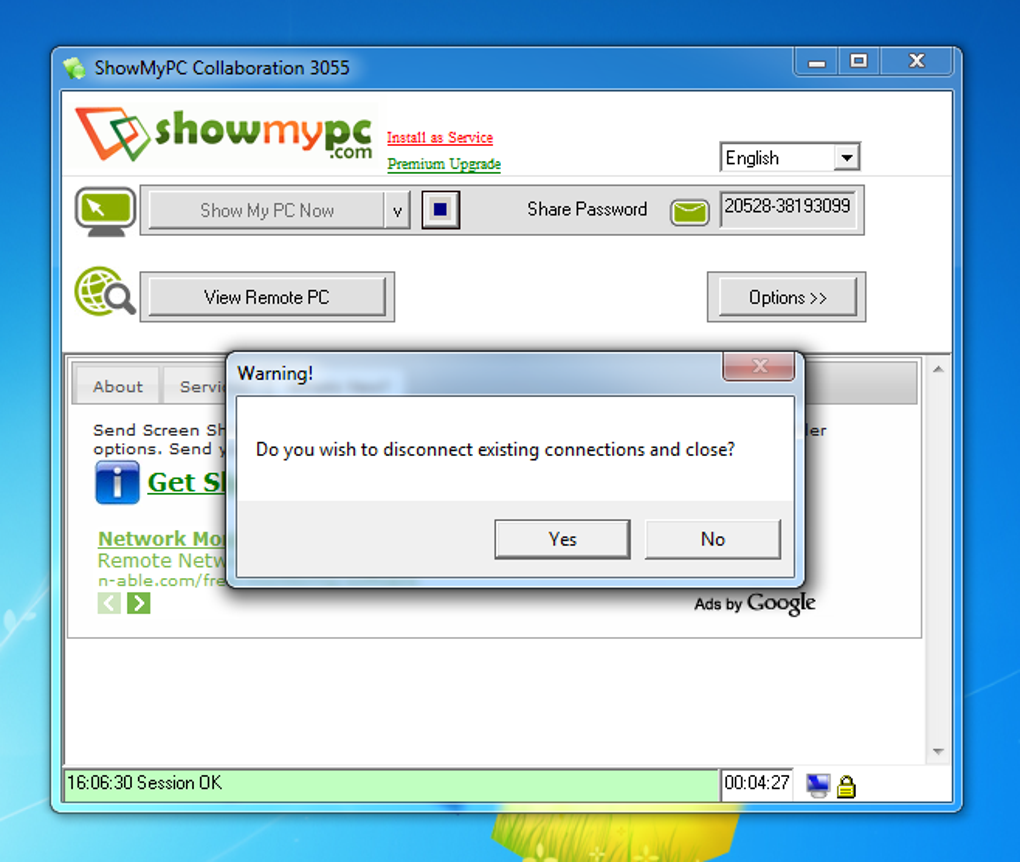
ShowMyPC presents a user interface that, while functional, feels dated. The simplicity of the interface, however, does facilitate easy setup for both remote access and screen sharing. A significant advantage is the ability to share a screen with an unlimited number of users, provided they have the application installed and the session password. Allowing access to peripherals such as the mouse and keyboard proves useful for collaborative tasks.
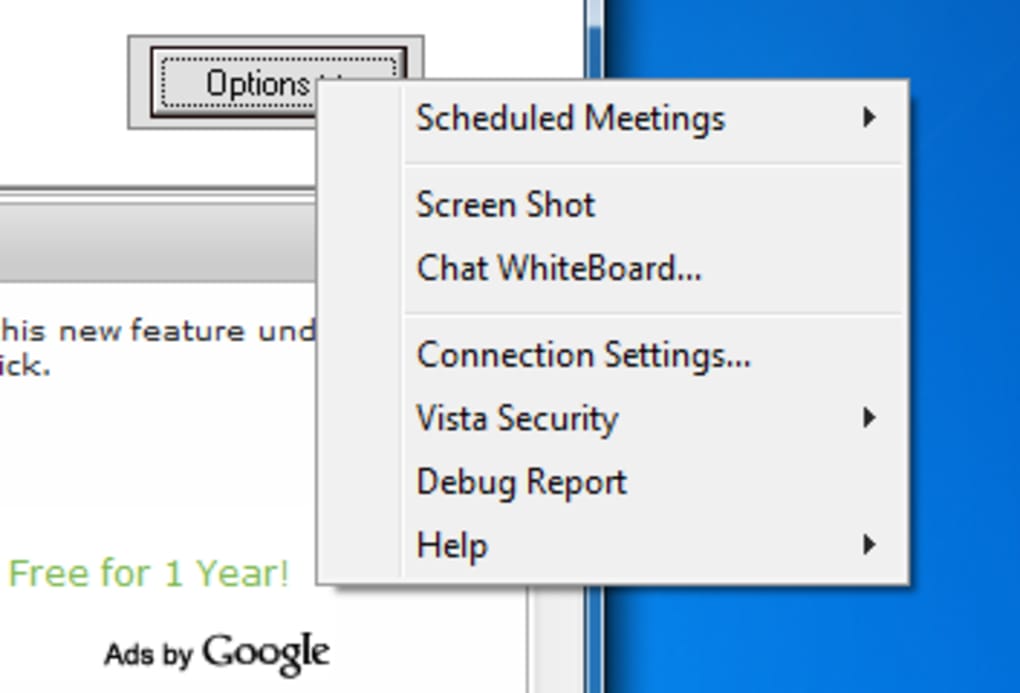
However, the free version of ShowMyPC is constrained by several limitations. Most notably, audio support is absent. Real-time chat functionalities are also restricted to the premium plan. Furthermore, file sharing is not integrated into the screen-sharing aspect.
The remote desktop functionality, in contrast, is slightly more robust. A shared folder feature allows mirrored file access and transfers between host and remote computers. Remote printing is also supported. Importantly, however, both the remote access and enhanced features (like chat and file sharing) are only available through a premium subscription. The lack of voice-over IP (VoIP) capabilities in both modes is another considerable drawback for users requiring real-time audio communication.
Security and Performance Considerations
ShowMyPC utilizes 256-bit encryption for its remote access, a positive security aspect. Crucially, passwords are not stored on the application’s servers, adding an extra layer of protection. The temporary password generated for each screen-sharing session further enhances security.
Despite the ease of establishing a connection, controlling the remote PC can prove challenging due to slow connection speeds and noticeable latency (a few minutes delay in actions). This lag significantly impacts the user experience, particularly for tasks requiring precise control and real-time interaction.
ShowMyPC Compared to Alternatives
While ShowMyPC offers a combined screen-sharing and remote access solution, it lacks the polish and feature set of other similar applications. Both the screen-sharing and remote desktop features are hampered by limitations. Alternatives like TeamViewer, AnyDesk, and Ammyy Admin often provide a smoother, more feature-rich experience, often at a competitive price or even free of charge for basic use. These competing software often include robust file-sharing, VoIP, and advanced security features. The performance differences, particularly the latency issues experienced with ShowMyPC, make a compelling case for exploring the alternatives.
ShowMyPC’s Target Audience and Use Cases
ShowMyPC might be suitable for users needing a simple, free solution for occasional screen sharing or remote assistance in situations where the lack of advanced features is not critical. The application’s straightforward setup and unlimited viewer capacity for screen sharing make it viable for basic tech support scenarios or simple online presentations amongst users who have the software pre-installed. However, the significant limitations, especially in the free version, limit its broader appeal to those who require a more comprehensive and performant solution for collaborative work or professional remote support.
A Deep Dive into ShowMyPC’s Technical Foundation
ShowMyPC’s functionality relies on a combination of VNC (Virtual Network Computing) for remote desktop sharing and an open-source SSH (Secure Shell) forwarding client. This architectural choice allows it to bypass many firewalls, a significant advantage for users behind restrictive network configurations. The use of SSH enhances security by encrypting the connection, protecting data transmitted between the host and the remote user’s computer. The randomly generated session passwords, as previously mentioned, add another layer of security by preventing unauthorized access.
However, this technical approach also has potential drawbacks. The reliance on SSH might increase complexity for users unfamiliar with command-line interfaces or network configuration. The integration of VNC and SSH, while providing functionality, could also contribute to performance limitations and latency issues as reported by users. The lack of built-in mechanisms for file sharing and other advanced features could necessitate the use of external tools, potentially increasing the complexity of the workflow.
ShowMyPC’s Strengths and Weaknesses Summarized
Strengths:
- Simple Setup: Ease of installation and initial configuration for the host computer.
- Unlimited Viewers (Screen Sharing): Ability to share a screen with numerous users simultaneously during screen sharing sessions.
- Firewall Penetration: Generally effective at bypassing firewalls due to the use of SSH.
- Strong Encryption: Utilizes 256-bit encryption for enhanced security.
- No Central Password Storage: Enhances security by avoiding the storage of passwords on servers.
Weaknesses:
- Limited Functionality (Free Version): The free version lacks crucial features like audio, chat, and file transfer for screen sharing, and remote access entirely.
- Outdated Interface: The user interface design feels dated and lacks the modern visual appeal of competitor applications.
- Performance Issues: Slow connection speeds and noticeable latency affect the user experience.
- Lack of VoIP: Absence of voice-over-IP capabilities restricts real-time audio communication.
- Premium Features: Many key features are locked behind a paid subscription.
Conclusion
ShowMyPC provides a basic, free solution for simple remote access and screen sharing. However, its limited feature set, outdated interface, and performance issues make it a less compelling choice compared to more advanced and feature-rich alternatives available in the market. While suitable for users with extremely basic needs and no budget constraints, its significant limitations should caution users seeking a robust and efficient remote collaboration tool. Users should carefully weigh the trade-offs between simplicity and functionality before selecting ShowMyPC as their primary remote access solution. The presence of better alternatives, often offering superior features and performance at a similar or even no cost, makes it difficult to strongly recommend ShowMyPC for most users.
File Information
- License: “Free”
- Latest update: “June 20, 2025”
- Platform: “Windows”
- OS: “Windows XP”
- Language: “English”
- Downloads: “1.4M”


