
In an increasingly digital world, our interactions with computers are constant, and the keyboard and mouse stand as our primary conduits to this digital realm. Yet, these essential tools, designed for universal utility, can sometimes become sources of frustration, accidental inputs, or even impediments to workflow. Whether it’s the notorious Windows key pulling you out of an intense gaming session, a malfunctioning key generating unwanted characters, or the desire to simplify input for specific tasks, the need for precise control over these peripherals is more pronounced than ever. This is where a dedicated utility like Simple Disable Key from 4Dots Software steps in, offering a robust, intuitive, and highly customizable solution for Windows users.
Simple Disable Key is not just another remapping tool; it’s a focused utility designed specifically to empower users to disable the functions of certain keys on their keyboard and clicks on their mouse. Unlike complex key mappers that require intricate configurations to swap key functions, Simple Disable Key prioritizes straightforward disabling, making it an indispensable asset for a myriad of scenarios, from casual computing to professional productivity and competitive gaming. This article delves deep into its capabilities, exploring its features, practical applications, and why it has become a recommended choice for those seeking refined control over their input devices.
Understanding the Need for Keyboard Control: Why Simple Disable Key?
The concept of disabling specific keys might seem niche at first glance, but the practical implications are far-reaching. Every Windows user has likely encountered a situation where a key press, intended or otherwise, led to an undesirable outcome. The most common culprit is often the Windows key, strategically placed at the bottom left (and sometimes right) of most keyboards. In the heat of an online game, an accidental brush against this key can minimize the game window, breaking concentration, leading to in-game losses, or even costing crucial competitive points. Modern gaming peripherals often integrate their own software to mitigate this, but for the vast majority of users with standard keyboards, a dedicated solution is vital.
Beyond gaming, consider the plight of a designer or writer who frequently uses complex software shortcuts. An accidental press of a rarely used function key or a combination that triggers an unintended system-wide action can disrupt creative flow or lead to data loss. Similarly, a physically damaged keyboard key that perpetually “sticks” or registers phantom presses can make the entire device unusable, requiring costly replacement. Simple Disable Key offers an elegant software-based workaround, allowing users to simply deactivate the offending key, thus extending the life and usability of their hardware.
The need for control also extends to focused work environments. Imagine setting up a computer for a child or an elderly person, where certain keys might inadvertently trigger system functions that confuse or complicate their usage. Disabling these keys can create a more streamlined and less daunting user experience. Furthermore, in productivity scenarios, there might be specific applications where certain global shortcuts or input methods are counterproductive. Simple Disable Key provides the granular control necessary to tailor the input experience to the precise demands of the task at hand, moving beyond the limitations imposed by default system settings or application-specific configurations. It’s about regaining mastery over your own device, ensuring that every interaction is intentional and productive, free from unwanted interruptions or erroneous inputs.
Core Features and How They Enhance Your Digital Experience
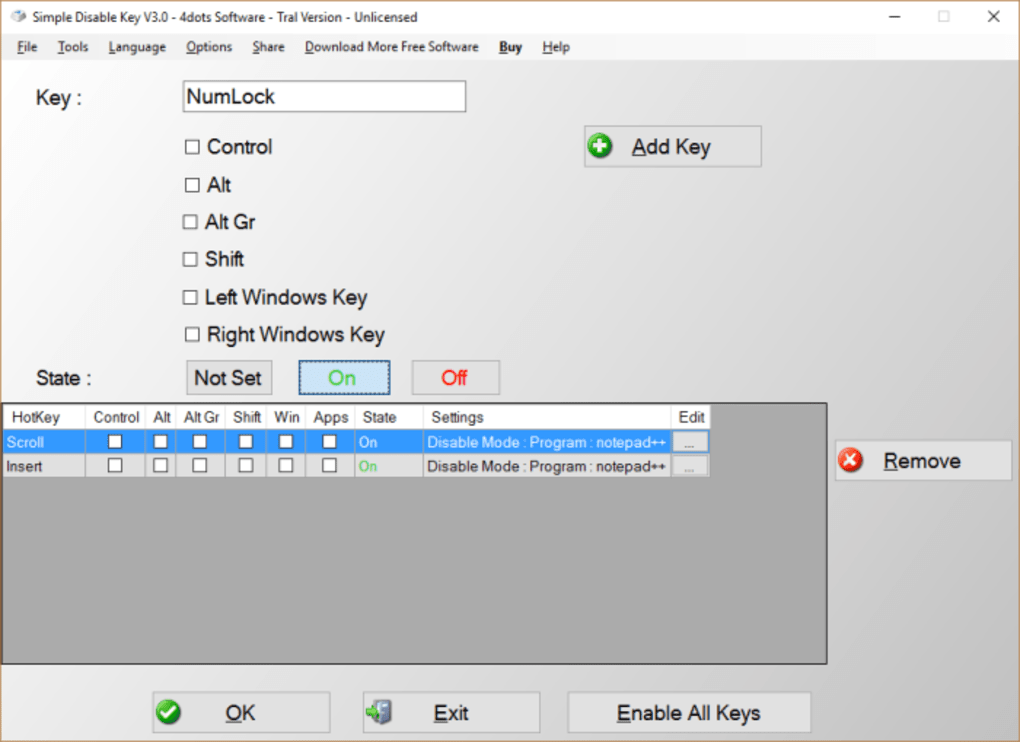
Simple Disable Key differentiates itself by focusing on ease of use and powerful functionality for disabling keys and clicks. Upon first launching the application, users are greeted with a clean interface that quickly highlights its core purpose. The tool often comes pre-configured with options to disable common modifier keys such as Ctrl, Shift, and Alt, along with the infamous Windows key, anticipating some of the most common user frustrations. However, its true power lies in its expandability and customization options, allowing users to define precise rules for their specific needs.
Beyond Basic Disabling: Custom Rules and Mouse Support
The “Add Key” button is the gateway to Simple Disable Key’s comprehensive customization. Users can easily add new rules to their list, selecting any key on their keyboard for disabling. This process is highly intuitive: simply click “Add Key,” press the desired key, and it appears in the list. From there, a simple tick of a checkbox activates the disabling rule. This flexibility means that whether it’s an obscure function key, a number pad key, or even a specific punctuation mark that causes issues in certain contexts, Simple Disable Key can address it. The ability to toggle between “Enable All Keys” and “Disable Keys” provides an on-the-fly mechanism to activate or deactivate custom settings, making it practical for fluid work environments.
A significant bonus feature, and one that sets Simple Disable Key apart from many keyboard-centric tools, is its support for mouse peripherals. Users can extend the same disabling principles to their mouse clicks. This can be incredibly useful in scenarios where accidental left, right, or middle clicks might interfere with a task. For example, during presentations, in kiosk mode applications, or when operating specific machinery via software interfaces, disabling mouse clicks can prevent unintended operations and maintain focus on the desired input method. This unified approach to input device control makes Simple Disable Key a more holistic utility compared to tools that only focus on keyboard remapping or disabling.
Moreover, the application isn’t limited to simple “on/off” states for individual keys. It also offers the capability to set and lock the state of critical toggle keys like Num Lock, Caps Lock, Scroll Lock, and Insert. This is invaluable for users who require these keys to remain in a specific state for extended periods, preventing accidental toggles that could disrupt data entry, programming, or gaming. For instance, a data entry clerk might always need Num Lock active, or a programmer might prefer Caps Lock to remain off. Simple Disable Key ensures these preferences are maintained, automatically adjusting the state of these keys as per user configuration.
Contextual Control: Application-Specific and Scheduled Disabling
What elevates Simple Disable Key from a simple switch to a sophisticated control utility is its ability to apply rules contextually. Users are not forced to disable keys globally across their entire operating system. Instead, they can specify whether keys should be disabled “always,” “for a specific application,” or “on schedule.”
The “for a specific application” feature is particularly powerful. This means you can, for example, disable the Windows key only when a particular game is running, or deactivate certain shortcut keys only when using a specific CAD program. This intelligent approach prevents global changes from impacting other applications where those keys might be necessary, offering a seamless and highly adaptable user experience. The application auto-detects running programs, making it easy to link a disabling rule to an executable file.
The inclusion of a scheduler further enhances its utility. The scheduler allows users to automatically enable or disable their settings based on pre-defined times or recurring intervals. This is ideal for those with predictable work routines or specific tasks that occur at certain times of the day. For example, a user could configure the tool to disable gaming-related keys during working hours and re-enable them in the evening. Or, in a public access computer setting, certain keys might be disabled during peak hours to prevent misuse. This automated management significantly reduces the need for manual intervention, making the control process effortless and ensuring consistent behavior according to the user’s daily rhythms.
Practical Applications: From Gaming to Professional Productivity
The versatility of Simple Disable Key means it finds a place across a broad spectrum of user needs, significantly enhancing the digital experience by preventing common frustrations and optimizing workflows. Its intuitive design and powerful features make it a valuable addition to any Windows user’s toolkit.
Gaming Enhancement: This is perhaps the most immediate and widely appreciated application. The accidental press of the Windows key during an intense gaming session is a universal pain point. It rips the player out of the immersive experience, often leading to a game pause, minimization, or even a critical error that can result in losing a match or progression. Simple Disable Key directly addresses this by allowing players to disable the Windows key, or any other potentially disruptive key like Alt+Tab or Ctrl+Esc, specifically for their favorite games. With application-specific rules, these keys remain active for general desktop use but become inert when the game executable is running, offering an uninterrupted and focused gaming environment. This provides a significant advantage for gamers who don’t own high-end gaming keyboards with dedicated “gaming modes” or software suites.
Boosted Productivity and Focus: In professional environments, maintaining focus is paramount. Writers, programmers, designers, and data entry specialists often rely on specific shortcuts or need to avoid accidental input that can disrupt their flow. For instance, a writer might want to disable certain macro keys that could accidentally trigger unwanted formatting or commands in their word processor. A programmer might find specific function keys prone to accidental presses while coding, leading to debugging headaches. Simple Disable Key allows users to create application-specific profiles where irrelevant or problematic keys are disabled, ensuring that only necessary inputs are registered. This can significantly reduce errors, save time, and maintain concentration, making the user more efficient and productive. The ability to lock Caps Lock or Num Lock states also prevents frustrating data entry mistakes, ensuring consistency in input.
Accessibility and User Experience for Specific Demographics: For users who might struggle with complex interfaces, such as children, the elderly, or individuals with certain motor skill challenges, a simplified input experience can be crucial. Simple Disable Key can be used to disable keys that might lead to system-level changes, preventing accidental shutdowns, unwanted program launches, or confusing dialog boxes. This can transform a standard PC into a more accessible and user-friendly device, tailored to specific needs. For example, in a classroom setting, an administrator could disable access to system command keys on student computers during specific activities.
Addressing Hardware Malfunctions: Keyboards, especially older ones, are susceptible to wear and tear. A common issue is a “sticky” or “chattering” key that registers multiple presses from a single touch, or a completely broken key that is perpetually “on.” Replacing an entire keyboard for one faulty key is often an expensive and unnecessary hassle. Simple Disable Key offers a temporary or even permanent software-based fix by allowing users to simply disable the malfunctioning key. This extends the lifespan of the hardware and saves the user from the immediate expense and inconvenience of replacement. While not a substitute for proper hardware repair in the long run, it’s an excellent immediate solution.
Enhanced Security and Kiosk Mode: In public-facing computers or kiosk setups, preventing unauthorized input is critical. Simple Disable Key can be employed to lock down certain keyboard functions, ensuring that only necessary input methods are available. For example, if a computer is meant only for browsing a specific website, all keys except alphanumeric and essential navigation keys could be disabled. This adds a layer of control, making the system more secure against tampering and ensuring it serves its intended, limited purpose.
User Experience, Technical Specifications, and the Value Proposition
Simple Disable Key prides itself on a straightforward and intuitive user experience. The interface is clean, uncluttered, and focuses squarely on its core functionality, making it accessible even for users who are not tech-savvy. Adding a new key to disable is a matter of a few clicks, and managing rules is equally simple with checkboxes and clear buttons for enabling or disabling. The application’s design philosophy prioritizes function over excessive visual flair, ensuring that performance and ease of use are at the forefront.
One minor point to note, as highlighted in user feedback, is the occasional appearance of a “nag screen.” This pop-up politely encourages users to donate and support the ongoing development of the tool. While some might find it a minor interruption, it’s a small trade-off for a utility that is otherwise free and open-source. This model allows the developers at 4Dots Software to continue refining and updating the application, ensuring its compatibility with new Windows versions and incorporating user suggestions. Considering the substantial value and convenience it offers without a direct price tag, such a request for support is understandable and generally well-received by the community.
Technical Specifications (as per current information):
- License: Trial version (with free, feature-rich functionality)
- Version: Typically updated regularly, with V8.55.0 being a recent iteration.
- Latest update: July 12, 2023 (as of the provided data), indicating active development.
- Platform: Exclusively for Windows.
- OS Compatibility: Compatible with Windows 8 and later, including Windows 10 and Windows 11.
- Language: English is the default, but it boasts multilingual support, translated into 39 different languages, including Arabic, Czech, Danish, German, Greek, Finnish, French, Italian, Japanese, Korean, Dutch, Norwegian, Polish, Portuguese, Russian, Swedish, Turkish, Vietnamese, and Chinese. This broad language support makes it accessible to a global user base.
- Downloads: Significant user adoption, with tens of thousands of downloads reported monthly.
- Size: A very lightweight application, typically around 500 KB, ensuring quick downloads and minimal system resource consumption.
- Developer: 4Dots Software.
Compared to alternatives like KeyTweak, Key Remapper, or SharpKeys, Simple Disable Key often stands out for its specific focus. While those tools are excellent for remapping keys (changing what a key does), Simple Disable Key excels purely at disabling them. This specialization makes it a more direct and often simpler solution for users whose primary goal is to prevent certain keys or clicks from functioning at all, rather than assigning them new roles. Its open-source nature, coupled with its ease of use and comprehensive feature set (including mouse support, scheduling, and application-specific rules), makes it a highly attractive option.
In conclusion, Simple Disable Key is a robust, free, and open-source utility that provides unparalleled control over keyboard keys and mouse clicks on Windows. Its intuitive operation, extensive customization options, and powerful contextual rules make it an essential tool for gamers, professionals, and any user looking to refine their digital interaction. From preventing accidental key presses in critical moments to extending the life of ailing hardware, Simple Disable Key offers a simple yet profound solution. Its commitment to multilingual support and continuous development further cements its position as a recommended utility for mastering your input devices. You can explore more about this and other useful software on PhanMemFree.org.
File Information
- License: “Trial version”
- Latest update: “July 12, 2023”
- Platform: “Windows”
- OS: “Windows 8”
- Language: “English”
- Downloads: “32K”
- Size: “541.39 KB”


