
Snipping Tool, a free utility developed by Microsoft, provides a straightforward and efficient method for capturing and annotating screenshots on Windows operating systems. Its simple interface and intuitive features have made it a popular choice for users seeking quick and easy ways to share visual information. This review delves into the functionalities, strengths, weaknesses, and overall user experience of the Snipping Tool, comparing it to alternative applications and examining its place in the broader landscape of screen capture software.
Ease of Use and Core Functionalities
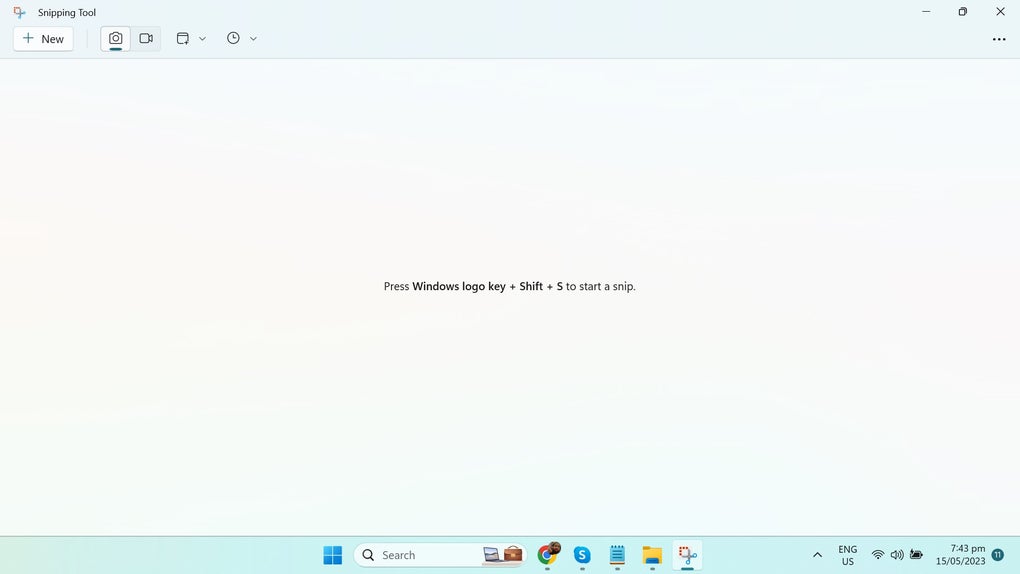
Snipping Tool’s primary strength lies in its simplicity. The user interface is minimalistic, featuring clearly labeled options for different capture modes: rectangular snip, free-form snip, window snip, and full-screen snip. This allows users to quickly select the desired area of the screen to capture without navigating complex menus or settings. Once a screenshot is captured, it’s automatically saved to the user’s device or copied to the clipboard, enabling seamless sharing via email, messaging apps, or other applications. The process is intuitive, requiring minimal technical expertise, making it accessible to users of all skill levels.
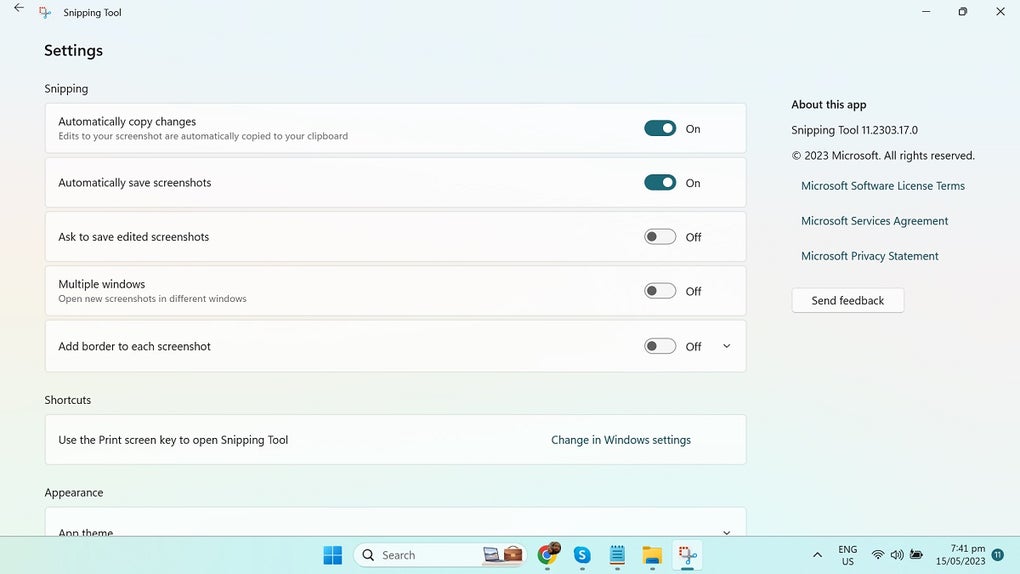
The tool also provides basic annotation capabilities. Users can add highlights, text, arrows, and various shapes directly to their screenshots, enhancing clarity and allowing for efficient communication. This integrated annotation functionality eliminates the need to switch to a separate image editing program for simple annotations, streamlining the workflow. While these editing functions are basic, they are sufficient for many common use cases, such as pointing out specific details in a screenshot or adding contextual information.
Furthermore, Snipping Tool allows for some basic image editing, including cropping and resizing. This functionality allows for quick adjustments without resorting to more complex image editing software. However, these editing options are limited, and users requiring more advanced editing features will likely need to use a dedicated image editing program.
Comparison with Alternative Screenshot Tools
While Snipping Tool excels in simplicity and ease of use, it lacks the advanced features offered by many third-party screen capture tools. These alternatives often provide functionalities such as:
- Advanced Editing Tools: More sophisticated options for image manipulation, including color adjustments, filters, and more extensive drawing tools.
- Image Effects: The ability to add visual effects to screenshots, such as blurring sensitive information or enhancing contrast.
- Multiple File Format Support: Saving screenshots in a wider range of formats (e.g., PNG, JPG, GIF, TIFF) beyond the basic BMP format offered by Snipping Tool.
- Screen Recording: Many advanced tools offer the ability to record screen activity, creating video captures rather than just static images.
- Scheduling and Automation: Features allowing users to schedule automatic screenshots or recordings.
- Integration with other applications: Seamless integration with other productivity tools and workflows.
For users who require only basic screen capture and annotation functionality, Snipping Tool offers a perfectly adequate solution. However, those needing advanced features, such as screen recording, extensive editing capabilities, or specific file format support, will need to explore more comprehensive screen capture software. The choice between Snipping Tool and a more feature-rich alternative depends entirely on the user’s specific needs and workflow requirements.
Strengths and Weaknesses
Strengths:
- Simplicity and Ease of Use: The straightforward interface makes it accessible to all users, regardless of technical proficiency.
- Quick Capture: The speed and efficiency of capturing screenshots are noteworthy.
- Basic Annotation: The integrated annotation tools suffice for many common annotation tasks.
- Free and readily available: Pre-installed on many Windows systems, it requires no additional downloads or installations for most users.
- Minimal System Resources: It operates efficiently without consuming significant system resources.
Weaknesses:
- Limited Feature Set: Lacks advanced features compared to other screen capture software.
- Basic Editing Capabilities: Offers only rudimentary image editing functionalities.
- Limited File Format Support: Saving is primarily restricted to the BMP format.
- No Screen Recording: Does not support screen recording capabilities.
- No advanced options: Lacks features such as scrolling capture, scheduling, and automation.
User Experience and Overall Assessment
The user experience with Snipping Tool is largely positive for those seeking a simple and efficient screen capture tool. The intuitive interface and quick capture process make it a convenient option for everyday use. However, users expecting advanced features or a wider range of functionalities might find it limiting. The absence of screen recording, advanced editing tools, and diverse file format support is a significant drawback for many.
In conclusion, Snipping Tool serves as a valuable tool for users requiring a basic and user-friendly screen capture solution. Its simplicity and ease of use are its most significant strengths. However, its limitations regarding advanced features mean it’s not suitable for all users. Those who require more comprehensive functionality, such as advanced editing, screen recording, or diverse file format support, should explore alternative screen capture software that cater to their specific needs. The tool’s effectiveness hinges on understanding its limitations and choosing it appropriately based on individual requirements. For casual users needing quick and easy screenshots with basic annotations, Snipping Tool remains a highly effective and readily accessible solution. For power users, however, it falls short and a more robust alternative is necessary.
File Information
- License: “Free”
- Version: “11.2302.20.0”
- Latest update: “March 11, 2024”
- Platform: “Windows”
- OS: “Windows 10”
- Language: “English”
- Downloads: “119.3K”


