
Snipping Tool++ is a free, open-source Windows application designed to simplify the process of capturing screenshots and uploading them online. While offering a basic yet functional interface, it streamlines several tasks associated with screen capturing, making it a convenient choice for users with varying levels of technical expertise. This review delves into the features, usability, advantages, and limitations of Snipping Tool++, comparing it to alternative screenshot utilities available for Windows.
Ease of Use and Core Functionality
Snipping Tool++ distinguishes itself from other screen capture tools through its intuitive design and straightforward functionality. Unlike some applications that overwhelm users with numerous options, Snipping Tool++ maintains a clean and minimalist interface, prioritizing ease of use. The core functionality revolves around capturing screenshots, editing them with basic tools, and uploading them directly to various online platforms.
The application offers two primary capture modes: a rectangular selection tool allowing users to precisely define the area to capture, and a full-screen capture option for grabbing the entire desktop content instantly. These modes are easily accessible through a clear “Mode” menu, eliminating the need for cumbersome keyboard shortcuts or multiple clicks. This simple approach significantly reduces the learning curve, making the software accessible to both novice and experienced computer users.
Upon capturing a screenshot, Snipping Tool++ saves the image directly to the user’s designated folder, eliminating the intermediate step of copying and pasting into a separate image editor. This default saving location is customizable, ensuring that screenshots are consistently stored in a user-defined directory. This feature alone contributes significantly to the overall efficiency of using the software.
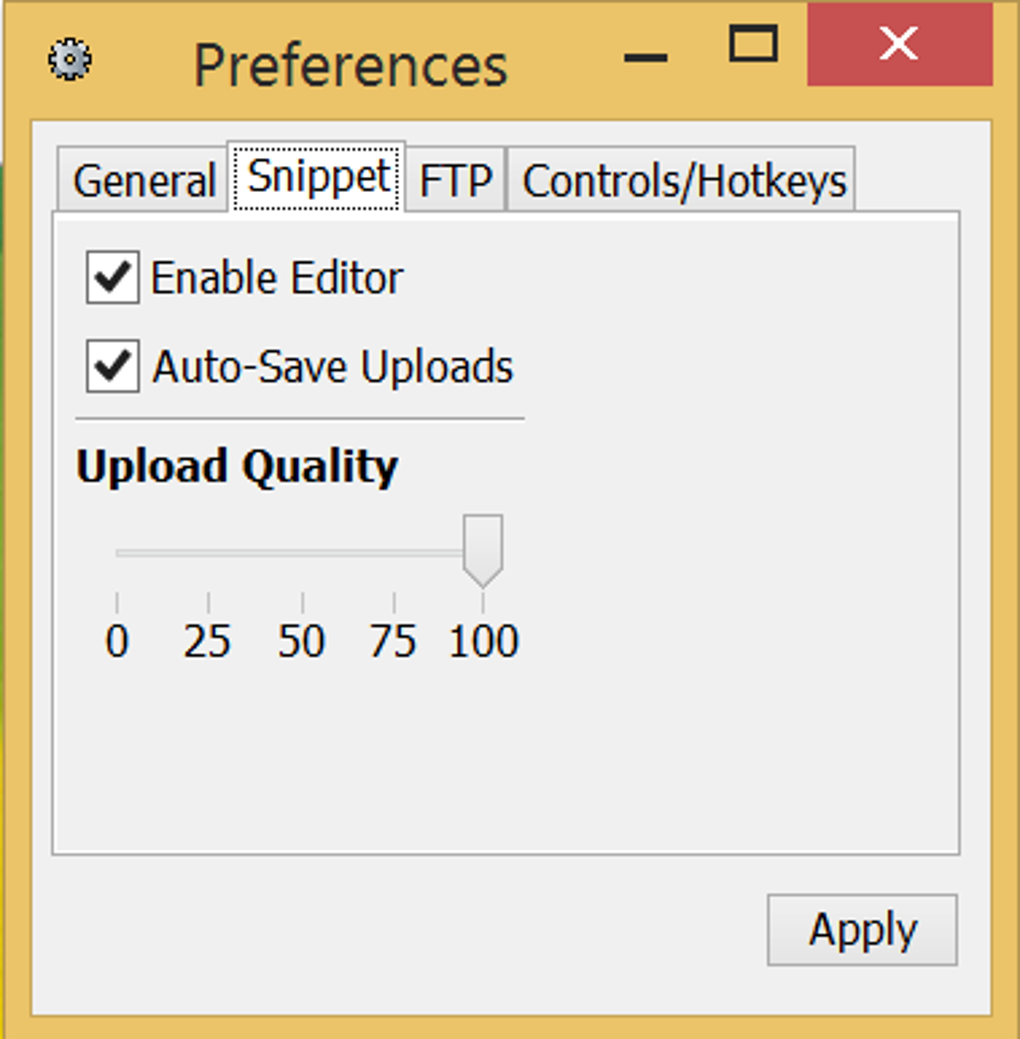
The lightweight nature of Snipping Tool++ ensures minimal impact on system performance. The small application footprint minimizes resource consumption, preventing slowdowns or crashes even when used extensively. This efficiency is crucial for users working on systems with limited processing power or memory.
Advanced Features and Image Editing Capabilities
Beyond its basic screen capture functionalities, Snipping Tool++ incorporates several advanced features to enhance user experience and workflow. These features add versatility, enabling users to perform tasks that would otherwise require multiple applications.
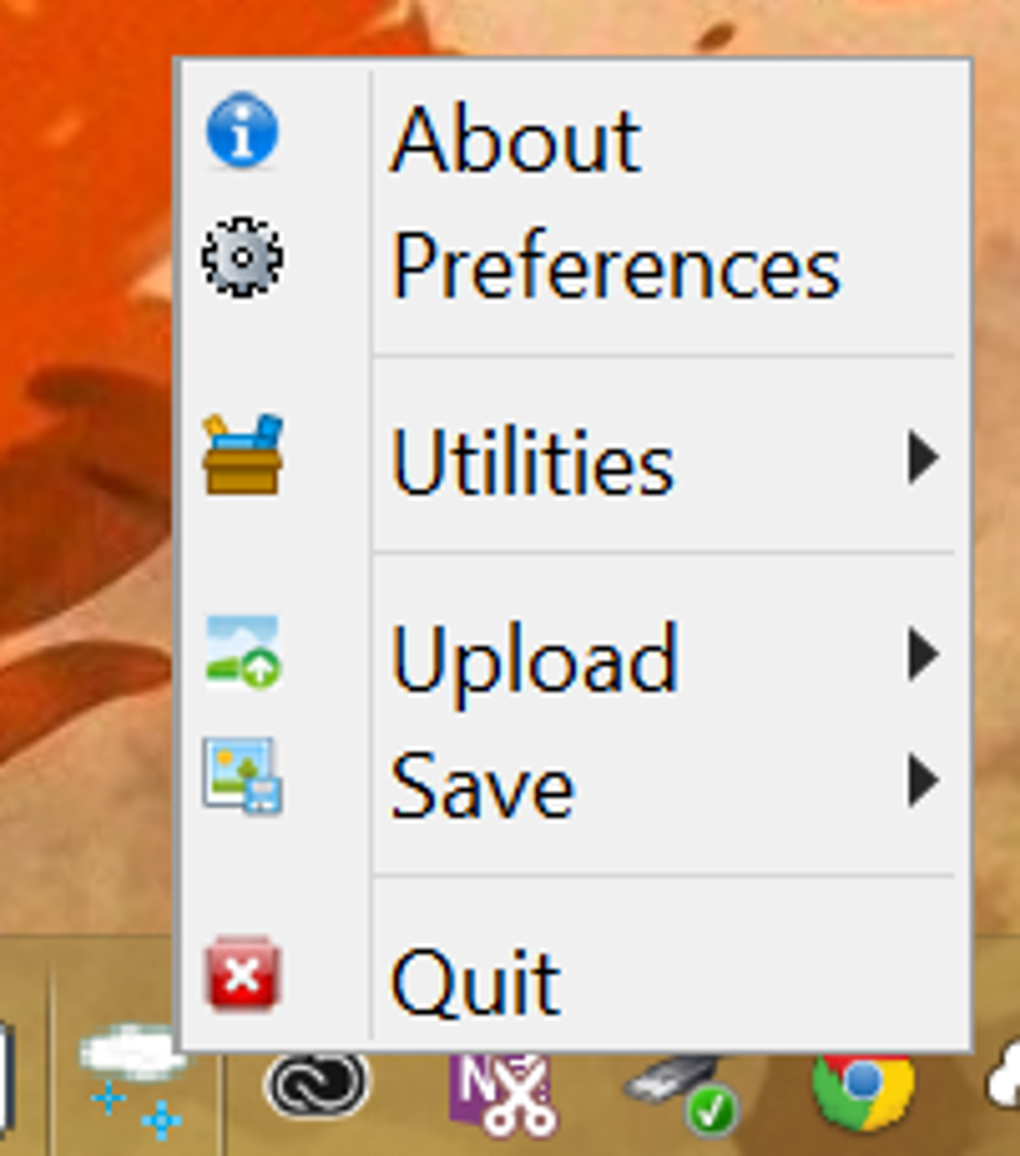
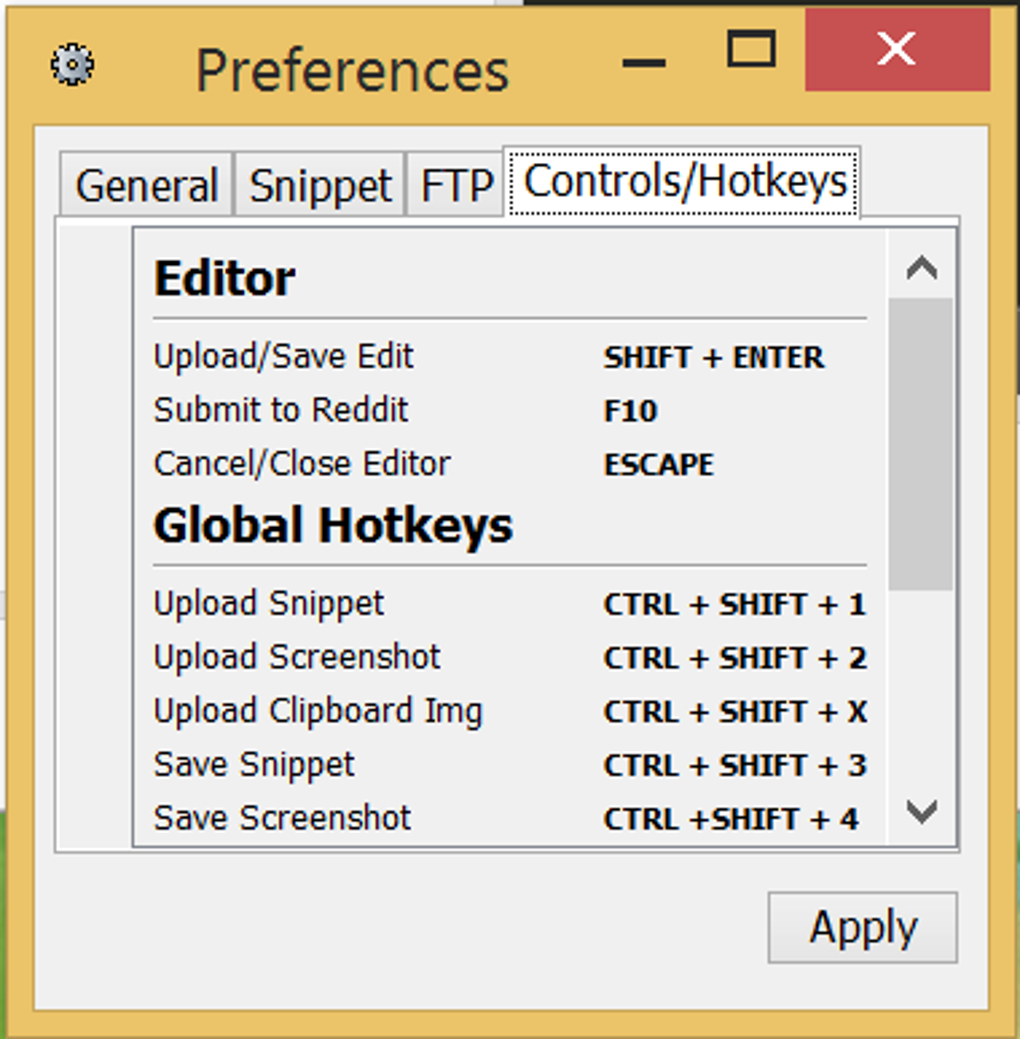
The “Preferences” menu offers extensive customization options. Users can define hotkeys for quick access to the application and its various functionalities, such as initiating a capture or initiating the upload process. This feature significantly speeds up workflows, particularly for users who frequently take screenshots. The customizable hotkeys can be adapted to match individual preferences and keyboard layouts.
A particularly useful feature is the built-in multi-image uploader, accessible via the “Utilities” menu. This allows users to upload multiple screenshots simultaneously, significantly reducing the time and effort required for sharing multiple images online. This is particularly helpful when compiling several screenshots for presentations, tutorials, or online documentation.
The built-in image editor offers basic but sufficient editing capabilities for most users. These tools include the ability to add freehand drawings, shapes, lines, and text to the captured images. Users can adjust the opacity, color, and even the RGB and CMYK values of these elements, allowing for customization and highlight specific aspects of the screenshot. The option to blur sections of the image adds another layer of control, useful for concealing sensitive information or enhancing the visual appeal of the screenshot.
The program saves images by default in PNG format, known for its lossless compression and compatibility with diverse applications. However, users might need to consider converting images to other formats if specific platforms or applications have format-related limitations.
Uploading Screenshots and Integration with Online Platforms
One of Snipping Tool++’s key advantages is its seamless integration with online platforms. The built-in upload functionality allows users to easily share their screenshots to a variety of image hosting sites. This simplifies the process of sharing captured images for various purposes, from quickly posting to social media to contributing to online discussions or forums.
While not explicitly limiting itself to one platform, the intuitive interface highlights Imgur as a primary destination for uploading. The speed and efficiency of uploading to Imgur make it convenient for quick sharing across social media platforms or online forums.
Furthermore, Snipping Tool++ maintains a history of upload links, providing easy access to previously shared images. This feature is particularly helpful when needing to reference or revisit past captures, reducing the time spent searching for links. The option to delete uploaded images directly from the application adds to this functionality. This is a valuable feature for managing uploaded content and maintaining control over online presence.
Beyond image hosting sites, Snipping Tool++ also supports uploading images to personal FTP servers. This opens up avenues for users who prefer to manage their images on private servers rather than relying on third-party services. This expands the versatility of the software significantly.
Comparison with Alternative Screenshot Utilities
While Snipping Tool++ offers a convenient solution for many users, it’s essential to consider its strengths and weaknesses against alternative screenshot utilities. Several applications offer more comprehensive features but often at the cost of increased complexity or resource consumption.
Snagit: A popular alternative, Snagit offers advanced features like video recording and more sophisticated editing options. However, it’s a commercial product, and its advanced features may be unnecessary for users who only require basic screenshot capture and sharing.
Greenshot: This free, open-source application focuses on advanced editing tools, but its upload capabilities are less extensive than Snipping Tool++. It’s a strong contender for users prioritizing powerful image editing over seamless online sharing.
LightShot: Another popular choice, LightShot excels in its simplicity and quick access. Its lack of robust features, similar to Snipping Tool++, makes it a strong alternative for its ease of use.
The choice between Snipping Tool++ and these alternatives depends largely on individual needs and priorities. For users who prioritize ease of use, simple image editing, and effortless uploading, Snipping Tool++ is an excellent choice. For users requiring more comprehensive editing or advanced features such as video capture, the alternative applications mentioned above might be more suitable.
System Requirements and Limitations
Snipping Tool++’s primary limitation is its reliance on the Java Runtime Environment (JRE). This dependency might deter users who prefer applications without external dependencies or have concerns about installing additional software. The software developer should consider exploring options to reduce or eliminate the reliance on JRE for future versions to expand usability.
Beyond the JRE dependency, the program’s editing functionality remains relatively basic. Users seeking advanced image manipulation tools, such as those offered by professional image editing software like Photoshop, will find Snipping Tool++’s capabilities limited. This simplicity, however, works in the software’s favor as it allows for ease of use and minimal performance impact.
The software’s compatibility with various Windows versions is not thoroughly detailed in the provided text. While it’s mentioned to work with Windows 7, 8, and 10, confirming its compatibility with the latest Windows versions is crucial for potential users to make an informed decision.
Conclusion
Snipping Tool++ effectively bridges the gap between simple screen capture tools and more advanced applications. Its intuitive interface, user-friendly design, and convenient upload features make it a strong contender in the crowded screenshot utility market. While its limitations concerning JRE dependency and basic editing tools should be considered, it remains a valuable and efficient tool for users prioritizing ease of use and quick online sharing. For users looking for a lightweight, straightforward, and effective way to capture and share screenshots, Snipping Tool++ presents a compelling and free solution.
File Information
- License: “Free”
- Latest update: “July 15, 2022”
- Platform: “Windows”
- OS: “Windows NT”
- Language: “English”
- Downloads: “1.7M”
- Size: “3.78 MB”


