
Soundflower, a free system extension for macOS, allows users to route audio between applications. This seemingly simple function opens up a world of possibilities for audio manipulation, recording, and creative projects. However, its installation and use aren’t always straightforward, leading to some user frustration. This article delves into the capabilities, complexities, and alternatives to Soundflower, providing a comprehensive overview for both novice and experienced users.
Understanding Soundflower’s Functionality
Soundflower acts as a virtual audio device, bridging the gap between different applications that wouldn’t normally communicate directly. Imagine you’re watching a movie in your web browser and want to record its soundtrack using QuickTime. Soundflower emulates the interface of a physical audio device, allowing both applications to exchange audio seamlessly without needing additional software or complex configurations. This inter-application audio driving capability makes it a powerful tool for various audio-related tasks. It’s essentially a conduit, enabling applications to send and receive audio signals without direct connections.
Initially released in 2004 by Cycling ‘74 as an open-source project, Soundflower’s longevity has been challenged by the evolving audio architecture of macOS. While it still functions, the increased security measures implemented by Apple in recent macOS versions have made its installation more challenging. This increased complexity is a major drawback often reported by users.
Installation and Compatibility Challenges
Downloading and installing Soundflower involves running the Soundflower Installer.pkg. However, this process isn’t always smooth sailing. Older versions of macOS presented relatively simpler installation processes; however, modern versions (macOS High Sierra, Mojave, and Catalina, and later) introduce significant hurdles. The most common issue is that the initial installation attempt fails due to kernel extension restrictions. Apple’s enhanced security protocols require users to explicitly grant permissions for Soundflower to load.
This often involves navigating to System Preferences > Security & Privacy > General, and then clicking the “Allow” button for Soundflower (developer: MATT INGALLS). Only after granting this permission can the installation be successfully completed. This additional step represents a significant departure from previous, less restrictive installation procedures and often causes confusion for users who are unfamiliar with macOS security settings. The lack of clear, step-by-step instructions within the installer package itself exacerbates the problem, forcing users to seek solutions online, adding to the frustration.
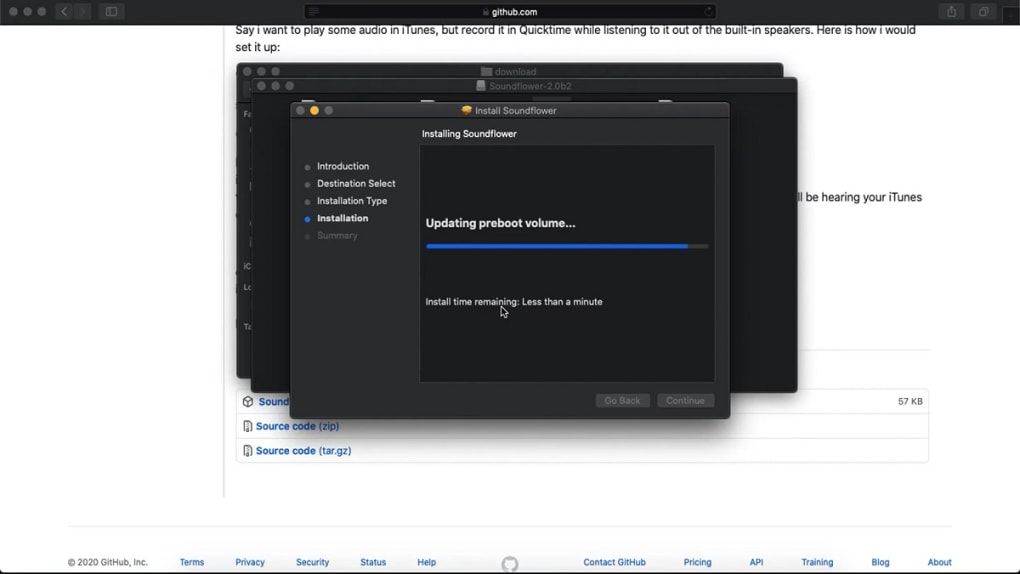
Successfully navigating the installation process reveals a program that is surprisingly efficient. Once installed, Soundflower boasts very low latency and minimal CPU usage, ensuring that it doesn’t negatively impact your computer’s overall performance. This efficiency is a significant advantage, making it a suitable tool even for resource-intensive tasks.
Practical Applications of Soundflower
Soundflower’s versatility extends to a wide array of scenarios. Here are some of its most common uses:
-
Recording Interviews: Capture audio from applications like Skype or FaceTime, providing a balanced recording of both voices, ideal for professional-grade production.
-
Web-Based Audio Capture: Record audio from online sources, such as frequency generators or online audio players, that might not offer direct download options. This allows users to save and manipulate sounds that are only accessible through a web browser.
-
Creative Resampling: Route audio from various applications like iTunes or Spotify to manipulate and re-sample audio in digital audio workstations (DAWs). This opens possibilities for creative audio processing and manipulation.
-
Recording System Audio: Capture audio generated directly by your Mac, including sound from external devices connected via USB or sound input ports. This feature allows users to document sounds originating from any source connected to the computer.
Configuring and Using Soundflower
Soundflower presents itself as two core audio devices: a 2-channel device and a 64-channel device. The 2-channel device is sufficient for most users, while the 64-channel option caters to more complex routing scenarios involving multiple applications. The included Readme file offers instructions, though these are heavily geared towards users of Max/MSP, a specialized visual programming language. Users unfamiliar with Max/MSP will find themselves needing to seek external tutorials.
To use Soundflower, navigate to System Preferences > Sound. You’ll find Soundflower listed under both the Output and Input tabs. Selecting Soundflower (2ch) as your output routes all audio from your Mac through Soundflower. This includes not only the target audio but also system sounds, notifications, and alerts. Changes to your Mac’s volume will also be reflected in the recorded audio.
To record this audio, applications like QuickTime Player or GarageBand can be utilized. In QuickTime, select “New Audio Recording,” and choose Soundflower (2ch) as the input source. The recording will capture everything routed through Soundflower.
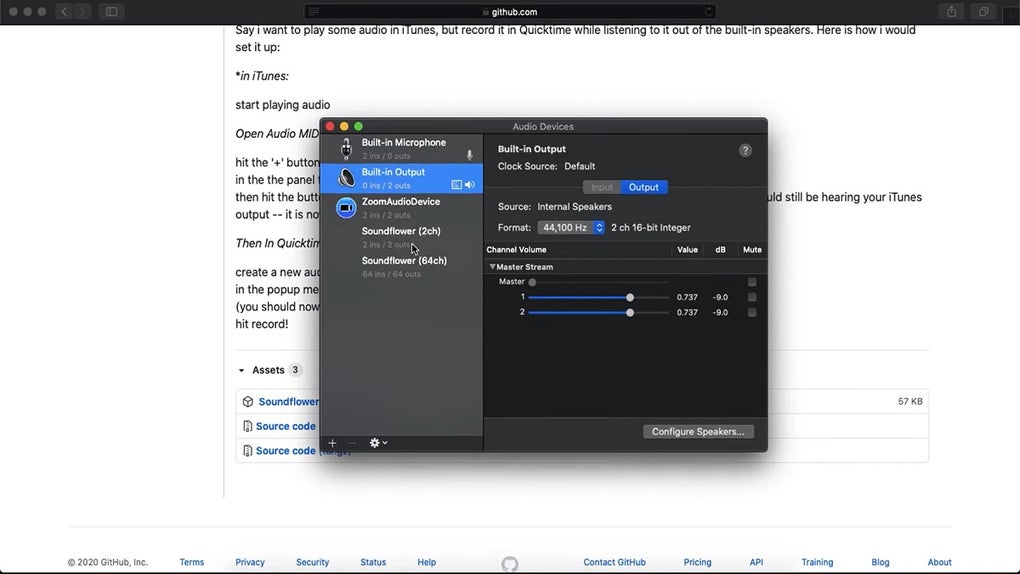
One significant drawback is the inability to hear audio through your speakers or headphones while Soundflower is set as the output device. This silence can be circumvented using alternative software like Audio Hijack Pro or other audio recording applications. Some users also report initial interference, which can often be resolved by adjusting buffer sizes in the relevant applications.
Alternatives to Soundflower
While Soundflower offers a free and efficient solution, its limitations, particularly the installation process and lack of user-friendly documentation, have led many to seek alternatives. These alternatives often come with a price tag but typically offer smoother installation, better documentation, and more advanced features. Popular options include:
- Audio Hijack Pro: A paid application providing more refined audio routing capabilities and control.
- Loopback: Another paid option known for its robust features and ease of use.
- BlackHole: A free, open-source alternative, similar in function to Soundflower, but often viewed as a more user-friendly replacement.
- iShowU: While not a direct replacement for Soundflower’s core functionality, iShowU offers screen recording capabilities that can be paired with audio recording tools.
Soundflower: A Summary of Pros and Cons
Pros:
- Free: Soundflower is a cost-effective solution for simple audio routing needs.
- Effective: Provides a reliable way to route audio between applications.
- Low Latency and CPU Usage: Minimizes the impact on system performance.
- Works directly with Mac’s audio architecture: Provides a streamlined integration for simpler tasks.
- Supports 2 and 64-channel audio: Offers flexibility for different routing complexities.
Cons:
- Challenging Installation: The installation process can be problematic on newer macOS versions.
- Poor Documentation: Lack of user-friendly instructions and tutorials.
- Captures All System Sounds: Records all audio output, including system notifications.
- Mutes External Speakers/Headphones: Prevents audio playback through external devices.
- Potential for Interference: Some users encounter audio interference upon initial setup.
Soundflower remains a viable option for users comfortable with troubleshooting and seeking a free solution. However, the limitations, especially the difficulties surrounding installation and the lack of comprehensive documentation, suggest that users seeking a more user-friendly experience might find better alternatives in paid software solutions. The choice ultimately depends on individual needs and technical proficiency.
File Information
- License: “Free”
- Latest update: “May 19, 2023”
- Platform: “Mac”
- OS: “Mac OS X”
- Language: “English”
- Downloads: “2.2M”
- Size: “58.34 KB”


