
SoundTap is a versatile audio recording application designed for Windows and Mac operating systems. It offers a straightforward approach to capturing virtually any audio playing through your computer, making it a valuable tool for various applications, from recording internet radio streams to archiving important VoIP conversations. This comprehensive guide will delve into the functionalities, applications, and user experiences surrounding SoundTap, highlighting its strengths and limitations.
Understanding SoundTap’s Core Functionality
At its heart, SoundTap functions as a virtual audio driver. This means it intercepts the audio stream at a low level, before it reaches your sound card’s output. This process ensures pristine digital quality, eliminating the potential for degradation that can occur with other recording methods relying on line-in or microphone inputs. The software allows you to record audio in either WAV or MP3 formats, offering flexibility in terms of file size and compatibility. The simplicity of its interface belies its powerful capabilities. Users simply need to install the software, activate the recording function, and let SoundTap capture all the audio being played on their computer. This effortless approach makes it accessible to users of all technical skill levels.
The virtual driver approach offers several advantages. First, it bypasses the limitations of traditional recording methods, ensuring clean, high-quality recordings even with complex audio streams. Second, it allows for the recording of audio sources that are inaccessible via conventional input methods, such as those originating directly from a computer’s internal processes. This makes SoundTap particularly useful for recording streaming audio from online services, internet radio, or even audio within video games.
Beyond its core function of simple audio capture, SoundTap implicitly addresses several specific user needs. Its ability to record VoIP calls and instant messaging conversations makes it relevant in professional contexts where call recording may be necessary for legal or quality assurance purposes. Similarly, the software is invaluable for archiving audio from proprietary formats, converting them to widely compatible WAV or MP3 files for easier sharing and accessibility. The software also proves its worth as a reliable tool for recording streaming audio conferences, providing a convenient way to document important meetings or presentations.
SoundTap Applications: A Wide Range of Use Cases
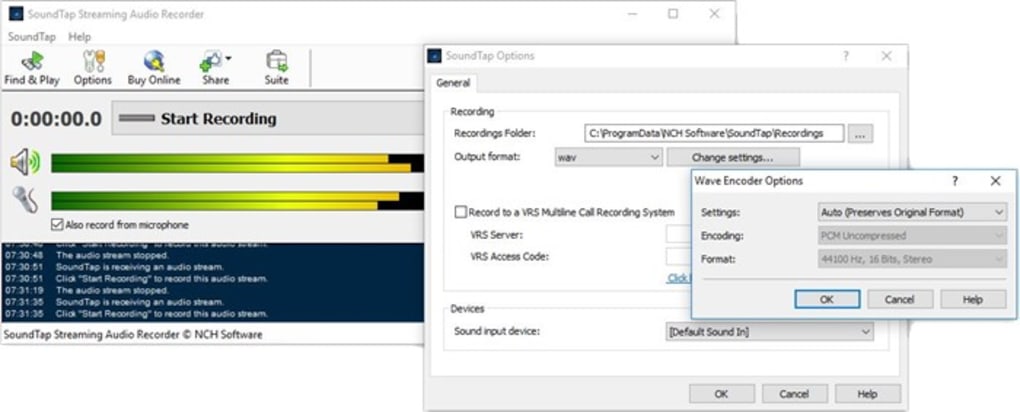
The versatility of SoundTap makes it suitable across a wide range of scenarios. Here are some key applications:
-
Streaming Audio Recording: Record internet radio broadcasts, podcasts, or any other streaming audio content for later offline listening. The high-quality capture ensures that the recorded audio maintains the fidelity of the original source.
-
VoIP Call Recording: Capture VoIP calls for legal, training, or personal archiving purposes. This functionality is particularly useful for businesses that need to maintain records of customer interactions or for individuals who need to document important conversations. This feature underscores SoundTap’s adaptability in both professional and personal settings.
-
Instant Messaging Audio Recording: Record audio from instant messaging applications, allowing for preservation of important conversations or collaborations. This feature provides a robust solution for situations where written communication may be insufficient or where a recorded audio record adds significant value.
-
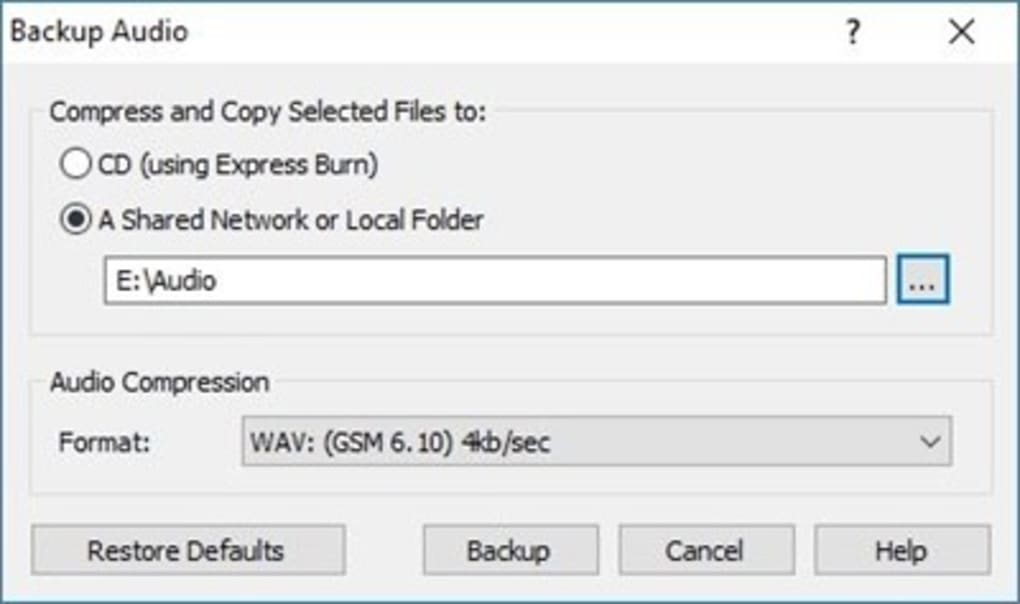
Audio File Conversion: Convert audio files from proprietary formats to standard WAV or MP3, ensuring compatibility across different devices and software. This capability simplifies the process of handling files from various sources and ensures broader accessibility for your audio files.
-
Streaming Audio Conference Recording: Record audio from webinars, online meetings, or conferences, providing a permanent record of the proceedings. This feature eliminates the need for manual note-taking during online sessions and ensures that key information is captured accurately.
User Experiences and Reviews: A Balanced Perspective
User reviews of SoundTap present a mixed but largely positive picture. Many users praise the software’s ease of use and reliable performance in capturing high-quality audio. The software’s ability to seamlessly record audio from various sources, including challenging streams such as those found in VoIP applications, is frequently highlighted. The intuitive interface is another recurring positive point, with users often emphasizing its simplicity, which facilitates quick and easy recording sessions.
However, some criticisms also surface. A common complaint centers on the lack of advanced control features during recording. Users express a desire for options to adjust volume, fade in/out, or perform other real-time edits during the recording process. This limitation necessitates the use of post-production audio editing software for fine-tuning the recorded audio, adding an extra step to the workflow for some users.
SoundTap Compared to Alternatives: Identifying Strengths and Weaknesses
While SoundTap offers a robust solution for capturing various audio streams, it’s essential to compare it to other available options to fully understand its position in the market. Compared to professional-grade audio recording software, SoundTap might lack advanced features such as multi-track recording, advanced editing capabilities, or sophisticated audio effects. However, its simplicity and ease of use set it apart from complex applications, making it an ideal choice for users who prioritize straightforward functionality over extensive feature sets.
Its main strength lies in its accessibility and reliability in capturing otherwise difficult-to-record audio streams. This makes it a practical choice for users who don’t require extensive audio editing capabilities but need a simple and reliable tool to capture audio from online sources or communication applications. The absence of advanced features, however, may be a significant drawback for users who need more control over the recording process or require more sophisticated audio manipulation capabilities.
SoundTap’s Strengths and Limitations Summarized
To provide a clear summary, here’s a breakdown of SoundTap’s key strengths and weaknesses:
Strengths:
- Ease of use: Simple interface and straightforward operation make it accessible to users of all technical skill levels.
- High-quality recording: Virtual driver technology ensures clean, high-fidelity audio capture.
- Wide range of compatible audio sources: Records from streaming audio, VoIP calls, instant messaging, and other sources.
- Versatile output formats: Supports WAV and MP3, ensuring broad compatibility.
- Reliable performance: Users report consistent and reliable audio recording, even with challenging audio streams.
Limitations:
- Lack of advanced recording controls: Limited real-time editing options necessitate post-production processing.
- No multi-track recording: Can only record one audio stream at a time.
- Absence of advanced audio editing features: Lacks features like noise reduction or audio effects.
- Trial version limitations: Full functionality requires purchase of the licensed version.
In conclusion, SoundTap presents a solid solution for users seeking a straightforward and reliable method for recording audio from a variety of sources. While it lacks the advanced features of professional audio recording software, its ease of use, high-quality capture, and wide compatibility make it an attractive option for those with simpler needs. The decision of whether or not SoundTap is the right choice ultimately depends on the individual user’s specific requirements and technical expertise. Weighing the software’s strengths against its limitations will help you determine if SoundTap aligns with your needs.
File Information
- License: “Trial version”
- Latest update: “June 11, 2025”
- Platform: “Windows”
- OS: “Windows XP”
- Language: “English”
- Downloads: “23.9K”
- Size: “1.94 MB”


