
Streaming content from your computer to your Chromecast device opens up a world of entertainment possibilities. Whether you’re looking to share photos, videos, or simply enjoy your favorite shows on a bigger screen, Chromecast offers a seamless and convenient way to do so. However, the process isn’t always straightforward, and understanding the nuances of different streaming methods is key to a smooth experience. This guide explores the various ways to stream to Chromecast, troubleshooting common issues, and highlighting the best practices for optimal performance.
Understanding Chromecast and its Capabilities
Chromecast is a digital media player that plugs into your HDMI port, turning your TV into a smart screen. It seamlessly integrates with various devices and operating systems, allowing you to cast content from your phone, tablet, or computer. While the device itself is relatively simple, the methods for streaming can differ, depending on your source material and the app you are using. The core functionality revolves around casting content from compatible applications. This means that the source device (your computer) needs a compatible app that supports Chromecast functionality, and the content needs to be in a format that Chromecast supports.
One crucial point to remember is that Chromecast doesn’t work like screen mirroring. It doesn’t simply duplicate your computer’s entire desktop. Instead, it receives a specific stream of data from the chosen application. This means that you won’t be able to mirror everything happening on your computer screen – only the content within a compatible application. Attempting to mirror your entire desktop usually results in laggy, poor-quality video, which undermines the point of using a Chromecast.
Methods for Streaming to Chromecast from Your Windows PC
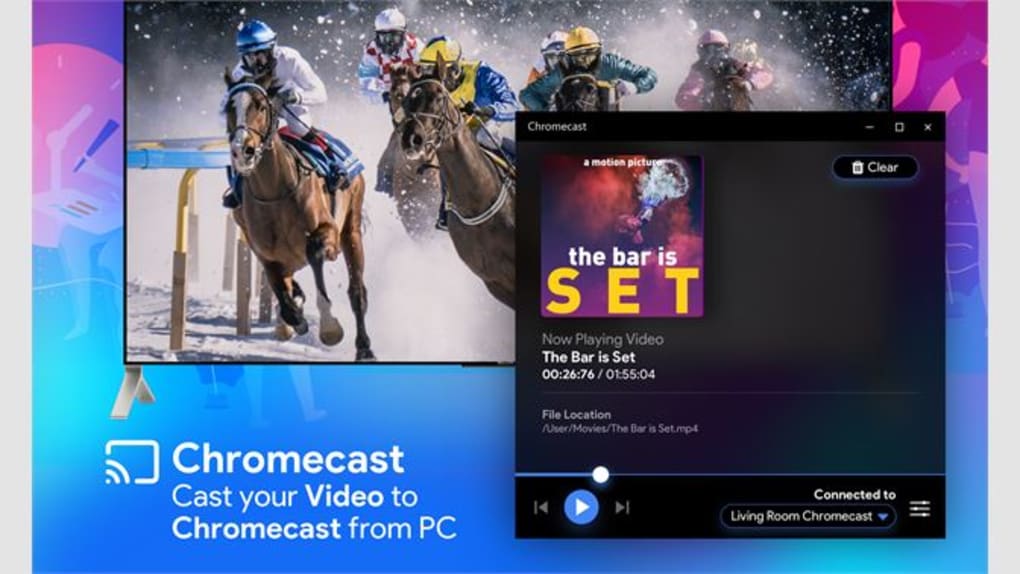
There are several approaches to streaming content from your Windows PC to your Chromecast device. The ideal method depends on the type of content you wish to stream.
1. Using Chromecast-Enabled Apps: This is the most straightforward and generally recommended approach. Many popular streaming services, such as Netflix, YouTube, and Spotify, have built-in Chromecast functionality. If you are using one of these services, simply open the app, select the content you wish to watch, and look for the Chromecast icon. Clicking on this will initiate the casting process, and the content will appear on your TV screen. This method is often the most reliable and offers the best streaming quality because it is optimized for Chromecast. You won’t have any issues with resolution or compatibility as long as your internet connection is stable.
2. Browser Extensions and Web Apps: Several browser extensions enhance Chromecast functionality for specific browsers like Google Chrome. These extensions often provide additional casting options and features beyond those available in individual apps. For example, you might find extensions that allow you to cast a specific tab instead of your entire browser window. The selection of available extensions can change, so it is advisable to check your browser’s extension store for relevant tools to enhance your Chromecast streaming experience.
3. Using Third-Party Streaming Software: Various third-party applications are designed to facilitate streaming from your computer to Chromecast. While these apps might offer additional features, it is vital to select reputable and well-reviewed software to avoid malware or performance issues. Before installing any third-party software, ensure it has positive user reviews and a proven track record of reliability and security. Always download software from official websites to minimize the risk of installing malicious programs.
4. Screen Mirroring (Not Recommended for Streaming): While technically possible to mirror your Windows desktop to your Chromecast, this method is strongly discouraged for streaming video or audio content. Screen mirroring often results in significant lag, poor video quality, and a generally suboptimal viewing experience. The bandwidth required to mirror your entire screen is far greater than that required for casting specific applications. Screen mirroring is better suited for showcasing a presentation or displaying a static image briefly, but not for prolonged video streaming.
Troubleshooting Common Chromecast Streaming Issues
Despite the generally straightforward process, streaming to Chromecast can sometimes encounter problems. Here are some common issues and their solutions:
- Chromecast Not Showing Up: Ensure your Chromecast device and your computer are on the same Wi-Fi network. Restart both your Chromecast and your router. Check your Chromecast’s settings to verify it is discoverable. If your computer is connected to the internet via an Ethernet cable and your Chromecast is on Wi-Fi, there might be connection problems.
-
Poor Video Quality: A weak internet connection is the primary cause of poor video quality. Check your internet speed and consider closing other bandwidth-intensive applications while streaming. If the problem persists, consider restarting your router or contacting your internet service provider. Also, ensure the streaming application you’re using is optimized for video streaming. Some apps are better optimized for Chromecast than others.
-
Audio Sync Issues: A discrepancy between audio and video often points to network instability. Again, check your internet connection and close any applications consuming significant bandwidth. Restarting your Chromecast and router can resolve intermittent problems.
-
Streaming Stops Frequently: This problem likely stems from a poor internet connection or network congestion. Try disconnecting other devices from your Wi-Fi network or moving closer to your router. Check for interference from other electronic devices that might be affecting your Wi-Fi signal.
Optimizing Your Streaming Experience
To ensure the best possible streaming experience, consider these recommendations:
-
Strong and Stable Internet Connection: A reliable internet connection with sufficient bandwidth is crucial for smooth streaming. Aim for a download speed of at least 5 Mbps, but a higher speed is recommended for high-definition video.
-
Compatible Apps: Use applications known for their Chromecast compatibility and reliable performance. Read reviews before installing third-party streaming apps.
-
Network Optimization: Close unnecessary applications running on your computer to free up bandwidth and resources. Avoid downloading files or streaming other content while casting. Restarting your router regularly can improve network performance.
-
Chromecast Firmware Updates: Keep your Chromecast device’s firmware updated. Regular updates often include performance enhancements and bug fixes.
-
Device Compatibility: Ensure your computer and Chromecast device meet the minimum requirements for smooth streaming. Check the specifications of both devices to ensure they are compatible.
By following these guidelines and understanding the different methods available, you can seamlessly stream your favorite content from your Windows PC to your Chromecast device, enjoying a smoother and more enjoyable viewing experience. Remember to always prioritize using Chromecast-enabled apps for the best performance and stability. Using reputable third-party apps and keeping your software updated can also prevent potential problems. Choosing the right method and troubleshooting issues efficiently will significantly enhance your overall Chromecast streaming experience.
File Information
- License: “Free”
- Version: “1.0”
- Latest update: “August 15, 2024”
- Platform: “Windows”
- OS: “Windows 10”
- Language: “English”
- Downloads: “15.8K”


