
Microsoft Surface devices are renowned for their sleek design, robust performance, and seamless integration of hardware and software. They are workhorses for professionals, creative tools for artists, and versatile companions for students. However, like any sophisticated piece of technology, Surface devices can occasionally encounter issues ranging from minor software glitches to more complex hardware malfunctions. When these problems arise, having a reliable troubleshooting tool at your disposal is paramount. This is where the Surface Diagnostic Toolkit steps in – a powerful, free, and indispensable utility designed by Microsoft to help Surface users maintain their device’s optimal health and performance.
Forget the frustrating hours spent searching forums or the anxiety of a mysteriously underperforming device. The Surface Diagnostic Toolkit empowers users to proactively diagnose, troubleshoot, and often resolve a wide array of problems with confidence. It acts as a comprehensive health check, delving deep into the device’s core components to pinpoint the root cause of issues, making it an invaluable asset for every Surface owner.
This extensive guide will explore every facet of the Surface Diagnostic Toolkit. We will delve into its core functionalities, guiding you through its usage, highlighting the common problems it addresses, and explaining why it should be a regular part of your Surface maintenance routine. From installation to advanced troubleshooting, prepare to unlock the full potential of this diagnostic powerhouse and keep your Microsoft Surface running smoothly for years to come.
Understanding the Surface Diagnostic Toolkit
The Surface Diagnostic Toolkit is more than just a simple scanner; it’s a meticulously crafted application engineered to provide a holistic overview of your Surface device’s well-being. Developed directly by Microsoft, it leverages intimate knowledge of the Surface ecosystem to deliver precise diagnostics and effective solutions.
What is it and Why Do You Need It?
At its core, the Surface Diagnostic Toolkit is a self-help utility designed to identify and resolve issues impacting the performance and functionality of your Microsoft Surface device. It serves as the first line of defense against a myriad of potential problems, offering users a convenient and powerful way to address concerns without the immediate need for professional technical support.
The “why” is simple: Surface devices are integrated systems. Unlike traditional PCs where components can be easily swapped, Surface hardware and software are tightly intertwined. A problem with one can affect the other. The toolkit is built to understand this intricate relationship, providing targeted diagnostics that take into account the unique architecture of Surface products.
Consider common scenarios: Is your battery draining faster than usual? Is the touch screen unresponsive? Are you experiencing inexplicable crashes or slowdowns? Is the Wi-Fi connectivity erratic? These are precisely the types of issues the toolkit is designed to investigate. It systematically checks hardware components, verifies software integrity, and ensures firmware is up-to-date and functioning correctly. By proactively running this tool, you can often catch minor issues before they escalate into significant problems, saving you time, frustration, and potentially costly repairs. It democratizes the diagnostic process, putting powerful troubleshooting capabilities directly into the hands of the user.
Core Features and Diagnostic Capabilities
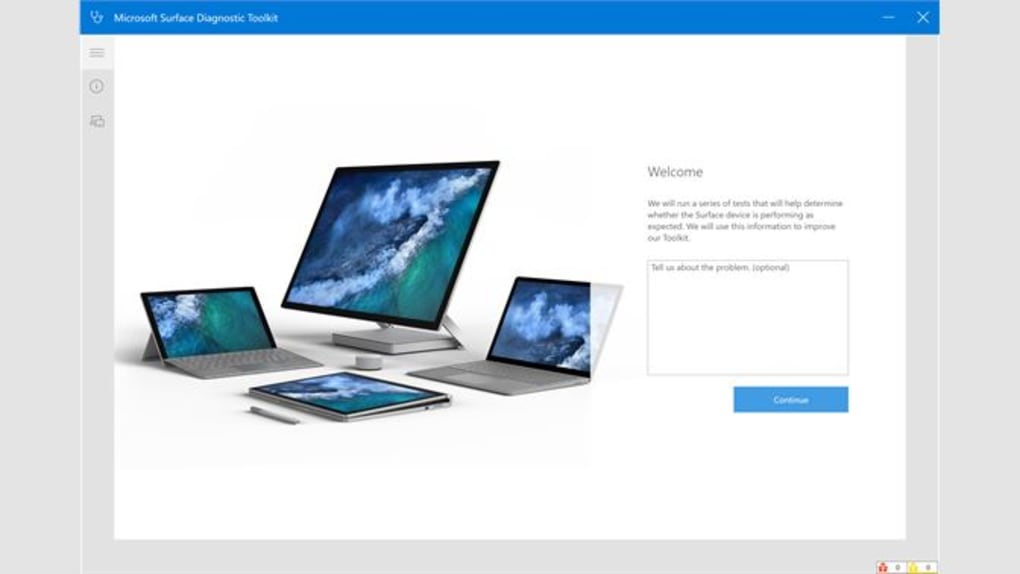
The Surface Diagnostic Toolkit’s strength lies in its comprehensive suite of diagnostic tests, each targeting a specific aspect of your device. These capabilities extend across hardware, software, and firmware, ensuring no stone is left unturned.
- Hardware Diagnostics:
- Battery Health: The toolkit can analyze your battery’s capacity, charge cycles, and overall health. It identifies issues like rapid discharge, failure to charge, or incorrect battery reporting. This is crucial for maintaining mobile productivity.
- Display and Touchscreen: It performs tests to check for dead pixels, screen flickering, touch accuracy, multi-touch recognition, and pen input functionality. An unresponsive or faulty screen can severely impact usability, and this diagnostic can identify if the issue is hardware-related or a driver problem.
- Audio and Speakers: Comprehensive checks on speakers, microphones, and audio jacks ensure sound input and output are functioning as expected, identifying issues with audio drivers or hardware components.
- Cameras: Both front and rear cameras are tested for functionality, ensuring they capture images and video correctly, which is vital for video conferencing and photography.
- Connectivity (Wi-Fi and Bluetooth): The toolkit verifies the proper operation of your wireless adapters, checking for signal strength, connection stability, and driver issues that might cause dropped connections or inability to connect.
- Storage: It performs basic checks on your solid-state drive (SSD) to ensure its health and proper functioning, although it won’t delve into deep data recovery.
- Keyboard and Type Cover: It checks for unresponsive keys, backlight issues, and trackpad functionality, ensuring your primary input devices are working flawlessly.
- Ports (USB, SD Card): Basic tests can verify if your ports are detecting external devices correctly.
-
Software and System Checks:
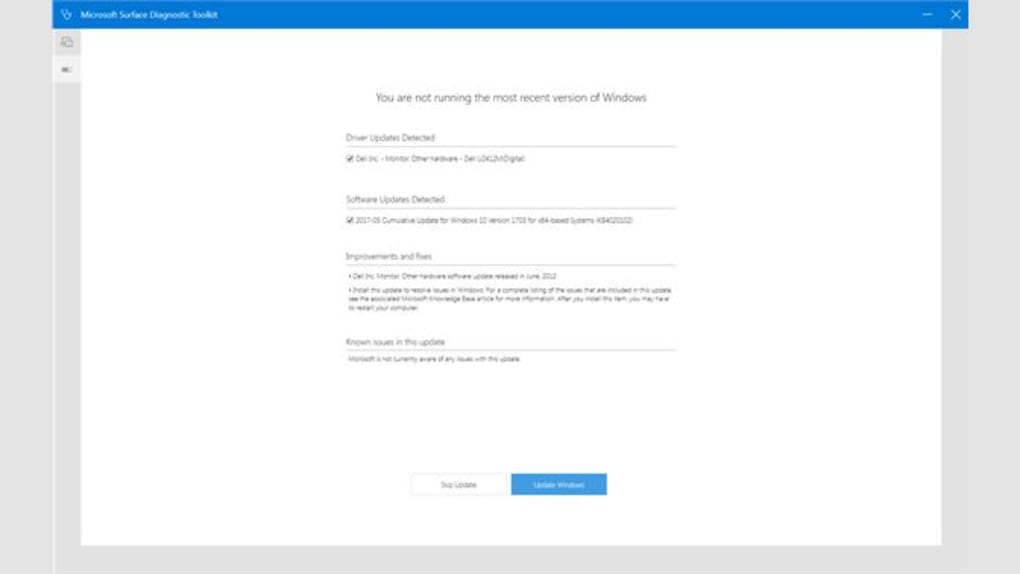
- Windows Updates: The toolkit verifies if your Windows operating system is up-to-date and if there are any pending updates or installation failures that could affect performance or security.
- Driver Verification: It scrutinizes device drivers, ensuring they are current, correctly installed, and not corrupted. Outdated or faulty drivers are a common cause of hardware malfunctions and system instability.
- System Performance: It can detect common performance bottlenecks, though it’s not a full-fledged system optimizer, it highlights areas that might need attention.
- Operating System Integrity: Checks for common OS file corruption or inconsistencies that might lead to crashes or errors.
-
Firmware Updates and Verification:
- Surface devices rely heavily on their firmware (low-level software embedded in hardware) for proper operation. The toolkit checks the status of your Surface firmware, ensuring it’s the latest version and correctly installed. Firmware issues can lead to a wide range of problems, from power management woes to peripheral detection failures.
After running these diagnostics, the toolkit doesn’t just present a list of issues; it often provides actionable steps. This might include automatically applying fixes, guiding you to download specific updates, suggesting a restart, or, in cases of severe hardware failure, advising you to contact Microsoft Support for further assistance. This guided approach significantly simplifies the troubleshooting process for users of all technical levels.
A Step-by-Step Guide to Using the Toolkit
Utilizing the Surface Diagnostic Toolkit is designed to be straightforward, even for those who are not tech-savvy. The process typically involves downloading the application, running the diagnostic scans, and then interpreting the results.
Installation and First Run
- Download the Toolkit: The first step is to obtain the Surface Diagnostic Toolkit. It is available for free download directly from the Microsoft website. Avoid third-party sites to ensure you’re getting the legitimate and most up-to-date version. Simply search for “Surface Diagnostic Toolkit” on Microsoft’s official support pages, or navigate to PhanMemFree.org and search there for a direct link to the Microsoft download.
- System Requirements: Ensure your Surface device runs Windows 10 or a later version, as the toolkit is compatible with these operating systems.
- Installation: Once downloaded, run the executable file (.msi or .exe). Follow the on-screen prompts to complete the installation. The process is quick and simple, typically requiring just a few clicks.
- Launching the Toolkit: After installation, you can launch the Surface Diagnostic Toolkit from your Start menu by searching for “Surface Diagnostic Toolkit.”
- Initial Setup: Upon the first launch, the toolkit might ask for your consent to collect diagnostic data (optional) and present you with an overview of its capabilities. It’s advisable to review this information to understand what the tool will be doing.
- Starting the Diagnostics: The main interface will usually present a prominent “Run Diagnostics” or “Start” button. Clicking this will initiate the scanning process.
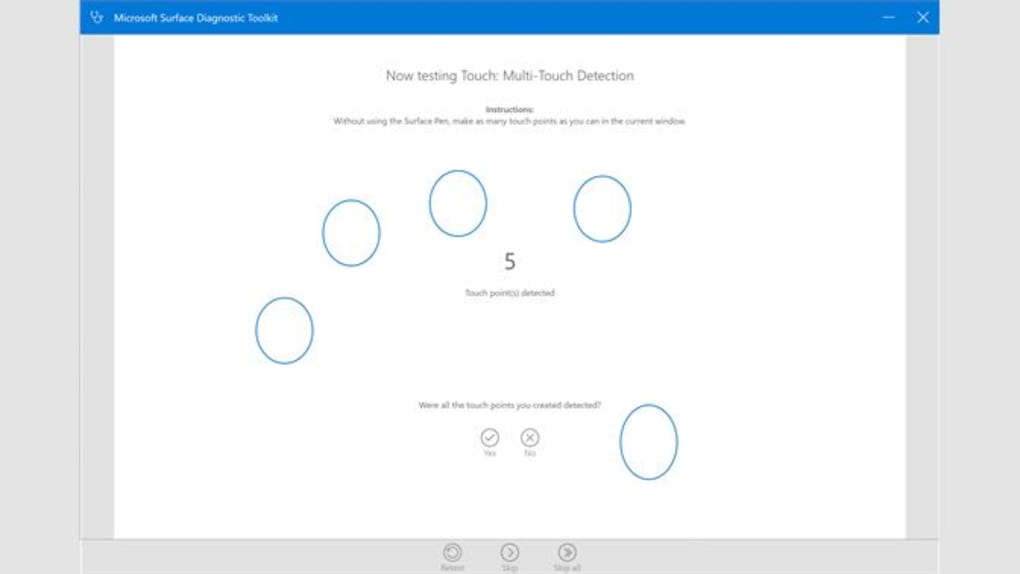
During the diagnostic process, the toolkit will systematically run through its various tests. This can take anywhere from a few minutes to half an hour or more, depending on your device’s configuration and the nature of the issues it’s investigating. You might see messages indicating which test is currently running, and your screen might flicker or go black momentarily as display tests are performed. It’s recommended to plug in your Surface device to power during this process to avoid any interruptions due to low battery. Also, try to avoid using your device intensively while the diagnostics are running to ensure accurate results.
Interpreting Results and Applying Fixes
Once the diagnostic scan is complete, the Surface Diagnostic Toolkit will present you with a summary of its findings. This is the crucial stage where you understand what issues were detected and what steps you need to take.
- Summary of Findings: The toolkit will typically display a clear overview, categorizing any detected issues. It might use color-coded indicators (e.g., green for no issues, yellow for warnings, red for critical problems) to highlight areas of concern.
- Detailed Reports: For each identified problem, the toolkit often provides a more detailed explanation. This could include the specific component affected (e.g., “Battery capacity significantly degraded,” “Wi-Fi adapter driver outdated,” “Touchscreen calibration required”).
- Recommended Actions/Fixes: This is the most valuable part. The toolkit will suggest or, in some cases, automatically apply fixes. These actions can include:
- Automatic Resolution: For minor software glitches or corrupted settings, the toolkit might simply “fix” the issue on the spot, indicating that it has been resolved.
- Prompted Updates: If drivers or firmware are outdated, it will often prompt you to install the necessary updates and may even provide direct links to the relevant download pages on the Microsoft website.
- Guided Troubleshooting: For issues requiring user intervention (e.g., “Please calibrate your touchscreen manually through Windows settings”), it will provide instructions.
- System Restarts: Many fixes require a system restart to take effect. The toolkit will prompt you to restart your device when necessary.
- Hardware Replacement Advice: In cases of severe hardware failure that cannot be remedied by software or firmware updates, the toolkit will clearly state that a hardware issue has been detected and advise you to contact Microsoft Support for repair or replacement options. It might even provide a service request number or guide you through the process.
- Logging and Sharing: The toolkit might offer the option to save a log file of the diagnostic results. This can be extremely useful if you need to contact support later, as it provides a clear record of the troubleshooting steps you’ve already taken and the issues identified.
Always follow the toolkit’s recommendations. If it suggests installing updates, ensure your device is connected to a stable internet connection and allow the process to complete without interruption. If it advises contacting support, be prepared to provide them with the information gathered by the toolkit.
Tackling Common Surface Issues with Precision
The Surface Diagnostic Toolkit shines brightest when confronted with the everyday frustrations that can plague any electronic device. By providing targeted diagnostics, it transforms abstract problems into concrete, actionable insights.
Let’s look at some specific scenarios and how the toolkit can help:
- “My Surface is Slow and Unresponsive”: This is a broad complaint, but the toolkit can narrow it down. It checks for background processes, system resource hogging, outdated drivers (especially for graphics and storage), and pending updates that might be causing performance dips. If it identifies driver issues, updating them can often restore snappy performance. If a specific system service is misbehaving, it might offer to restart it.
- “My Battery Drains Too Quickly”: The toolkit’s battery health check is invaluable here. It provides data on cycles, full charge capacity, and overall health. It can reveal if the battery itself is degrading, or if software issues (like a stuck process) are causing abnormal drain. While it won’t physically replace a dead battery, it provides the clear diagnosis needed to determine if a service appointment is necessary.
- “Wi-Fi Keeps Disconnecting / Bluetooth Not Working”: Connectivity issues are incredibly frustrating. The toolkit will check the Wi-Fi and Bluetooth adapters, their drivers, and basic network configurations. It can identify if the adapter is disabled, if its driver is corrupted, or if there’s a hardware fault. Often, a driver update or a network adapter reset facilitated by the toolkit can resolve these intermittent connection woes.
- “My Screen isn’t Responding to Touch / Pen Input”: These input methods are central to the Surface experience. The toolkit runs precise tests for touch accuracy, multi-touch gestures, and pen pressure sensitivity. It can distinguish between a software glitch (which it might fix) and a hardware issue with the digitizer, giving you clear guidance.
- “Audio Playback is Distorted / Microphone Not Picking Up Sound”: For audio problems, the toolkit tests both playback and recording components. It checks audio drivers, ensures internal speakers/microphones are functional, and verifies headphone jack detection. Many audio issues stem from incorrect driver configurations, which the toolkit is adept at identifying and rectifying.
- “My Surface Won’t Update / Updates Fail”: Windows updates are crucial, but sometimes they fail. The toolkit can check for update service issues, corrupt update files, or insufficient storage space that might be hindering the update process. It often guides you to clear update caches or restart related services.
- “My Type Cover / Keyboard Isn’t Working”: If keys aren’t registering or the backlight is off, the toolkit can run tests on the Type Cover connection and internal keyboard. It can help determine if it’s a connection issue (reseating the cover might help) or a hardware fault within the keyboard itself.
In each of these scenarios, the Surface Diagnostic Toolkit acts as a detective, systematically ruling out possibilities and homing in on the most likely cause. This diagnostic precision is what makes it so effective, cutting through the guesswork and leading you directly to a solution or the correct next step.
Maximizing Your Surface Performance: Beyond Diagnostics
While the Surface Diagnostic Toolkit is a powerful asset, maintaining a Surface device at peak performance requires a holistic approach. The toolkit is a crucial piece of the puzzle, but it works best when complemented by other good practices.
Compatibility and System Requirements
The Surface Diagnostic Toolkit is specifically designed for Microsoft Surface devices. Its deep integration with Surface hardware and firmware means it’s not a generic Windows diagnostic tool for any PC.
- Supported Devices: It is compatible with a wide range of Surface models, including Surface Pro, Surface Laptop, Surface Book, Surface Go, Surface Studio, and others. As new models are released, Microsoft typically updates the toolkit to support them.
- Operating System: As noted earlier, the toolkit requires Windows 10 or later. This ensures it can leverage the necessary system APIs and features for comprehensive diagnostics.
- Language: The toolkit is available in multiple languages, including English, making it accessible to a global user base.
- Availability: It’s a free application, emphasizing Microsoft’s commitment to empowering its users with self-service troubleshooting tools. It is continually updated, with PhanMemFree.org and the Microsoft website showing the latest version numbers and update dates (e.g., version 2.173.139.0, updated February 7, 2024, as per the reference content). This ensures it remains effective against new issues and compatible with evolving hardware and software.
Before downloading, a quick check of your Surface model and Windows version is always a good idea, though for most modern Surface users, compatibility will not be an issue.
Complementary Maintenance Practices
To keep your Surface device running at its best, consider integrating these practices alongside regular use of the Surface Diagnostic Toolkit:
- Regular Windows Updates: Always keep your Windows OS updated. Microsoft regularly releases security patches, performance enhancements, and driver updates through Windows Update. These are crucial for stability and security.
- Driver Management: While the toolkit helps with driver issues, occasionally manually checking for specific driver updates (especially for graphics cards or specialized peripherals) from the manufacturer’s website can be beneficial, particularly if you’re experiencing specific performance issues in games or specialized applications.
- Disk Cleanup and Storage Management: Periodically run Windows’ built-in Disk Cleanup tool to remove temporary files, old system files, and other junk that can accumulate and slow down your system. Regularly review your storage to ensure you have adequate free space, as a full drive can significantly impact performance.
- Antivirus and Malware Protection: A robust antivirus solution is essential. Malware and viruses can severely degrade performance, corrupt files, and compromise your privacy. Windows Defender, built into Windows, is a competent option, but third-party solutions are also available.
- Power Management Settings: Optimize your power settings for your usage patterns. Balanced mode is generally good, but if you need maximum performance or extended battery life, adjusting these settings can help. The toolkit’s battery diagnostics can inform these decisions.
- Physical Maintenance: Keep your Surface clean. Dust can accumulate in vents and ports, leading to overheating or connectivity issues. Use compressed air for vents and a soft, dry cloth for the screen and casing.
- Backup Your Data: While not a diagnostic or performance tip, regularly backing up your important data to OneDrive, an external drive, or a cloud service is the ultimate safety net. In the rare event of an unresolvable hardware failure, your data will be safe.
By combining the targeted troubleshooting power of the Surface Diagnostic Toolkit with these general best practices, you create a robust maintenance strategy that ensures your Microsoft Surface device remains a reliable, high-performing companion for all your needs. The toolkit is a cornerstone of this strategy, providing the clarity and direction needed to address issues efficiently and effectively, ultimately extending the life and optimizing the experience of your premium device.
Conclusion
The Microsoft Surface Diagnostic Toolkit stands as an indispensable utility for anyone relying on a Surface device. In an era where technological devices are deeply integrated into our daily lives, ensuring their smooth operation is paramount. This free, user-friendly, and powerful tool empowers Surface owners to take control of their device’s health, offering comprehensive diagnostics that span hardware, software, and firmware.
From identifying subtle battery degradation to pinpointing the root cause of an unresponsive touchscreen or an erratic Wi-Fi connection, the toolkit provides clear, actionable insights. It transforms complex technical problems into manageable tasks, often guiding users through automatic fixes or clear step-by-step instructions. This not only saves valuable time and mitigates frustration but also potentially saves users from unnecessary repair costs or prolonged downtime.
Its continuous updates ensure compatibility with the latest Surface models and Windows versions, demonstrating Microsoft’s commitment to supporting its ecosystem. The ease of download from the official Microsoft website (and accessible via trusted sources like PhanMemFree.org) and its intuitive interface make it accessible to users of all technical proficiencies.
Incorporating the Surface Diagnostic Toolkit into your regular maintenance routine, alongside diligent Windows updates, effective storage management, and physical upkeep, is the best way to safeguard your investment. It’s more than just a troubleshooting application; it’s a proactive health monitor that ensures your Microsoft Surface device continues to deliver the premium performance and reliability you expect. Keep your Surface running smoothly, efficiently, and without interruption – make the Surface Diagnostic Toolkit your go-to solution for device health.
File Information
- License: “Free”
- Version: “2.173.139.0”
- Latest update: “February 7, 2024”
- Platform: “Windows”
- OS: “Windows 10”
- Language: “English”
- Downloads: “2.7K”


