
The Synaptics Touchpad Driver is essential software for enabling and optimizing the functionality of Synaptics touchpads on Windows computers. This driver acts as a bridge between the touchpad’s hardware and the computer’s operating system, translating your finger movements into cursor actions on the screen. Without the correct driver installed, your touchpad may not function at all or may experience issues with responsiveness, accuracy, and advanced features. This guide provides a complete overview of the Synaptics Touchpad Driver, covering its purpose, installation, troubleshooting, and alternatives.
Understanding the Synaptics Touchpad Driver
Synaptics is a leading manufacturer of touchpad technology, with their devices found in numerous laptops worldwide. The Synaptics Touchpad is a touch-sensitive surface that replaces the functionality of a traditional mouse, enabling users to control the cursor, click, scroll, and perform various gestures. The driver itself is a small software program that allows seamless communication between the touchpad hardware and your Windows operating system. Without this driver, the touchpad is effectively unusable.
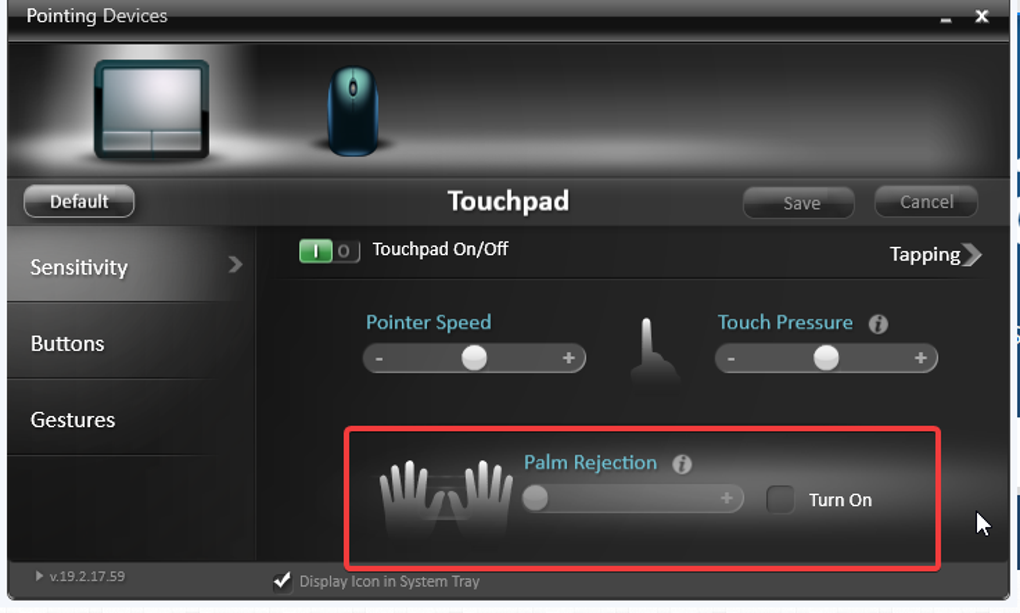
The Synaptics Touchpad Driver is not just a basic input driver; it provides a significant level of customization and control over the touchpad’s behavior. Through a control panel accessible after installation, users can adjust settings such as:
- Sensitivity: Control the responsiveness of the touchpad to finger movements. Higher sensitivity means smaller movements will result in larger cursor movements, while lower sensitivity requires larger movements.
- Gestures: Configure multi-finger gestures for actions like scrolling, zooming, switching between applications, and more. The available gestures and their configurations depend on the specific driver version and the touchpad’s capabilities.
- Cursor Speed: Adjust the speed at which the cursor moves across the screen.
- Tap-to-Click: Enable or disable the ability to click by tapping the touchpad.
- Scrolling: Configure vertical and horizontal scrolling behavior.
- Palm Rejection: Adjust the settings to minimize accidental cursor movements caused by resting your palm on the touchpad.
The driver also regularly receives updates, incorporating bug fixes, performance improvements, and new features. These updates often enhance the user experience, improve compatibility with newer operating systems, and add support for advanced touchpad functionalities.
Identifying if You Need the Synaptics Touchpad Driver
Before downloading and installing the Synaptics Touchpad Driver, it’s crucial to verify that your laptop actually uses a Synaptics touchpad. Incorrectly installing the driver will not solve any issues and could potentially cause conflicts. To determine your touchpad manufacturer:
- Open Device Manager: Search for “Device Manager” in the Windows search bar and open the application.
- Locate Pointing Devices: Expand the “Mice and other pointing devices” section.
- Check the Manufacturer: The list will display your pointing device(s), including the manufacturer. If it’s Synaptics, you likely need their driver. Other common manufacturers include ELAN and Alps.
Installing the Synaptics Touchpad Driver
Installing the Synaptics Touchpad Driver on a Windows system is a relatively straightforward process:
-
Download the Driver: Download the latest version of the Synaptics Touchpad Driver from a reputable source, such as the manufacturer’s website or a trusted software download site. Always verify the legitimacy of the download source to avoid malware.
-
Run the Installer: Once downloaded, locate the installer file (usually an .exe file) and double-click to run it. Follow the on-screen instructions. The installer will guide you through the process, including selecting installation location and accepting license agreements.
-
Device Manager (Alternative Installation Method): If the installer doesn’t automatically detect and update your driver, you can manually do it through Device Manager:
- Open Device Manager (as described above).
- Locate your Synaptics touchpad under “Mice and other pointing devices.”
- Right-click on the touchpad and select “Update driver.”
- Choose “Browse my computer for drivers.”
- Navigate to the folder where you extracted the driver files.
- Select the appropriate driver file and follow the on-screen instructions.
-
Restart Your Computer: After the installation is complete, restart your computer for the changes to take effect. This ensures that the operating system recognizes the new driver and utilizes it properly.

Enabling and Troubleshooting the Synaptics Touchpad Driver
If your Synaptics touchpad is malfunctioning or unresponsive, reinstalling the driver is often the solution. Follow these steps:
- Uninstall the Current Driver: Open Device Manager, locate your Synaptics touchpad, right-click, and select “Uninstall device.” Confirm the uninstallation.
-
Restart Your Computer: Restart your computer to ensure the old driver is fully removed.
-
Reinstall the Driver: Download the latest version of the Synaptics Touchpad Driver and install it as described in the previous section.
If problems persist after reinstalling the driver, consider these troubleshooting steps:
- Check for Hardware Issues: Ensure that the touchpad itself is not physically damaged. Clean the touchpad surface gently with a soft, dry cloth.
- Check for Driver Conflicts: Check Device Manager for any conflicting devices or drivers that might be interfering with the Synaptics touchpad driver.
- System Restore: If the problem started recently, try using Windows System Restore to revert to a point before the issue began.
- Contact Support: If none of these solutions work, contact your laptop manufacturer’s support for assistance.
Advanced Features and Enhancements
Modern versions of the Synaptics Touchpad Driver often include advanced features designed to enhance productivity and user experience. These features may vary depending on the specific driver version and the capabilities of your touchpad. Some common advanced features include:
-
Scrybe Gesture Workflows: This feature combines standard gestures with Scrybe symbols for more efficient interaction, including two-finger scrolling, screen rotation, and drawing commands.
-
Multi-Finger Gestures: Utilize three-finger gestures for actions such as switching between applications, minimizing all windows, and quickly navigating through documents.
-
Chiral Scroll: This feature allows for continuous two-way scrolling with a natural and intuitive feel.
-
Hot Corners: Create customizable hot corners on the touchpad that trigger specific actions when tapped. For example, you might assign a hot corner to launch a specific application or perform a system action.
Alternatives to the Synaptics Touchpad Driver
While the Synaptics Touchpad Driver is the ideal solution if your laptop uses a Synaptics touchpad, other options exist if your touchpad is from a different manufacturer. Some general-purpose driver update utilities can automatically scan for and install the correct driver for your touchpad:
- Driver Booster: This utility scans your system for outdated or missing drivers and provides updates. It also offers a user-friendly interface.
- ASUS Driver Updates Scanner: If you have an ASUS laptop, this is a dedicated driver update tool.
- IObit Software Updater: This is another reliable option for updating various software components on your computer, including drivers.
Remember to always download drivers from reputable sources to avoid potential security risks. Using generic driver updating software can work in many cases, but may not always find or install the perfect drivers for every situation.
In conclusion, the Synaptics Touchpad Driver is a critical component for ensuring smooth and efficient operation of Synaptics touchpads. Its installation is generally straightforward, but troubleshooting steps are available for resolving any issues. The driver’s advanced features can significantly improve your user experience, making it a worthwhile addition to any Windows laptop with a Synaptics touchpad. Remember to always check the manufacturer of your touchpad before downloading any driver to ensure compatibility.
File Information
- License: “Free”
- Latest update: “August 5, 2025”
- Platform: “Windows”
- OS: “Windows 7”
- Language: “English”
- Downloads: “889.2K”
- Size: “21.74 MB”


