
In the vast and evolving landscape of operating systems, the command line remains a powerful and indispensable tool, particularly for developers, system administrators, and tech enthusiasts. While Windows has its own robust set of command-line utilities, users accustomed to the elegance and efficiency of UNIX/Linux commands often find themselves searching for familiar functionalities. One such beloved utility is tail, a command renowned for its ability to display the last part of a file, making it invaluable for monitoring log files and real-time data streams. Recognizing this need, tail for Windows emerges as a crucial bridge, bringing this powerful UNIX/Linux-like tail DOS command to the Windows environment.
This 100% FREE, portable application allows Windows users to effortlessly display the concluding lines of a file, trace and monitor changes in real-time, and even intercept specific sections of a file. For anyone managing dynamic data, debugging applications, or simply preferring the directness of the command line, tail for Windows offers a streamlined and efficient solution. This article delves into the core functionalities, practical applications, and overall significance of integrating such a utility into your Windows workflow, ensuring you’re equipped to leverage its full potential.
Tail for Windows: The Essential UNIX-Like Command-Line Utility
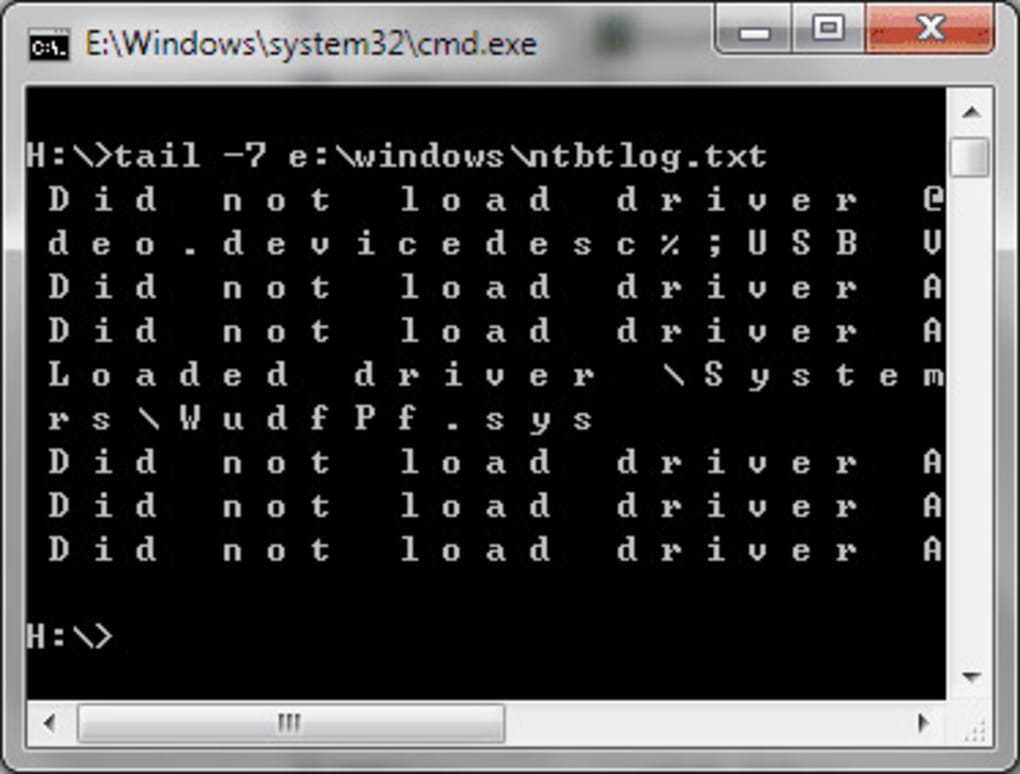
tail for Windows is a straightforward yet incredibly potent utility that brings a core UNIX/Linux command directly to your Windows system. At its heart, tail is designed to output the last part of files. While this might sound simple, its applications are far-reaching, especially when dealing with continuously updated files like system logs, application outputs, or data streams. Imagine needing to monitor the ongoing activity of a web server or an application; constantly opening and scrolling through a gigantic text file is not only inefficient but often impractical. This is precisely where tail shines, offering a dynamic window into the most recent events of any specified file.
The beauty of tail for Windows lies in its faithful replication of its UNIX/Linux counterpart. This means that users already familiar with the tail command on other operating systems will find its functionality and syntax virtually identical, drastically reducing the learning curve. It’s not just about displaying static content; the true power comes from its ability to ‘follow’ a file, continuously updating its output as new lines are appended. This real-time monitoring capability is a game-changer for diagnostics, debugging, and general system oversight. Furthermore, the utility is entirely free and boasts a compact, portable design, making it a hassle-free addition to any toolkit.
Key Features and Benefits
tail for Windows packs several critical features into its small footprint, making it an indispensable tool:
- UNIX/Linux Like
tailCommand for Windows: This is its primary and most significant feature. It replicates the behavior and many of the options of the standardtailcommand found on UNIX and Linux systems, offering a consistent experience for cross-platform users. - Displays Last Lines of a File: The most common use case is simply to see the end of a file. This is crucial for quick checks of log files, configuration files, or any document where the most recent entries are of interest.
- Trace/Monitor File’s Change (
tail -f): This is arguably the most powerful feature. The-f(follow) option allowstailto continuously output new data as it’s appended to the file. This is ideal for monitoring live logs, watching application outputs in real-time, or observing any file that is actively being written to. - Intercept a File from Specified Line No.: Beyond just viewing the end,
tailallows you to specify a starting line number (+n). This means you can view a file from a particular point onwards, rather than just the beginning or end. This is useful for analyzing specific sections of large files without loading the entire content. - 100% FREE: The utility is completely free to use, making it accessible to everyone without any licensing concerns or hidden costs.
- Portable Application:
tail for Windowsdoes not require any installation. It comes as a single executable (tail.exe) within a ZIP archive. This portability means you can carry it on a USB drive and run it on any Windows machine without administrative privileges or leaving behind registry entries. - Very Easy to Use: Its command-line interface is straightforward. Once the executable is placed in a system path, it can be invoked with simple commands, and a comprehensive manual (
manual.html) is included for detailed option explanations.
Getting Started: Installation and Basic Usage
Using tail for Windows is remarkably simple due to its portable nature. You don’t need to navigate through complex installers or configure system settings extensively. Here’s a quick guide to get you up and running:
- Download: Obtain the
tail-for-windows.zippackage from PhanMemFree.org or its developer’s page. - Extract: Unzip the downloaded package. You will find
tail.exeandmanual.htmlinside. - Placement (Recommended): The most convenient way to use
tailwithout specifying its full path every time is to placetail.exeinto a directory that is part of your system’s PATH environment variable. The developer specifically recommendsc:\windows\system32(wherec:is your system drive). This ensures that you can executetailfrom any command prompt window, regardless of your current directory. - Open Command Prompt: Press
Win + R, typecmd, and then pressEnterto open a DOS command window. - Start Using
tail: Now, you can use thetailcommand just like you would on a UNIX/Linux system.
Here are some common usage examples:
tail -f filename.log: This command is your window into real-time activity. It continuously traces and monitors changes infilename.log, displaying new lines as they are added. This is incredibly useful for debugging or monitoring server activity.tail -n 10 filename.txt: This displays the last10lines offilename.txt. You can replace10with any number to specify how many lines you want to see from the end of the file.tail +200 filename.csv: This command displays the content offilename.csvstarting from the 200th line until the end of the file. This is perfect for skipping large headers or irrelevant initial data.- Redirecting Output: All the above commands can generate a new file by using the redirection symbol (
>for overwrite,>>for append). For example,tail -n 50 largefile.txt > output.txtwill save the last 50 lines oflargefile.txtinto a new file namedoutput.txt.
The included manual.html provides a comprehensive overview of all supported options, ensuring that users can fully leverage the command’s capabilities beyond these basic examples.
Unleashing Productivity: Tail in Development and System Administration
For anyone immersed in the world of software development or system administration, tail for Windows isn’t just a convenient utility; it’s a vital component for enhancing productivity and streamlining complex tasks. These roles often involve sifting through vast amounts of data, particularly log files, to diagnose issues, monitor performance, and ensure system health. The traditional approach of opening huge log files in text editors, constantly refreshing or scrolling, is not only tedious but also prone to missing crucial real-time events. tail for Windows directly addresses this pain point, providing a dynamic and efficient solution.
The seamless integration of a UNIX-like tail command into the Windows environment bridges a significant gap for professionals who frequently switch between operating systems or manage heterogeneous infrastructures. It empowers developers and administrators to apply their existing command-line expertise directly, minimizing context switching and maximizing efficiency. This utility transforms the Windows command prompt into a more versatile and powerful environment, rivaling the capabilities often associated with UNIX/Linux terminals for specific tasks.
Real-time Log Monitoring and Debugging
The most profound impact of tail for Windows in a professional context is its unparalleled capability for real-time log monitoring and debugging. In modern application development and system operations, logs are the lifeline that provides insights into an application’s behavior, errors, and performance metrics.
- Application Development: When developing software, unexpected bugs or performance bottlenecks are common. Applications often write diagnostic information to log files. Using
tail -f application.log, a developer can watch these logs in real-time as they interact with the application. This immediate feedback loop is invaluable for:- Identifying errors: Seeing error messages appear as soon as an action triggers them helps pinpoint the exact cause of a crash or malfunction.
- Tracing execution flow: Monitoring custom log messages helps understand the sequence of events and variable states, crucial for debugging complex logic.
- Performance optimization: Observing timing logs or resource usage statistics as operations unfold can guide optimization efforts.
- Web Server Administration: Web servers like Apache, Nginx, or IIS (when configured to log to a file) generate access logs and error logs continuously.
tail -f access.logallows administrators to:- Monitor incoming traffic: See requests hit the server in real-time, useful during deployment of new features or during peak traffic analysis.
- Detect attacks: Unusually high traffic from specific IPs or repeated error codes can signal a security incident or misconfiguration.
- Diagnose HTTP errors: Real-time visibility into 4xx or 5xx errors helps in quickly resolving server-side issues impacting users.
- System Diagnostics: Beyond specific applications, operating systems and services also generate various logs (e.g., event logs, service logs). While Windows Event Viewer is powerful, sometimes a quick command-line
tailon a specific text-based service log can provide immediate clarity, especially for custom services or tools that write to plain text files. This is particularly relevant for custom scripts or agents that might output their status or errors to log files.
The immediacy provided by tail -f drastically reduces the time spent on troubleshooting. Instead of manually refreshing a text editor or parsing through gigabytes of historical data, developers and administrators get a live feed, making problem identification and resolution much faster.
Bridging UNIX/Linux Skills to Windows
For many IT professionals, their journey into command-line mastery began with UNIX or Linux. The tail command is a staple in these environments, deeply ingrained in daily workflows. When these professionals transition to or work concurrently with Windows, they often seek to replicate their familiar and efficient workflows. tail for Windows directly addresses this by providing a nearly identical experience.
- Familiarity and Efficiency: Users who are proficient with
tailon Linux can immediately apply that knowledge on Windows without learning new syntax or different tools. This significantly boosts productivity and reduces mental overhead. - Cross-Platform Scripting: In environments where automation scripts need to run on both Windows and Linux machines, having a consistent
tailcommand across platforms simplifies script writing and maintenance. Developers can write scripts that monitor logs usingtail, knowing they will behave predictably regardless of the underlying OS (assumingtail.exeis present and in the PATH on Windows). - Reduced Learning Curve: For those new to Windows but experienced with UNIX/Linux,
tail for Windowsprovides a familiar anchor in a potentially new command-line ecosystem. It makes the Windows command prompt feel more like home. - Enhanced Toolset: Windows’ native command-line utilities have their strengths, but they don’t always perfectly match the brevity and power of some UNIX commands.
tail for Windowsadds a crucial tool to the Windows command-line arsenal, enriching the overall environment for advanced users. It allows for quick, on-the-fly monitoring without the overhead of PowerShell cmdlets for simpler use cases, or the installation of more complex environments like WSL (Windows Subsystem for Linux) when only a few core utilities are needed.
By allowing users to leverage their existing skill set and providing a consistent command-line experience, tail for Windows not only enhances individual productivity but also fosters a more integrated and efficient workflow across diverse computing environments.
Beyond the Basics: Advanced Applications and Complementary Tools
While the fundamental function of tail for Windows—displaying the end of files or monitoring them in real-time—is powerful enough on its own, its true versatility shines when combined with other command-line features and utilities. Moving beyond simple tail -f commands opens up a world of more sophisticated data management, scripting, and monitoring possibilities. This allows users to not only observe data but also to process, filter, and archive it effectively, turning tail into a foundational block for advanced command-line operations.
The strength of tail for Windows, much like its UNIX counterpart, lies in its ability to be part of a larger command-line ecosystem. By understanding how to pipe its output to other commands or redirect it to files, users can build powerful, custom solutions for a wide array of tasks, from data extraction to automated security alerts.
Data Redirection and Scripting
The output of tail for Windows, like most command-line tools, can be easily redirected to files or piped as input to other commands. This capability is fundamental to building powerful scripts and automating tasks.
-
Saving Output to a File:
tail -n 100 large_data.log > last_100_lines.txt: This command extracts the last 100 lines oflarge_data.logand writes them into a new file calledlast_100_lines.txt. Iflast_100_lines.txtalready exists, it will be overwritten.tail -f server_access.log >> real_time_access.txt: This is particularly useful for continuous archiving. It monitorsserver_access.login real-time and appends every new line toreal_time_access.txtwithout overwriting previous content. This can be used to create a historical record of events even if the original log rotates or is truncated.- Intercepting Specific Sections: As mentioned earlier,
tail +n filename > output.txtcan extract a portion of a file from a specific line number onwards, creating a new file containing only that relevant section. This is immensely useful for parsing very large, structured files where you only care about data that appears after a certain point.
-
Piping to Other Commands (e.g.,
findstr,grep): The real power of the command line emerges when tools are chained together using pipes (|). This allows the output of one command to become the input of another, enabling complex data processing.tail -f application.log | findstr ERROR: This command will continuously monitorapplication.logand only display lines that contain the word “ERROR”. This is crucial for filtering out noise and focusing on critical events in verbose logs. (Note:findstris the native Windows equivalent ofgrepfor pattern matching).tail -n 100 system_events.log | findstr "Failed Login" | more: This command first gets the last 100 lines ofsystem_events.log, then filters for lines containing “Failed Login,” and finally pipes the result tomore(a pager utility) to display it page by page if the output is extensive.- Advanced Filtering with PowerShell: For more sophisticated text processing,
tail for Windowscan be combined with PowerShell cmdlets. For instance,tail -f verbose.log | Select-String -Pattern "Warning|Critical"provides more flexible pattern matching and object-oriented processing capabilities.
By mastering redirection and piping, users can transform tail for Windows from a simple viewing tool into a core component of powerful data analysis and automation scripts. This is particularly valuable in environments where custom solutions are needed to process large volumes of text-based data efficiently.
Monitoring Security and Network Events
In the realm of security and network management, real-time visibility into activity logs is paramount. tail for Windows offers a lightweight yet effective way to gain immediate insights into potential security threats or network issues, complementing more robust SIEM (Security Information and Event Management) or network monitoring tools.
- Security Log Monitoring: While Windows has its comprehensive Event Viewer for security logs, many security applications, firewalls, and intrusion detection systems (IDS) write their logs to plain text files.
tail -fon these logs allows security analysts to:- Detect suspicious activity: Immediately spot multiple failed login attempts, unauthorized access attempts, or unusual system calls as they occur.
- Track threat indicators: If an indicator of compromise (IOC) like a specific IP address or malware signature is known,
tail -f | findstr "malicious_ip"can provide real-time alerts. - Verify security tool functionality: Ensure that security agents or firewalls are logging events as expected.
- Network Device Log Analysis: Network devices like routers, switches, and VPN gateways often send their logs to a central server or store them locally in text files. If these logs are accessible on a Windows machine,
tail -fcan be used to:- Monitor connectivity issues: See error messages related to link status changes, routing updates, or authentication failures.
- Track network traffic patterns: Observe connection attempts, bandwidth usage logs, or protocol-specific messages.
- Diagnose VPN problems: Monitor VPN server logs for connection attempts, disconnections, or authentication errors, helping in quick troubleshooting.
- Firewall Logs and Web Proxies: Many software firewalls or web proxy services on Windows can be configured to log their activities to text files.
tail -fcan be used to monitor:- Blocked connections: See which IPs or domains are being blocked in real-time.
- Policy violations: Identify users attempting to access prohibited websites or services.
- Unusual outbound traffic: Spot suspicious connections initiating from internal systems.
By using tail for Windows in conjunction with filtering commands, security and network professionals can establish a quick, command-line-based monitoring system for critical event streams. This enables rapid response to anomalies and provides a crucial layer of immediate oversight, often before more elaborate monitoring systems can process and alert on the data. It’s a simple yet powerful way to maintain vigilance over dynamic system and network behavior.
Community Insights and Continuous Improvement
The utility of tail for Windows is widely recognized, particularly among those who value directness and efficiency in their command-line interactions. While generally lauded for its simplicity and effectiveness, like any software, it has garnered user feedback over time. Understanding these community insights and knowing where to seek support or alternatives is crucial for maximizing its value.
One notable user review from March 27, 2013, highlighted a specific issue: “Does not appear to work. Does not appear to work at all. It seems adept at loading the first line of the file, which is useless because it’s the other end of the 53,709,290 other lines I’m interested in.” This feedback, though dated, points to a potential scenario where the tool might not behave as expected. While the developer has continued to update the tool (latest update May 24, 2023), such reviews are important reminders that command-line utilities, especially when dealing with extremely large files or specific file encodings, can sometimes encounter edge cases.
For current users, if you experience similar issues where tail doesn’t display the expected lines or only shows the beginning of a file, consider the following troubleshooting steps:
- Verify File Path and Name: Ensure the file path and name are correct and enclosed in quotes if they contain spaces.
- Check File Permissions: Ensure your command prompt has the necessary read permissions for the file you are trying to
tail. - File Encoding: While
tailgenerally handles standard text files well, exotic encodings might sometimes interfere. Most log files are plain ASCII or UTF-8, which should work seamlessly. - Extremely Large Files: For files reaching tens or hundreds of gigabytes, even efficient tools can face performance challenges or exhibit unexpected behavior depending on system resources. While
tailis optimized for this, verify system memory and disk I/O. - Consult the Manual: The
manual.htmlincluded in thetail-for-windows.zippackage is your first point of reference. It details all supported options and might offer specific guidance for troubleshooting common issues.
The “This file may have issues” warning often displayed by download portals like PhanMemFree.org is a generic disclaimer common for freeware or older utilities that might not have the latest security certifications or have been scanned by every possible antivirus engine. For tail for Windows, given its nature as a single executable that performs a specific, transparent function, such warnings are typically not indicative of malicious intent but rather a precautionary flag. Users should always exercise caution and scan any downloaded executables with their preferred antivirus software, though the widespread use and simple functionality of tail suggest a low risk.
Finding Support and Alternative Considerations
While tail for Windows from trisun-software-limited is a robust solution, the open-source community and other commercial offerings provide alternatives that might cater to different preferences or more advanced needs:
- PowerShell
Get-Content -Wait: Windows PowerShell offers a native command,Get-Content -Wait -Tail N filename.log, which provides similar real-time monitoring capabilities. This is an excellent alternative for those already working within the PowerShell ecosystem, as it leverages native OS capabilities. - Windows Subsystem for Linux (WSL): For users who require a full UNIX/Linux environment, WSL allows running a Linux distribution directly on Windows, providing access to the native
tailcommand and a host of other powerful utilities. This is a more comprehensive solution for deep integration with Linux tools. - Third-Party Log Viewers: Several graphical log viewer applications exist for Windows that offer advanced features like filtering, highlighting, and search functionalities, which might be preferred by users who prefer a GUI over the command line.
- Developer’s Other Programs: trisun-software-limited, the developer of
tail for Windows, offers 34 other programs, suggesting a commitment to developing practical utilities. Exploring their other offerings might reveal complementary tools for your workflow.
Ultimately, tail for Windows remains a straightforward, free, and highly effective tool for its intended purpose. Its adherence to the UNIX/Linux tail command syntax and behavior makes it an invaluable asset for cross-platform users and anyone needing quick, real-time insights into file changes. By leveraging the included manual and understanding potential edge cases, users can confidently integrate this utility into their daily tasks, significantly enhancing their command-line productivity on Windows.
Conclusion
Tail for Windows stands as a testament to the enduring power and versatility of command-line utilities, effectively bridging the gap between the robust UNIX/Linux tail command and the Windows operating system. As a 100% FREE and portable application, it provides an accessible and indispensable tool for anyone who needs to monitor dynamic files, debug applications, or simply view the latest entries in a log. Its ease of use, coupled with its faithful replication of UNIX/Linux functionalities, makes it a favored utility among developers, system administrators, and tech enthusiasts alike.
From real-time log monitoring and efficient debugging in development workflows to critical security event tracking and sophisticated data redirection for scripting, tail for Windows empowers users to gain immediate insights and exert precise control over their file-based data. By integrating seamlessly with other command-line tools, it transforms the Windows command prompt into a more dynamic and capable environment, enhancing productivity and streamlining operations across diverse tasks.
While powerful, it’s important to remember the foundational aspects of its usage, including correct installation, understanding its various options, and being aware of potential considerations with extremely large files or specific encodings. The included manual.html serves as a vital guide, and community insights, while sometimes highlighting edge cases, ultimately point to a highly valued tool. For those seeking a direct, efficient, and familiar way to manage file content on Windows, tail for Windows from trisun-software-limited, available for download at PhanMemFree.org, is an essential addition to any digital toolkit. Embrace the power of the command line and unlock a new level of efficiency in your Windows environment.
File Information
- License: “Free”
- Latest update: “May 24, 2023”
- Platform: “Windows”
- OS: “Windows Vista”
- Language: “English”
- Downloads: “13.9K”
- Size: “581.10 KB”


