
Task killers are software utilities designed to terminate running applications on a computer system. While often marketed as performance enhancers, their actual impact on system performance and stability is a complex issue. This guide explores the functionality of task killers, their purported benefits and drawbacks, and the potential risks associated with their use. We will also examine alternatives and safer methods for managing applications and improving system performance.
Understanding Task Killers
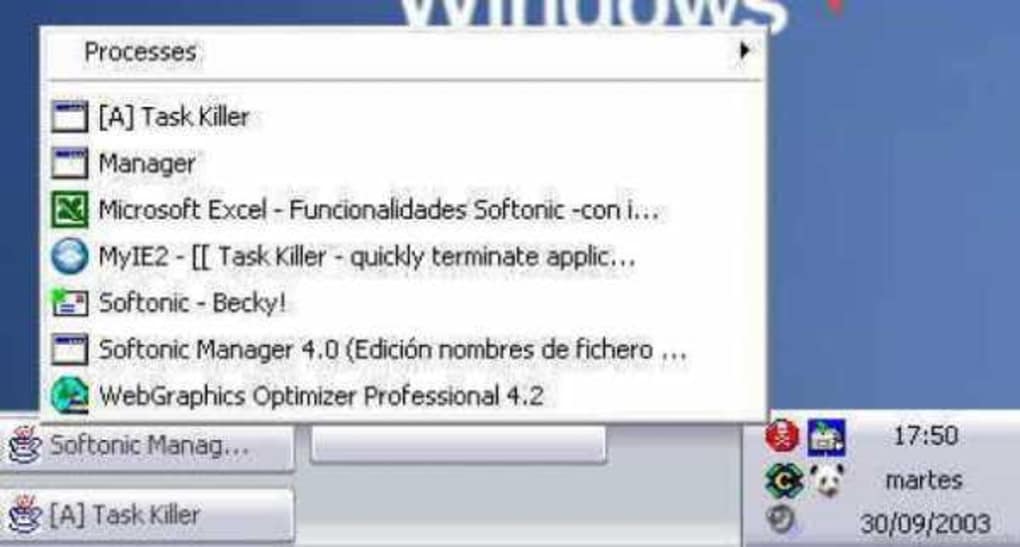
At their core, task killers provide a simplified interface for ending processes. The traditional method of closing applications involves navigating through the operating system’s task manager, identifying the specific process, and manually terminating it. Task killers streamline this process, often presenting a single window listing all currently running applications, enabling users to select and close them with a single click. This seemingly simple functionality holds both advantages and disadvantages.
The key function of a task killer is its ability to forcefully terminate applications. This differs from simply closing an application through its interface, which allows the application to save data and properly shut down. Force-quitting an application using a task killer, however, might lead to data loss or system instability if the application is in the middle of saving important information. The potential for unintended consequences highlights the importance of using task killers judiciously and only when strictly necessary.
Many task killers offer additional features beyond simple application termination. These might include:
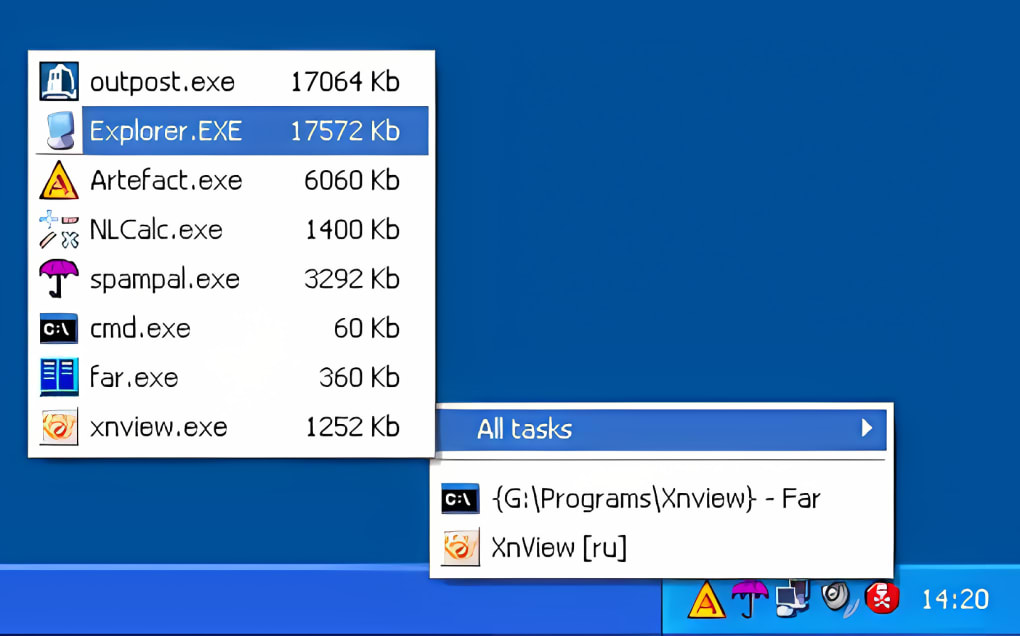
- Prioritized application killing: Some task killers allow users to prioritize which applications are closed first, potentially providing more control during memory-intensive situations.
- “Smart Kill” modes: These modes attempt to gracefully close applications before resorting to forceful termination, minimizing the risk of data loss.
- Hotkeys: These keyboard shortcuts provide quick access to the task killer’s main interface, speeding up the process of closing applications.
- Service management: Advanced task killers sometimes provide the ability to manage system services, allowing users to disable non-essential services to free up resources. This capability, however, should only be used by advanced users with a thorough understanding of system services.
The Purported Benefits and Drawbacks of Using Task Killers
The primary benefit touted by task killer developers is improved system performance, particularly in cases where applications freeze or become unresponsive. By forcefully terminating problematic applications, the task killer can restore system responsiveness. However, this supposed performance boost often comes at a cost.
Many users believe that regularly using a task killer to close background processes improves system speed and reduces resource consumption. This belief is largely unfounded. Modern operating systems efficiently manage background processes, allocating resources only as needed. Forcefully closing these processes might not only be unnecessary but also counterproductive. The system might then need to restart these processes, consuming more resources than if they had simply continued running in the background.
Furthermore, frequent use of a task killer can lead to system instability. Applications that are abruptly terminated without proper shutdown procedures might leave behind corrupted files or incomplete processes. This can cause errors, crashes, or even data loss. The convenience offered by a task killer is often outweighed by the potential risks of incorrectly using it, especially for inexperienced users.
Alternatives to Task Killers and Safe Practices
Instead of relying on task killers, there are several safer and more effective methods for managing applications and improving system performance:
- Properly closing applications: Always prioritize closing applications through their designated close buttons or menu options. This allows for proper saving of data and orderly shutdown of processes.
- Utilizing the operating system’s task manager: The built-in task manager offers comprehensive information about running processes, allowing for informed decisions on which processes to terminate. This provides much greater control and transparency compared to using a third-party task killer.
- Monitoring resource usage: Use the operating system’s resource monitor to identify resource-intensive applications. Addressing the root cause of high resource consumption through application optimization or upgrading hardware is far more effective than repeatedly force-closing processes.
- Regular system maintenance: Perform regular system maintenance tasks such as defragmenting hard drives (in older systems), clearing temporary files, and running disk cleanup utilities to improve overall system performance. These actions address underlying performance issues rather than simply masking them with application terminations.
- Updating software: Ensure that all applications and the operating system itself are up to date. Outdated software often contains bugs and inefficiencies that contribute to poor system performance.
- Scanning for malware: Malware can significantly impact system performance by consuming resources and slowing down processes. Regularly scanning your system with a reputable antivirus program can identify and remove malicious software.
Security Concerns and Potential Risks
The act of forcefully terminating processes, while seemingly innocuous, carries potential security risks. Malicious software might attempt to disguise itself as a legitimate application. Forcefully closing such an application through a task killer might not eliminate the threat, leaving the system vulnerable. Moreover, incorrectly terminating critical system processes can lead to system instability or even crashes, requiring a complete system reboot or worse, data loss.
The use of task killers might also introduce security vulnerabilities. Third-party task killers, especially those from less reputable sources, could potentially contain malware or backdoors. These malicious programs could then monitor system activity, steal personal information, or damage the system. It’s crucial to only download task killers from trusted sources and to thoroughly scan any downloaded file for viruses before installation.
Conclusion: A Balanced Perspective
While task killers offer a quick solution for closing unresponsive applications, their indiscriminate use can lead to unintended consequences. The potential risks associated with data loss, system instability, and security vulnerabilities often outweigh the perceived benefits. Instead of relying on task killers for general performance optimization, focus on safer and more effective methods like properly closing applications, utilizing the operating system’s task manager, and performing regular system maintenance. The most effective approach to managing applications and enhancing system performance lies in proactively addressing the root causes of poor performance, rather than relying on reactive solutions that potentially introduce further complications. Remember that a well-maintained and updated system is generally far more efficient than one constantly subjected to forceful application terminations.
File Information
- License: “Trial version”
- Version: “2.30”
- Latest update: “August 3, 2018”
- Platform: “Windows”
- OS: “Windows 2000”
- Language: “English”
- Downloads: “60.2K”
- Size: “375.51 KB”


