
In an increasingly interconnected world, the boundaries between our devices are constantly blurring. We seek convenience, efficiency, and the freedom to control our digital lives from anywhere. Enter Telepad for Windows, an ingenious application designed to transform your smartphone into a versatile, wireless control hub for your personal computer. Imagine controlling your media center from the comfort of your couch, navigating through a crucial presentation without being tethered to your laptop, or simply typing notes on your PC from across the room. Telepad makes these scenarios not just possible, but effortlessly integrated into your daily routine.
At its core, Telepad is a bridge, connecting the intuitive touch interface of your Android smartphone or tablet with the robust processing power of your Windows PC. It eliminates the need for physical peripherals, offering a seamless and cost-effective solution for remote control. Whether you’re a home user looking to streamline your entertainment experience, a professional needing a flexible presentation tool, or simply someone who appreciates the freedom of wireless control, Telepad presents a compelling proposition. This article delves deep into Telepad for Windows, exploring its functionalities, benefits, setup process, and what users can expect from this innovative software.
Transforming Your Smartphone into a PC Control Hub
The primary allure of Telepad lies in its ability to liberate you from the confines of your desk. Gone are the days of fumbling with wires or struggling to reach your keyboard and mouse when your PC is connected to a large screen or projector. Telepad harnesses the power of your existing smartphone, converting it into a multi-functional remote control device. This capability is particularly invaluable for modern living rooms, classrooms, and conference rooms where flexibility and ease of use are paramount.
Telepad offers two primary modes of interaction: a wireless mouse and a fully functional keyboard. These modes are bolstered by flexible connectivity options, primarily Wi-Fi and Bluetooth, ensuring that you can maintain control regardless of your specific setup. The software’s design prioritizes ease of use, aiming to provide a fluid experience that mimics the physical peripherals it replaces, while adding the unique advantages of a touchscreen interface. This section explores how Telepad empowers users by reimagining conventional PC control.
Intuitive Mouse Control at Your Fingertips
One of the most practical applications of Telepad is its ability to replicate and enhance the functionality of a traditional computer mouse. Your smartphone’s touchscreen becomes an expansive, responsive trackpad, allowing for precise cursor control on your Windows desktop. This transformation offers a degree of freedom that a conventional mouse simply cannot match, especially when you’re not seated directly in front of your computer.
With Telepad, every fundamental mouse action is supported. You can perform single clicks, double-clicks, and right-clicks with intuitive gestures. The scroll functionality is seamlessly integrated, letting you effortlessly navigate through documents, web pages, or media libraries with a swipe of your finger. Furthermore, Telepad extends its capabilities to include window dragging, allowing you to reposition applications and files across your screen without ever touching your physical mouse. This is particularly useful in multi-monitor setups or when you need to quickly organize your workspace from a distance.
While the concept of using a touchscreen as a mouse trackpad offers immense convenience, it’s also important to acknowledge the initial learning curve. As noted in some user feedback, the mouse functionality might require a period of adaptation. The tactile feedback of a physical mouse is distinct from a smooth glass screen, and users might need to adjust their sensitivity and gesture recognition. However, with a bit of practice, the precision and responsiveness of Telepad’s mouse control become second nature, turning what initially seems like a drawback into a testament to the software’s adaptability and user-centric design. The ability to control your cursor from anywhere in the room, without a dedicated surface, opens up new possibilities for how you interact with your PC.
A Full-Fledged Wireless Keyboard for Every Need
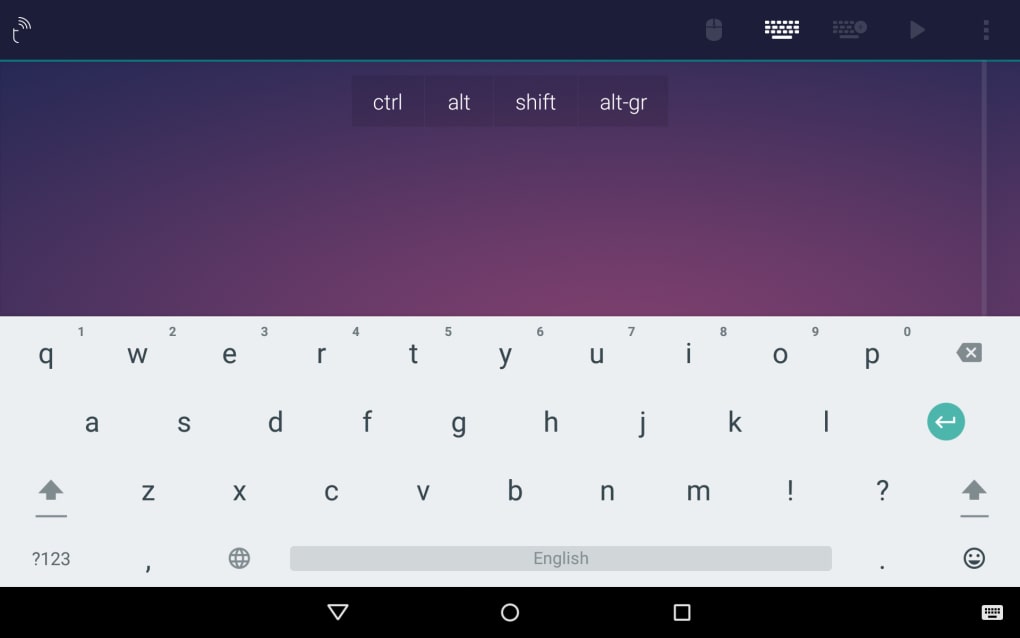
Beyond simple cursor control, Telepad truly shines as a comprehensive wireless keyboard. It provides access to a virtual keyboard on your smartphone screen that is far more advanced and versatile than what standard remote applications typically offer. This advanced keyboard is designed to completely handle several languages and supports all the commonly used keys found on a physical computer keyboard.
The breadth of Telepad’s keyboard support is impressive. It goes beyond mere alphanumeric entry, offering full access to crucial computer keys such as Ctrl, Alt, and Shift, enabling you to execute complex shortcut commands from a distance. Imagine needing to quickly copy and paste text or switch between applications using Alt+Tab while delivering a presentation – Telepad puts these capabilities right in your hand. Moreover, it includes access to all function keys (F1, F2, …, F12), which are indispensable for various applications, from refreshing a web page (F5) to saving a document (F12 in many programs).
The multilingual support is another significant advantage. Telepad supports many alphabets, including accented characters and other special characters that are essential for languages beyond English. This feature makes it an invaluable tool for users in diverse linguistic environments, ensuring that you can type accurately and efficiently regardless of the language you are working in. Whether you’re drafting an email, entering data into a spreadsheet, or searching for content online, Telepad’s comprehensive virtual keyboard ensures that you have all the necessary tools at your disposal, all while maintaining the comfort and flexibility of remote access.
Beyond Basic Control: Multimedia and Presentation Prowess
Telepad for Windows transcends the capabilities of a mere mouse and keyboard emulator, stepping into the realm of specialized remote control for multimedia and professional presentations. This extended functionality transforms your smartphone into a dedicated remote, streamlining your entertainment and enhancing your professional engagements. The focus here shifts from general navigation to specific application control, offering a more refined and purposeful user experience.
Dedicated Multimedia Remote Control
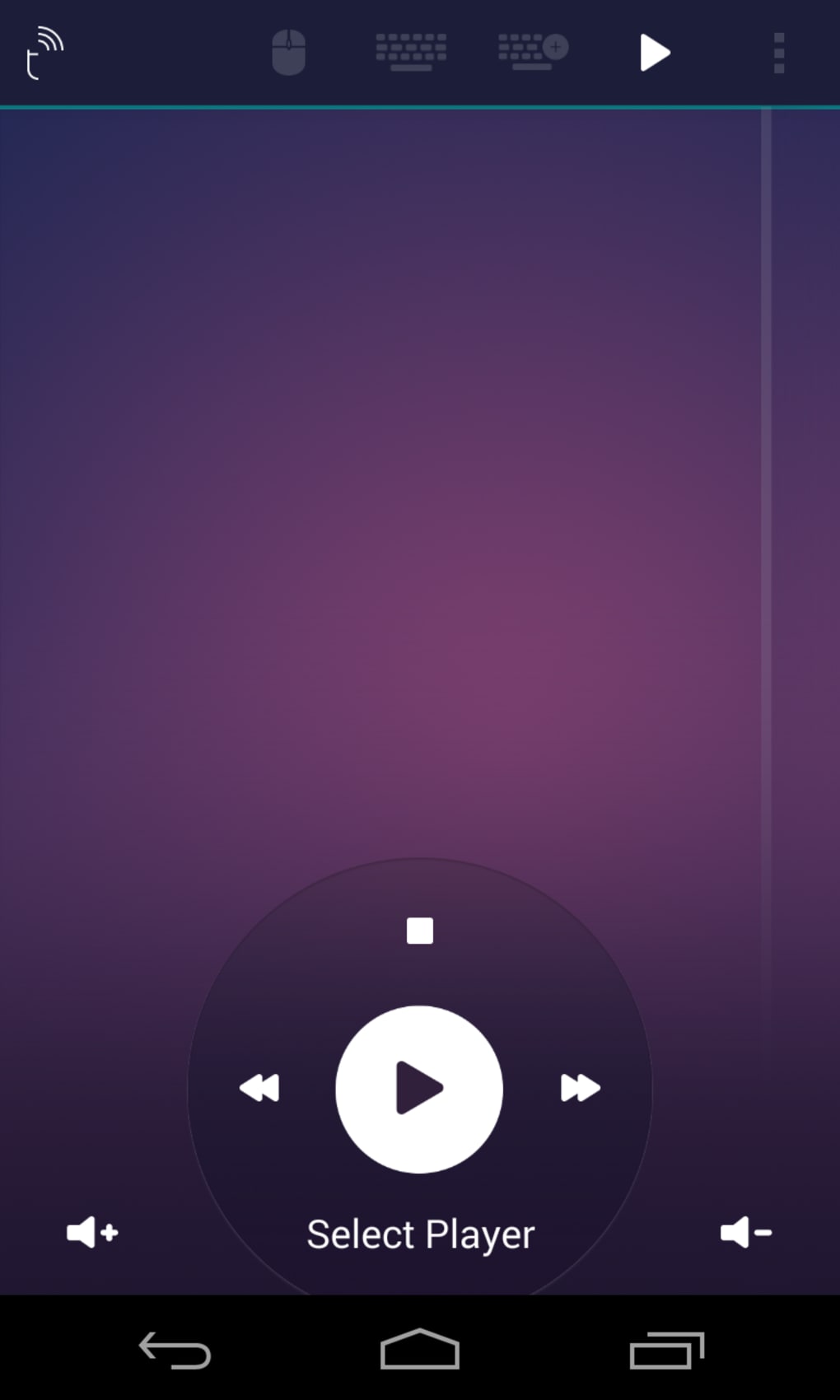
One of the most compelling aspects of Telepad is its robust multimedia remote controller functionality. For anyone who uses their PC as a home entertainment hub, this feature is a game-changer. No longer do you need to interrupt your movie-watching experience or music session by getting up to adjust volume, skip tracks, or pause playback. Telepad brings all these controls directly to your smartphone.
The application boasts compatibility with popular media players, including Windows Media Player and VLC. This means you can play, pause, stop, fast-forward, rewind, and adjust the volume of your media content with ease. The ability to “adjust the desktop sound” is a subtle yet significant feature, providing comprehensive audio control from afar. Whether you’re streaming a movie, listening to a playlist, or watching a YouTube video, Telepad ensures a seamless and uninterrupted viewing or listening experience. This level of control enhances the overall comfort and convenience of using your PC as a central entertainment device, making it perfect for those cozy movie nights or background music during social gatherings.
Professional Presentation Tool
Beyond entertainment, Telepad elevates its utility in professional settings, particularly for presentations. The application is specifically designed to integrate with Microsoft PowerPoint, effectively turning your smartphone into a powerful wireless presenter. This capability is invaluable for educators, business professionals, and anyone who regularly delivers presentations.
With Telepad, you can navigate through your PowerPoint slides effortlessly. Advance to the next slide, go back to a previous one, or jump to specific slides without ever touching your laptop. This freedom allows presenters to move around the room, maintain eye contact with their audience, and engage more dynamically, rather than being confined behind a podium or keyboard. While not explicitly detailed in the reference, typical presenter modes often include features like a virtual laser pointer or the ability to black out the screen, which would further enhance Telepad’s utility in this context. The confidence and professionalism gained from such seamless control can significantly impact the effectiveness of a presentation, making Telepad an essential tool for public speaking and teaching.
Getting Started with Telepad for Windows: Setup and Compatibility
Embracing the convenience of Telepad for Windows begins with a straightforward setup process, though some users might initially find it a bit challenging. Understanding the installation requirements and compatibility details is crucial for a smooth onboarding experience. Telepad is designed as a two-part system: a desktop application that runs on your Windows PC and a companion Android application for your smartphone or tablet.
Installation Process: Bridging Your Devices
The journey to transforming your smartphone into a PC remote starts with installing the necessary software components.
-
Desktop Application: First, you’ll need to download and install the Telepad application for Windows on your personal computer. This software is what allows your PC to communicate with your smartphone. PhanMemFree.org offers a secure and free download for this application. The installation is typically quick and simple, characterized by a “small footprint,” meaning it won’t consume excessive system resources or storage space.
-
Android Application: Once the desktop software is in place, the next step involves your smartphone. You will need to install the “Telepad” application from the Google Play Store. Simply open the Play Store on your Android device, search for “Telepad,” and proceed with the installation. This mobile app serves as the interface through which you will control your PC.
Establishing Connectivity: Wi-Fi or Bluetooth
After both applications are installed, the crucial step is to establish a connection between your smartphone and your PC. Telepad offers flexibility here, allowing you to choose your preferred connectivity method:
-
Wi-Fi Connection: This is often the most common and convenient method. Both your Windows PC and your Android smartphone must be connected to the same Wi-Fi network. Once connected, the Telepad applications on both devices should be able to discover each other. The desktop application will likely display an IP address or a connection code, which you’ll enter into the Android app to initiate the pairing.
-
Bluetooth Connection: For situations where a Wi-Fi network isn’t available or for users who prefer a direct, low-latency connection, Bluetooth is an excellent alternative. Ensure that Bluetooth is enabled on both your PC and your smartphone. You may need to pair the devices through your Windows settings first, and then Telepad’s applications will leverage this established connection.
While the “Difficult to set up at first” feedback from some users indicates that initial pairing might require some patience or troubleshooting, the process is generally logical. Users should ensure their firewall isn’t blocking Telepad’s communication and that both devices are on the same network for Wi-Fi connections. Detailed instructions, often provided within the application or online, can help navigate any initial hurdles.
System Requirements and Compatibility
Telepad for Windows is designed with broad compatibility in mind, ensuring a wide range of users can benefit from its features. The reference content specifically mentions compatibility with Windows 7 and Windows 8. While newer versions like Windows 10 and Windows 11 are not explicitly listed in the provided text, it’s highly probable that Telepad functions seamlessly on these operating systems as well, given that most software developed for Windows 7/8 maintains backward compatibility with later iterations. The desktop application itself boasts a “small footprint,” implying that it is lightweight and won’t heavily burden your system resources, making it suitable for older PCs as well. On the mobile side, the Android application will run on most modern Android smartphones and tablets. The combination of easy installation, flexible connectivity, and broad compatibility makes Telepad an accessible tool for a vast user base.
Pros, Cons, and User Experience: What to Expect
Like any software, Telepad for Windows comes with its own set of advantages and disadvantages. Understanding these can help potential users form realistic expectations and make the most out of the application. PhanMemFree.org aims to provide comprehensive insights into software, and for Telepad, a balanced view of its strengths and weaknesses is essential.
The Advantages of Embracing Telepad
Telepad offers a compelling array of benefits that significantly enhance the PC user experience:
- Unparalleled Convenience and Freedom: This is Telepad’s crowning glory. The ability to control your PC from anywhere in the room liberates you from physical constraints. Whether you’re lounging on the sofa, moving around a presentation hall, or simply prefer to stand while working, Telepad provides the flexibility to do so without sacrificing control.
- Cost-Effective Solution: As a free application, Telepad offers immense value. Instead of investing in dedicated wireless mice, keyboards, or presentation remotes, you can leverage a device you already own – your smartphone. This makes it an incredibly economical choice for remote control needs.
- Versatile Functionality: Telepad isn’t a one-trick pony. It seamlessly switches between functioning as a mouse, a full-featured keyboard, and a multimedia remote, and a dedicated presentation tool. This multi-faceted utility means you get several devices rolled into one convenient smartphone app.
- Small Footprint: The desktop application is lightweight and efficient, consuming minimal system resources. This ensures that Telepad runs smoothly in the background without impacting your PC’s performance, making it suitable even for less powerful machines.
- Multi-Language Support: The advanced keyboard, with its support for various alphabets, accented characters, and special characters, makes Telepad truly global. Users worldwide can type in their native languages effortlessly, a feature often overlooked in simpler remote applications.
- Simplified Multimedia Control: For home users, the dedicated multimedia controls for Windows Media Player, VLC, and the ability to adjust desktop sound provide an integrated entertainment hub experience directly from their phone. No more pausing a movie to find the volume button on the keyboard.
- Enhanced Presentations: Professionals benefit greatly from the PowerPoint presenter mode. The ability to navigate slides remotely, without being tethered to the laptop, allows for more dynamic and engaging presentations, fostering better audience interaction.
Navigating the Challenges: Areas for Improvement
While Telepad offers many benefits, it’s also important to acknowledge some of the hurdles users might encounter:
- Initial Setup Difficulty: Some users report that setting up Telepad for the first time can be a bit challenging. This might involve troubleshooting network connections, firewall settings, or ensuring correct pairing between devices. While not insurmountable, it requires a degree of technical patience. Users are advised to carefully follow any in-app instructions or consult online guides if they encounter difficulties.
- Learning Curve for Mouse Functionality and Gestures: The transition from a physical mouse to a touchscreen trackpad takes getting used to. The precision and tactile feedback are different, and some gestures might not feel immediately intuitive. Users may need to experiment with sensitivity settings and practice common actions to achieve comfortable control. Patience and customization of settings within the app can help alleviate this.
- Potentially Choppy Connection: The reliance on Wi-Fi or Bluetooth means that connection stability can sometimes be an issue. Factors like network congestion, distance from the PC, or interference can lead to choppy response times or temporary disconnections. While often minor, this can be frustrating during critical tasks like presentations. Ensuring a strong, clear signal and minimizing interference can help mitigate this problem.
- Limited Gestural Intuition: While basic gestures are covered, more advanced or multi-touch gestures might not be as intuitive as users accustomed to mobile operating systems might expect. The application prioritizes core functionality, and some users might wish for a richer, more customizable gesture experience.
In conclusion, Telepad for Windows stands out as a highly valuable and versatile tool for anyone seeking to extend their control over their PC wirelessly. Despite a few initial hurdles, its extensive features, ease of use (once accustomed), and the sheer convenience it offers make it a standout application. For those who value comfort, flexibility, and efficiency in their digital interactions, Telepad, available for free download on PhanMemFree.org, represents a significant step forward in remote PC management. It truly embodies the spirit of leveraging existing technology to create smarter, more integrated user experiences, turning your smartphone into an indispensable companion for your Windows computer.
File Information
- License: “Free”
- Latest update: “October 30, 2018”
- Platform: “Windows”
- OS: “Windows 7”
- Language: “English”
- Downloads: “11.6K”
- Size: “30.72 MB”


