
TextPad, developed by Helios Software Solutions, stands as a long-standing and robust text editor for Windows. While its interface might appear simple at first glance, TextPad offers a surprisingly dynamic and feature-rich user experience, catering to both novice and experienced users, particularly programmers and writers who demand efficiency and functionality. This review delves into the strengths and weaknesses of TextPad, examining its features, usability, and overall value proposition in the context of today’s diverse text editing landscape.
TextPad’s Core Functionality and Features
At its heart, TextPad is a powerful plain text editor. Its lightweight nature ensures quick launch times, even on older or less powerful Windows systems. This speed and efficiency are amplified by a range of features designed to streamline the text editing and coding processes. The core functionalities include:
-
Multi-File Editing: TextPad supports the simultaneous editing of multiple files using a tabbed interface. This allows for seamless transitions between projects or different parts of the same project, improving workflow considerably. Each tab can even accommodate two views of the same file, offering flexible screen real estate management.
-
Drag-and-Drop Functionality: The intuitive drag-and-drop functionality extends to the movement of text between files. This ease of use is a significant advantage, especially when working with large amounts of text or code.
-
File Management Integration: A built-in file manager allows for direct file manipulation within the TextPad environment. Users can copy, delete, and rename files without leaving the application, a time-saving feature that enhances productivity.
-
Hexadecimal Viewer: TextPad includes a hexadecimal viewer for binary files. This tool is essential for developers working with low-level programming or those needing to inspect the raw data within a file.
-
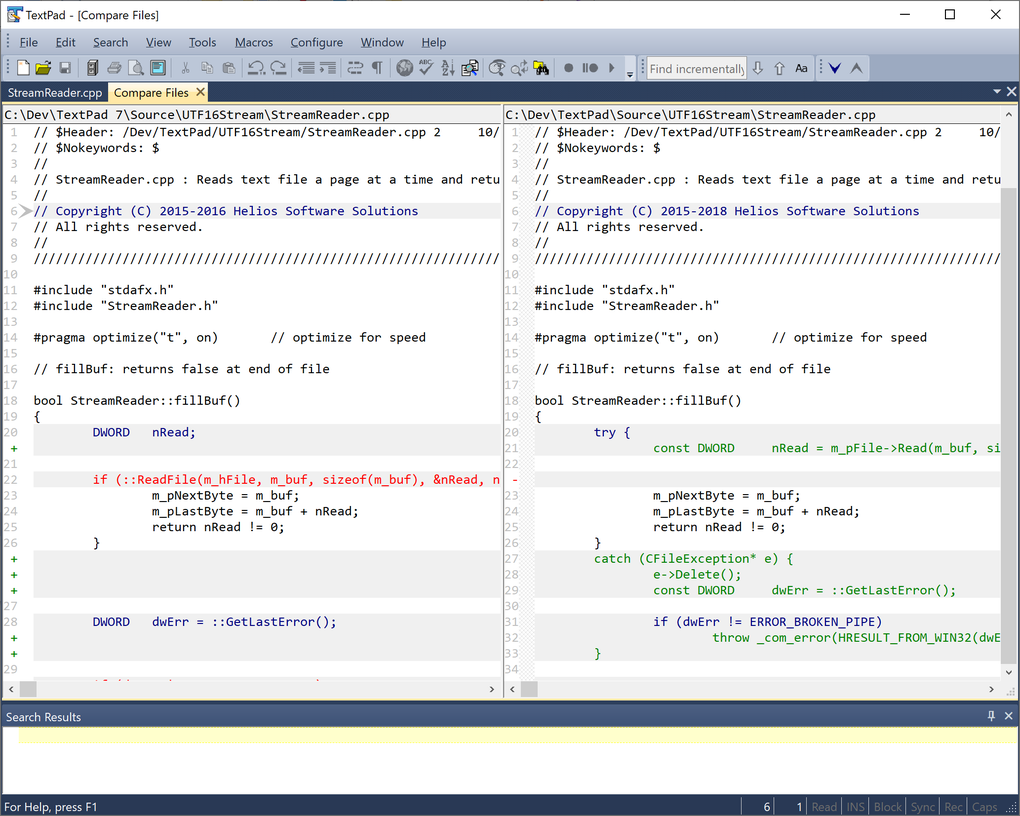
File Comparison Tool: This powerful feature enables side-by-side comparison of two files, highlighting differences between them. This simplifies the process of identifying changes made to code or documents, invaluable for version control and debugging.
-
Extensive Support for Large Files: The 32-bit version of TextPad is designed to handle impressively large files, effectively utilizing system resources to allow editing up to the virtual memory limits. This capability is a significant advantage when dealing with extensive datasets or large codebases.
-
Line Numbering and Bookmarks: Each line of text is preceded by a line number for easier navigation and reference. The bookmark feature allows users to mark specific lines or sections within a file for quick access later, a very useful feature for long documents or intricate code.
TextPad’s Support for Programming and Coding
Beyond its general text editing capabilities, TextPad offers features specifically designed for programmers and coders.
-
Java Integration: TextPad’s Java integration is a standout feature. It can predict potential errors in your code and present suggestions for resolving them in the ‘Tool Output’ section. This interactive feedback loop assists in debugging and enhances the development process. While Java integration isn’t always automatic, the setup process is generally straightforward.
-
Customizable Tools Menu: The customizable tools menu allows users to integrate external programs and utilities, such as compilers or interpreters, seamlessly into the TextPad workflow. This level of customization allows tailored environments suited to specific programming tasks.
-
Hypertext Jumps: TextPad’s search functionality includes hypertext jumps. When a match is found during a search, the user can directly jump to the corresponding line in the source file. This feature streamlines code navigation and debugging.
-
Syntax Highlighting (Implicit): While not explicitly stated as a feature, the ability to handle various file types (.java, .txt, etc.) suggests implicit syntax highlighting. While it might not be as extensive or customizable as dedicated IDEs, it aids readability.
User Interface and Experience
TextPad’s user interface is intentionally minimalist, prioritizing functionality and efficiency over visual complexity. The simplicity makes it easy to learn and use, even for those unfamiliar with advanced text editors. The consistent application of Windows XP UI guidelines contributes to a familiar and intuitive user experience. The help system is readily available through in-context menus, ensuring users always have access to assistance when needed. Keyboard shortcuts are extensively used to enhance speed and efficiency.
TextPad Compared to Alternatives
TextPad sits within a crowded market of text editors and IDEs. While it offers a robust feature set, understanding its place in the ecosystem is crucial. Several alternatives, such as Notepad++, Atom, Sublime Text, and Visual Studio Code, present both advantages and disadvantages compared to TextPad.
Notepad++: A strong contender, Notepad++ is free, open-source, and offers a similarly intuitive interface. Its extensive plugin ecosystem adds significant functionality, making it potentially more versatile. However, TextPad might hold an edge for users prioritizing speed and a clean, less cluttered interface.
Atom, Sublime Text, and Visual Studio Code: These editors, while more feature-rich in some aspects, can be more resource-intensive. They are usually favoured for larger projects, while TextPad might be more suitable for individual projects and rapid prototyping. Furthermore, the open-source nature of Atom and VS Code allows for community-driven development, but also comes with a steeper learning curve for advanced features.
TextPad’s paid status is a key differentiator. While it offers a trial period, it lacks the open-source ethos of some competitors. The absence of a free, fully functional version is a potential barrier to entry for some users. However, the frequent updates and continued development suggest a commitment to ongoing improvement and addressing user needs.
TextPad’s Strengths and Weaknesses
Strengths:
- Speed and Efficiency: TextPad’s lightweight design ensures rapid launch times and snappy responsiveness.
- Intuitive Interface: The simple, easy-to-navigate interface is a major strength, particularly for new users.
- Powerful Features: Despite its simplicity, it packs a wealth of advanced features like file comparison, hexadecimal viewing, and Java integration.
- Excellent for Large Files: Its ability to handle files up to virtual memory limits is a significant advantage.
- Regular Updates: Helios Software Solutions actively maintains and updates TextPad, ensuring continued support and improvements.
Weaknesses:
- Paid Software: The paid nature of TextPad is a significant drawback for many users accustomed to free alternatives.
- Limited Customization: While the tools menu allows for some customization, it lacks the extensibility of editors with extensive plugin ecosystems.
- Java Integration Might Require Manual Setup: While Java integration is a selling point, manual configuration may be necessary, which might frustrate some users.
- Less Community Support: Being proprietary software, community support is naturally less extensive than that available for open-source alternatives.
Conclusion
TextPad offers a compelling combination of speed, efficiency, and a powerful feature set within a user-friendly interface. Its strengths lie in its performance and its ability to handle large files efficiently. The built-in file management and comparison tools are significant advantages for productivity. While its paid status and limited customization might deter some users, those prioritizing speed, a clean interface, and robust core functionality may find TextPad a highly effective solution. The choice between TextPad and other text editors ultimately depends on individual needs and preferences, with budget, desired level of customization, and community support being significant factors to consider.
File Information
- License: “Trial version”
- Latest update: “March 24, 2025”
- Platform: “Windows”
- OS: “Windows 8”
- Language: “German”
- Downloads: “124.6K”
- Size: “15.65 MB”


