
The Sims 4, a life simulation game renowned for its immersive gameplay and customization options, has a thriving modding community. Among the many modifications available, the Explore Mod stands out as a significant enhancement, providing players with expanded gameplay possibilities and a richer, more engaging experience. This comprehensive guide will delve into the features, benefits, installation, and potential issues associated with the Explore Mod, offering a complete understanding for both seasoned Sims 4 players and newcomers alike.
Understanding the Explore Mod’s Functionality
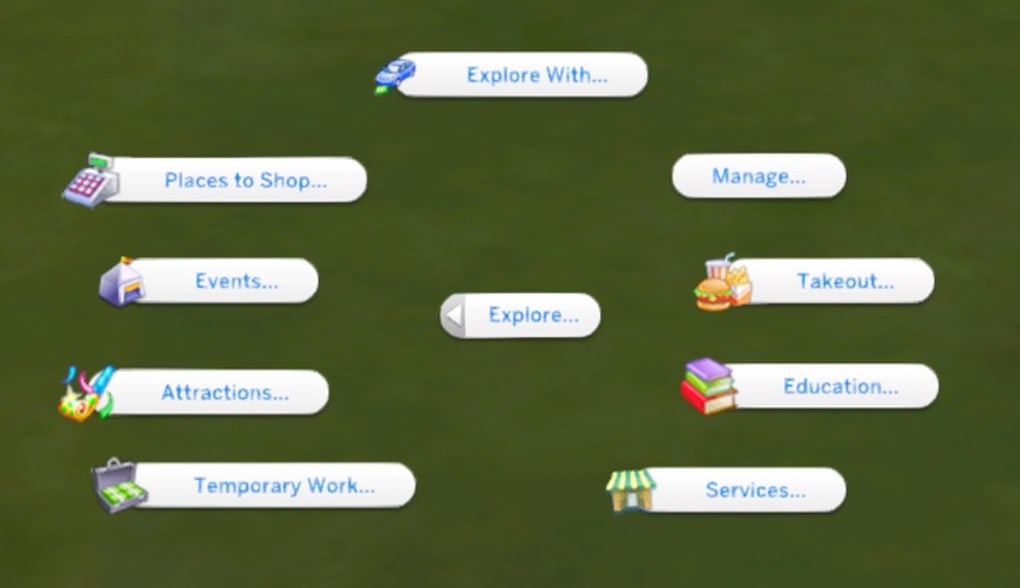
The Explore Mod, created by Kawaii Stacie, is a versatile utility designed to augment the base game of The Sims 4. Its primary function is to significantly expand the explorable areas within the game world. This expands beyond simply adding new locations; it introduces new interactions, objects, and even narrative elements that enrich the gameplay. Instead of the usual limitations on where Sims can freely wander, the Explore Mod allows Sims to venture into typically inaccessible areas, fostering a sense of freedom and discovery often absent in the vanilla game. This opens up a wealth of new possibilities for storytelling and gameplay scenarios. Think exploring the depths of the woods in Willow Creek, venturing into restricted areas of city neighborhoods, or uncovering hidden secrets within the game’s environments.
The mod’s impact isn’t limited to physical exploration. It also modifies interaction possibilities. For instance, it might add new animations or interactions that are contextually appropriate for the newly accessible locations, further enhancing immersion. These subtle additions accumulate to create a drastically different and more engaging experience. The level of detail and integration varies depending on the specific version of the Explore Mod and how it interacts with other mods installed. This creates a dynamic and ever-evolving gameplay landscape, keeping the experience fresh and unpredictable.
Installation and Compatibility: A Step-by-Step Guide
Installing the Explore Mod requires a basic understanding of The Sims 4 modding process. While not overly complex, following the correct steps is crucial to avoid issues and ensure the mod functions correctly. Here’s a step-by-step guide:
-
Download the Mod: Begin by downloading the Explore Mod from a reputable source. Ensure you are downloading the correct version compatible with your current version of The Sims 4. Inconsistent versions may lead to conflicts and crashes.
-
Locate the Mods Folder: Once downloaded, locate your Sims 4 Mods folder. This is typically found in your Documents folder, within “Electronic Arts,” then “The Sims 4,” and finally, “Mods.” If this folder doesn’t exist, you’ll need to create it manually.
-
Extract the Files: The downloaded file likely needs to be extracted from its archive (such as a .zip file). Most operating systems come with built-in extraction tools, or you can use third-party software like 7-Zip. Extract the contents of the archive into the Mods folder.

-
Enable Script Mods: Within the Sims 4 game settings, ensure that “Script Mods” are enabled. This allows custom scripts included in the mod to function correctly. This setting is usually found in the “Game Options” menu.
-
Restart the Game: After successfully installing the mod, restart The Sims 4. This ensures that the game recognizes the new files and incorporates the mod’s functionality.
-
Testing and Troubleshooting: Start a new game or load an existing save to test the Explore Mod. If you encounter any issues such as game crashes or errors, check the mod’s description for troubleshooting information or compatibility notes. Remember to check for any updates to the mod as well; updated versions might resolve bugs or add features.
Compatibility with Other Mods: The Explore Mod’s compatibility with other mods varies. Some mods might conflict with the Explore Mod, leading to instability or unexpected behavior. Always check the mod description for known compatibility issues. Furthermore, installing too many mods simultaneously can negatively impact the game’s performance. It’s advisable to start with a few essential mods and gradually add more, monitoring the game’s stability.
Expanding Gameplay Possibilities: Features and Enhancements
The Explore Mod offers several key features that enhance The Sims 4 gameplay experience:
-
Exploration of Previously Restricted Areas: This is the core functionality of the mod, opening up many previously inaccessible locations for exploration. Sims can now wander freely through restricted areas, discovering hidden pathways and encountering unexpected events.
-
New Interactions and Animations: The mod frequently introduces new animations and interactions specific to the newly accessible areas. These additions seamlessly integrate into the existing gameplay, making the exploration more immersive and engaging.
-
Enhanced Storytelling Opportunities: The ability to explore new areas significantly expands storytelling capabilities. Players can create more complex and nuanced narratives, taking advantage of the expanded environment.
-
Uncovering Hidden Secrets: Some versions of the Explore Mod include hidden secrets or easter eggs within the expanded areas. Discovering these secrets adds an element of surprise and excitement to the gameplay.
-
Improved Immersion: The Explore Mod contributes significantly to the overall immersion of the game by breaking down the artificial barriers within the game world. This seamless integration increases believability and makes the Sims’ world feel more realistic.
Potential Issues and Troubleshooting
While the Explore Mod is generally well-regarded, it’s not without potential issues:
-
Game Crashes: Occasionally, the Explore Mod might cause game crashes, particularly when used in conjunction with other mods. Incompatible mods or outdated versions are common culprits.
-
Performance Issues: The increased number of explorable areas can strain the game’s performance, especially on lower-end systems. Players with less powerful computers might notice a decrease in frame rate or increased loading times.
-
Compatibility Conflicts: Conflicts with other mods can occur. It is crucial to carefully check compatibility before installing the Explore Mod alongside other modifications.
-
Bugs: Like any mod, the Explore Mod might contain bugs or glitches. Check for updated versions to address any known issues.
Troubleshooting Steps:
-
Update the Mod: Ensure you are using the latest version of the Explore Mod to benefit from bug fixes and performance improvements.
-
Check Compatibility: Review the mod’s description for known compatibility issues with other mods you are using.
-
Reduce Mod Load: If performance issues arise, try disabling other mods to identify potential conflicts.
-
Verify Game Files: If you suspect a game file corruption, consider verifying the integrity of your game files through the game’s launcher.
-
Reinstall the Mod: If all else fails, try uninstalling and reinstalling the Explore Mod to ensure a clean installation.
Conclusion: A Must-Have for Enhanced Sims 4 Gameplay?
The Explore Mod for The Sims 4 represents a significant enhancement to the base game, offering players a more immersive and engaging experience. Its functionality significantly expands gameplay possibilities, allowing players to explore previously inaccessible areas and engage in new interactions. While potential issues like game crashes and compatibility conflicts exist, diligent installation and troubleshooting can minimize these risks. For players seeking a more expansive and dynamic Sims 4 experience, the Explore Mod is a valuable addition that dramatically changes the feel and scope of the game. Its impact on enhancing immersion and storytelling potential makes it a worthwhile consideration for any dedicated Sims 4 player.
File Information
- License: “Free”
- Version: “1.58.63.1010”
- Latest update: “December 9, 2019”
- Platform: “Windows”
- OS: “Windows 8.1”
- Language: “English”
- Downloads: “2.9K”
- Size: “2.60 MB”


