
TinyPic is a free Windows application designed to simplify the process of sharing images and videos online by significantly reducing their file sizes. In a world saturated with high-resolution photos and videos captured effortlessly by smartphones and digital cameras, the need for efficient file resizing tools is undeniable. Email and messaging services often impose strict size limits, hindering the quick and easy sharing of large multimedia files. TinyPic addresses this problem by providing a straightforward and effective solution for shrinking images and videos to manageable sizes without excessive quality loss. This review delves into the application’s features, performance, and overall user experience.
Image Resizing Capabilities: Efficiency and Ease of Use
TinyPic’s primary function is image resizing. Its intuitive interface makes the process remarkably simple. Adding images is as effortless as drag-and-dropping them into the application window or browsing to their location using the built-in file browser. The application supports batch processing, allowing users to resize numerous images simultaneously, significantly speeding up workflow. This batch processing capability is particularly beneficial for users dealing with large collections of photos.
The application boasts compatibility with a wide range of image formats, including PNG, GIF, EPS, JPG, and BMP, ensuring broad accessibility for diverse image types. Users can select from a series of predefined output sizes, including 640x480, 800x600, 1024x768, and 1600x1200 pixels, offering flexibility based on the intended use of the resized images. This selection of standard resolutions caters to various platforms and applications, eliminating the need for manual size adjustments.
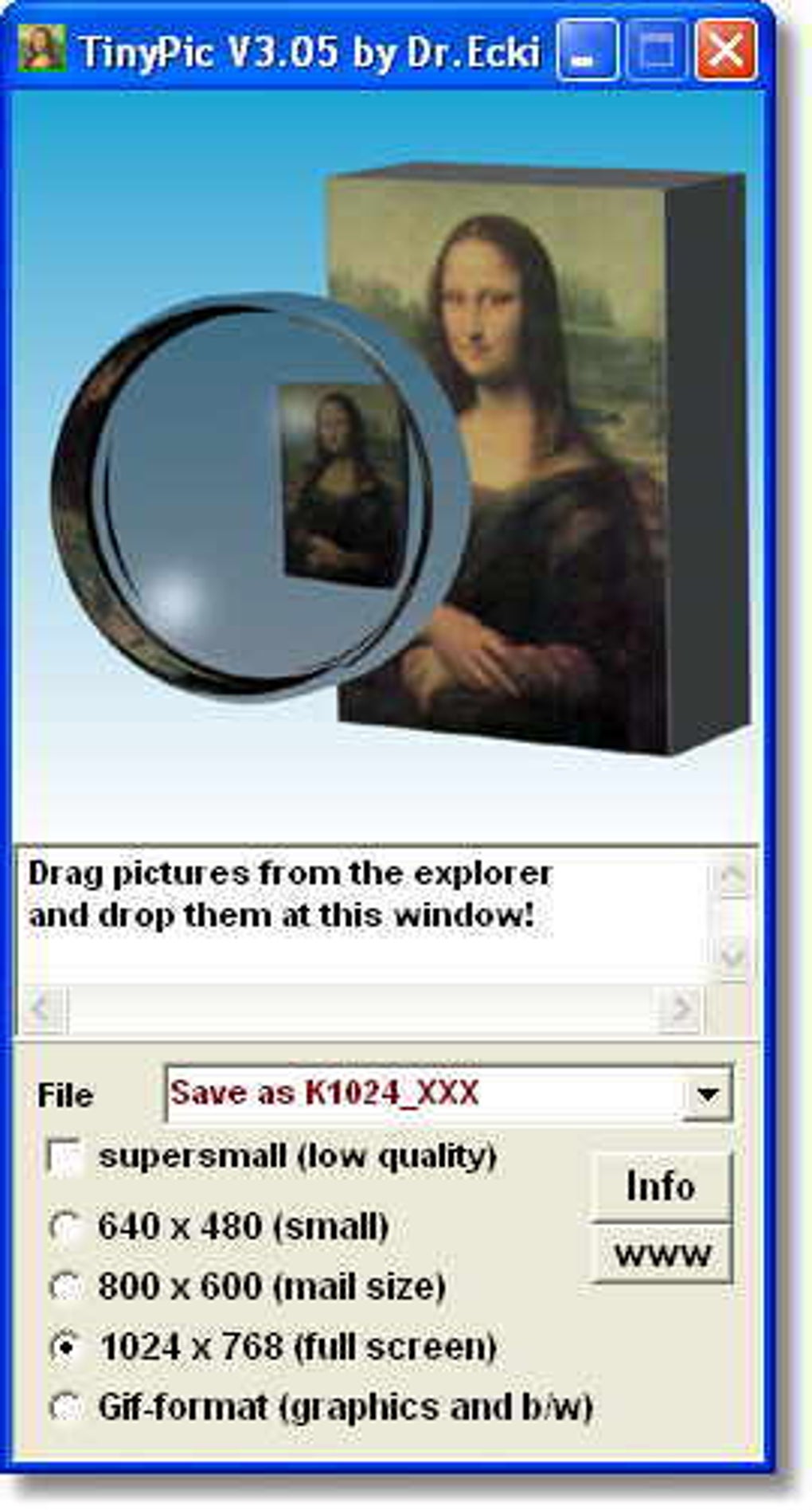
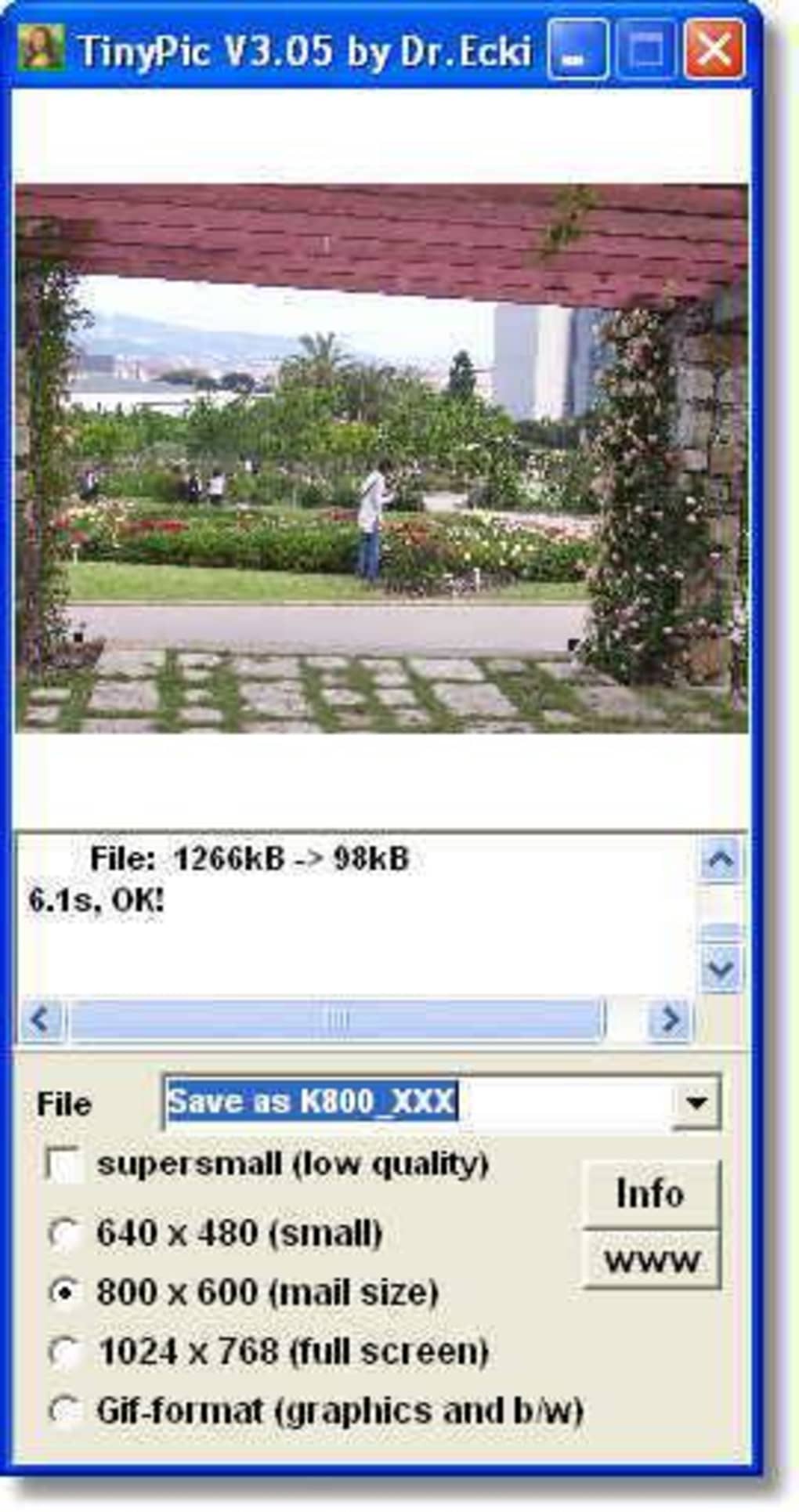
After selecting the desired size, the resizing process is initiated, and the application displays the status of each file in a clearly presented file queue. A noteworthy feature is TinyPic’s preservation of the original, high-resolution images. Instead of overwriting the originals, the resized images are saved as new files, offering users peace of mind and preventing accidental data loss. Users have control over the storage location of the resized files, with options to save them in the same folder as the original, create a new subfolder, or specify a custom output directory. This flexibility caters to various organizational preferences and workflows.
The application’s automatic resizing algorithm strikes a balance between file size reduction and image quality retention. While the stated reduction is up to 1/20th of the original size (achieving 3-10% of the original file size), it’s important to note that selecting the smallest size option will result in a more noticeable reduction in image quality. This approach ensures that the resized images remain usable while significantly reducing their file size. The automatically generated links for easy sharing of the resized images further enhance its practical functionality.
Video Resizing: Limitations and Considerations
While primarily designed for image resizing, TinyPic also offers video resizing capabilities. This extends its utility to users who frequently need to share video clips online. The process mirrors image resizing, with users adding video files and selecting desired output settings.
However, TinyPic imposes certain limitations on video files. Standard-definition videos are restricted to a maximum size of 500 MB and a duration of 15 minutes. Exceeding these limits will result in the application truncating the video to the maximum allowable duration. High-definition videos are also accepted, but with a similar 500 MB size limit and a maximum duration of only five minutes. This constraint may prove restrictive for users working with longer or larger video files.
Despite these limitations, TinyPic’s support for a range of video formats enhances its versatility, accommodating various types of video content. The same principles of preserving original files and generating sharing links apply to video files, mirroring the ease and efficiency of the image resizing functionality.
Performance and Resource Utilization
TinyPic has shown consistent performance during testing. The application exhibits quick response times and processes files efficiently, without noticeable delays or lags. Its resource utilization is minimal, ensuring smooth operation even on systems with limited processing power or memory. This efficiency minimizes disruption to other applications and ensures a seamless user experience. The application’s stability is also commendable; it hasn’t displayed any instances of crashing or freezing during extensive usage. This reliability is crucial for a tool intended for processing multiple files.
Strengths and Weaknesses of TinyPic
TinyPic shines in its simplicity and effectiveness. Its intuitive interface and ease of use make it accessible to users of all technical skill levels. The batch processing functionality significantly boosts productivity, and the support for various image and video formats ensures broad compatibility. Preserving original files and providing readily available sharing links are practical additions that enhance user experience.
However, TinyPic’s functionality is limited to resizing. It lacks additional features such as basic photo editing tools or the ability to resize images to user-defined dimensions. Furthermore, the restrictions on video file size and duration may prove limiting for some users. The lack of dedicated support channels or extensive documentation is also a minor drawback.
Pros:
- Intuitive Interface: The user-friendly interface makes the application exceptionally easy to navigate and use.
- Simple Resizing Process: The resizing process is straightforward, requiring minimal technical expertise.
- Supports Various Formats: The application supports a wide variety of image and video formats, catering to different needs.
- Preserves Original Files: TinyPic ensures that original, high-resolution files are not altered or deleted.
- Fast Processing: The application processes files efficiently, with minimal delay.
- Low Resource Utilization: TinyPic works smoothly without significantly impacting system resources.
- Batch Processing: Handles multiple files simultaneously, optimizing workflow efficiency.
- Generates Sharing Links: Provides easily shareable links for resized files.
Cons:
- Limited Functionality: TinyPic is solely a resizer; it does not include other image or video editing tools.
- No User-Defined Resizing: Users cannot specify custom dimensions for resizing.
- Video Size and Duration Limits: Restrictions on video file size and duration may limit its applicability.
- Lack of Support: Limited or no dedicated support channels are available.
Conclusion
TinyPic is a valuable tool for users who frequently need to resize images and videos before sharing them online. Its straightforward interface, efficient performance, and ability to maintain original files make it a practical and user-friendly option. While its functionality is limited to resizing and it has limitations on video file sizes, its strengths outweigh its weaknesses for users primarily seeking a quick and easy way to reduce the size of their media files without significant quality loss. Its simplicity and effectiveness make it a worthwhile addition to the toolkit of anyone regularly dealing with large multimedia files.
File Information
- License: “Free”
- Latest update: “July 10, 2023”
- Platform: “Windows”
- OS: “Windows XP”
- Language: “English”
- Downloads: “55.9K”
- Size: “1.55 MB”


