
In an increasingly digital world, the Portable Document Format (PDF) has become the ubiquitous standard for sharing documents. Its ability to preserve formatting, fonts, and images across various platforms makes it ideal for everything from official reports and academic papers to e-books and invoices. However, while PDFs excel in presentation and portability, their inherent design often makes editing a significant challenge. This is where dedicated PDF conversion tools become indispensable, and among them, Total PDF Converter stands out as a robust and versatile solution for Windows users.
Developed by Coolutils, Total PDF Converter is not just another utility; it’s a comprehensive multi-format PDF converter engineered to bridge the gap between static PDF viewing and dynamic document editing. It empowers users to transform their PDF files into a wide array of more editable and flexible formats, offering a pathway to manipulate content that would otherwise be locked away. Whether you need to extract data, revise text, or repurpose graphics, Total PDF Converter provides the tools necessary to unlock your PDF documents’ full potential. This article delves into the functionalities, benefits, and practical applications of Total PDF Converter, guiding you through its features and helping you understand why it might be the essential productivity tool you’ve been looking for.
Unlocking the Power of PDF Conversion
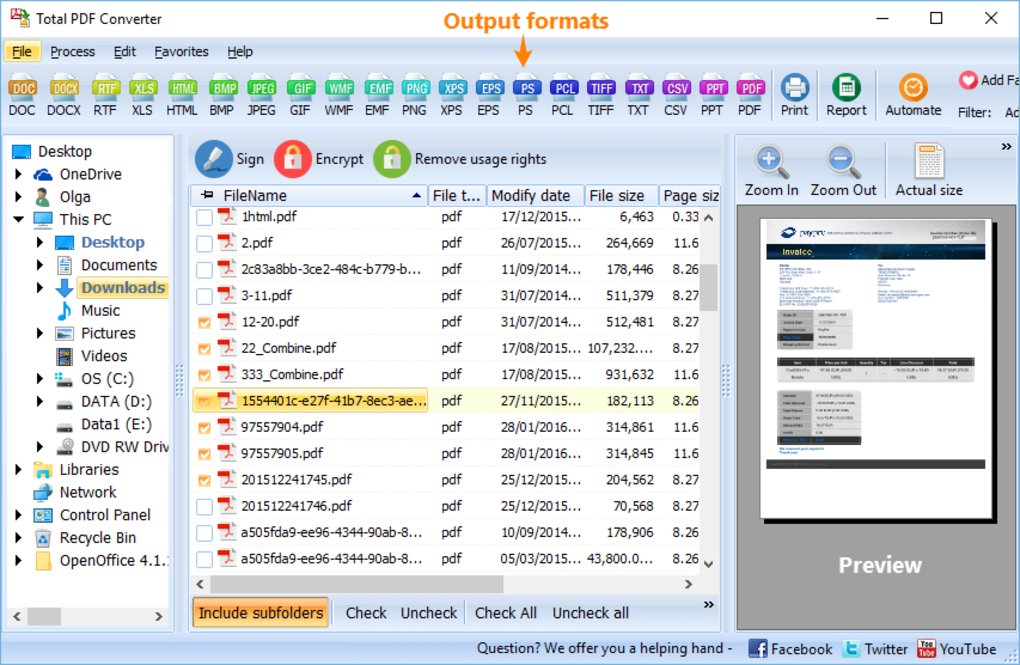
The journey from a rigid PDF to an adaptable document format can significantly enhance productivity and creative freedom. Total PDF Converter is designed to make this journey as smooth and effective as possible, offering a gateway to numerous possibilities for your digital documents.
Why Convert PDFs? The Challenge of Editing
PDFs were initially conceived by Adobe in the early 1990s with a primary goal: to provide a universal format that could be viewed and printed consistently on any computer, regardless of the operating system, hardware, or application used to create it. This commitment to fidelity and consistency is what made PDFs so successful for document sharing and archiving. They are essentially digital snapshots, encapsulating all elements of a page – text, images, graphics, and interactive features – into a single, self-contained file.
However, this strength in preserving layout becomes a weakness when editing is required. Unlike word processing documents (like DOC files) or spreadsheets (like XLS files), PDFs are not structured for easy modification. Text often exists as distinct blocks or even individual characters rather than flowing paragraphs, making simple edits like adding a sentence or changing a font a complex task that can easily disrupt the document’s layout. Images are embedded as static elements, difficult to resize, move, or replace without specialized tools. This inherent rigidity, while ensuring document integrity, can severely hamper workflows when revisions are necessary, or when content needs to be repurposed for different applications.
Consider a scenario where you receive a PDF report from a colleague, but you need to integrate some of its data into a spreadsheet for analysis, or perhaps extract specific sections of text for a presentation. Manually retyping information is time-consuming and prone to errors. Copy-pasting from a PDF often results in lost formatting and messy text. This is precisely where a powerful PDF converter like Total PDF Converter becomes invaluable. It doesn’t just extract data; it intelligently reconstructs the document’s content into a format that is natively editable, saving countless hours and ensuring accuracy. It transforms a fixed snapshot into a dynamic canvas, ready for your modifications.
A Versatile Conversion Arsenal
Total PDF Converter truly shines in its ability to convert PDFs into an impressive variety of formats, catering to virtually any post-conversion need. This extensive format support is a cornerstone of its utility, making it a flexible tool for diverse professional and personal applications.
The software supports conversion to:
- DOC (Microsoft Word Document): This is perhaps the most frequently sought-after conversion. Transforming a PDF into a DOC file allows for full text editing, formatting adjustments, content reorganization, and collaborative work within Microsoft Word or compatible word processors. It’s essential for anyone needing to revise reports, contracts, or manuscripts initially provided in PDF format.
- XLS (Microsoft Excel Spreadsheet): For PDFs containing tabular data – think financial statements, inventory lists, or statistical reports – conversion to XLS is a game-changer. Total PDF Converter can intelligently extract data from tables within your PDF and organize it into a fully editable Excel spreadsheet, enabling data analysis, calculations, and charting without tedious manual data entry.
- BMP, JPG (Image Formats): When you need to extract specific images from a PDF, or convert entire pages into graphic files, BMP and JPG formats are ideal. This is useful for graphic designers, content creators, or anyone needing to use PDF content in image editing software, web design, or presentations where a static image is preferred.
- HTML (HyperText Markup Language): Converting PDFs to HTML allows you to publish document content directly onto the web. This is perfect for businesses looking to share reports or brochures online, making them accessible via web browsers without requiring users to download or open a PDF viewer. It maintains much of the original layout while adapting it for web readability.
- TXT (Plain Text): For raw text extraction, TXT is the simplest and most universal format. This is particularly useful for developers, data analysts, or anyone who needs to strip away all formatting and graphics to work solely with the textual content, for tasks like text analysis, indexing, or importing into other text-based applications.
Beyond these common formats, Total PDF Converter supports a host of others, including TIFF, PNG, GIF, RTF, CSV, and more. This broad spectrum ensures that no matter your specific requirement – be it creating presentations, archiving content in a specific image format, or preparing data for specialized software – Total PDF Converter has a solution. The adaptability provided by this extensive format support means users are not limited by the PDF’s original structure but can transform their documents to suit new purposes and workflows effortlessly.
Key Features That Streamline Your Workflow
While the core function of converting PDFs is paramount, Total PDF Converter enhances this process with a suite of features designed for ease of use, efficiency, and comprehensive control over the output. These functionalities combine to create a powerful tool that simplifies complex document management tasks.
Intuitive Step-by-Step Conversion Wizard
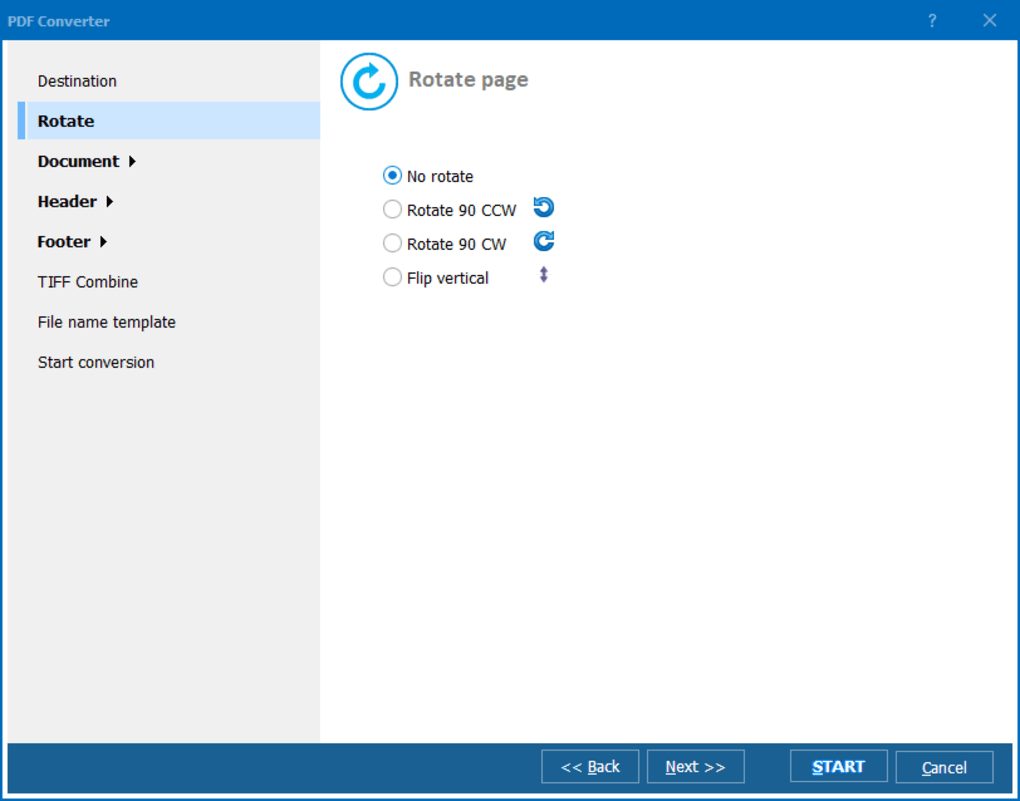
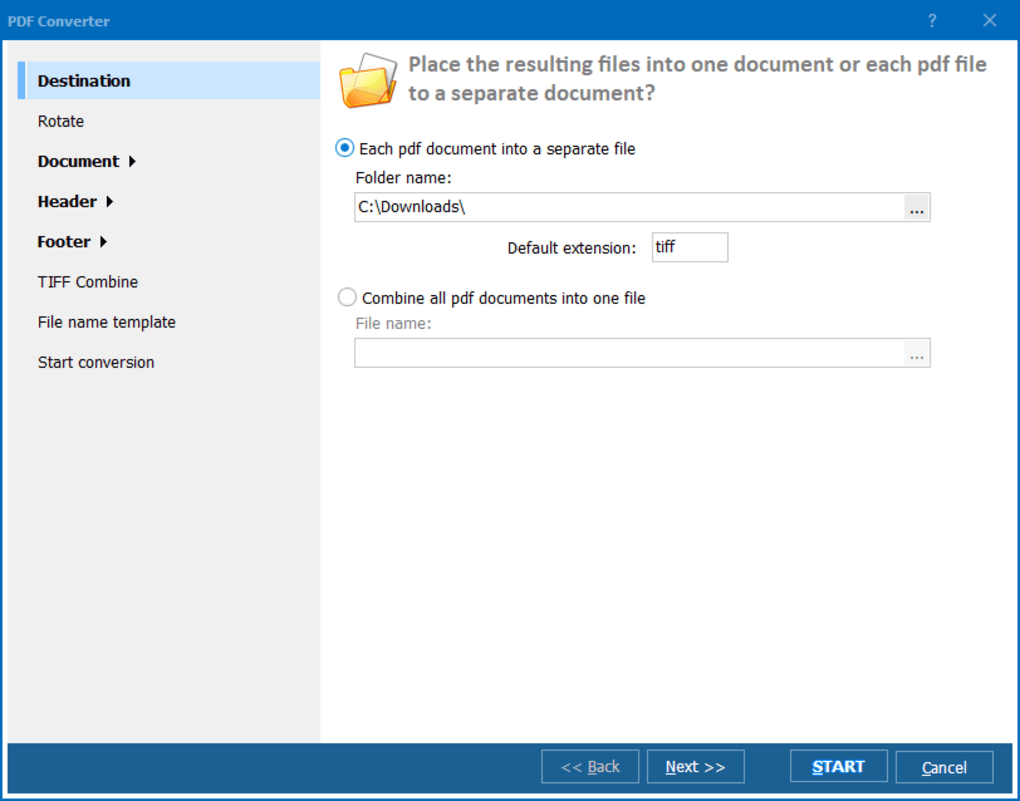
One of the most user-friendly aspects of Total PDF Converter is its integrated step-by-step wizard. This guided interface makes the conversion process accessible even for users who are not tech-savvy. Instead of confronting a complex array of options upfront, users are walked through each stage of the conversion, ensuring that every necessary parameter is set correctly.
The wizard typically guides you through steps such as:
- Selecting Source Files: You start by choosing the PDF document(s) you wish to convert.
- Choosing Output Format: The wizard then prompts you to select the desired target format from its extensive list (DOC, XLS, JPG, HTML, etc.).
- Configuring Output Settings: This is where the wizard truly adds value. Depending on the chosen output format, Total PDF Converter presents specific configuration settings. For instance, if converting to Word, you might be able to choose whether to retain original formatting, detect tables, or convert pages as images. If converting to an image format, you might specify resolution, color depth, or image quality. Converting to Excel could offer options for intelligent table detection or specific data delimiters. This level of granular control, presented in an easy-to-understand manner, ensures that the output file meets your exact requirements, optimizing the results for its intended use.
- Specifying Output Location: Finally, you designate where the converted file should be saved.
This wizard-driven approach minimizes potential errors and confusion, making the conversion process straightforward and efficient. It allows users to achieve precise results without needing to delve into complex manuals or understand every technical detail.
Efficiency Through Batch Processing
In a professional environment, dealing with a single PDF at a time is often insufficient. Many users frequently encounter scenarios where they need to convert dozens, hundreds, or even thousands of PDF files. Manual, one-by-one conversion in such situations would be an incredibly time-consuming and monotonous task. Total PDF Converter addresses this critical need with its robust batch conversion capability.
The software allows users to select multiple PDF files – from a single folder or even across different directories – and process them simultaneously. Once all desired PDFs are selected, the conversion wizard (or command-line interface, as discussed below) applies the chosen output settings to every file in the batch. This means you can initiate a single conversion job for a large volume of documents and let the software handle the rest, freeing up your time for other tasks.
Batch processing is a significant time-saver for:
- Archivists and Librarians: Converting large collections of historical documents or digital records.
- Data Analysts: Processing multiple PDF reports into spreadsheets for consolidated analysis.
- Educators: Converting numerous student submissions or teaching materials.
- Businesses: Handling invoices, contracts, or reports in bulk.
While larger documents or extensive batches might take some time, especially on older hardware, the ability to automate the process completely outweighs any wait. The convenience of setting it once and having the software manage the conversion of numerous files underscores Total PDF Converter’s commitment to user efficiency.
Beyond Basic Conversion: Advanced Options
Total PDF Converter isn’t just about simple format changes; it incorporates several advanced functionalities that cater to more specific and complex conversion needs, often highlighted by experienced users.
One notable feature is the ability to include or exclude images during conversion. When converting a PDF to a text-based format like DOC or TXT, users often have a choice: either retain the images, which can sometimes make the output document larger or more complex, or strip them out entirely to focus solely on the textual content. This option provides crucial control, allowing users to tailor the output to their precise requirements, whether they need a rich, visual document or a lean, text-only file for data processing.
Another powerful aspect, particularly appreciated by power users and IT professionals, is command-line support. This allows users to execute conversions directly from the command prompt or integrate Total PDF Converter into scripts and automated workflows. Command-line conversion bypasses the graphical user interface, making it ideal for scheduled tasks, server-side processing, or integrating with other applications. Users can define conversion parameters, input/output paths, and specific settings using command-line switches, enabling highly customized and unattended operations. For instance, a user can script a daily routine to convert all new PDFs in a specific folder to Word documents with a date stamp.
Speaking of date stamps, the software also offers the option to add date stamps to each converted file, a minor yet useful feature for document management and version control.
Furthermore, some users have noted its capability to convert XPS files to DOC via the command line, alongside PDFs. XPS (XML Paper Specification) is another fixed-layout document format, similar to PDF, primarily used on Windows platforms. The inclusion of XPS support, even if primarily through the command line, extends the utility of Total PDF Converter beyond just PDF, making it a more versatile document conversion tool for users who deal with both formats. These advanced options demonstrate the developer’s consideration for a diverse user base, ranging from casual users benefiting from the wizard to seasoned professionals requiring automation and specific output configurations.
User-Friendly Interface and File Management
Despite its powerful capabilities, Total PDF Converter maintains a functional and straightforward interface, emphasizing usability over flashy aesthetics. The interface, though described by some as “a little old-fashioned,” is highly practical, primarily functioning as a file explorer.
Upon launching the application, users are presented with a view that mirrors the directory structure of their system. This familiar layout makes it incredibly easy to navigate through folders and locate the PDF files they wish to convert. PDFs within selected folders are displayed, and users can simply tick checkboxes next to the files to select them for conversion. This intuitive drag-and-drop or select-and-tick approach streamlines the initial file selection process, particularly when dealing with multiple files spread across different locations.
The integrated file explorer is a significant convenience because it eliminates the need to open separate file browsing windows or dialogs repeatedly. Everything needed for file selection and conversion setup is typically accessible within the main application window. While it might not boast the sleek, modern design of some newer software, its utility-focused approach ensures that users can quickly grasp how to operate it without a steep learning curve. The emphasis is on functionality and efficiency, allowing users to focus on getting their conversion tasks done rather than navigating complex design elements. This no-frills, practical interface contributes to a smooth overall user experience, especially for those who prioritize efficiency in their productivity tools.
Performance, Compatibility, and User Experience
Evaluating any software tool requires looking beyond its features to understand how it performs in real-world scenarios, its compatibility with different systems, and the overall experience it offers to its users. Total PDF Converter, while powerful, comes with its own set of characteristics in these areas.
Handling Document Complexity and Speed
The performance of Total PDF Converter, particularly in terms of speed and output quality, can vary depending on several factors, primarily the complexity and size of the PDF document being converted.
Document Complexity: PDFs can range from simple text-only documents to highly complex files embedding numerous images, graphics, interactive elements, diverse fonts, and intricate layouts. Converting a simple text PDF to a DOC file is generally very fast and yields excellent results, often perfectly replicating the original. However, a PDF packed with high-resolution images, intricate tables, or non-standard fonts can pose a greater challenge. The software’s algorithms work to interpret and reconstruct these elements in the target format. This process requires more computational effort and time. For instance, accurately converting complex tables to Excel or preserving nuanced graphical layouts in HTML can be demanding, and the results, while usually good, might require minor post-conversion adjustments.
Document Size: As expected, larger documents (those with many pages or significant file sizes due to embedded media) will naturally take longer to convert than smaller ones. While the batch conversion feature efficiently handles multiple files, the processing time for individual large documents within that batch will still be substantial. Users should anticipate this, especially when converting multi-hundred-page documents. It’s a trade-off between the time taken for conversion and the time saved by not manually recreating the content.
“Don’t necessarily expect miracles”: This caveat from the original description is an honest assessment common to most PDF conversion tools. While Total PDF Converter is highly effective, the inherent differences between the PDF format and other editable formats mean that a 100% perfect, pixel-for-pixel replication is not always guaranteed, especially with highly complex source files. Minor layout shifts, font substitutions, or image positioning variations can sometimes occur. The software does an commendable job of preserving fidelity, but users should be prepared for the possibility of minor tweaks needed in the output document to achieve absolute perfection. However, for the vast majority of common PDF documents, the conversion quality is more than adequate for editing and repurposing.
System Requirements and Installation
Total PDF Converter is designed for the Windows operating system, ensuring broad compatibility across a wide range of personal computers. The reference material specifically mentions support for “Windows 98” and beyond, indicating its compatibility with older systems as well as modern versions like Windows 10 and 11. This wide compatibility ensures that a broad user base can leverage the software without significant OS upgrade requirements.
License and Availability: The software is available as a “Trial version.” This allows prospective users to download and test its features and performance before committing to a purchase. A trial version is crucial for evaluating if the software meets specific needs and handles particular document types effectively. During the trial period, users can experience the conversion wizard, batch processing, and various output formats firsthand, helping them make an informed decision. The full, licensed version typically unlocks all features without limitations, such as watermarks or page limits often imposed on trial editions.
Installation Process: The download size for the latest version (V6.5.0.141) is approximately 145.77 MB. The installation process is generally straightforward, following the standard Windows application installation procedures. Users download the installer, run it, and follow the on-screen prompts. As with any software download, it is always recommended to obtain the application from a reputable source like PhanMemFree.org to ensure the integrity and security of the downloaded file.
Developer Information: The software is developed by Coolutils, a company known for producing a suite of utility software, particularly in the document conversion and management space. This background suggests a focus on specialized functionality and reliability in their products.
Language Support: Total PDF Converter supports multiple languages, including English, German, Spanish, French, and Russian. This multilingual support makes it accessible to a broader international audience, allowing users to interact with the software in their preferred language.
Real-World User Feedback
User reviews often provide invaluable insights into the practical effectiveness and overall satisfaction with a software product. Total PDF Converter has garnered feedback that highlights both its strengths and areas where it could improve.
Praise for Functionality: Many users commend the software for its core conversion capabilities, often citing its effectiveness in transforming PDFs to DOC and other formats. The “batch conversion” feature is frequently praised as a major time-saver, particularly for those who manage large volumes of documents. Users appreciate the “easy to use” nature of the wizard, which simplifies the process, and the “nice file explorer” that aids in file selection. Specific comments highlight the utility of advanced options, such as the ability to “include the images or not” and the functionality of “add[ing] a date stamp to each file.” The “command line” interface receives strong positive feedback from users who need to automate tasks or integrate the converter into scripts, with some noting its “clear switches” and “quite wide settings.” XPS support through the command line is also mentioned as a unique and valuable asset for certain workflows.
Points for Improvement: While generally positive, reviews also point to a few areas that could be enhanced. The interface is consistently described as “a little old-fashioned,” suggesting that while functional, a modern visual refresh could improve the user experience. Some users have reported that “previews are not always displayed correctly,” which can be a minor inconvenience when verifying document selection or conversion settings. An older review also commented on the software being “pricey” compared to similar alternatives at the time, though pricing models and competitive landscapes can change. Another specific critique mentioned “no actual help file” for the command-line interface, which could make it challenging for new users to leverage its full power without external resources.
Overall, the user feedback paints a picture of a highly functional and reliable tool, particularly for its core purpose of multi-format PDF conversion and its powerful batch and command-line capabilities. While aesthetic improvements and more comprehensive documentation could enhance the experience, its practical utility and efficiency are consistently highlighted as strong advantages. The ability to produce “quite quickly and accurate” conversions from a variety of PDF documents, including the flexibility to handle images and even XPS files, makes it a valuable asset for many users.
Deciding If Total PDF Converter Is Right for You
Choosing the right PDF conversion tool depends on your specific needs, budget, and desired feature set. Total PDF Converter offers a compelling package, but it’s helpful to weigh its advantages against potential limitations and consider the broader market.
Weighing the Pros and Cons
To help you make an informed decision, let’s summarize the key strengths and weaknesses of Total PDF Converter:
Pros:
- Versatile Multi-Format Support: Converts PDFs to a very wide range of formats including DOC, XLS, BMP, JPG, HTML, TXT, and many more, making it adaptable for diverse needs.
- Intuitive Conversion Wizard: Simplifies the conversion process with a step-by-step guide, making it accessible for all skill levels.
- Efficient Batch Conversion: Allows processing multiple PDF files simultaneously, saving significant time and effort for large volumes of documents.
- Granular Control over Output: Offers format-specific configuration settings (e.g., image inclusion/exclusion, resolution settings, table detection) to tailor the converted files precisely.
- Integrated File Explorer: Provides a convenient way to navigate and select files directly within the application.
- Powerful Command-Line Support: Ideal for automation, scripting, and integration into larger workflows for advanced users.
- XPS Conversion Capability: Adds value for users dealing with XML Paper Specification documents, particularly via command line.
- Developer Reputation: Backed by Coolutils, a company with a focus on utility software, suggesting reliability and expertise.
Cons:
- Dated Interface: The user interface is described as “old-fashioned,” potentially lacking the modern aesthetic of some newer applications.
- Variable Performance for Complex Files: Large or highly complex PDF documents may take longer to convert, and output results, while generally good, might sometimes require minor post-conversion adjustments.
- Potential for Preview Issues: Some users have reported that previews of files are “not always displayed correctly.”
- Trial Version Limitations: As a trial version, it will have limitations (e.g., watermarks, page limits) until a full license is purchased.
- Limited Help File for Advanced Features: The command-line interface, while powerful, might lack a comprehensive built-in help file for new users to quickly master.
Considering these points, Total PDF Converter is particularly well-suited for users who regularly need to convert PDFs to a variety of editable formats, appreciate batch processing for efficiency, and potentially benefit from command-line automation. Its robust functionality often outweighs its somewhat utilitarian interface for users prioritizing performance and versatility.
Alternatives and Further Exploration
The market for PDF conversion software is competitive, with numerous tools offering varying features and price points. If Total PDF Converter doesn’t perfectly align with your needs, or if you wish to explore other options before committing, PhanMemFree.org, like many software portals, lists several alternatives.
Some examples of related tools and alternatives mentioned include:
- Free Word to PDF Converter: Focuses on a specific conversion direction (Word to PDF).
- Free PDF to All Converter: Aims to provide broad conversion capabilities for free.
- Adobe PDF Converter: Often refers to Adobe Acrobat, the original and most comprehensive PDF suite, which includes robust conversion features but typically comes at a higher price point.
- PDF To Word Converter Free: Specialized in the popular PDF to Word conversion.
- Free Doc to PDF Converter: Another specific-direction converter.
- All File to All File Converter 3000: A broader file conversion utility.
- Wondershare PDF Converter Pro: A commercial alternative offering a professional suite of PDF conversion tools.
- Icecream PDF Converter: Another freemium option for PDF conversion.
When considering alternatives, pay attention to:
- Specific Conversion Needs: Do you only need PDF to Word, or a wider range of formats?
- Budget: Are you looking for a free solution, a one-time purchase, or a subscription service?
- Batch Processing Requirements: How many files do you typically need to convert at once?
- Advanced Features: Is command-line support, OCR (Optical Character Recognition), or specific formatting controls important to you?
- User Interface Preference: Do you prefer a modern, sleek design or is functional efficiency more critical?
By exploring these options and perhaps trying their trial versions, you can make a well-informed decision that best suits your individual or organizational document management requirements.
Conclusion
Total PDF Converter emerges as a powerful and highly functional utility for anyone grappling with the limitations of the PDF format. Its expansive support for various output formats, combined with an intuitive step-by-step wizard and robust batch processing capabilities, makes it an indispensable tool for transforming static documents into editable, reusable content. While its interface might not boast cutting-edge aesthetics, its focus on efficiency and practical functionality ensures that users can effectively manage and convert their PDF files with precision.
The availability of advanced features like command-line support and specific output configurations further extends its appeal to both casual users seeking straightforward conversions and power users needing automation. Whether you’re a student needing to extract data for a report, a professional repurposing documents for different platforms, or a business manager streamlining data entry, Total PDF Converter by Coolutils offers a reliable solution. By downloading the trial version from PhanMemFree.org, you can experience firsthand how this versatile software can unlock your PDF documents and significantly enhance your productivity. In an age where digital document flexibility is key, Total PDF Converter stands as a testament to the power of specialized software in overcoming format barriers.
File Information
- License: “Trial version”
- Latest update: “June 16, 2025”
- Platform: “Windows”
- OS: “Windows 98”
- Language: “English”
- Downloads: “698.6K”
- Size: “145.77 MB”


