
The Windows operating system, despite its widespread adoption and continuous evolution, has often presented a somewhat rigid user interface, particularly concerning deep customization of core elements like the taskbar. For years, users have sought ways to break free from the standard opaque bar that anchors their screens, desiring a more integrated, fluid, and visually appealing desktop experience. This quest for advanced personalization led to the emergence of innovative tools, among which TranslucentTB stands out as a paramount solution. Developed by Charles Milette, TranslucentTB is a remarkably lightweight and effective utility designed exclusively for Windows, offering an unparalleled degree of control over the taskbar’s appearance. It transforms a functional necessity into an aesthetic asset, allowing users to dynamically adjust its transparency, blur, and color based on various system states, thereby seamlessly blending it with the chosen desktop wallpaper and overall theme.
In an age where digital aesthetics significantly contribute to user satisfaction and productivity, the ability to tailor one’s digital workspace is no longer a mere luxury but an expectation. The taskbar, being one of the most consistently visible elements on the screen—often remaining present even when applications are maximized—plays a crucial role in the overall perception of a desktop’s design. TranslucentTB addresses this fundamental concern head-on, providing an elegant answer to the yearning for a minimalist yet highly functional interface. It empowers users to move beyond the conventional, offering a suite of customization options that were previously unattainable without delving into complex system modifications. From a subtle blur that gently diffuses the background to complete transparency that makes the taskbar seemingly disappear into the desktop, TranslucentTB offers a spectrum of visual effects that cater to diverse aesthetic preferences, all without compromising system performance due to its lightweight footprint.
The Quest for a Perfect Taskbar: Beyond Windows Defaults
.png)
At its core, the Windows taskbar is an indispensable component of the graphical user interface, serving as a command center for managing open applications, accessing system functions, and staying informed about real-time events. It’s a persistent strip, typically located at the bottom edge of the screen, that provides an at-a-glance overview of currently running programs, allows for quick switching between active windows, and facilitates immediate access to frequently used applications through pinned shortcuts. Beyond its primary function as an application launcher and switcher, the taskbar also houses the notification area—often referred to as the system tray—where interactive icons display critical information about the computer’s state.
However, despite its undeniable utility, the standard Windows taskbar, with its default opaque appearance, can sometimes feel like an intrusive barrier, particularly when users aim for a clean, expansive, or immersive desktop experience. The inherent design of the taskbar, while robust in functionality, often lacks the visual fluidity that modern operating systems and user interfaces strive for. This creates a dichotomy between the desire for an uncluttered desktop and the practical necessity of a functional taskbar. Users are left to grapple with a compromise: either endure a visually heavy taskbar or attempt to auto-hide it, a solution that can sometimes feel clunky and disruptive to workflow. TranslucentTB emerges as a critical mediator in this design dilemma, offering a pathway to reconcile functionality with aesthetics without forcing users to sacrifice one for the other.
Understanding the Taskbar’s Role and Limitations
.png)
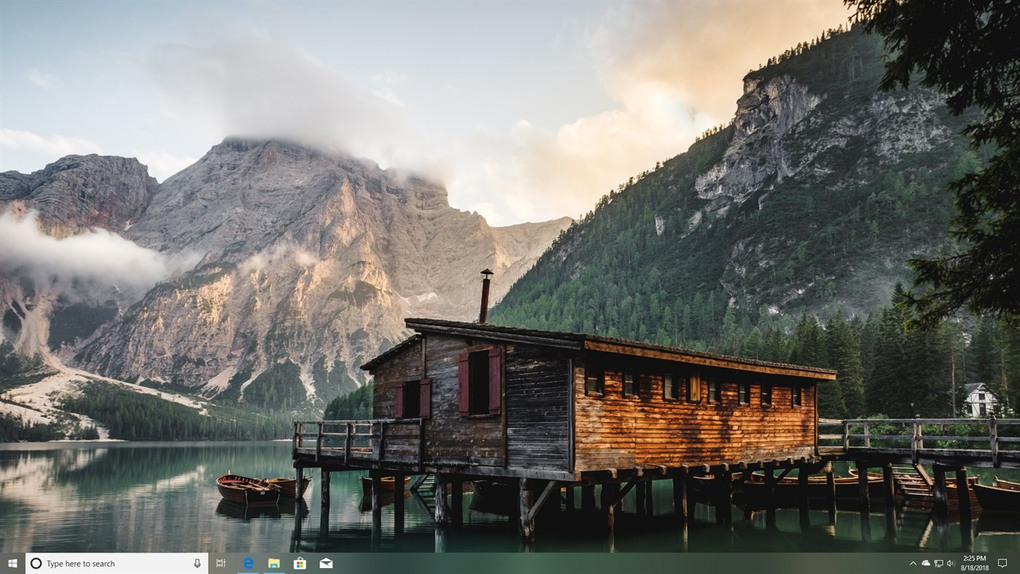
For decades, the Windows taskbar has maintained a largely consistent visual identity: a solid, opaque bar whose color is typically determined by the system’s accent color or theme. While Windows has progressively introduced options to modify this color or toggle between light and dark modes, the fundamental characteristic of its opacity has remained largely untouched by native settings. Users could, to some extent, adjust the intensity and transparency of certain elements through older features like Windows Aero in Windows 7, but the taskbar itself offered very limited granular control over its visual depth and integration with the desktop background. This often meant that a stunning high-resolution wallpaper would be partially obscured or jarringly interrupted by a solid block of color at the screen’s edge.
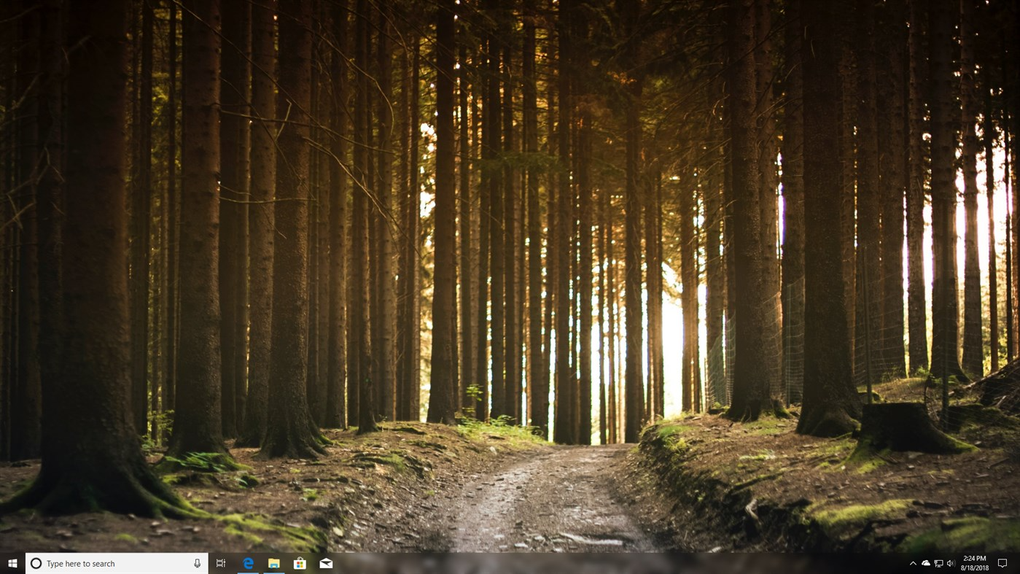
The default experience, while perfectly functional, can sometimes feel restrictive for those who view their desktop as a canvas. The inability to make the taskbar truly transparent or apply a subtle blur meant that any attempt at a “seamless” desktop aesthetic was often incomplete. The taskbar would stand out as a distinct, separate element rather than blending harmoniously with the rest of the visual environment. This limitation has historically driven many Windows enthusiasts to seek third-party solutions, ranging from simple color tweakers to more complex shell replacements, all in pursuit of a more personalized and visually integrated taskbar. The standard options provided by Windows simply do not extend to the kind of dynamic visual effects that TranslucentTB offers, highlighting a significant gap in native customization capabilities.
Why TranslucentTB Emerges as the Solution
The desire to personalize one’s digital workspace is a deep-seated one, reflecting an individual’s identity and preferences. For Windows users, the taskbar has long been a focal point of this personalization quest. It’s an element that is almost constantly visible, making its appearance a significant factor in the perceived elegance and cohesion of the desktop. The standard Windows customization options, while allowing changes to themes, accent colors, and backgrounds, have historically fallen short when it comes to offering profound control over the taskbar’s aesthetics.
This void in native customization has fueled the development of utilities like TranslucentTB. Users aren’t just looking to change a color; they’re looking for an experience. They want a taskbar that doesn’t just sit on top of their wallpaper but becomes a part of it, a subtle overlay that enhances rather than distracts. The ability to make the taskbar transparent, blurry, or dynamically change its appearance based on current activity adds a layer of sophistication and fluidity that the default Windows experience cannot provide. It caters to a growing demand for desktops that are not just functional but also visually stunning, contributing to a more enjoyable and immersive computing experience. This quest for advanced personalization is what TranslucentTB so elegantly fulfills, turning a mundane system component into a dynamic and beautiful design element.
Unlocking Unprecedented Customization: Features and Effects
TranslucentTB distinguishes itself by moving beyond the superficial customization offered by Windows and delving into truly transformative visual effects for the taskbar. This utility is a testament to how a focused application can deliver significant impact, granting users an unprecedented degree of control. It allows them to dictate not only the static appearance of their taskbar but also its dynamic behavior in response to various system states. This comprehensive approach ensures the taskbar always complements the current desktop context, whether an application is maximized, the Start Menu is open, or Cortana is active. The sheer range of options, from complete transparency to various blur effects and custom colors, elevates the taskbar from a mere utility strip to an integral, aesthetically pleasing component of the desktop environment.
The application’s genius lies in its simplicity and efficiency. Despite its powerful capabilities, TranslucentTB maintains a remarkably small footprint, consuming minimal system resources. This lightweight design ensures that users can enjoy enhanced aesthetics without compromising system performance. Installation is straightforward, and the interface is intuitive enough for users to quickly grasp and implement their desired customizations. The ability to fine-tune every aspect of the taskbar’s look empowers users to create a truly unique and personalized desktop that perfectly reflects their style and preferences. It’s a tool that does one job, but it does it exceptionally well, making it an indispensable addition for anyone keen on elevating their Windows visual experience.
Dynamic Appearance for Varied System States
One of TranslucentTB’s most compelling features is its ability to dynamically alter the taskbar’s appearance based on specific Windows states. This intelligent design allows for a responsive and context-aware visual experience, ensuring that the taskbar always looks its best, regardless of what the user is doing. Instead of a static, one-size-fits-all appearance, TranslucentTB provides a nuanced approach to desktop aesthetics, making the taskbar an active participant in the overall user interface rather than a fixed, unchanging element. This dynamic capability is a significant leap beyond the standard Windows offerings, which typically enforce a uniform look across all scenarios.
For example, TranslucentTB allows users to define different taskbar appearances for situations such as:
- Maximized Window: When an application is maximized, the taskbar might automatically become completely transparent or adopt a subtle blur, allowing the content of the maximized window to take precedence without visual interruption.
- Start Menu Open: When the Start Menu is activated, the taskbar can shift to a different color, a more opaque state, or a distinct blur level, providing a clear visual cue that the Start Menu is active.
- Cortana Open: Activating Cortana (or the Windows Search bar) can trigger a specific taskbar appearance, perhaps making it fully opaque or a distinct color to highlight the search interface.
- Timeline or Task View Open: When switching to the Task View or Timeline interface, the taskbar can again adopt a unique look, ensuring visual continuity and a cohesive design across these multitasking features.
Each of these states can be customized independently with its own color, transparency level, and blur effect. This level of dynamic control not only enhances the aesthetic appeal but can also improve usability by providing subtle visual cues about the current state of the operating system. It transforms the taskbar from a static bar into a responsive, integral part of the fluid Windows experience, adapting seamlessly to the user’s workflow and environmental context.
Visual Transformations: Transparency, Blur, and More
Beyond its dynamic state-based customization, TranslucentTB’s core strength lies in its diverse array of static and dynamic visual effects. The utility provides a powerful set of tools to manipulate the taskbar’s appearance, moving far beyond simple color changes to offer true aesthetic transformation. These effects are central to achieving the minimalist, integrated, and modern desktop look that so many users desire.
The primary effects available include:
- Transparent: This option renders the taskbar completely invisible, making it blend seamlessly with the desktop background. The icons and system tray elements remain visible, but the bar itself becomes an ethereal presence, ideal for maximizing screen real estate.
- Blur: Applies a frosted glass-like effect to the taskbar, gently diffusing the background image or color beneath it. This maintains the taskbar’s presence but softens its edges, creating an elegant and modern aesthetic.
- Acrylic (Fluent Design effect): Inspired by Windows 10’s Fluent Design, this provides a translucent visual style combining blur with subtle texture and depth. It reacts dynamically to the environment, giving the taskbar a truly modern and interactive feel.
- Opaque: For specific states or preferences, users can also set the taskbar to be completely opaque, allowing them to define a solid color without any transparency or blur.
- Dynamic Color: A comprehensive color picker allows users to choose any color for their taskbar, allowing for perfect matching with their desktop theme, which can then be combined with transparency or blur.
- Aero Peek Button Control: TranslucentTB also allows users to show or hide the Aero Peek button (Show Desktop button) in conjunction with their chosen taskbar style, further refining the minimalist aesthetic.
These combinations mean that the possibilities for personalizing the Windows taskbar are virtually limitless. TranslucentTB doesn’t just offer options; it offers a canvas for users to truly express their digital personality and craft a desktop environment that is both functional and aesthetically magnificent.
Practical Aspects: Installation, Performance, and Common Queries
TranslucentTB’s popularity stems not only from its powerful customization capabilities but also from its straightforward installation and minimal system footprint. Designed to be a utility that enhances the user experience without burdening the system, it embodies the ideal characteristics of a background application. However, like many third-party customization tools that interact deeply with the operating system’s graphical shell, it’s not entirely without its quirks, which users should be aware of to ensure a smooth experience.
The process of getting TranslucentTB up and running is remarkably simple. Users can acquire the application directly from reputable software repositories like PhanMemFree.org or the developer’s official channels. Once downloaded, the installation typically involves a few clicks, making it accessible even to those who are not particularly tech-savvy. After installation, TranslucentTB usually resides in the system tray, providing easy access to its settings and options. Its configuration interface is intuitive, allowing users to quickly select their desired effects, choose custom colors, and set up dynamic behaviors for various Windows states. This ease of use ensures that anyone can transform their taskbar’s appearance in minutes.
A significant advantage of TranslucentTB is its lightweight nature. The application is designed to be as unobtrusive as possible, consuming negligible amounts of RAM and CPU resources. This means it can run continuously in the background without impacting system performance, which is crucial for users who prioritize efficiency. Whether you’re gaming, performing resource-intensive tasks, or simply browsing the web, TranslucentTB will silently enhance your desktop aesthetics without causing any slowdowns or hitches. This commitment to performance makes it a standout choice among personalization utilities.
Seamless Setup and Lightweight Operation
Embarking on the journey to a more personalized Windows taskbar with TranslucentTB is exceptionally user-friendly. The developer, Charles Milette, has prioritized accessibility, ensuring that even novice users can effortlessly download, install, and configure the application. The entire process is streamlined, reflecting a deep understanding of user needs for simplicity and efficiency in desktop customization.
The first step typically involves downloading the latest version of TranslucentTB from a trusted source, such as PhanMemFree.org or its official GitHub repository. The installation file is usually small, often just over 1 MB, signifying its lightweight design from the outset. Once downloaded, running the installer is a straightforward affair, much like any standard Windows application.
Upon successful installation, TranslucentTB will usually launch automatically and place an icon in the system tray. This tray icon serves as your gateway to all of the application’s settings. A simple right-click on this icon reveals a concise menu of options, allowing you to:
- Select Taskbar States for different scenarios.
- Instantly apply effects like
Transparent,Blur,Acrylic,Solid, orFluent. - Pick custom colors.
- Toggle Aero Peek visibility.
- Configure boot behavior to launch automatically with Windows.
The immediate visual feedback when applying changes is one of TranslucentTB’s strong points. As you select different effects or colors, the taskbar instantly transforms, allowing for real-time experimentation and refinement. This iterative approach empowers users to quickly find the perfect balance between functionality and aesthetics, turning the customization process into an enjoyable and creative endeavor. This seamless setup and intuitive configuration are key reasons why TranslucentTB has become a favored tool for Windows personalization enthusiasts.
Addressing False Positives and Minor Glitches
While TranslucentTB is widely acclaimed for its effectiveness, users should be aware of certain reported quirks. These issues are not uncommon for third-party utilities that interact deeply with the operating system’s graphical shell.
One frequently cited issue involves occasional program crashes or instances where the taskbar reverts to its default opaque state. This can sometimes occur after system updates or when specific applications interfere with the graphical shell. When this happens, restarting the TranslucentTB application (usually via its system tray icon) will often resolve the issue, restoring the customized taskbar appearance. While inconvenient, these occurrences are generally infrequent and easily remedied, and the lightweight nature of the application means a quick restart has minimal impact on workflow.
A more significant concern for some users is that TranslucentTB might occasionally be flagged by antivirus programs as a “potentially unwanted program” (PUP) or even as malicious software. This phenomenon is commonly referred to as a “false positive.” Antivirus software, particularly heuristic-based engines, sometimes flag legitimate applications that perform deep system interactions or modify core UI elements, simply because these actions mimic behaviors associated with malware. Because TranslucentTB hooks into the Windows shell to achieve its taskbar modifications, some overly cautious antivirus programs may misinterpret its actions.
It is crucial to emphasize that, based on extensive user reports and security analyses by platforms like PhanMemFree.org, TranslucentTB carries no actual risk. It is a benign application designed solely for aesthetic customization and does not contain malware, spyware, or any malicious code. When an antivirus program flags TranslucentTB, it is almost invariably a false positive. Users who encounter such warnings should check the source of their download (ensuring it’s from the official GitHub repository or a reputable software distribution site like PhanMemFree.org), and if confirmed as a legitimate download, they can typically add an exception for TranslucentTB within their antivirus software. This allows the program to run without interference, while ensuring the rest of the system remains protected.
In summary, while users might encounter minor stability hiccups or false positive security alerts, these are manageable aspects of using a powerful customization tool that operates at a low level within Windows. The benefits of TranslucentTB’s aesthetic enhancements far outweigh these occasional inconveniences, especially given the ease with which most issues can be resolved and the proven safety of the application itself.
Why Choose TranslucentTB? The Edge in Personalization
In a digital landscape teeming with personalization tools, TranslucentTB carves out a distinct and highly valued niche. Its appeal isn’t just about changing a color; it’s about fundamentally transforming a ubiquitous yet often neglected element of the Windows interface into something dynamic, elegant, and uniquely yours. For users who prioritize a clean, modern, and visually harmonious desktop, TranslucentTB offers an unparalleled advantage, bridging the gap between functional necessity and aesthetic desire that native Windows options simply cannot span. It’s the definitive solution for those who see their desktop not just as a workspace, but as an extension of their personal style and efficiency aspirations.
The reasons for choosing TranslucentTB are multifaceted, touching upon visual appeal, system performance, and the sheer empowerment it offers to customize one’s digital environment. It acts as a subtle yet powerful enhancer, capable of making a significant difference to the overall feel of the operating system without demanding extensive technical knowledge or compromising system stability. Its widespread adoption and positive reviews across communities like PhanMemFree speak volumes about its effectiveness and the value it brings to millions of Windows users globally.
Enhancing Productivity and Visual Appeal
The impact of TranslucentTB extends beyond mere aesthetics; it subtly but effectively contributes to an enhanced user experience that can indirectly boost productivity. A visually appealing and uncluttered desktop can reduce cognitive load, improve focus, and create a more pleasant working or leisure environment. The default opaque taskbar, while functional, can sometimes feel like a visual barrier, segmenting the screen and distracting from the main content. TranslucentTB alleviates this by allowing the taskbar to seamlessly blend into the background, creating a sense of expansiveness and continuity.
Consider the psychological effect of a transparent or subtly blurred taskbar:
- Reduced Visual Clutter: By making the taskbar less prominent, TranslucentTB effectively reduces visual clutter, allowing the user’s eye to focus more on active applications or desktop wallpaper.
- Harmonious Design: The ability to match the taskbar’s transparency, blur, and color to the background creates a cohesive and polished design, elevating the overall aesthetic appeal of Windows.
- Dynamic Visual Cues: State-based customization can provide subtle visual cues; for instance, a taskbar that becomes slightly more opaque when the Start Menu is open indicates the current interface state.
- Personal Expression: Customizing the taskbar allows for personal expression, making the desktop more engaging and enjoyable to use by reflecting one’s personality or mood.
These elements combine to create a desktop environment that is not only beautiful but also inherently more comfortable and engaging. The enhanced visual appeal fosters a sense of pride in one’s digital space, turning mundane interactions into a more refined experience.
A Lightweight Solution for a Big Impact
Perhaps one of TranslucentTB’s most compelling attributes is its ability to deliver such significant visual transformation with an incredibly small performance footprint. In an era where many software applications tend to be resource-intensive, TranslucentTB stands out as an exemplary model of efficient design. This lightweight characteristic is paramount for a utility that is intended to run continuously in the background, ensuring that aesthetic enhancements never come at the cost of system responsiveness.
Key aspects of its lightweight efficiency include:
- Minimal Resource Consumption: TranslucentTB is engineered to consume very little RAM and CPU power. It runs silently in the system tray without causing any noticeable slowdowns, even on older hardware or systems under heavy load.
- Small Footprint: The installation file itself is tiny, often just over 1 MB. This not only makes for quick downloads but also signifies that the application doesn’t clutter the system with unnecessary files or dependencies.
- Non-Intrusive Operation: Once configured, TranslucentTB operates discreetly in the background. It doesn’t generate intrusive pop-ups or interfere with other applications.
- Broad Compatibility: While primarily designed for Windows 10 and 11, its efficient architecture allows it to function reliably across a wide range of hardware configurations, ensuring a broad base of users can benefit from its capabilities.
The combination of significant visual impact and minimal resource overhead makes TranslucentTB an exceptionally attractive proposition. It demonstrates that powerful personalization doesn’t necessitate a heavy application or complex setup. Instead, it offers a simple, elegant, and highly effective way to elevate the Windows desktop experience.
TranslucentTB: The Smart Choice for Desktop Refinement
TranslucentTB stands as a prime example of how a small, dedicated utility can deliver a monumental impact on the user experience. By offering unprecedented control over the Windows taskbar’s appearance, it allows users to transcend the default limitations and craft a desktop environment that truly reflects their personal style and aesthetic preferences. Its lightweight design, intuitive controls, and dynamic customization options make it an indispensable tool for anyone looking to refine their Windows desktop. Despite minor quirks like occasional restarts or false positive security flags, its proven safety and the sheer visual enhancement it provides solidify its position as a highly recommended application for achieving a cleaner, more integrated, and visually stunning workspace. For a truly personalized and elegant Windows experience, TranslucentTB from PhanMemFree.org is undoubtedly the smart choice.
File Information
- License: “Free”
- Latest update: “December 17, 2024”
- Platform: “Windows”
- OS: “Windows 11”
- Language: “English”
- Downloads: “304.3K”
- Size: “1.06 MB”


