
Trello is a popular web-based project management application that leverages a Kanban-style system to streamline workflow and boost team collaboration. Its intuitive interface and flexible design make it accessible to both individuals and large teams, regardless of their technical expertise. While it may lack some advanced features found in competing platforms like Asana or MeisterTask, Trello’s simplicity and extensive customization options solidify its position as a strong contender in the project management arena. This guide provides a detailed overview of Trello’s functionality, usage, and overall effectiveness.
Understanding Trello’s Core Functionality
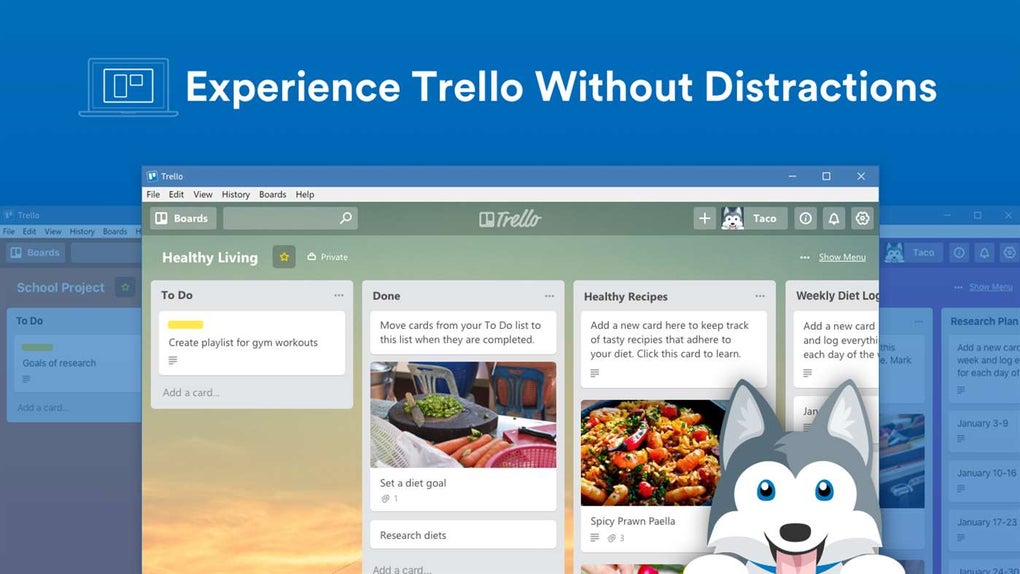
At its heart, Trello is a visual project management tool that organizes tasks into boards, lists, and cards. Boards represent individual projects or overarching themes, acting as containers for related tasks. Within each board, lists define different stages of a workflow – such as “To Do,” “In Progress,” and “Completed.” Cards represent individual tasks, each containing detailed information.
This card-based system is the foundation of Trello’s efficiency. Each card can include a title, a description outlining task requirements, checklists for subtasks, due dates, assigned members, attachments (documents, images, links), and more. This level of detail allows for comprehensive task tracking and efficient communication within teams. The visual nature of the system makes it easy to monitor progress, identify bottlenecks, and prioritize tasks.
Utilizing Trello’s Features for Enhanced Productivity
Beyond its core structure, Trello offers several features designed to optimize project management and team collaboration. These features can significantly enhance productivity and improve overall organizational efficiency.
One notable feature is the use of color-coded labels. These labels allow users to categorize cards based on priority, urgency, type, or any other relevant criteria. While the system is limited by the number of distinguishable colors, this remains a powerful way to visually differentiate tasks and facilitate quick identification. The visual cues provided by labels make it easier for team members to understand the status and importance of each task at a glance, streamlining decision-making and prioritizing efforts.
Trello also offers automation capabilities through its “Butler” feature. This allows users to create custom commands or “power-ups” that automate repetitive tasks and streamline workflows. For example, a user can set up a rule that automatically assigns a task to a specific team member when a card is moved to a particular list. Or, when a card is marked complete, related subtasks could be automatically archived. This reduces manual effort, minimizes human error, and allows teams to focus on higher-level tasks. While Butler’s automation capabilities aren’t as extensive as dedicated automation platforms, they’re sufficient for handling common repetitive actions within a Trello project.
Furthermore, Trello’s integration capabilities extend its functionality. Third-party integrations, primarily through Google Chrome extensions, allow users to add features like time tracking, work-in-progress (WIP) limits, and various other productivity tools. This flexibility significantly enhances Trello’s utility, providing customization options that are tailored to specific team needs and workflows. Paid accounts typically offer even more extensive integration options, allowing connections to other business applications beyond the limitations of the Chrome extension store.
Getting Started with Trello: A Step-by-Step Guide
Setting up a Trello account is incredibly simple and straightforward. Users only need to provide their name, email address, and a password to begin. Upon logging in, users are presented with a clean and intuitive dashboard displaying their recently viewed boards and personal boards.
Creating a new board involves selecting the “Create” button and assigning a relevant name that reflects the project it will contain. Once created, the board acts as the central hub for all related tasks. Within each board, lists are created to represent the different stages of a project’s workflow, e.g., To Do, In Progress, Doing, and Done. Cards are then added to the appropriate lists, each representing a specific task. The flexibility allows for almost limitless workflow configurations, tailored to meet the unique needs of each project.
The process of adding tasks to cards is equally intuitive. Users can input task names, detailed descriptions, checklists, due dates, assign team members, and attach any relevant files or links. This ensures that all necessary information is centralized and readily available to all team members working on the task. Furthermore, Trello logs all activity on the board, providing a comprehensive history of changes and actions. This detailed history is invaluable for tracking progress, resolving conflicts, and understanding the evolution of each task.
Inviting team members to collaborate on a board is also a simple process. Users can easily add collaborators by entering their email addresses. Once invited, team members can actively participate in managing tasks, moving cards between lists, adding comments, and contributing to the overall workflow. This shared workspace fosters seamless collaboration and promotes efficient communication.
Assessing Trello’s Strengths and Weaknesses
Trello’s strengths lie in its intuitive interface, flexibility, and ease of use. Its clean and uncluttered design makes it accessible to users of all technical skill levels. The visual nature of the Kanban system facilitates project overview and makes it easy to track progress at a glance. Its customization options through power-ups and integrations cater to diverse workflows and team needs.
However, Trello also has limitations. While flexible, its lack of robust reporting and advanced features compared to competitors like Asana or Monday.com can be a drawback for large organizations or projects requiring in-depth analysis. Collaboration, while generally smooth, can sometimes become messy in large, complex projects with numerous team members and overlapping tasks. The lack of detailed sub-task management within a card might necessitate the use of external tools for complex projects. Finally, while Butler offers automation, its capabilities are less comprehensive than dedicated automation platforms.
Conclusion: Is Trello Right for You?
Trello is an excellent project management tool for individuals and teams seeking a simple, intuitive, and highly customizable solution. Its ease of use, visual workflow, and flexible features make it a strong choice for a wide range of projects. While it might not be the perfect fit for every organization, particularly those needing extensive reporting or complex automation, its simplicity and collaborative features are significant strengths. Ultimately, the decision of whether Trello is the right tool depends on the specific needs and complexity of your projects and your team’s workflow preferences. For those seeking a balance of simplicity and functionality, Trello presents a compelling option for efficient project management.
File Information
- License: “Free”
- Version: “2.12.5”
- Latest update: “November 28, 2024”
- Platform: “Windows”
- OS: “Windows 10”
- Language: “English”
- Downloads: “149.6K”


