
Trinus VR Server is a free Windows application developed by Odd Sheep SL that bridges the gap between your PC gaming experience and the affordability of mobile technology. It effectively turns your smartphone or tablet into a virtual reality (VR) headset, offering a surprisingly immersive gaming experience without the hefty price tag of dedicated VR hardware. This comprehensive guide delves into the functionalities, setup process, advantages, and limitations of Trinus VR Server.
Preparing Your Mobile Device and PC for VR
Before embarking on your virtual reality journey with Trinus VR Server, ensuring both your mobile device and PC meet the necessary requirements is crucial. This involves both software and hardware considerations:
Mobile Device Preparation:
The cornerstone of the Trinus VR experience on the mobile side is the Trinus Cardboard VR application. This app acts as the intermediary, receiving the streamed visuals from your PC and utilizing your mobile device’s built-in gyroscope to track head movements. The gyroscope data is then transmitted back to the PC, allowing for real-time adjustments to the displayed perspective. Accurate head tracking is essential for a convincing VR experience, and the gyroscope is the key component that provides this functionality.
While the Trinus Cardboard VR application handles the rendering and head-tracking, the device itself needs to meet certain criteria to ensure smooth and responsive performance. Though specific requirements vary depending on the complexity of the game being played, a reasonably modern smartphone or tablet with sufficient processing power and a responsive gyroscope is necessary. Older devices may struggle with higher-resolution graphics or complex game environments, resulting in lag or visual glitches. Testing with less demanding games or lowering the graphical settings on your PC can sometimes alleviate these issues.
PC Requirements and Setup:
The PC side of the equation demands more substantial hardware. The minimum specifications typically include:
-
Processor: A 3rd generation Intel Core processor or equivalent. This ensures sufficient processing power to handle the encoding and streaming of the visual data to your mobile device. Newer, more powerful processors will, of course, lead to significantly better performance.
-
Graphics Card: A significant constraint lies in the graphics capabilities of your system. Trinus VR Server requires either an Intel Integrated Graphics Card with VR features enabled, or ideally, a dedicated discrete GPU with VR Ready certification. The latter is strongly recommended for a smoother, higher-quality experience. These graphics cards are designed to handle the demands of VR rendering, offering the necessary processing power and bandwidth for efficient data transmission.
-
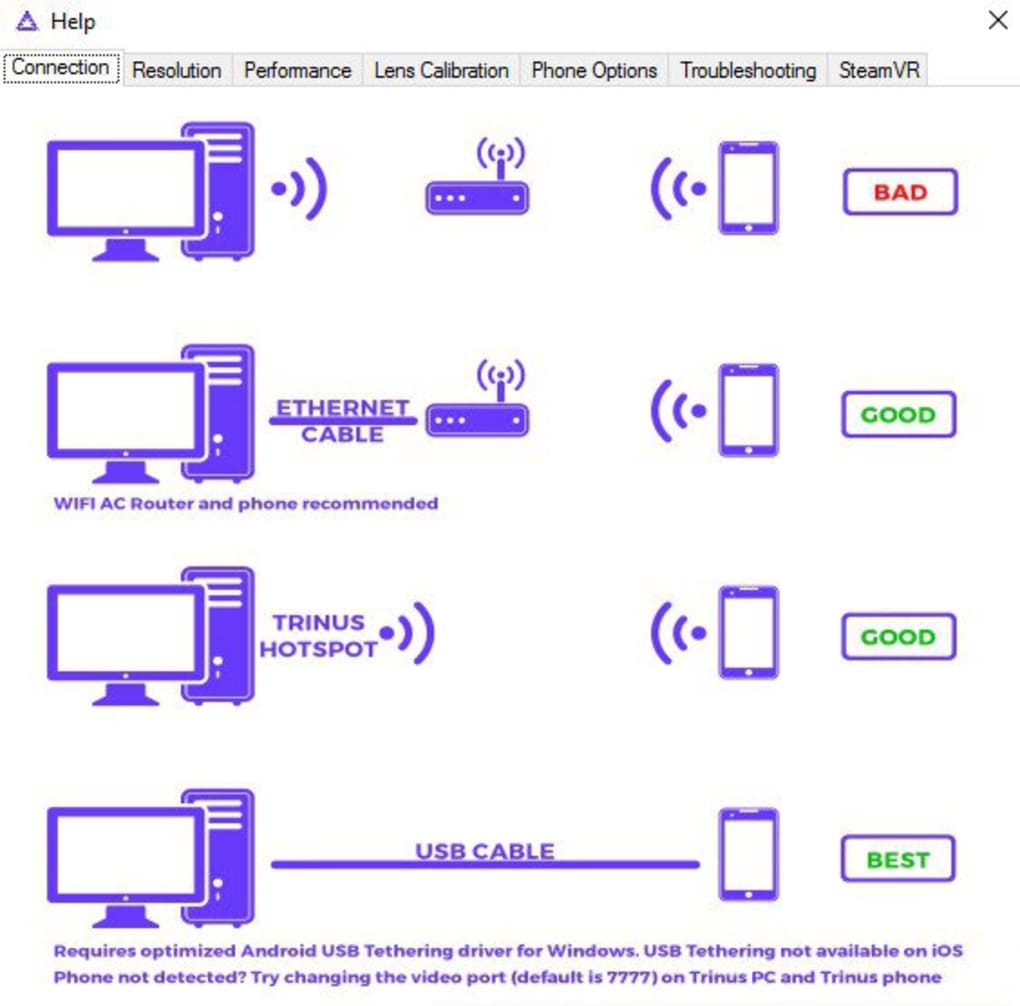
Network Connection: Both your mobile device and PC must be connected to the same local network (Wi-Fi or wired Ethernet). A stable and robust network connection is absolutely critical for a lag-free VR experience. Network congestion or weak signal strength can introduce significant latency, ruining the immersion. Wired Ethernet connections are generally preferred for their stability and bandwidth.
Once you have confirmed your hardware meets the requirements, downloading and installing Trinus VR Server on your PC is the next step. The installation process is typically straightforward, involving standard steps like accepting the End User License Agreement and choosing an installation directory. Following the installation, launching the application will initiate the process of connecting to your mobile device.
Connecting Your Mobile Device and PC
The process of pairing your mobile device with your PC involves several key steps:
-
Launch Trinus VR Server: After installation, run the Trinus VR Server application on your PC.
-
Launch Trinus Cardboard VR: Simultaneously, launch the Trinus Cardboard VR application on your mobile device.
-
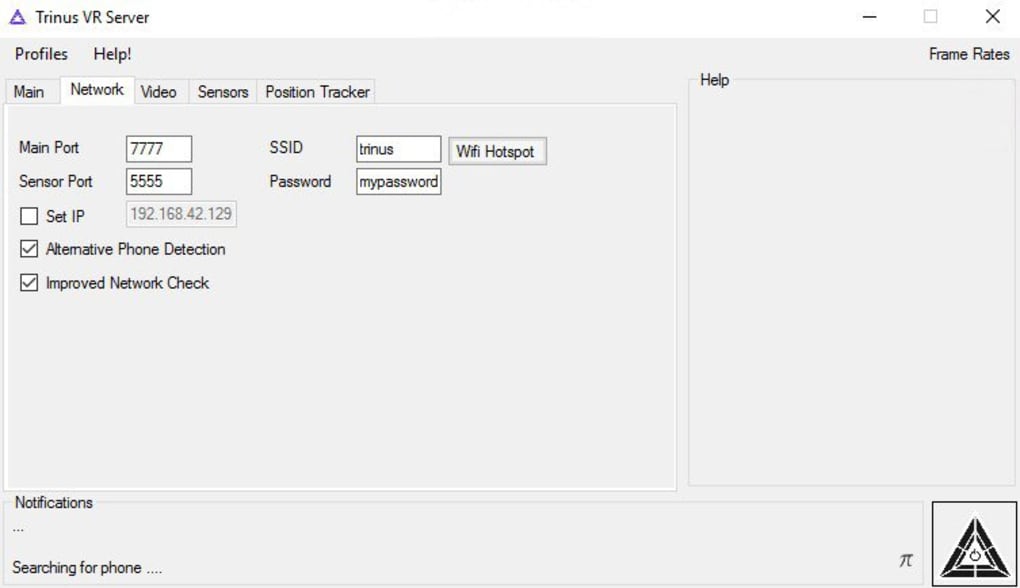
Network Detection: Both applications should automatically detect each other on the same local network. This detection relies on the IP addresses of both devices. If for any reason the applications do not automatically connect, you may need to manually enter the IP address of your PC into your mobile device.
-
Pairing and Configuration: Once both applications recognize each other, you’ll be prompted to pair them. This may involve the acceptance of a code or simply confirmation from both devices.
-
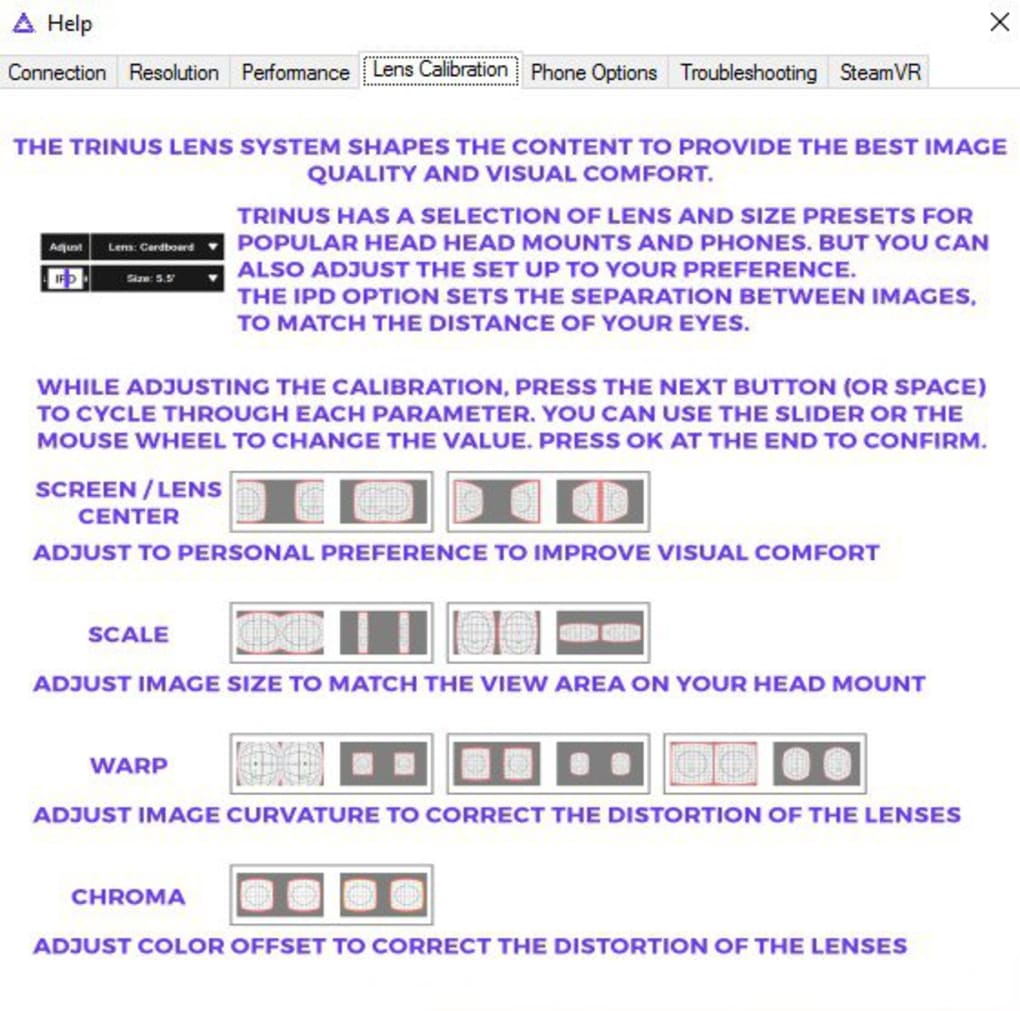
Calibration and Adjustments: After successfully pairing, several adjustment options will be available. These adjustments are crucial for optimizing the experience. These settings usually include:
-
Signal Quality: This determines the balance between visual quality and latency. Higher quality means sharper visuals but may increase lag.
-
Gyroscope Calibration: Properly calibrating the gyroscope ensures accurate head tracking, pivotal for an immersive experience.
-
* **Input Simulation:** This allows you to configure how your PC interprets the inputs from your mobile device's controls.
Maximizing Your VR Gaming Experience
Once your mobile device and PC are connected and configured, you are ready to experience VR gaming. Trinus VR Server displays the contents of your chosen application or game window. This allows you to play a wide range of games, not just those explicitly designed with VR support. While games explicitly designed for VR headsets will undoubtedly provide the most optimized experience, Trinus VR Server allows you to enjoy many titles in a more immersive format.
Trinus VR Server offers configuration options for games with native VR support, like The Elder Scrolls V: Skyrim VR and Grand Theft Auto V. These settings may involve specific resolutions or rendering options to further enhance the experience for compatible titles.
For games without explicit VR support, the level of immersion will depend greatly on the game itself. First-person games generally translate better to this type of VR setup because of the direct correlation between head movement and in-game perspective. However, some experimentation may be needed to find the best settings for different game genres.
Advantages and Disadvantages of Trinus VR Server
Like any technology, Trinus VR Server presents both advantages and drawbacks:
Advantages:
-
Affordability: Trinus VR Server offers a cost-effective entry point into the world of PC VR gaming. It eliminates the need for expensive dedicated VR headsets.
-
Accessibility: It leverages readily available technology (smartphones and tablets) to provide VR capabilities to a wider audience.
-
Flexibility: It allows for the use of a vast library of PC games, not just those exclusively designed for VR.
- Adjustment Options: The adjustable settings allow users to fine-tune their VR experience based on their hardware and personal preferences.
Disadvantages:
-
Limited to PC gaming: Trinus VR Server is currently only compatible with PCs, excluding other platforms.
-
Hardware dependency: The system requires a relatively powerful PC and a compatible mobile device, potentially limiting access for some users.
-
Setup complexity: The initial setup and configuration can be complex and require some troubleshooting for optimal performance.
-
Connection stability: Establishing and maintaining a stable connection between the mobile device and PC can be challenging depending on network conditions.
Conclusion
Trinus VR Server provides a unique and cost-effective method for experiencing virtual reality gaming on a PC. While it is not a perfect replacement for a dedicated VR headset, it offers an accessible alternative for those seeking an immersive gaming experience without the considerable investment in expensive VR equipment. The potential for technical hurdles during the setup and connection process should be acknowledged, but with proper configuration and a stable network connection, Trinus VR Server can deliver a remarkably enjoyable VR experience for a wide range of games. Understanding its advantages and limitations is crucial to managing expectations and maximizing the benefits of this innovative software.
File Information
- License: “Free”
- Version: “2.1.6”
- Latest update: “August 13, 2025”
- Platform: “Windows”
- OS: “Windows 7”
- Language: “English”
- Downloads: “7.7K”
- Size: “4.86 MB”


