
In the ever-evolving landscape of operating systems, Linux stands out as a powerful, open-source alternative to proprietary solutions like Windows and macOS. For many, the hurdle of installation can seem daunting, often requiring specialized knowledge or media. This is precisely where UNetbootin, an acronym for “Universal Netboot Installer,” steps in as a vital utility. Developed by Arpad Kovacs, UNetbootin simplifies the process of creating bootable live USB drives for Ubuntu and other Linux distributions, making the world of open-source computing accessible to a broader audience.
At its core, UNetbootin is a Linux installation application designed to streamline the deployment of various Linux distributions. It bypasses the traditional reliance on optical media (CDs or DVDs) by leveraging the ubiquity and speed of USB drives. Whether you’re a seasoned Linux enthusiast looking for a quick deployment method, a curious beginner eager to explore a new operating system without committing to a full installation, or a technician needing a portable toolkit for system recovery, UNetbootin offers a robust and straightforward solution.
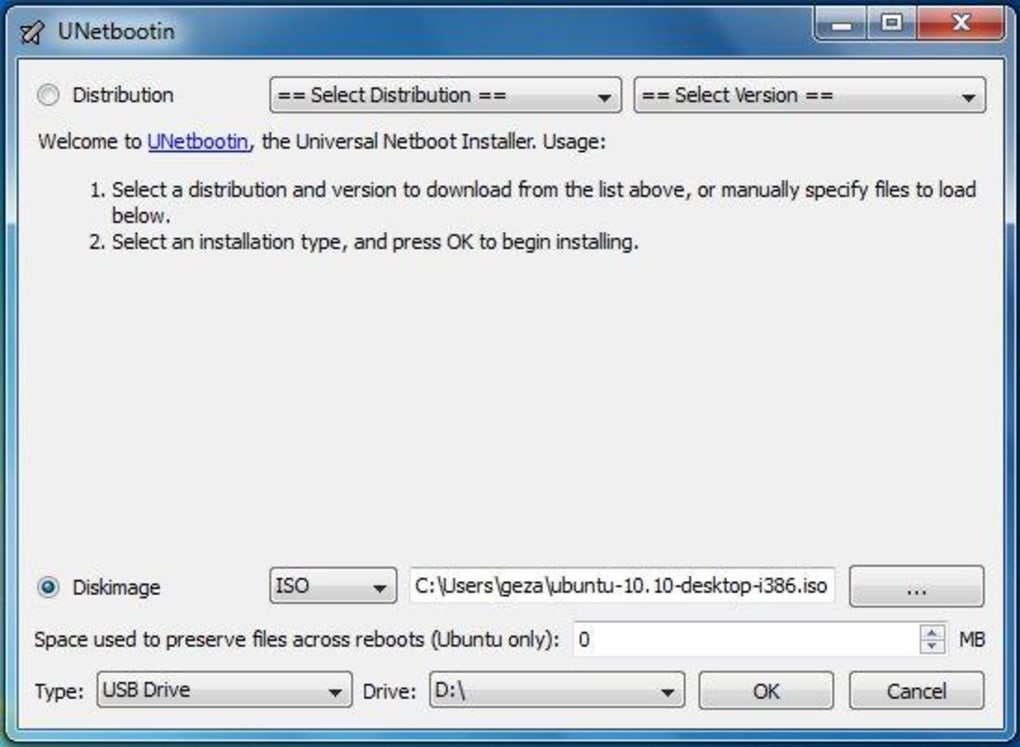
The fundamental principle behind UNetbootin is quite simple yet incredibly effective: it takes a chosen Linux distribution’s disk image (ISO file) and installs it onto a USB device – be it a thumb drive, external hard drive, or even an SD card – rendering it bootable. This transforms a standard storage device into a powerful installation medium or a fully functional live environment. This capability allows a computer to boot directly into a Linux operating system, facilitating installation or providing a temporary, persistent workspace with minimal fuss and maximum flexibility. UNetbootin is also notable for its cross-platform compatibility, running seamlessly on Windows, macOS, and Linux itself, ensuring that users from diverse computing backgrounds can leverage its power.
Navigating UNetbootin: Features, Functionality, and User Experience
UNetbootin distinguishes itself through a design philosophy that prioritizes functionality over flashy aesthetics. While its user interface might appear somewhat austere and utilitarian, it is precisely this straightforwardness that contributes to its ease of use. The application presents a clear, uncluttered window, typically offering two main modes of operation: installing from a pre-downloaded disk image or directly downloading and installing a distribution from its built-in list. This dual approach caters to different user preferences and network conditions, providing flexibility whether you have a specific ISO file ready or prefer to let UNetbootin handle the download process.
Upon launching UNetbootin, users are greeted with a simple selection menu. They can choose between “Distribution” or “Diskimage.” The “Distribution” option reveals a comprehensive drop-down list of known compatible Linux distributions. This list frequently includes popular choices like various versions of Ubuntu, Fedora, openSUSE, Debian, Linux Mint, Arch Linux, Puppy Linux, CentOS, and many more. For each selected distribution, UNetbootin often provides a sub-menu to choose a specific version, ensuring users can get precisely the release they need. Once a distribution and version are selected, UNetbootin automatically fetches the necessary files from the internet, eliminating the need for manual ISO downloads. This feature is particularly beneficial for newcomers, as it simplifies the discovery and acquisition of Linux distributions.
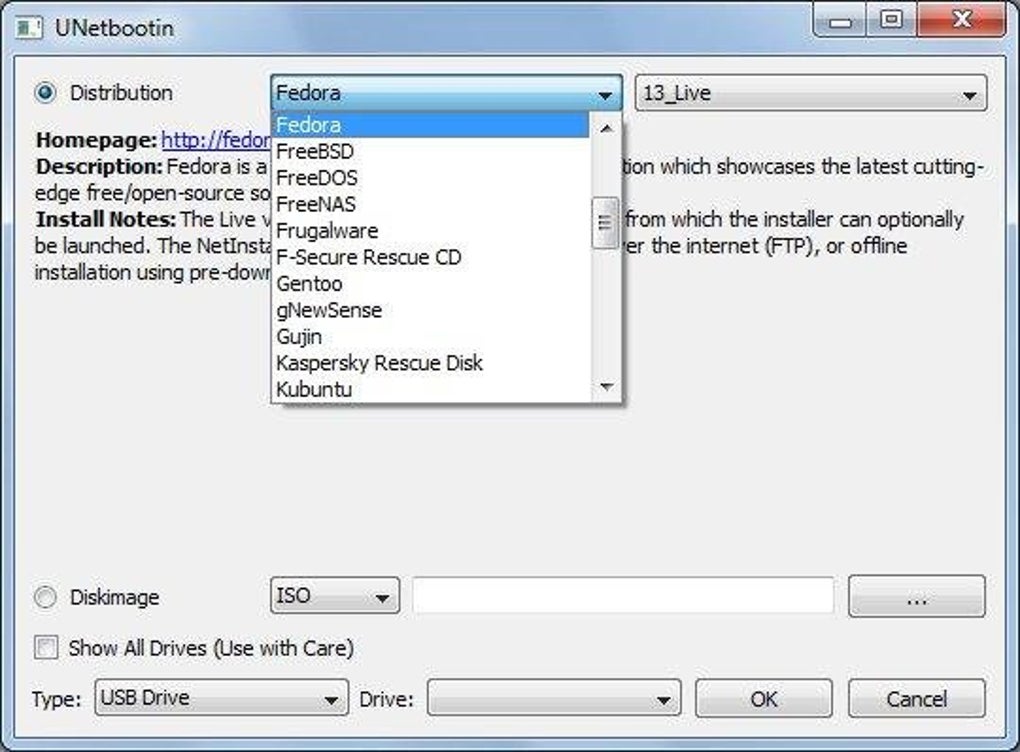
Alternatively, the “Diskimage” option caters to users who already possess an ISO file of their desired operating system. This could be a less common distribution not featured in UNetbootin’s built-in list, a custom-spun Linux build, or an older version of a popular distro. Users simply point UNetbootin to their local ISO file, and the application proceeds with writing it to the chosen USB device. This flexibility ensures that UNetbootin remains a versatile tool, capable of handling a wide array of bootable images beyond its curated selection.
Core Functionality: USB Installation Made Easy
The primary and most celebrated function of UNetbootin is its ability to create bootable USB drives. The process, while technically intricate under the hood, is presented to the user in a remarkably intuitive fashion. After selecting either a distribution from the list or a local disk image, the next crucial step involves choosing the target USB drive. UNetbootin provides a drop-down menu listing all detected USB devices, which is critical for preventing accidental overwrites of important data on other drives. Users must exercise caution here, double-checking that they have selected the correct USB device, as the process will format and overwrite any existing data on the chosen drive.
Once the source (distribution/disk image) and destination (USB drive) are confirmed, a single click on the “OK” button initiates the magic. UNetbootin proceeds to extract the contents of the chosen operating system image, copy them to the USB drive, and configure the necessary bootloader files. This ensures that when a computer is powered on with the USB drive inserted and configured to boot from it, the Linux operating system springs to life. The progress is displayed through a status bar, keeping the user informed of each step, from downloading (if applicable) to extracting and writing files.
The advantages of USB installation over traditional CD/DVD methods are numerous. USB drives are significantly faster, making the boot and installation process quicker. They are also more durable, reusable, and compatible with modern hardware, many of which no longer include optical drives. For laptops and ultrabooks, a bootable USB is often the only viable external boot medium. UNetbootin’s straightforward approach to creating these essential tools has cemented its reputation as a go-to utility for anyone venturing into Linux.
Advanced Options and Considerations: Custom Images and Hard Drive Installation
Beyond its primary function, UNetbootin offers additional functionalities, though some come with caveats. The support for custom disk images, as mentioned, significantly enhances its utility. This feature allows advanced users or those with specific requirements to install virtually any bootable ISO to a USB drive, extending UNetbootin’s reach beyond its curated list. This means if you have a niche Linux distribution, a specialized recovery environment, or a beta version of an OS, UNetbootin can likely facilitate its deployment to a USB stick.
Another feature, less commonly recommended but available, is the option for hard drive installation. This mode attempts to install the selected operating system directly onto the computer’s internal hard drive alongside an existing OS, such as Windows. The intention is to create a dual-boot setup without needing to burn media or partition drives manually beforehand. However, the reference content strongly advises against this mode due to inherent risks. An invalid disk image or a botched installation process can render the existing operating system (e.g., Windows) unusable, leading to potential data loss and system instability. For this reason, the hard drive install mode is generally viewed as a less robust and more perilous option compared to dedicated dual-boot tools or manual partitioning by experienced users. The core strength of UNetbootin lies firmly in its USB install mode, which provides a safer and more reliable pathway for exploration and installation.
The Persistent Install Advantage: A Deeper Dive for Ubuntu Users
One of UNetbootin’s most compelling features, particularly for those new to Linux or seeking a portable OS, is the “persistent install” option. This functionality, while primarily associated with Ubuntu and its derivatives, offers a transformative way to experience a live Linux environment. When creating a bootable USB for Ubuntu with UNetbootin, users are presented with an option to allocate a certain amount of space on the USB drive for “persistence.”
What does “persistence” mean in this context? Normally, a live USB operating system boots into a fresh, default state every time. Any changes made to the system – files saved, applications installed, settings configured – are lost upon rebooting. A persistent install, however, reserves a dedicated section of the USB drive (often a file named casper-rw for Ubuntu-based systems) where these changes can be stored. This means that if you install Ubuntu to a USB drive with persistence enabled, you can:
- Save personal files: Documents, photos, and other data can be saved directly to the live USB environment.
- Install new applications: You can use the distribution’s package manager to install additional software, and these applications will remain available across reboots.
- Customize settings: Desktop wallpapers, network configurations, user preferences, and other system settings will be remembered.
This capability effectively turns a simple live boot environment into a portable, personalized operating system. It’s an ideal solution for:
- Linux First-Timers: It offers a risk-free way to try Linux without modifying their computer’s hard drive. Users can experiment, learn, and decide if Linux is right for them before committing to a full installation. They can carry a working version of Ubuntu in their pocket, booting it on any compatible PC.
- Technicians and IT Professionals: A persistent live USB becomes an invaluable diagnostic and recovery tool. It can be used to troubleshoot malfunctioning computers, recover data from unbootable systems, scan for viruses, or perform system maintenance, all from a familiar and customizable environment.
- Students and Developers: It provides a consistent development or learning environment that can be carried between different machines, ensuring that all necessary tools and configurations are always at hand.
It is important to note that while the concept of persistence is a general Linux feature, UNetbootin specifically implements it most robustly and reliably for Ubuntu distributions. Users attempting to enable persistence with other distributions might find the option unavailable or less stable, underscoring Ubuntu’s excellent integration with this particular UNetbootin feature.
UNetbootin in Practice: Best Use Cases and Who Benefits Most
UNetbootin’s design and feature set position it as an ideal tool for specific scenarios, making it invaluable for both novices and experienced users within the computing community. Its primary strength lies in its ability to democratize access to Linux, removing many of the traditional barriers to entry.
Ideal for Linux First-Timers
For individuals who have never experienced Linux but are curious to explore its capabilities, UNetbootin is perhaps one of the best starting points. The notion of switching operating systems can be daunting, often accompanied by fears of data loss, complex partitioning schemes, or irreversible changes to their primary computer. UNetbootin largely alleviates these concerns through its USB install mode.
By creating a bootable USB drive, especially with the persistent install option for Ubuntu, new users can:
- Explore Risk-Free: Boot into a live Linux environment without touching their hard drive. This means they can test applications, navigate the desktop environment, browse the web, and get a feel for the OS without any permanent commitment. If they don’t like it, they simply remove the USB drive and reboot into their original OS.
- Learn and Experiment: The persistent install allows them to save their learning progress, install small utilities, and customize the desktop. This creates a more authentic and rewarding experience than a non-persistent live session, which resets with every reboot.
- Portability: They can carry a fully functional, personalized Linux environment wherever they go. This is akin to having a portable computer, ready to boot on almost any machine, making it perfect for demonstrations, temporary workstations, or even personal use on public computers without leaving a trace.
This hands-on, low-risk approach is crucial for fostering adoption and understanding of open-source operating systems.
A Handy Tool for Tech Enthusiasts and Troubleshooters
Beyond beginners, UNetbootin also serves as a robust utility for seasoned tech enthusiasts, IT professionals, and anyone involved in computer repair and maintenance. Its ability to quickly create bootable media for various Linux distributions transforms a simple USB stick into a versatile troubleshooting toolkit.
Consider these practical applications:
- System Diagnostics: When a computer fails to boot into its primary operating system (e.g., Windows), a live Linux USB created with UNetbootin can be used to diagnose the problem. Users can access the file system, check hardware, run diagnostic utilities, and identify the root cause of the issue.
- Data Recovery: If an operating system is corrupted, preventing access to important files, a live Linux environment can be used to boot the machine and recover data from the hard drive before attempting repairs or a fresh installation. This is a life-saver for many.
- Virus and Malware Removal: A live Linux environment is often immune to Windows-specific malware. By booting into Linux, users can perform deep scans of their Windows drive using Linux-based antivirus tools, potentially cleaning infections that are active and locked on the Windows side.
- Password Reset: Many Linux distributions include utilities that can be used to reset forgotten Windows administrator passwords, offering a quick fix for locked-out users.
- Networking Tools: Live Linux distros come packed with powerful networking tools, useful for diagnosing network issues, scanning ports, or testing network configurations without affecting the host OS.
In essence, UNetbootin empowers users to create their own “Swiss Army knife” of computing tools, all contained within a single, portable USB drive. Its reliability and ease of use in these critical scenarios make it an indispensable utility for anyone responsible for maintaining computer systems.
Pros and Cons: A Balanced Perspective
Like any software, UNetbootin comes with its own set of advantages and disadvantages. Understanding these can help users determine if it’s the right tool for their specific needs.
Pros:
- Very Easy to Use: The user interface is straightforward, requiring minimal technical expertise to create a bootable USB drive. The step-by-step process is intuitive.
- Built-in Compatibility with Popular Distros: The curated list of Linux distributions simplifies the selection and download process, making it easy to get started with well-known options like Ubuntu, Fedora, and Debian.
- Can Load Custom Disk Images: This flexibility allows users to work with any bootable ISO file, expanding its utility beyond the pre-selected list.
- Cross-Platform Availability: UNetbootin runs on Windows, macOS, and Linux, ensuring broad accessibility regardless of the user’s current operating system.
- Free and Open Source: Being a free application, it’s accessible to everyone without cost, aligning with the spirit of Linux itself.
Cons:
- Somewhat Dated Interface: Compared to newer utilities like Rufus, UNetbootin’s interface is functional but lacks modern aesthetic flourishes or advanced options readily visible. Its appearance is austere, which might deter some users accustomed to more polished applications.
- Persistent Install is Ubuntu Only (Reliably): While persistence is a powerful feature, its most stable and straightforward implementation within UNetbootin is primarily for Ubuntu and its direct derivatives. Users looking for persistent installs with other distros might need to explore alternative methods or tools.
- Hard Drive Install Mode is Risky: The option to install directly to the hard drive is generally discouraged due to the high risk of damaging existing operating systems or data. It’s not its strong suit and should be approached with extreme caution, if at all.
- Limited Built-in Help: While easy to use, detailed explanations or troubleshooting guides are not integrated into the application itself. Users often need to look for assistance online, though thankfully, a large community provides ample resources.
A Legacy Tool: UNetbootin’s Place in the Bootable USB Landscape
In the realm of bootable USB creation tools, UNetbootin holds a venerable position. While newer alternatives have emerged, UNetbootin remains a classic and reliable choice, distinguished by its age and extensive testing within the community. Its long history means that its strengths and weaknesses are well-documented, and solutions to common issues are readily available across various online forums and communities.
Compared to alternatives such as Rufus, which is primarily Windows-focused and known for its speed and advanced options, UNetbootin is older but boasts cross-platform compatibility as a significant advantage. Rufus often shines for Windows ISOs and very specific Linux implementations, while UNetbootin has traditionally been the go-to for a broader array of Linux distributions and its straightforward live USB creation. The choice between them often depends on the user’s operating system and specific requirements.
Technical Specifications and Availability
- License: Free
- Latest Update: As of recent checks, its last major update was July 11, 2023, for version 702. While the core functionality remains stable, updates often address compatibility with newer Linux kernels or specific distribution changes.
- Platform: Windows (Windows 7 and later), Mac, Linux
- Language: English and many other languages (German, Spanish, French, Italian, Japanese, Korean, Dutch, Polish, Portuguese, Russian, Swedish, Thai, Turkish, Vietnamese, Chinese, Arabic, Indonesian)
- Downloads: With tens of thousands of downloads each month (e.g., 56.8K lifetime, 65K last month from PhanMemFree’s records), UNetbootin continues to be a popular utility.
- Size: The application itself is remarkably lightweight, typically around 4.86 MB, making it quick to download and store.
- Developer: Arpad Kovacs
The widespread availability and minimal system requirements mean that UNetbootin can be run on almost any modern computer, further enhancing its accessibility.
User Testimonials and Community Perception
User reviews consistently highlight UNetbootin’s core strengths: its simplicity and effectiveness. Many users, such as those reviewed on PhanMemFree.org, laud it as a “Perfect” and “good tool to create a bootable USB drive,” noting that it’s “Simple, easy to follow with a nice GUI, it just works!” One user specifically recounted their positive experience: “I was able to take an .ISO of Lubuntu and plug a blank spare flash drive into the USB port, point the .ISO to the flash drive in the GUI and it created a bootable flash drive. That easy.” These testimonials underscore UNetbootin’s reputation as a reliable and user-friendly solution for its intended purpose.
Alternatives to UNetbootin
While UNetbootin is excellent, the ecosystem for bootable USB creators is rich with alternatives, each with its own strengths:
- Rufus: A very popular free and open-source utility for Windows, known for its speed and ability to create bootable USB drives for a wide range of operating systems, including Windows, Linux, and various firmware.
- YUMI (Your Universal Multiboot Installer): Similar to UNetbootin, YUMI allows users to create multiboot USB drives containing multiple operating systems, antivirus utilities, disc cloning tools, and more.
- Fedora LiveUSB Creator: A powerful tool specifically designed for creating bootable USBs with Fedora Linux distributions, offering a streamlined experience for Fedora users.
- Universal USB Installer (UUI): Another versatile tool that helps create bootable Live Linux USB drives from a selection of Linux distributions. It also supports Windows installation media.
- ISO to USB: A straightforward utility focused solely on writing ISO image files to USB drives to make them bootable.
- Etcher (balenaEtcher): A modern, cross-platform image burner that is popular for its sleek interface and reliable image writing for SD cards and USB drives.
Each of these alternatives might offer specific advantages in certain scenarios, such as multi-boot capabilities (YUMI), Windows ISO support (Rufus, WinToFlash), or a more modern UI (Etcher). However, UNetbootin continues to hold its own due to its consistent reliability, cross-platform support, and sheer simplicity for common Linux distributions.
In conclusion, UNetbootin remains a cornerstone utility for anyone interacting with Linux. Its ability to effortlessly transform a standard USB drive into a powerful bootable medium has democratized access to open-source operating systems, empowered troubleshooters, and provided a safe haven for curious beginners. While its interface might be considered dated and some advanced features carry risk, its core functionality – creating reliable bootable Linux USBs – stands as a testament to its enduring value in the digital world.
File Information
- License: “Free”
- Latest update: “July 11, 2023”
- Platform: “Windows”
- OS: “Windows 7”
- Language: “English”
- Downloads: “56.8K”
- Size: “4.86 MB”


