
USB Image Tool is a lightweight yet powerful application designed specifically for creating and restoring disk images of USB drives. In an era where USB drives can store terabytes of data, the need for reliable backup and recovery solutions is paramount. USB Image Tool addresses this need by providing a user-friendly interface for creating complete backups of your USB storage devices, ensuring data preservation in the event of hardware failure, accidental deletion, or corruption. This comprehensive guide will explore the features, benefits, and limitations of USB Image Tool, offering insights for users seeking a dependable solution for protecting their valuable data stored on USB drives.
Understanding the Need for USB Drive Imaging
Before delving into the specifics of USB Image Tool, it’s crucial to understand why creating disk images of USB drives is essential. Unlike internal hard drives, which are often protected within a computer case, USB drives are portable and susceptible to various forms of damage or loss. These risks include:
- Physical Damage: USB drives are small and easily misplaced, lost, or physically damaged through drops, bending, or exposure to extreme temperatures.
- Data Corruption: Exposure to malware, power surges, or file system errors can lead to data corruption, rendering files inaccessible or unusable.
- Accidental Deletion: Accidental deletion of files or folders is a common occurrence, particularly with frequent use of multiple USB drives.
- Hardware Failure: Like any storage device, USB drives have a limited lifespan and can fail, resulting in complete data loss.
Creating a disk image offers a complete backup of the entire drive, including the file system and all stored data. This comprehensive approach ensures that, in the event of any of the above scenarios, you can restore your data quickly and easily to a new USB drive or even a virtual drive. The ability to create a full image also makes it easy to clone a USB drive, quickly creating an identical copy for use as a spare or archive.
Key Features and Functionality of USB Image Tool
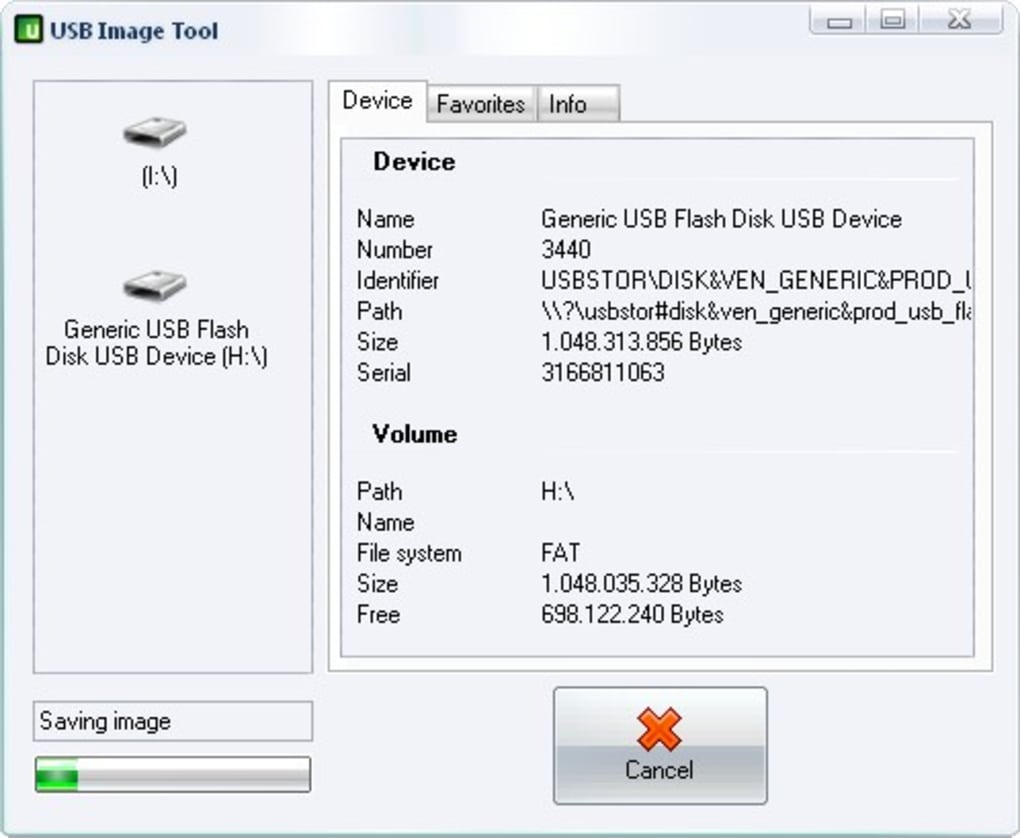
USB Image Tool stands out for its simplicity and ease of use. The application’s primary function is to create and restore disk images of connected USB drives. Its streamlined interface makes it accessible to both novice and experienced users. Here are some of its key features:
- Automatic USB Device Detection: Upon launching, USB Image Tool automatically detects and lists all USB drives currently connected to the computer. This eliminates the need for manual selection, simplifying the process.
- Image Creation: The application allows users to create complete disk images of selected USB drives. These images are typically saved as ISO files, offering a standardized format for portability and compatibility.
- Image Restoration: Just as easily as it creates images, USB Image Tool enables users to restore previously created images onto USB drives or even other suitable storage media. This is a crucial aspect for restoring data after a loss or drive failure.
- Favorites Tab (Enhanced Workflow): A dedicated Favorites tab offers quick access to recently created and frequently used images, providing a streamlined workflow for repetitive backups. This speeds up the backup process for users with multiple regularly-backed-up USB drives.
- Intuitive Interface: The user interface is designed for simplicity and clarity, minimizing the learning curve and allowing users to quickly create and restore images. The straightforward design focuses on essential functions, preventing distraction with unnecessary complexity.
- Space-Efficient Backups: The image creation process optimizes the size of the created ISO file, ensuring the backup is as efficient as possible in terms of storage space utilization. This is particularly important for users with numerous USB drives to back up or limited storage capacity.
System Requirements and Setup
While USB Image Tool is designed for ease of use, a few prerequisites need to be met before running the application. The software has specific system requirements:
- .NET Framework 2.0: The application relies on the Microsoft .NET Framework 2.0 runtime environment. This framework is usually pre-installed on Windows systems, but if not, it needs to be downloaded and installed separately. Failure to install .NET Framework 2.0 will prevent USB Image Tool from functioning correctly.
- usbit32.dll: This dynamic link library (DLL) file is crucial for USB device communication within the application. The DLL file is usually included in the USB Image Tool distribution package, and must be placed in the same directory as the main executable (EXE) file. This ensures proper interaction between the application and the connected USB drives.
- Supported Operating Systems: While not explicitly stated in all documentation, USB Image Tool is primarily designed for Windows operating systems. Support for other operating systems may be limited or nonexistent.
Proper installation of the .NET Framework and placement of the usbit32.dll file ensure that USB Image Tool can communicate with your USB drives and create the required images.
Advantages and Disadvantages of USB Image Tool
Like any software, USB Image Tool offers advantages and disadvantages. Understanding these aspects is crucial to determining its suitability for individual needs.
Advantages:
- Simplicity and Ease of Use: The application’s streamlined interface and straightforward workflow make it remarkably easy to use, even for users unfamiliar with disk imaging software.
- Specific Focus on USB Drives: Unlike generic backup software, USB Image Tool is specifically tailored for USB drives, optimizing its performance and functionality for this specific type of storage.
- Efficient Image Creation: The application efficiently creates and compresses images, minimizing the storage space required while maintaining data integrity.
- Free and Open Source (Often): USB Image Tool is frequently offered as freeware, making it an accessible option for users on a budget. This affordability makes it a practical choice for users with multiple USB drives requiring regular backups.
- Reliable Data Restoration: The application reliably restores images to USB drives, ensuring data recovery in case of loss or damage.
Disadvantages:
- Potential Speed Issues: Depending on the size of the USB drive and the speed of the computer, the image creation process can sometimes be slow. Large drives may take a considerable amount of time to image.
- Limited Features: Compared to more comprehensive backup solutions, USB Image Tool lacks some advanced features such as incremental backups or scheduling. This limitation makes it less suitable for advanced users needing these capabilities.
- .NET Framework Dependency: The reliance on the .NET Framework can be a potential hurdle if the framework is not already installed or experiences compatibility issues.
- Potential Compatibility Issues (Older Systems): While it’s likely compatible with many systems, older Windows systems may experience compatibility problems or performance limitations.
Alternatives to USB Image Tool
While USB Image Tool offers a viable solution for USB drive imaging, several alternatives exist, each with its own strengths and weaknesses:
- EaseUS Todo Backup: A comprehensive backup solution offering features beyond simple disk imaging, including scheduling and incremental backups. While more feature-rich, it’s generally more complex than USB Image Tool.
- Acronis True Image: A robust and well-regarded backup software, offering extensive features but often coming at a premium price. Its advanced features make it powerful, but its complexity may make it intimidating for novice users.
- Macrium Reflect: Another reliable backup solution providing a good balance between features and ease of use. Its capabilities are similar to EaseUS Todo Backup but may offer a slightly different user experience.
- Clonezilla: A free, open-source disk cloning and imaging solution, offering great functionality but requiring a higher level of technical expertise. This is an ideal option for tech-savvy users needing complete control.
The choice of alternative depends on individual needs and technical proficiency. Users seeking a simple, free solution should consider USB Image Tool, while those needing more advanced features should explore alternatives like EaseUS Todo Backup or Acronis True Image.
In conclusion, USB Image Tool provides a user-friendly and efficient solution for creating and restoring images of USB drives. While it may lack some of the advanced features found in more comprehensive backup software, its simplicity and focus on USB drive imaging make it a valuable tool for users seeking a straightforward way to protect their data. Careful consideration of the system requirements and limitations, along with an understanding of available alternatives, will help users determine if USB Image Tool is the optimal solution for their specific needs.
File Information
- License: “Free”
- Latest update: “May 24, 2023”
- Platform: “Windows”
- OS: “Windows 7”
- Language: “English”
- Downloads: “58.9K”
- Size: “848.88 KB”


