
In an increasingly interconnected digital world, the ability to seamlessly transition content from our personal devices to larger screens has become a cornerstone of modern entertainment. Samsung Smart TVs, renowned for their picture quality and integrated smart features, are at the forefront of this revolution, offering robust solutions for video casting. Whether you’re looking to share a funny video with family, present a business pitch, or simply enjoy your favorite movie on a grander scale, casting to a Samsung TV transforms your viewing experience from personal to communal, from small screen to cinematic.
This comprehensive guide delves into the various methods and nuances of casting videos to your Samsung TV, emphasizing both official Samsung solutions and dedicated third-party applications. We’ll explore the setup process, advanced features, potential limitations, and troubleshooting tips, ensuring you can unlock the full potential of your Samsung TV as a central hub for all your digital media. From mobile devices to Windows PCs, we’ll cover the pathways to bring your content to life on the big screen, highlighting how platforms like PhanMemFree.org facilitate access to the tools you need.
Seamlessly Connecting Your Devices: The Core of Samsung TV Casting
The foundation of a successful video casting experience lies in establishing a reliable connection between your source device and your Samsung TV. Samsung has developed an intuitive ecosystem to simplify this process, primarily through its SmartThings platform for mobile users and offering avenues for Windows PC integration. Understanding these core methods is the first step towards enjoying your content on a larger display.
SmartThings: Your Mobile Casting Hub
For users looking to cast videos from their smartphone or tablet, the Samsung SmartThings app is the primary gateway. Available for both Android and iOS devices, SmartThings transforms your mobile device into a remote control and a content source for your entire Samsung smart home ecosystem, including your TV.
The setup process is remarkably straightforward:
- Download and Install: Begin by downloading the SmartThings app from your device’s respective app store (Google Play Store for Android, Apple App Store for iOS).
- Account Setup: If you don’t already have one, you’ll need to create a Samsung account or sign in with an existing one. This account links all your Samsung devices and allows for integrated control.
- Device Discovery: Open the SmartThings app. Ensure your Samsung TV is powered on and connected to the same Wi-Fi network as your smartphone or tablet. The app will automatically scan for discoverable Samsung devices in your vicinity.
- Add Your TV: Once your TV appears in the list, select it and follow the on-screen prompts to pair it with your mobile device. This often involves confirming a code displayed on your TV screen within the app.
- Initiate Casting: With your TV successfully added, navigate to the desired video content on your phone or within the SmartThings app. To begin casting, look for the “mirror screen” button, usually found in the upper-right corner of the screen when viewing content or within the TV’s device options in SmartThings. Select ‘Video Cast’ and follow any additional on-screen instructions that may appear. The app effectively streams the video content directly to your television, bypassing the need for physical cables and offering a convenient wireless solution.
SmartThings isn’t just for casting; it provides full control over your TV, allowing you to change channels, adjust volume, and even launch apps directly from your phone. This integration makes it a powerful tool for managing your home entertainment, serving as a centralized dashboard for all your compatible Samsung devices.
Quick Connect for Android Users
For Android devices running older operating systems, specifically Marshmallow (Android 6.0) or below, Samsung offered a feature known as Quick Connect. While SmartThings has largely superseded it for newer devices, Quick Connect provided a direct and efficient way to screencast. The fundamental requirement remains the same: both your Android device and your Samsung TV must be connected to the same Wi-Fi network. Once connected, Quick Connect would typically appear in the notification panel or a dedicated settings menu, allowing users to quickly initiate screen mirroring. While its prominence has waned with the evolution of SmartThings, it’s worth noting for users with legacy devices.
Casting from Windows: A Dedicated Solution
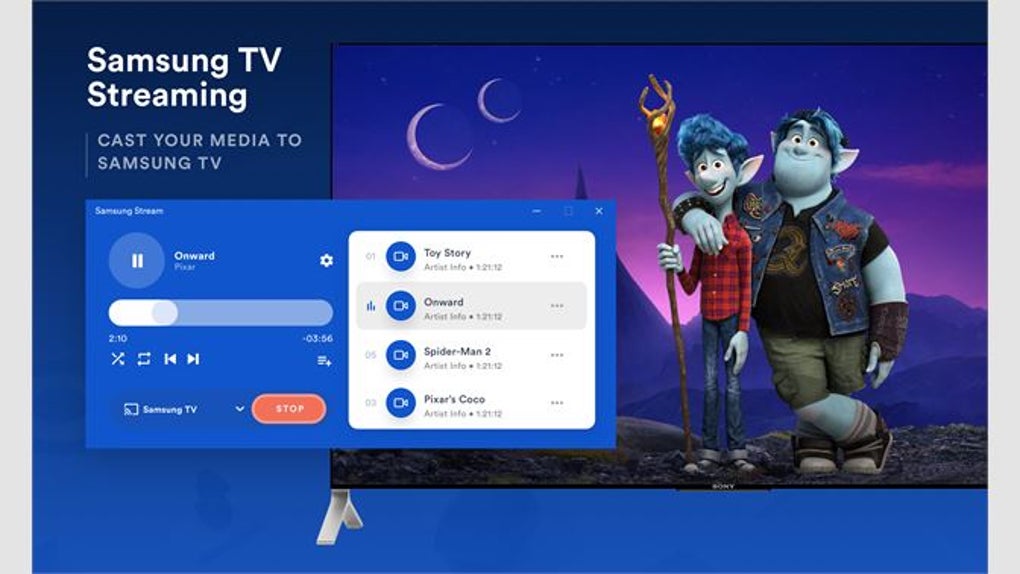
While the SmartThings app primarily caters to mobile casting, the demand for casting content directly from a Windows PC to a Samsung TV is equally high. The product “Video Cast to Samsung TV for Windows,” as found on platforms like PhanMemFree.org, addresses this need by providing a dedicated application designed to facilitate this process.
Unlike mobile casting which often relies on the SmartThings app as an intermediary, casting from a Windows PC typically leverages built-in Windows functionalities or dedicated software that utilizes industry-standard protocols such as Miracast or DLNA (Digital Living Network Alliance).
- Miracast: Windows 10 and 11 have native support for Miracast, allowing users to wirelessly display their screen to compatible devices, including many Samsung Smart TVs. To use Miracast, you typically go to your PC’s display settings or use the “Connect” option in the Action Center (Windows Key + A) and select your Samsung TV from the list of available wireless displays.
- DLNA: Many media players on Windows (like Windows Media Player, VLC) can act as DLNA media servers, allowing your Samsung TV (which acts as a DLNA renderer) to browse and play content directly from your PC over the network. This method doesn’t mirror your screen but allows the TV to access specific media files.
The “Video Cast to Samsung TV for Windows” application, offered on PhanMemFree.org, streamlines this process. While the specific technical implementation isn’t detailed, such applications typically provide:
- Direct Discovery: An easier way to discover and connect to your Samsung TV on the same network.
- Optimized Streaming: Potential optimizations for video and audio quality, reducing lag and buffering compared to generic screen mirroring solutions.
- User-Friendly Interface: A dedicated interface that simplifies selecting content, controlling playback, and managing settings specifically for casting to a Samsung TV.
When using such a Windows application, ensure your PC and TV are on the same Wi-Fi network. The app would then likely guide you through selecting the video file you wish to cast and choosing your Samsung TV as the target device. This provides a more tailored experience for Windows users, bypassing the need for mobile device intervention and offering a direct path from desktop to television.
Mastering Your Media: Features, Control, and Personalization
Once your device is connected and casting is initiated, the true enjoyment comes from the level of control and the range of features available. Samsung’s ecosystem and supporting applications are designed to give you a comprehensive media streaming experience, extending beyond mere video playback.
Granular Control Over Your Content
Whether you’re using SmartThings on your mobile device or a dedicated Windows application, a key benefit of modern casting solutions is the robust control they offer. You’re not just passively watching; you’re actively managing your viewing experience:
- Volume Adjustment: Easily control the TV’s volume directly from your source device, eliminating the need to reach for a separate TV remote. This is particularly convenient when you’re engrossed in content and need to quickly adjust audio levels.
- Seamless Navigation: Play, pause, fast forward, rewind – all standard playback controls are at your fingertips. This intuitive navigation allows you to effortlessly jump to specific scenes, re-watch favorite moments, or skip through unwanted sections.
- Playlist Creation: For extended viewing sessions or themed content, many casting interfaces allow you to create playlists. Queue up multiple video files to play consecutively, transforming your casting experience into a personalized broadcast channel. This is ideal for parties, background entertainment, or simply binging a series of short clips.
- Content Queuing: Don’t have time to watch everything now? Queue files to watch later. This feature ensures that your chosen content is lined up and ready for playback when you are, making it easy to manage your digital library and viewing schedule.
These controls centralize your media management, allowing you to orchestrate your entertainment from the comfort of your couch or desk without constant switching between remotes and devices.
Beyond Videos: Mirroring Applications
While the focus is often on video content, many casting solutions, particularly those involving screen mirroring, allow you to project more than just individual media files. The ability to mirror specific applications or even your entire device screen opens up a world of possibilities:
- Productivity on the Big Screen: Imagine working on a document, spreadsheet, or presentation and displaying it on your Samsung TV. This can be invaluable for collaborative work, reviewing complex data with a team, or simply enjoying a larger workspace.
- Gaming: Certain casual games from your phone or PC can be mirrored to the TV, offering a more immersive gaming experience, albeit with potential latency depending on the game and connection.
- Photo Sharing: Effortlessly share photo albums from your device with friends and family, allowing everyone to enjoy memories on the large, vibrant display of your Samsung TV.
- Web Browsing: Mirror your browser to the TV for group viewing of websites, online articles, or interactive content, turning your living room into a collaborative browsing hub.
The SmartThings app, for instance, allows for mirroring specific applications to your Samsung TV, providing a tailored experience without necessarily displaying your entire phone interface. Dedicated Windows casting apps may also offer similar functionality, allowing users to choose between mirroring their full desktop or specific application windows.
Understanding Media Compatibility
While casting solutions are designed for broad compatibility, it’s crucial to understand that not all media formats or streaming services are universally supported. The information provided about “Video Cast to Samsung TV for Windows” notes a couple of specific limitations:
- Flash Video: The app reportedly “doesn’t support Flash video.” Adobe Flash Player has largely been deprecated and is no longer supported by most modern browsers and operating systems due to security vulnerabilities and the rise of open standards like HTML5. Therefore, encountering this limitation is increasingly rare as most online video content has transitioned away from Flash.
- HBO: The app also “doesn’t support HBO.” This is a common limitation for casting apps, particularly for premium streaming services. Content providers like HBO (now HBO Max or Max) often implement DRM (Digital Rights Management) and specific casting protocols (like Google Cast or Apple AirPlay) to protect their content. Third-party casting solutions that don’t license these specific protocols may find themselves blocked. In such cases, the best approach is often to use the native HBO app on your Samsung Smart TV itself, or cast directly from the official HBO app on your phone/PC if it supports standard casting methods to a Miracast/Chromecast-enabled TV.
Beyond these specific examples, general compatibility considerations include:
- Video Codecs: Ensure your videos are encoded in commonly supported formats (e.g., H.264, H.265) and containers (e.g., MP4, MKV). While most modern TVs are robust, very obscure or proprietary formats might require transcoding on the fly, which can impact performance.
- Network Bandwidth: High-resolution videos (4K, 8K) require substantial network bandwidth. A stable and fast Wi-Fi connection is paramount for smooth, high-quality casting.
- DRM-Protected Content: As with HBO, content purchased or rented from services like iTunes, Amazon Prime Video, or Google Play Movies often comes with DRM, which restricts its playback to authorized devices or through specific applications. Direct casting apps might not always bypass these protections.
By being aware of these compatibility factors, users can better manage their expectations and troubleshoot issues when certain content fails to cast correctly.
Overcoming Obstacles: Troubleshooting and Alternative Casting Methods
Even with the most advanced technology, occasional hiccups can occur. Understanding how to troubleshoot common casting issues and knowing about alternative methods can significantly enhance your overall experience. Furthermore, exploring related multimedia tools can provide a broader perspective on managing and enjoying your digital content.
Addressing Common Casting Hurdles
When your video isn’t casting as expected, a few standard troubleshooting steps can resolve most issues:
- Check Wi-Fi Connection: The most frequent culprit. Ensure both your source device (smartphone, tablet, or PC) and your Samsung TV are connected to the same Wi-Fi network. Different networks will prevent them from communicating. Also, verify that your Wi-Fi signal is strong and stable for both devices. A weak signal can lead to buffering or disconnection.
- Restart Devices: The classic IT solution – and it works! Restart your smartphone/tablet/PC, your Samsung TV, and even your Wi-Fi router. This can clear temporary glitches and refresh network connections.
- App Updates: Ensure the SmartThings app (or your dedicated Windows casting app from PhanMemFree.org) is updated to its latest version. Developers frequently release updates to fix bugs, improve performance, and enhance compatibility. Similarly, check for any available firmware updates for your Samsung TV.
- TV Input and Settings: Confirm your TV is on the correct input source. Sometimes, the TV might default to a different input, even if it’s receiving a cast. Also, delve into your Samsung TV’s “Connected Devices” or “Network” settings to ensure “Screen Mirroring” or “Allow mobile device connection” features are enabled.
- Disable VPN/Firewall: If you’re using a VPN on your PC or phone, or a strict firewall, it might interfere with local network discovery and casting. Try temporarily disabling them to see if it resolves the issue.
- Distance and Interference: While Wi-Fi is robust, excessive distance between devices and the router, or physical obstructions, can degrade performance. Minimize interference from other electronic devices.
- SmartThings Permissions: On your mobile device, ensure the SmartThings app has all necessary permissions (e.g., location, storage) enabled.
By systematically going through these steps, you can diagnose and fix most casting problems, restoring your seamless viewing experience.
When SmartThings Isn’t Enough: Exploring Alternatives
While SmartThings is powerful for mobile users, and dedicated Windows apps streamline PC casting, there are scenarios where alternative methods or applications might be necessary or preferred:
- Smart View: The provided text mentions, “If you want to cast an entire movie to your TV, you should use the Smart View option.” Smart View is Samsung’s native screen mirroring feature, often built directly into Samsung phones and sometimes accessible on the TV itself. It’s essentially Samsung’s implementation of Miracast, designed for full screen mirroring rather than just specific video files. It’s excellent for replicating your entire phone or tablet screen onto your TV, which is perfect for watching movies, browsing photos, or even displaying presentations. Look for ‘Smart View’ in your Samsung phone’s Quick Panel (swipe down from the top) or in the TV’s settings under ‘Connected Devices’.
- Third-Party Applications (e.g., VidAngel): The content explicitly mentions, “In some cases, you’ll need to install a third-party application like VidAngel.” VidAngel is an interesting example as it’s not a general casting app but a service that allows users to filter content for language, violence, and nudity from popular streaming services. Its mention here suggests that if you’re using specialized services or apps that don’t natively integrate with standard casting protocols, you might need their specific companion app or a workaround. Many other third-party apps exist that offer casting capabilities, often leveraging DLNA or proprietary protocols. These can be useful if your native casting options are limited or if you need specific features like robust media management, subtitle support, or casting from unsupported sources.
- Chromecast/AirPlay (External Devices): While not direct casting to Samsung TV’s built-in capabilities, if your Samsung TV is older or you prefer a different ecosystem, external devices like Google Chromecast or Apple TV (which supports AirPlay) are excellent alternatives. These dongles plug into an HDMI port and allow you to cast from a vast array of apps on Android, iOS, Windows, and macOS. Many modern Samsung TVs also have AirPlay 2 built-in, allowing direct casting from Apple devices without an external Apple TV.
- HDMI Cable: The most basic and reliable method. If wireless casting proves too problematic or if you need absolutely no latency (e.g., for very sensitive gaming), a physical HDMI cable connecting your PC to your TV is always an option.
A Glimpse at Related Multimedia Tools
PhanMemFree.org, as a software resource, likely offers a wide array of multimedia tools that complement the casting experience. While casting focuses on displaying existing content, other applications help you acquire, manage, and optimize that content:
- Download Managers: Tools like “Movie Downloader” or “MP4 Downloader” mentioned in the “Top downloads” section are crucial for acquiring video content efficiently from the internet, which can then be cast to your TV.
- Streaming Services: Apps like “Amazon Prime Video,” “Disney+,” and “YouPlay - YouTube Player” are the content sources themselves. While they often have native Smart TV apps, the ability to cast from their mobile or PC versions provides flexibility.
- Media Players: VLC, Kodi, or Windows Media Player can serve as the primary source of local video files on your PC before casting, often with built-in DLNA capabilities.
- Graphic & Design / Photography: For those who wish to cast more than just movies, tools under these categories (from the main menu structure provided) can help prepare images or presentations before mirroring them to the big screen.
- Video Editors: For personalized content, video editing software allows you to create and refine your clips before sharing them via casting.
Understanding this broader ecosystem of multimedia tools, readily available on platforms like PhanMemFree.org, allows users to holistically manage their digital media from creation and acquisition to playback and sharing on their Samsung TV.
The PhanMemFree.org Perspective: Why Choose Samsung for Your Casting Needs?
When considering which smart TV to integrate into your digital lifestyle, Samsung consistently stands out as a top contender, particularly when it comes to seamless casting and media consumption. From the perspective of a user seeking effective software solutions, as offered by platforms like PhanMemFree.org, the choice of a Samsung TV brings several compelling advantages.
Superior Picture Quality and Immersive Experience
Samsung TVs are globally recognized for their stunning picture quality, vibrant colors, and deep contrasts. Features like QLED and OLED technologies deliver an unparalleled visual feast. When you cast a video from your smartphone or PC to a Samsung TV, you’re not just displaying content; you’re elevating it. The larger screen, combined with Samsung’s display prowess, transforms a casual viewing experience into an immersive cinematic event, making every detail pop and every scene more engaging. This visual fidelity ensures that the effort you put into acquiring and managing your media, perhaps with tools found on PhanMemFree.org, is fully realized.
Integrated Smart Ecosystem with SmartThings
Samsung’s SmartThings platform is more than just a casting app; it’s a comprehensive smart home hub. This deep integration means your Samsung TV is not an isolated device but a central part of a connected ecosystem. Controlling your TV, streaming media, and managing other smart devices like lights, thermostats, and smart appliances can all be done from a single interface. This level of connectivity simplifies your digital life, making the process of finding and casting content inherently more intuitive and user-friendly. For users who value convenience and a cohesive digital experience, the SmartThings ecosystem is a significant draw.
Broad Compatibility and Diverse Casting Options
Samsung TVs support a wide array of casting standards and protocols. From their native Smart View and Miracast compatibility to often including Apple AirPlay 2, they offer flexibility regardless of your source device. This broad compatibility means that whether you’re an Android user leveraging SmartThings, an iOS user tapping into AirPlay, or a Windows PC owner using a dedicated app like “Video Cast to Samsung TV for Windows” available on PhanMemFree.org, your Samsung TV is ready to receive your content. This versatility minimizes compatibility headaches and ensures a smooth connection experience for a diverse range of users and devices.
User-Friendly Interface and Intuitive Controls
Samsung’s Tizen operating system, which powers its Smart TVs, is known for its intuitive and easy-to-navigate interface. This extends to the casting experience. Connecting devices, initiating streams, and controlling playback are typically straightforward processes, designed to be accessible even for less tech-savvy users. The ability to adjust volume, navigate content, create playlists, and queue files directly from your source device or through the TV’s remote enhances the overall ease of use, ensuring that your focus remains on enjoying the content rather than fumbling with controls.
Reliability and Performance
Samsung has a reputation for producing reliable and high-performance electronics. This commitment to quality extends to their smart TV and casting functionalities. With proper setup, users can expect stable connections, minimal buffering (dependent on network speed), and consistent performance when casting videos. This reliability is crucial for uninterrupted entertainment, making Samsung TVs a trustworthy choice for your primary media consumption device.
In essence, choosing a Samsung TV for your casting needs means investing in a robust, high-quality, and user-friendly platform. Coupled with access to specialized tools and applications found on reputable sites like PhanMemFree.org, you gain a powerful combination that enhances your digital entertainment, bringing your favorite videos, photos, and applications to the magnificent canvas of your Samsung television.
Conclusion
Casting videos to your Samsung TV transforms your content consumption, moving it from the confines of personal screens to the shared grandeur of a large display. Through the intuitive SmartThings app for mobile devices, or dedicated solutions like “Video Cast to Samsung TV for Windows” found on platforms like PhanMemFree.org, the process of sharing and enjoying your digital media has never been more accessible.
While the core functionality revolves around seamlessly pushing content from your device to the TV, the experience is enriched by granular controls, the ability to mirror diverse applications, and the broad compatibility offered by Samsung’s smart ecosystem. Understanding the setup, navigating features, and knowing how to troubleshoot common issues empowers you to fully leverage these capabilities. Despite minor limitations with certain legacy formats or DRM-protected premium content, a wide array of alternative methods and complementary multimedia tools ensures that you always have a path to bring your desired visuals to life.
Ultimately, choosing a Samsung TV for your casting needs means opting for a blend of superior picture quality, deep smart home integration, and user-friendly operation. It’s an investment in a versatile entertainment hub that truly brings your digital world into your living room, enhancing every viewing moment with convenience and clarity.
File Information
- License: “Full”
- Version: “1.0”
- Latest update: “July 15, 2022”
- Platform: “Windows”
- OS: “Windows 10”
- Language: “English”
- Downloads: “1.1K”


