
Have you ever wished you could easily save those videos you watched online for later viewing? Searching through your browsing history can be tedious and often unproductive. VideoCacheView offers a streamlined solution to this common problem. This free utility directly accesses and extracts video files stored in your web browser’s cache, allowing you to save and rewatch them offline. This comprehensive guide explores VideoCacheView’s features, benefits, limitations, and provides a detailed walkthrough of its usage.
Understanding VideoCacheView’s Functionality
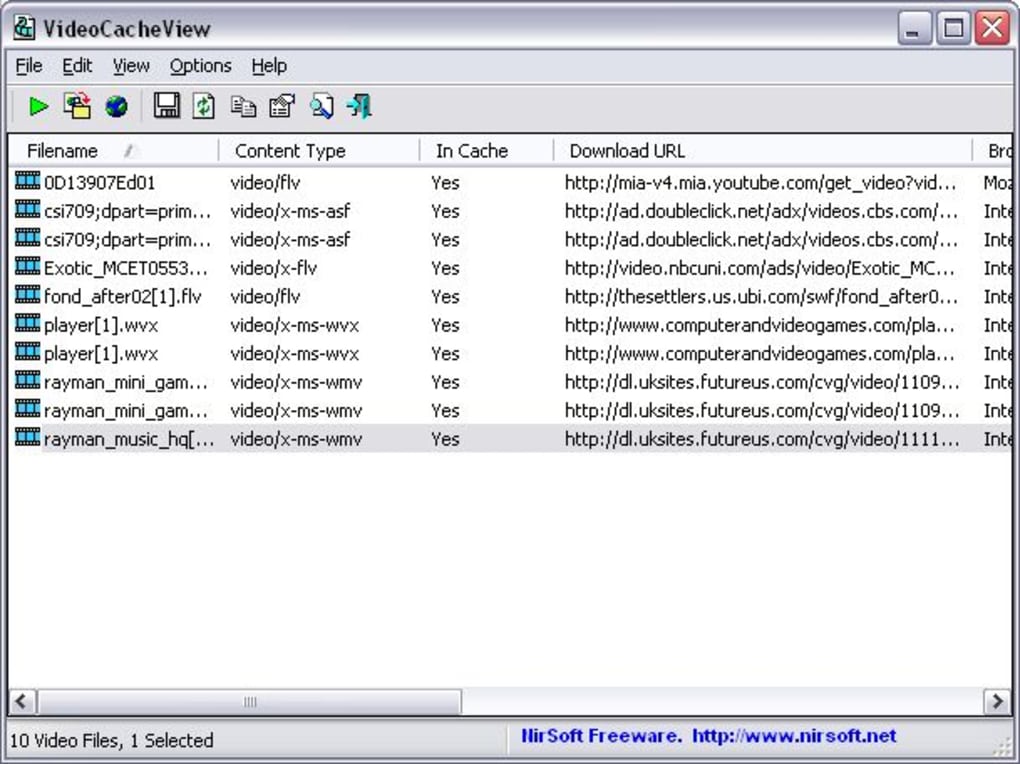
VideoCacheView is a powerful, lightweight application designed to recover video files cached by popular web browsers, primarily Internet Explorer and Firefox. It meticulously scans the cache directory of these browsers, identifying and extracting video files stored within. This allows users to access previously watched videos without relying on the original websites or cumbersome browsing history searches. The program displays the discovered video files in a user-friendly interface, providing information such as file name, size, URL, and the date and time it was cached. This detailed information is crucial for quickly identifying and selecting specific videos of interest.

Beyond merely displaying the cached videos, VideoCacheView offers several key functionalities. Users can directly play the videos within the application (provided they have a compatible media player installed), which is particularly convenient for quick review. Alternatively, the software allows users to save the extracted videos to their hard drive, ensuring easy access at any time. This ‘save’ functionality is critical for archiving videos for later viewing or sharing.
The software’s ability to handle various video formats is also noteworthy. While the specific formats supported depend on the browser’s caching capabilities, VideoCacheView generally works with a wide array of common video file types. This adaptability makes it a versatile tool for users who watch videos across different platforms and websites.
Using VideoCacheView: A Step-by-Step Guide
Before utilizing VideoCacheView, it’s imperative to understand some key prerequisites. The application requires administrative privileges to access the browser’s cache files effectively. Additionally, ensuring that the target browser is closed before running VideoCacheView will significantly improve the accuracy of results, especially when accessing recently viewed videos. The browser’s cache is a dynamic environment, and closing the browser ensures a complete snapshot of the cached videos at a specific point in time.
Here’s a step-by-step guide on how to use VideoCacheView:
-
Download and Installation: Begin by downloading the VideoCacheView executable from a trusted source, ensuring the download is from the official NirSoft website to avoid malware. The installation process is straightforward; simply run the downloaded executable file. No special installations or configurations are usually necessary.
-
Running the Application: After installation, launch VideoCacheView. The main interface will appear, displaying a list of all videos found in the browser’s cache. The list typically includes details such as filename, size, URL of origin, and the timestamp when the video was cached. This information helps users quickly identify and select the specific videos they want to view or save.
-
Navigating the Interface: The interface provides multiple columns of information, allowing for easy sorting and filtering. Users can sort the video list by file name, size, URL, or timestamp to facilitate locating specific videos quickly. If a large number of videos are cached, the search functionality (usually a simple text search box) becomes invaluable, helping users quickly isolate videos related to specific keywords or URLs.
-
Playing the Videos: VideoCacheView allows users to play the videos directly from within the application by selecting the video and choosing a “Play” option (if available). The application’s ability to play videos depends on whether your system has a compatible media player already installed and associated with the relevant video file type.
-
Saving the Videos: To save a cached video file to your hard drive, select the video in the list. VideoCacheView typically provides a “Save” or “Export” option in the context menu or via a dedicated button. This allows the user to choose the destination folder for the saved video file. It’s advisable to choose a folder with ample free space to accommodate the video’s size, especially for larger videos.
-
Troubleshooting: If VideoCacheView fails to find any videos in the cache, it’s crucial to verify that the browser is closed, the application has administrator privileges, and the cache directory is accessible. It may also help to check your browser’s cache settings to ensure that it’s enabled and not excessively configured to aggressively clear the cache. If problems persist, referring to the official VideoCacheView documentation or the developer’s support channels can often resolve common issues.
Advantages and Limitations of VideoCacheView
VideoCacheView offers several significant advantages:
- Ease of Use: Its intuitive interface makes it incredibly user-friendly, even for users with limited technical expertise.
- Efficiency: It efficiently scans and retrieves video files from the browser’s cache, significantly reducing the time required to locate specific videos.
- Freeware: The software is freely available, eliminating any licensing costs.
- Comprehensive Information: It provides detailed information about each cached video, facilitating easy identification and selection.
- Direct Play Functionality: Offers the convenient option to play videos directly from the cache (system media player compatibility required).
- Multiple Video Format Support: Handles a wide array of common video formats.
However, VideoCacheView also has some limitations:
- Browser Dependency: It primarily supports Internet Explorer and Firefox; other browsers might require alternative tools.
- Cache Dependency: It only works with videos stored in the browser’s cache. Videos that haven’t been cached or have been purged will not be recoverable.
- Browser Closure Requirement: For optimal results, the targeted browser needs to be closed before running VideoCacheView, especially for the most recently viewed videos.
- Temporary Files: It might not recover all videos. Streaming services often use complex methods to deliver videos, and not all parts of the video might be fully cached locally.
- Potential for Errors: Issues such as corrupted cache files or changes in browser caching mechanisms can affect the software’s performance.
Alternatives to VideoCacheView
While VideoCacheView is a powerful tool, alternative applications exist that offer similar or complementary functionalities. Some popular alternatives include:
-
NetVideoHunter: This application allows for downloading videos and audio files from various video-sharing sites. While not strictly limited to the browser cache, it offers a broader scope for video acquisition.
-
VCatcher: This tool focuses on capturing and converting streaming videos, providing a different approach to saving online video content.
Other alternatives, depending on the user’s specific needs, might include specialized download managers, video recorders, or screen capture software. The best alternative will vary depending on whether the primary objective is recovering cached videos or capturing videos from online sources.
In conclusion, VideoCacheView presents a valuable solution for recovering and saving videos from your web browser’s cache. Its user-friendly design and efficient functionality make it a practical tool for anyone who wants to easily rewatch videos they have enjoyed online. However, users should be aware of its limitations and consider exploring alternatives if their specific needs extend beyond retrieving cached videos. The choice of the most appropriate tool depends on the user’s particular needs and preferences.
File Information
- License: “Free”
- Latest update: “May 23, 2023”
- Platform: “Windows”
- OS: “Windows XP”
- Language: “English”
- Downloads: “147.5K”
- Size: “109.24 KB”


