
Virtual Audio Cable (VAC) is a Windows audio utility that acts as a virtual bridge, enabling seamless audio file transfers between multiple applications. It transcends the limitations of standard audio routing, offering a flexible and powerful solution for recording, processing, and mixing audio streams from diverse sources. This in-depth analysis will explore VAC’s functionality, advantages, limitations, and its place within the broader landscape of Windows audio management tools.
What is Virtual Audio Cable?
At its core, Virtual Audio Cable functions as a versatile audio driver, creating a network of virtual audio devices that connect disparate applications. Imagine it as a sophisticated sound mixer, but instead of physical inputs and outputs, it uses virtual “cables” to route audio signals. These virtual cables consist of input and output ports. An application, such as a music player or synthesizer, uses the output port to transmit its audio signal. This signal is then received through the input port of another application, such as an audio editor, sound analyzer, or effects processor. This process allows for real-time audio transfer and manipulation without the need for physical connections or intermediate file saving. The beauty of VAC lies in its ability to maintain bit-perfect sound quality during these transfers, ensuring no degradation of the original audio signal.
How Does Virtual Audio Cable Work?
The power of VAC lies in its ability to create multiple independent virtual cables. This enables simultaneous routing of numerous audio streams, allowing complex audio workflows involving a variety of applications. For example, you might use VAC to simultaneously route the output of a digital audio workstation (DAW) to an audio editor for post-processing, while also sending a separate stream to a live streaming platform. This multi-channel capability distinguishes VAC from simpler audio routing solutions.
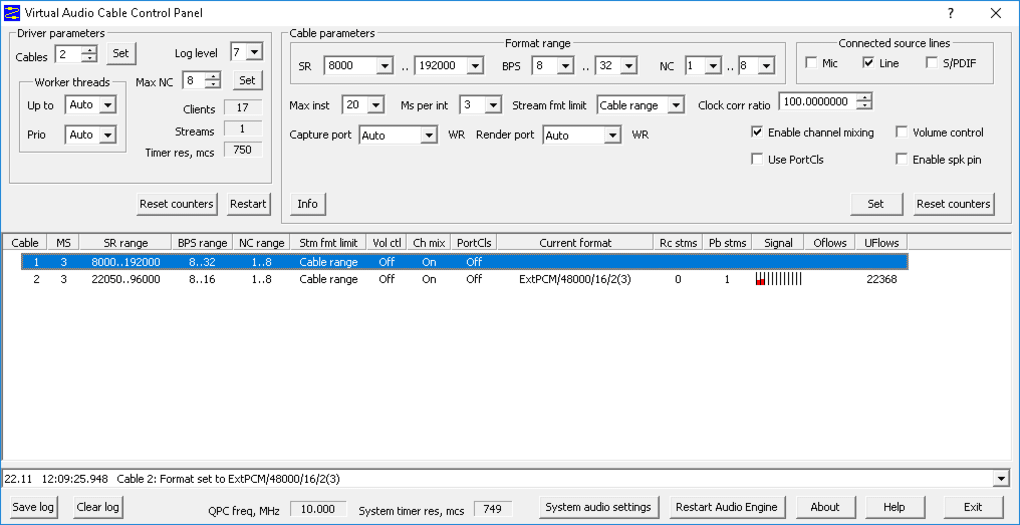
Using VAC involves a two-step process: configuration and application selection. The VAC control panel provides a user interface for configuring the various parameters of each virtual cable. This includes adjusting settings such as:
- Number of Channels: Mono, stereo, or multi-channel audio streams can be routed.
- Sample Rate: Defines the precision of the audio signal (e.g., 44.1 kHz, 48 kHz, 96 kHz).
- Bit Depth: Determines the dynamic range of the audio (e.g., 16-bit, 24-bit).
- Buffer Size: Affects audio latency, balancing performance with potential audio dropouts.
- Volume Control: Allows for independent volume adjustments on each virtual cable.
- Worker Threads: Controls the processing power dedicated to each cable, influencing the system load.
Once the desired configurations are set, the next step involves selecting the appropriate output and input devices within the individual applications. Each virtual cable created by VAC appears as both an input and an output device within the Windows sound settings. This allows you to choose a specific VAC cable as the output for one application (e.g., your music player) and as the input for another (e.g., your audio recording software). The audio signal then flows through the virtual cable, achieving the desired audio routing.
The process of setting up VAC might seem complex at first, and the software’s documentation could benefit from improvements to better guide beginners. However, once users familiarize themselves with the control panel and audio device selection within their applications, the process becomes intuitive and powerful.
Advanced Features and Capabilities
Beyond basic audio routing, VAC offers several advanced features that enhance its versatility:
- Real-time Mixing: VAC can seamlessly combine audio signals from multiple sources, creating a blended output. This feature is valuable for live mixing or creating complex audio compositions.
- Low Latency Performance: The design prioritizes minimal audio delay, which is crucial for applications like live streaming, music production, and VoIP communication where real-time audio synchronization is vital.
- Support for a Wide Range of Applications: VAC’s compatibility extends to a vast array of software, including DAWs, audio editors, VoIP clients, streaming platforms, and more. This broad compatibility is a significant advantage, allowing integration into diverse audio workflows.
- Independent Virtual Cables: The ability to create up to 256 independent virtual cables provides unparalleled flexibility for managing numerous audio streams simultaneously.
- Protocol Support: The program provides support for notification events, enhancing its integration capabilities with other applications.
Limitations and Drawbacks
Despite its strengths, VAC does have some limitations to be aware of:
- Steep Learning Curve: The initial setup and configuration can be challenging for users unfamiliar with audio routing concepts. Better documentation and tutorials would greatly improve usability for beginners.
- App Compatibility: While VAC boasts broad compatibility, it requires applications to support custom audio input and output devices. Some programs might lack this capability, hindering their integration with VAC.
- Installation Considerations: It’s crucial to uninstall previous versions of VAC before installing an updated release to prevent system instability.
- Lack of a Centralized Interface: VAC lacks a user interface that facilitates direct pairing of input and output applications. This necessitates managing connections through the individual application’s settings.
Comparing Virtual Audio Cable to Alternatives
Virtual Audio Cable is not the only tool available for routing audio in Windows. Several alternative programs exist, each with its strengths and weaknesses. Here’s a comparison:
-
Voicemeeter Banana/Voicemeeter: These free and open-source mixers offer powerful audio routing and mixing capabilities, often preferred for complex audio setups and live streaming. They generally have a steeper learning curve than VAC but provide more advanced features.
-
ASIO4ALL: This is a universal ASIO driver designed to improve audio performance, mainly targeting professional audio applications and reducing latency. It doesn’t offer the same virtual cable routing as VAC.
-
OBS Studio (Open Broadcaster Software): Primarily a video streaming and recording application, OBS Studio includes basic audio routing capabilities. However, it is not as specialized for audio routing as VAC.
The optimal choice among these depends on the specific needs of the user. VAC excels in its simplicity and focus on creating virtual audio connections, while others offer broader functionality and more complex features.
Conclusion: Is Virtual Audio Cable Right for You?
Virtual Audio Cable provides a powerful and relatively simple solution for audio routing and transfer between applications in Windows. Its ability to create multiple independent virtual cables with minimal latency and bit-perfect quality is a significant advantage for users requiring flexible audio management. However, its steeper learning curve and dependency on application support for custom audio devices should be considered.
If you need a robust, yet reasonably straightforward, way to route audio between various Windows applications, particularly for music production, sound editing, or live streaming, VAC is a strong contender. However, users seeking an all-in-one audio mixer with a simpler interface and more extensive mixing capabilities might find Voicemeeter Banana or other similar applications more suitable. Ultimately, the best choice depends on your technical expertise and specific workflow requirements.
File Information
- License: “Trial version”
- Latest update: “July 18, 2024”
- Platform: “Windows”
- OS: “Windows 11”
- Language: “English”
- Downloads: “201.5K”
- Size: “1.39 MB”


