
VirtualBox, developed by Oracle, is a powerful and versatile virtualization tool available for free. Its open-source nature, combined with its robust feature set, makes it a popular choice among tech-savvy users, developers, and businesses alike. This guide delves into the capabilities, limitations, and overall usability of VirtualBox on macOS, offering a detailed overview for both experienced users and those new to virtualization.
Understanding VirtualBox
VirtualBox is a type 2 hypervisor, meaning it runs on top of your existing operating system (macOS in this case). This allows you to create and manage virtual machines (VMs), essentially emulated computers within your Mac. Each VM can run a separate operating system, completely independent of your host macOS environment. This isolation is crucial for testing software, developing cross-platform applications, or simply running different operating systems without the need for multiple physical machines. Supported guest operating systems include Windows (various versions), Linux distributions, macOS (though this requires specific setup considerations), and Solaris.
The core function of VirtualBox is to provide a safe and isolated environment for running other operating systems. This allows developers to test applications on various platforms, IT professionals to troubleshoot system issues, and individuals to explore different operating systems without risking the stability of their primary system. Its flexibility makes it suitable for a range of applications, from personal use to large-scale enterprise deployments. While not known for its user-friendliness for complete novices, VirtualBox’s comprehensive documentation and active online community provide ample support for users of all skill levels.
VirtualBox Features: Power and Flexibility
VirtualBox boasts a compelling array of features that solidify its position as a leading free virtualization solution. Let’s explore some key aspects:
-
Open-Source and Free: This is a significant advantage. The open-source nature means the software is constantly being improved by a global community, and the lack of licensing fees makes it accessible to everyone.
-
High-Performance Virtualization: VirtualBox provides a relatively high-performance virtualization engine, allowing for smooth operation of guest operating systems. It supports multiple virtual CPUs per VM (up to 32, with host capabilities extending to 1024 CPUs under specific conditions), enabling resource-intensive tasks within the virtual environments.
-
Enhanced Security: VirtualBox incorporates robust security features. The Remote Desktop Protocol (RDP) authentication enhances security during remote access, and disk images can be encrypted for added protection. The availability of an SDK (Software Development Kit) further allows developers to integrate custom authentication measures for specialized security requirements.
-
Cross-Platform Compatibility: VirtualBox isn’t limited to macOS. It works across various host operating systems, including Windows and Linux, further enhancing its versatility and making it a consistent choice regardless of your primary computing environment.
-
Customizability: The application’s settings offer extensive customization options. Tech-savvy users can fine-tune various parameters to optimize performance, resource allocation, and network configurations to suit their specific needs. A command-line interface provides advanced control and access to functions not readily available through the graphical user interface (GUI).
-
Active Community Support: The large and active online community serves as a valuable resource for troubleshooting issues and obtaining assistance. This readily available support often compensates for the lack of official paid technical support.
-
Regular Updates and Feature Enhancements: Oracle continuously updates VirtualBox, adding new features, fixing bugs, and improving performance. These updates ensure the software remains competitive with paid virtualization solutions.
-
Appliance Management: VirtualBox allows users to easily import and export virtual machines as appliances, making it simple to share or transfer VMs between different computers or environments.
VirtualBox on macOS: Specific Considerations and Advantages
VirtualBox provides a seamless integration experience on macOS. Its relatively lightweight footprint compared to paid alternatives like Parallels Desktop makes it a compelling choice, especially for users who don’t require the advanced features of premium solutions or only need a virtual machine for occasional use.
Advantages of using VirtualBox on macOS:
-
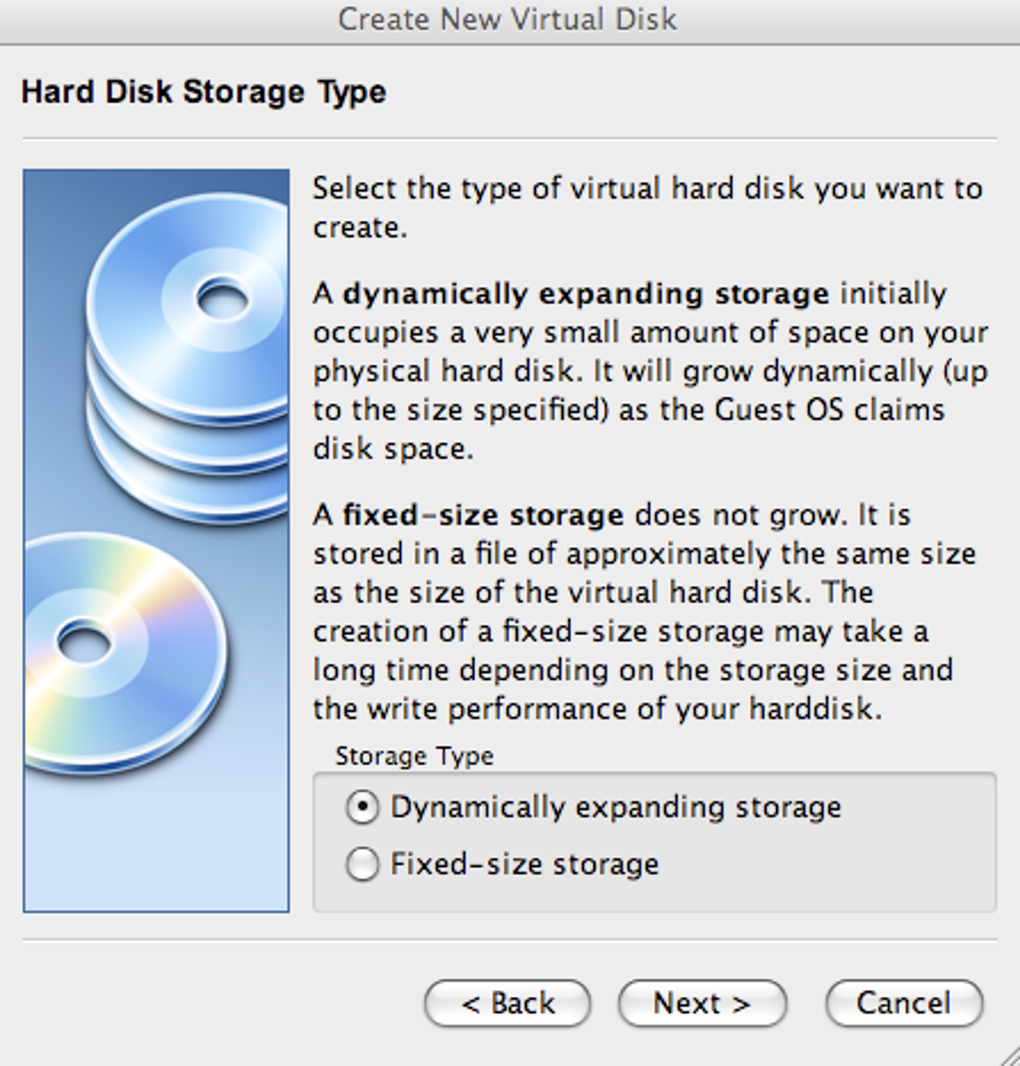
Ease of Setup: Setting up a new virtual machine in VirtualBox is generally straightforward. The intuitive wizard guides users through the process, simplifying the creation of virtual environments, even for beginners.
-
Shared Folders: VirtualBox supports shared folders, allowing easy file transfer between the host macOS system and the guest operating system. While not as slick as drag-and-drop in some premium solutions, shared folders provide a functional method for data exchange.
-
USB Device Support: VirtualBox automatically detects USB devices connected to the host system, enabling users to easily connect these devices to the guest VMs. This feature extends the functionality of the virtual environments by allowing access to printers, cameras, or other external peripherals.
-
Network Connectivity: Internet connectivity is typically straightforward. VirtualBox automatically configures network access for the guest OS, ensuring smooth internet access within the virtual machine.
Limitations of VirtualBox
Despite its numerous advantages, VirtualBox does have some drawbacks compared to paid virtualization software:
-
GUI Refinement: While functional, the user interface isn’t as polished or user-friendly as some commercial options. Navigation and certain workflow processes could be more intuitive for novice users.
-
Lack of Direct Technical Support: VirtualBox doesn’t provide direct technical support, meaning users rely heavily on online communities and documentation to resolve issues. While the community is helpful, this can still prove frustrating for those needing immediate solutions.
-
Integration Limitations: The integration between the host macOS and guest operating systems isn’t as seamless as in some premium alternatives. Features like drag-and-drop file transfer aren’t directly supported, requiring users to use shared folders instead.
Recent VirtualBox Updates and Improvements (Version 7.1.8 and beyond)
Version 7.1.8 (and subsequent updates) incorporates numerous enhancements and bug fixes across various platforms. Key improvements include:
- Improved Audio Handling (Windows Hosts): Significant improvements in handling audio device switching, along with various fixes for smoother audio transitions.
-
Enhanced NVMe Storage Support (Windows Hosts): Exporting virtual machines with NVMe storage is significantly easier and more reliable.
-
Support for Newer Storage Devices (macOS Hosts): Improved compatibility with recently released storage devices, expanding support for more hardware configurations.
-
Kernel Upgrades (Linux Guests): Updated kernels for Linux guests provide improved security, stability, and compatibility with newer software and hardware.
-
Streamlined Solaris Installations: The installation process for Solaris guest operating systems has been simplified.
-
Bug Fixes: Numerous bug fixes address various issues, including BIOS quirks, RDP crashes, and 3D rendering problems. These contribute to a significantly more stable and reliable virtual machine experience.
Should You Use VirtualBox?
The decision of whether to use VirtualBox depends on your specific needs and technical skills. If you require a free, powerful, and feature-rich virtualization solution and are comfortable troubleshooting issues using online resources, then VirtualBox is an excellent choice. However, if you prioritize a polished user interface, extensive direct support, and seamless integration with the host operating system, a paid virtualization solution might be a better fit. For developers, casual users needing occasional virtual environments, or those seeking a cost-effective alternative to premium solutions, VirtualBox remains a compelling and highly capable option. The active community support largely offsets the lack of paid technical support, and the open-source nature ensures continuous improvement and the addition of new features.
File Information
- License: “Free”
- Latest update: “April 22, 2025”
- Platform: “Mac”
- OS: “Mac OS X”
- Language: “English”
- Downloads: “124K”
- Size: “157.59 MB”


