
In the evolving landscape of digital entertainment and specialized software, the need for flexible and adaptable input methods has never been greater. Many applications, particularly games, are designed with the expectation of joystick or gamepad input. However, not every user possesses a physical joystick, nor is every legacy device capable of natively interfacing with modern software in a joystick-like manner. This is where vJoy steps in as an indispensable utility. Developed as a virtual joystick device driver for Windows, vJoy serves a crucial role in translating diverse forms of input into a standardized joystick format that applications can readily understand. It acts as a sophisticated intermediary, allowing users to leverage their existing keyboards, mice, or even other non-joystick peripherals to emulate the precise control and functionality of a dedicated joystick.
At its core, vJoy is not a physical piece of hardware but rather a software-based driver that creates a “virtual” joystick within the Windows operating system. This virtual device behaves identically to a real joystick from the perspective of any application or game designed to receive joystick input. Its primary purpose is to fill the void when a physical joystick is either unavailable, incompatible, or simply not preferred. For instance, a classic PC game might only accept joystick commands, but a user might prefer the tactile feedback and ubiquity of their keyboard. vJoy facilitates this by taking keyboard presses or mouse movements and mapping them to virtual joystick axes and buttons, effectively making the application believe a physical joystick is connected and actively being used.
The utility’s origins are rooted in addressing the limitations of previous solutions, notably PPJoy. While PPJoy served a similar function, vJoy was developed to offer a more robust, secure, and configurable alternative, particularly for modern Windows operating systems. Its implementation as a device driver ensures deep integration with the operating system, allowing for reliable performance and broad compatibility across a wide spectrum of Windows applications that rely on standard joystick APIs. This foundational capability makes vJoy an invaluable tool for a diverse audience, ranging from casual gamers looking to play older titles without dedicated hardware to developers testing input systems or individuals seeking custom control solutions for specialized applications.
Understanding vJoy: The Virtual Joystick Driver
The concept of a virtual joystick might sound complex, but its underlying principle is elegantly simple: to abstract the physical input method from the logical input required by an application. vJoy achieves this by installing a device driver that registers itself with Windows as a standard joystick device. This means that once vJoy is active, your operating system, and by extension, any software running on it, will detect one or more “vJoy Devices” as if they were tangible joysticks plugged into your system. This virtual representation is key to its utility, as it bypasses the need for specific hardware and allows for incredible flexibility in how input is generated.
What is vJoy?
At its essence, vJoy is a highly specialized device driver for the Windows operating system. Unlike typical drivers that facilitate communication between hardware components and the OS, vJoy creates a software-only device – a virtual joystick. This virtual device does not correspond to any physical gadget you can hold in your hand. Instead, it exists purely in the digital realm, acting as an input conduit. Its primary function is to interpret input from other non-joystick sources, such as keyboards, mice, or even custom software, and translate that input into the standard signals that applications expect from a joystick. Imagine wanting to play a flight simulator that absolutely demands joystick input, but you only have a keyboard. vJoy allows you to map your ‘W’ key to the joystick’s forward axis, ‘A’ and ‘D’ to the rudder, and so on, effectively transforming your keyboard into a sophisticated, albeit virtual, flight stick.
The ingenious design of vJoy lies in its ability to present a consistent and predictable interface to applications. Developers don’t need to write custom code to support vJoy; they simply interact with it as they would with any other standard joystick. This universal compatibility is a massive advantage, opening up a world of possibilities for gaming, simulation, and even industrial control applications where specialized input is required but dedicated hardware might be prohibitively expensive or simply unavailable. The driver ensures that all the complex transformations happen behind the scenes, presenting a clean, standardized output to the consuming application.
The Evolution from PPJoy
vJoy didn’t emerge in a vacuum; it was designed as a direct successor and, in many ways, an improvement upon its predecessor, PPJoy (Parallel Port Joystick Driver). PPJoy was an earlier solution that allowed users to create virtual joysticks, primarily by leveraging the parallel port for input. While groundbreaking for its time, PPJoy suffered from several limitations that became increasingly apparent with the evolution of operating systems and hardware.
Firstly, PPJoy’s reliance on the parallel port made it an increasingly niche solution as parallel ports became obsolete on modern motherboards. Secondly, its architecture was not as robust or secure for later versions of Windows, particularly 64-bit systems, often leading to compatibility issues and system instability. The configuration options were also more constrained, offering less flexibility for advanced users.
vJoy was developed to overcome these challenges. It moved away from hardware-specific dependencies, integrating directly into the Windows driver model. This allowed for native 64-bit support, a critical feature for modern operating systems, and significantly improved security and stability. Where PPJoy often felt like a workaround, vJoy was engineered as a professional-grade driver. It introduced greater configurability, allowing users to define more virtual devices, more axes, and more buttons, catering to a wider range of complex applications. The development of vJoy was a natural progression, bringing the powerful concept of virtual joystick emulation into the modern computing era with enhanced performance, security, and adaptability. This evolution meant that users and developers no longer had to grapple with the eccentricities of legacy hardware and software combinations but could instead rely on a streamlined, up-to-date solution.
Diving Deep into vJoy’s Capabilities
Beyond its fundamental role as a translator, vJoy offers a rich set of features and configuration options that make it a powerful and versatile tool. Its capabilities extend far beyond simple button remapping, providing granular control over virtual joystick behavior and device parameters. This flexibility is what truly sets vJoy apart, allowing users to craft highly personalized input experiences tailored to specific applications or gaming scenarios.
Core Functionality and Configuration Options
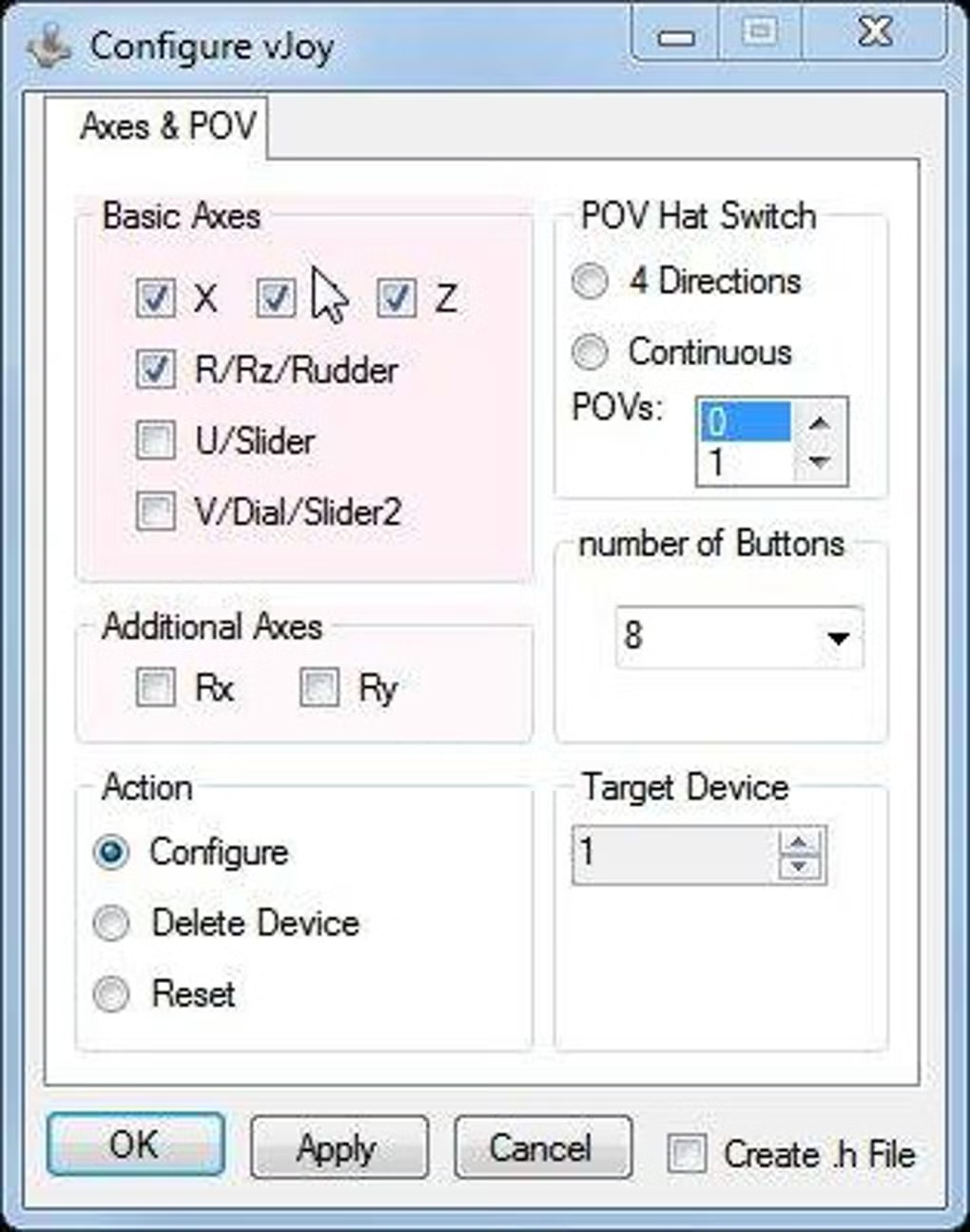
The core functionality of vJoy revolves around its ability to create and manage virtual joystick devices, each capable of mimicking the behavior of a physical joystick with a high degree of fidelity. Users can define the number of virtual joysticks, the number of axes each joystick possesses (e.g., X, Y, Z, Rx, Ry, Rz, Sliders), and the number of buttons available. This granular control means you can configure a simple virtual joystick with just a few buttons for a basic game or a highly complex one with multiple axes and dozens of buttons for an intricate flight simulator or a bespoke industrial control system.
One of vJoy’s significant strengths lies in its configurability. While it can be used “as is” with default settings, the provided sample code and interface allow for extensive modification. For instance, developers can integrate vJoy’s functionality directly into their own applications, enabling them to programmatically control the virtual joystick’s output based on their application’s logic. This is particularly useful for creating specialized input devices or for applications that require dynamic joystick behavior.
For end-users, the configuration process typically involves mapping physical inputs (like keyboard keys or mouse movements) to virtual joystick outputs (axes or buttons). This mapping can be done through helper applications or custom scripts that interact with the vJoy driver. For example, you can assign the ‘up arrow’ key to move the virtual joystick’s Y-axis upwards, the ‘spacebar’ to trigger Button 1, and so forth. This allows for a completely customized control scheme, which can be invaluable for games that don’t natively support keyboard remapping or for accessibility purposes, enabling users to play games or control software using their preferred input devices. The ability to create multiple virtual devices, each with its own configuration, further enhances its utility, allowing users to switch between different control profiles for various applications without constantly reconfiguring.
Exploring the vJoy Branches: Tailoring to Your Needs
To cater to a wide array of user requirements and compatibility considerations, vJoy is offered in different “branches” or versions. These branches represent various stages of development or design philosophies, each optimized for specific use cases. Understanding these branches is crucial for selecting the right vJoy configuration for your particular needs.
vJoy 2.x (Incompatible to PPJoy): The Advanced Solution
The most recommended and advanced branch is vJoy 2.x, also often referred to as the “Incompatible (to PPJoy)” branch. This version represents the pinnacle of vJoy’s development, offering the most comprehensive features, robust performance, and enhanced security. It is fully configurable, allowing users unparalleled control over the virtual devices they create. With vJoy 2.x, you can configure up to 16 virtual devices simultaneously, each with a customizable number of axes and buttons. This means you could, in theory, have 16 virtual joysticks operating concurrently, each responding to different inputs, a feature essential for complex setups or multi-player local environments using non-standard controllers.
This branch is built with modern Windows operating systems in mind, providing signed drivers that ensure compatibility and stability, especially on 64-bit systems. Its advanced architecture makes it secure and less prone to conflicts, making it the preferred choice for developers and power users who require maximum flexibility and reliability. The “incompatible to PPJoy” label signifies that its internal architecture and API are fundamentally different from PPJoy, allowing for modern advancements without being constrained by legacy design choices.
Compatible/Fixed Branch: Simplicity for Basic Needs
For users seeking a straightforward, stable, and less configurable replacement for PPJoy, the “Compatible/Fixed” branch is an excellent option. This branch is designed for simplicity and ease of use, making it ideal for those who don’t require extensive customization or dynamic configuration. It provides one fixed virtual device with a predefined set of inputs: typically eight fixed axes and 32 buttons.
The key characteristic of this branch is its “fixed” nature – meaning its axes cannot be re-mapped by the user. While this limits flexibility compared to vJoy 2.x, it offers a stable and predictable environment for applications that expect a specific joystick layout. It’s perfect for situations where you just need a reliable virtual joystick without getting into the intricacies of advanced configuration. Think of it as a plug-and-play solution for basic virtual joystick needs, particularly for older games or applications that might have issues with more dynamic or complex virtual devices.
Compatible/Configurable Branch: Flexible for Intermediate Users
Bridging the gap between the simplicity of the Fixed branch and the advanced features of vJoy 2.x is the “Compatible/Configurable” branch. This option offers a middle ground, providing more flexibility than the Fixed branch while maintaining some level of compatibility (in concept) with PPJoy’s design philosophy. With this branch, users gain the ability to set the number of buttons and select the specific axes they need for their virtual device. This means you’re not stuck with a rigid configuration but can tailor the virtual joystick’s capabilities to match your application’s requirements more closely.
However, a notable limitation of this branch is that, like the Fixed branch, you generally cannot re-map the axes directly through its standard interface. While it allows you to choose which axes are present, their functional mapping (e.g., X-axis controls horizontal movement) is often fixed. Re-mapping axes in this branch typically requires making “small changes in your code” if you are a developer, indicating it’s not a feature readily accessible through a graphical user interface for end-users. This branch is best suited for users who need a specific number of axes and buttons, but whose applications are flexible enough to work with the default axis mappings, or for developers willing to implement custom mapping logic.
Installation, Configuration, and Practical Applications
Implementing vJoy into your system is generally a straightforward process, though like any device driver installation, it comes with its own nuances. Once installed, its utility shines brightest in how it allows users to redefine their input experience, transforming common peripherals into powerful joystick emulators for a myriad of practical applications, especially in gaming.
Installation Process and Potential Hurdles
The installation of vJoy is initiated by downloading the appropriate installer from a trusted source, such as PhanMemFree. Once the executable is run, the process typically follows standard Windows driver installation procedures, guiding the user through a series of prompts. However, as noted in the documentation, “it might take a while, and can sometimes fail.” This is not uncommon for device driver installations, as they require deep interaction with the operating system’s kernel and security features. Potential reasons for failure can include insufficient administrative privileges, conflicts with existing drivers, or security software flagging the driver installation process. Users should ensure they have administrator rights and consider temporarily disabling overly aggressive antivirus software if issues arise, though this should always be done with caution.
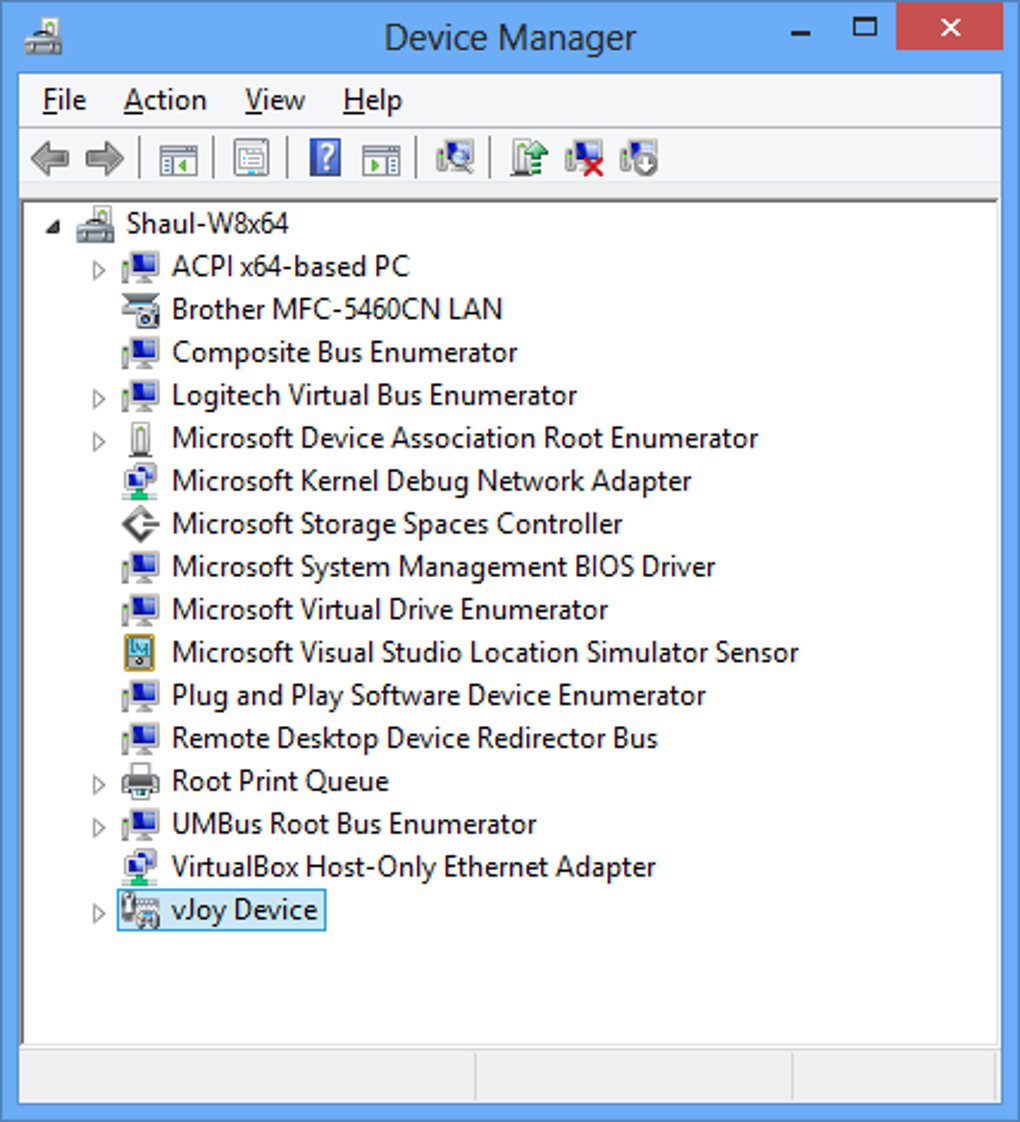
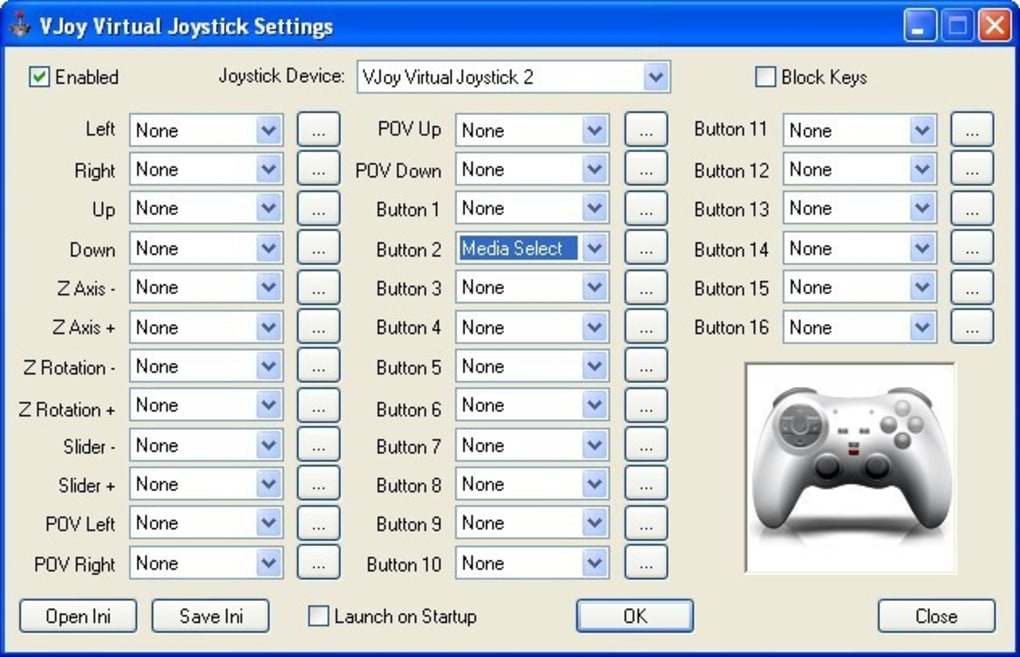
Upon successful installation, vJoy integrates itself into the Windows device manager, presenting its virtual joystick devices. Users can then launch the vJoy configuration utility, either directly after installation or via the Start menu. The utility provides the necessary interface to manage and configure the virtual joysticks. A typical default setup might provide two virtual joysticks, each configurable with a significant number of inputs – for instance, 30 inputs per joystick.
The core of configuration involves assigning a physical input (like a keyboard key or mouse action) to a virtual joystick output (a button or an axis movement). This is usually done through a user-friendly interface where you can select the desired joystick function (e.g., “Button 1,” “X-axis positive”) and then either choose a key from a dropdown menu or use a “three-dot button” to capture the key input directly from your keyboard. This intuitive mapping process allows users to quickly set up personalized control schemes.
Mastering Input Translation: Keyboard and Mouse as a Joystick
The true power of vJoy becomes evident when it allows users to transform their ubiquitous keyboard and mouse into sophisticated joystick emulators. This capability is particularly useful for a broad range of applications and scenarios where a traditional joystick is either impractical, unavailable, or simply not the preferred input method.
For instance, many older PC games were designed with joystick controls in mind, and their keyboard support might be rudimentary or non-existent. vJoy breathes new life into these titles by allowing players to map full joystick functionality to their keyboard. Imagine playing a classic arcade racer that only recognizes gamepad steering; with vJoy, the ’left arrow’ and ‘right arrow’ keys can precisely control the virtual joystick’s X-axis, giving you responsive steering. Similarly, mouse movements can be mapped to joystick axes, offering analog control that a keyboard alone cannot provide. A designer working on a 3D modeling application that benefits from joystick-like camera control could map mouse movements to pan and tilt actions, enhancing their workflow without investing in specialized hardware.
The implementation of vJoy for keyboard and mouse emulation extends beyond gaming. It can be invaluable for accessibility, allowing individuals with specific motor control challenges to interact with software that demands joystick input using adaptive input devices that can emulate keyboard or mouse actions. Developers also find it useful for testing. Instead of physically manipulating a joystick for every test case, they can simulate joystick input programmatically or via simple keyboard commands, streamlining their development and debugging cycles. This mastery of input translation makes vJoy an incredibly versatile tool, capable of adapting software to the user’s available hardware, rather than forcing the user to adapt to the software’s specific hardware demands.
Advantages and Limitations of vJoy
Like any software utility, vJoy comes with a set of distinct advantages that make it a compelling choice for virtual joystick emulation, alongside certain limitations that users should be aware of.
Advantages:
- Highly Configurable: As highlighted with the vJoy 2.x branch, the software offers extensive customization options. Users can define the number of virtual devices, axes, and buttons, allowing for highly tailored input solutions for diverse applications.
- 64-bit Support: Unlike older solutions like PPJoy, vJoy is fully compatible with modern 64-bit Windows operating systems, ensuring stability and performance.
- Signed Drivers: The drivers are digitally signed, which enhances system security and ensures smooth installation and operation on Windows, avoiding compatibility warnings often associated with unsigned drivers.
- Can Be Incorporated as Is: For developers, vJoy provides sample code and a robust API, meaning its functionality can be seamlessly integrated into custom applications, offering a powerful foundation for specialized input solutions.
- Transforms Standard Peripherals: Its core strength is allowing users to leverage common input devices like keyboards and mice to emulate complex joystick behavior, democratizing access to software that typically requires specialized hardware.
- Free to Use: vJoy is available as a free utility, making it an accessible solution for everyone.
Limitations:
- Installation Takes Time and Can Fail: While generally straightforward, the installation process can be lengthy and occasionally prone to failure, requiring troubleshooting by the user.
- Cannot Keep Motion and Speed Like an Analog Joystick: A significant limitation, especially when using keyboard input, is the inability to perfectly replicate the nuanced, continuous motion and varying speed of an analog joystick. Keyboard keys are typically binary (on/off), making it challenging to translate this into smooth, gradual axis movements. While some helper applications try to emulate this with repeated key presses or sophisticated timing, it rarely achieves the precision of a true analog input.
- Compatibility to PPJoy is Limited to Translation of Joystick Axes: While vJoy was designed as a replacement for PPJoy, direct “compatibility” in terms of internal architecture is limited. The most compatible branches simply offer a similar concept of axis translation, but developers migrating from PPJoy might need to make significant code changes due to different APIs and internal workings. This is less of a limitation for end-users but crucial for developers with existing PPJoy-based projects.
- Requires Helper Applications for Direct Input Mapping: While vJoy provides the virtual device driver, mapping keyboard/mouse input directly to the virtual joystick often requires a separate helper application (or custom code) to listen for physical inputs and send commands to the vJoy driver. The vJoy package itself doesn’t always provide a comprehensive, user-friendly graphical interface for all mapping scenarios out-of-the-box.
Despite these limitations, vJoy remains an incredibly useful and often indispensable tool for its target audience, providing a powerful solution for virtual joystick emulation.
The Ecosystem of Input Emulation: vJoy and its Alternatives
vJoy operates within a broader ecosystem of input emulation tools, each designed to address different aspects of how users interact with their computers and games. While vJoy focuses specifically on creating virtual joysticks from diverse inputs, other utilities approach input translation from different angles, offering either complementary or alternative solutions depending on the user’s specific needs.
One notable alternative mentioned is antimicro. This free software is designed to map keyboard and mouse inputs to gamepad controls. Its purpose is somewhat inverted from vJoy’s primary function: instead of making a keyboard act like a joystick, antimicro makes a keyboard (or mouse) act like a gamepad. This is particularly useful for PC games that only offer robust gamepad support, allowing users to play them with a keyboard and mouse as if they were using a controller. While it can achieve similar outcomes in terms of playing controller-only games, vJoy creates a virtual joystick device that can be detected by any application, whereas antimicro focuses on sending gamepad-like signals.
Another popular tool is JoyToKey. This software allows users to turn their PC gamepad’s input into keyboard or mouse input. This is the exact opposite of what vJoy primarily does. With JoyToKey, if you have a physical gamepad but want to use it to control a game or application that only understands keyboard and mouse commands, JoyToKey facilitates this translation. For example, you could map the left analog stick of your gamepad to act as WASD keys, and the face buttons to act as mouse clicks or other keyboard shortcuts. JoyToKey and vJoy often serve different user needs, though some users might employ both in a complex setup.
Opentrack is a free head-tracking application. While not directly an input remapper like vJoy or antimicro, Opentrack often works in conjunction with such tools or directly with game APIs to provide another layer of immersive control. It translates head movements into in-game camera movements, which can sometimes be perceived by games as joystick-axis input (e.g., controlling a virtual pilot’s head in a flight simulator). This highlights how different input emulation tools can integrate to create a richer, more diverse control experience.
Other less direct alternatives or complementary tools include GlovePIE, an older, script-based joystick emulator that allowed for extremely complex input mappings but is less actively developed for modern systems; and various remapping utilities that focus on specific hardware like “X-Mouse Button Control” for customizing mouse functions.
In conclusion, vJoy stands out as a dedicated and robust solution for creating virtual joystick devices within Windows. Its ability to bridge the gap between non-joystick peripherals and applications demanding joystick input makes it an essential utility for gamers, developers, and anyone seeking flexible control solutions. While alternatives exist for different types of input remapping, vJoy’s specialized focus and extensive configurability ensure its unique and vital role in the input emulation ecosystem, particularly for modern 64-bit Windows environments. Its free availability on platforms like PhanMemFree makes it an accessible and powerful choice for enhancing the user experience.
File Information
- License: “Free”
- Version: “beta-2.0”
- Latest update: “July 15, 2022”
- Platform: “Windows”
- OS: “Windows 8”
- Language: “English”
- Downloads: “25.5K”
- Size: “11.48 MB”


