
vmPing is a free, lightweight network utility for Windows operating systems. Designed for simple yet effective network monitoring, it provides users with a clear and concise way to check the responsiveness of network devices and hosts. This review delves into its features, functionality, and overall user experience, comparing it to similar tools and evaluating its place within the broader landscape of network monitoring utilities.
Understanding vmPing’s Core Functionality
At its heart, vmPing operates as a ping utility, sending ICMP echo requests (ping packets) to specified network addresses and recording the responses. Unlike many more complex network monitoring tools, vmPing’s strength lies in its simplicity. It provides a clean interface, focusing solely on displaying ping statistics without overwhelming the user with unnecessary data or complex configurations. This straightforward approach makes it an ideal tool for quick network checks, troubleshooting connectivity issues, or monitoring the availability of critical network resources.
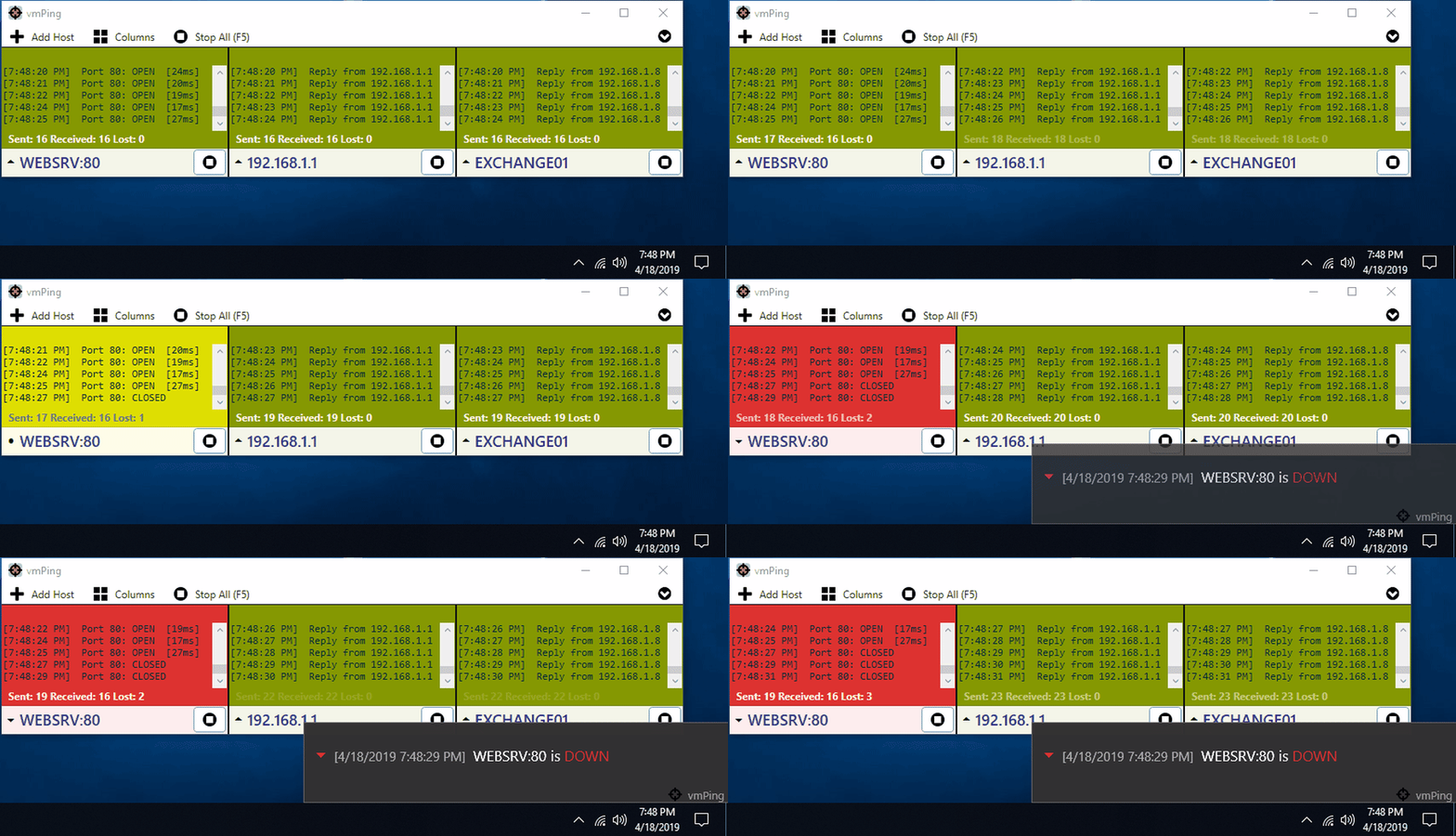
The program’s primary function is to continuously monitor the latency and packet loss between the user’s machine and a specified target. This continuous monitoring is a key differentiator from simpler, one-off ping commands available in the Windows command prompt. vmPing presents this information in real-time, providing a visual representation of network performance that can be easily interpreted even by users without extensive networking knowledge. The visual display of ping statistics, updated dynamically, allows users to immediately see fluctuations in network performance, helping them identify potential issues such as intermittent connectivity or network congestion.
Key Features and User Interface
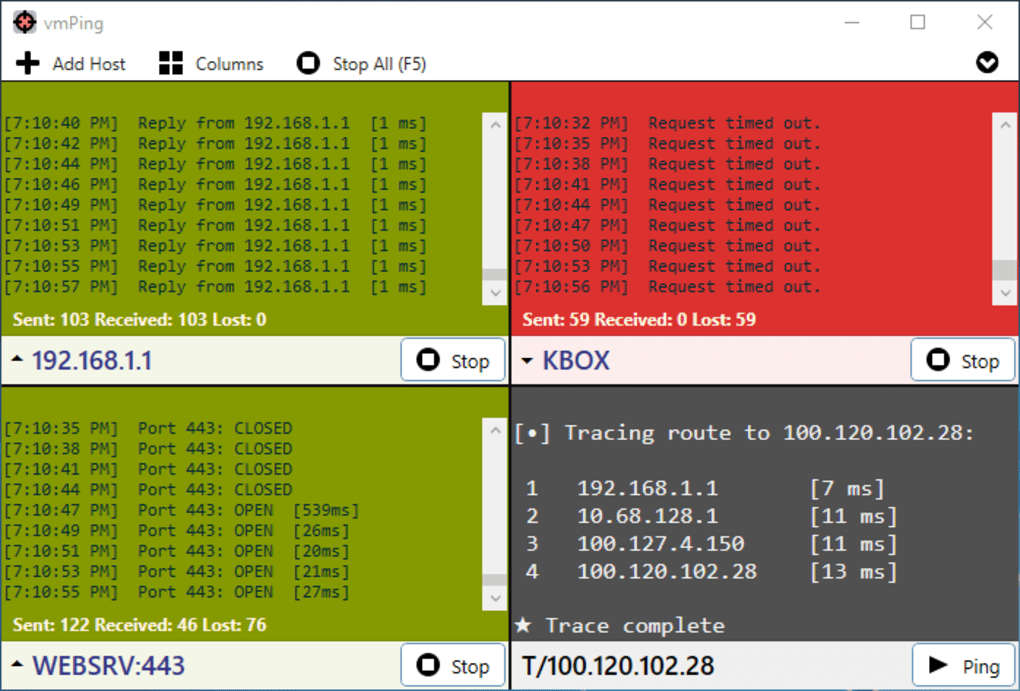
vmPing boasts a minimalist design. The interface is uncomplicated, avoiding clutter and prioritizing essential information. The main window presents the target IP address or hostname, along with a continuously updated display of ping statistics including:
-
Round Trip Time (RTT): This indicates the time it takes for a packet to travel to the target and return, a crucial metric for assessing network latency. Lower RTT values indicate better network performance.
-
Packet Loss: This shows the percentage of ping packets that failed to reach the target or receive a response, signaling potential network connectivity problems.
-
Minimum, Maximum, and Average RTT: These provide a summary of the RTT values over a period, offering a clearer picture of network performance trends.
The user experience is intuitive. Adding a new target involves simply entering the IP address or hostname into a dedicated field, requiring no advanced configuration or network expertise. The intuitive design ensures ease of use for both novice and experienced users. The absence of complex settings reduces the learning curve, allowing users to quickly start monitoring their network.
vmPing Compared to Other Network Monitoring Tools
While vmPing excels in its simplicity and ease of use, it’s important to compare it to other network monitoring tools available for Windows. More comprehensive tools like PingPlotter offer advanced features such as traceroute visualization, detailed packet analysis, and historical performance graphs. These tools provide deeper insights into network behavior but often come with a steeper learning curve and may be overkill for basic network monitoring tasks.
vmPing’s niche lies in its lightweight nature and ease of use. It’s not a replacement for comprehensive network monitoring software, but rather a convenient tool for quick checks and basic troubleshooting. For instance, if a user experiences slow internet speed, vmPing can be quickly launched to check the latency to their internet gateway or DNS server, helping to isolate the source of the problem – whether the issue stems from the user’s local network or from their internet service provider.
Compared to built-in Windows commands like ping, vmPing provides a more user-friendly interface and continuous monitoring, eliminating the need for manual execution of the command and constant observation of the output. This continuous monitoring feature significantly improves usability, particularly when needing to track network performance over time.
Installation and Usage
Installing vmPing is a straightforward process. The software is readily available for download from reputable sources, and the installation process is typical of most Windows applications, requiring minimal user intervention. Once installed, the program’s small footprint doesn’t burden system resources, making it suitable for use even on older or less powerful machines.
The software’s intuitive design simplifies usage. Users simply need to enter the target address (IP address or hostname) and start the ping process. The results are displayed immediately, offering a real-time visual representation of network performance. This straightforward workflow minimizes the time spent on setup and monitoring, allowing users to focus on resolving network issues or observing network stability.
Security Considerations and Limitations
As a network utility, vmPing operates within the confines of ICMP echo requests. This means it only assesses the basic connectivity between the user’s machine and the target address, not delving into deeper network protocols or security aspects. It doesn’t provide any inherent security features beyond the basic limitations of ICMP itself.
One of vmPing’s limitations is the absence of advanced features found in more comprehensive network monitoring tools. It lacks the capability to monitor multiple targets simultaneously, generate detailed reports, or provide in-depth performance analysis. These limitations restrict its use to simple network checks, making it unsuitable for complex network administration or in-depth performance diagnostics.
Conclusion
vmPing serves as a valuable tool for users requiring a simple, lightweight, and user-friendly way to monitor network connectivity. Its ease of use, minimal resource consumption, and intuitive interface make it an excellent choice for quick network checks, troubleshooting basic connectivity issues, and monitoring the availability of crucial network resources. While not a replacement for more comprehensive network monitoring solutions, vmPing fills a specific niche, providing a practical and effective solution for everyday network management tasks. Its simplicity makes it accessible to users with varying levels of technical expertise, ensuring that basic network monitoring is within reach of all. The program’s continuous monitoring feature, coupled with its clear visual representation of ping statistics, improves the overall user experience significantly. For those seeking a straightforward and readily available tool for basic network monitoring on Windows, vmPing is a highly recommended option.
File Information
- License: “Free”
- Version: “1.3.4”
- Latest update: “July 15, 2022”
- Platform: “Windows”
- OS: “Windows 8.1”
- Language: “English”
- Downloads: “2.1K”
- Size: “286.72 KB”


