
VNC, or Virtual Network Computing, is a powerful and widely used remote access software solution that enables users to control and interact with a remote computer as if they were sitting directly in front of it. This technology transcends geographical limitations, allowing for seamless access and control of computers from anywhere with an internet connection. This comprehensive guide delves into the functionalities, security features, advantages, disadvantages, and alternatives of VNC, providing a complete understanding of this essential remote access tool.
Understanding VNC: How it Works and its Applications
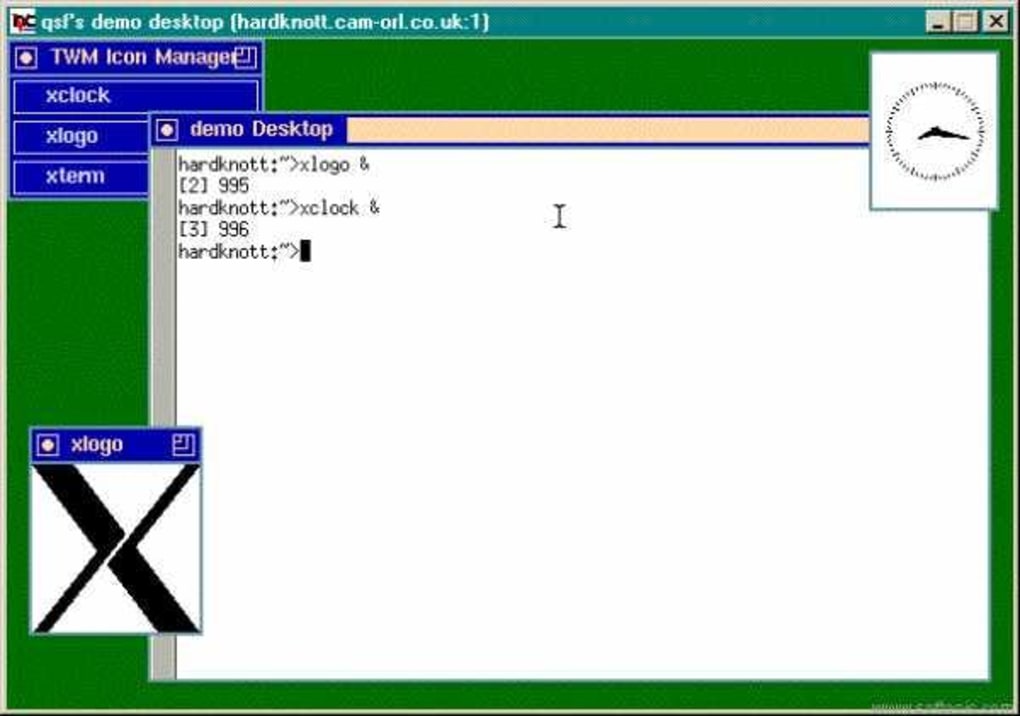
VNC operates by establishing a connection between two computers: a client machine and a server machine. The server machine hosts the VNC server software, which captures the screen’s display and transmits it over a network connection. The client machine, equipped with the VNC viewer software, receives this screen data and displays it on its screen, providing a real-time visual representation of the remote computer’s desktop. This allows users to control the remote computer using their keyboard and mouse as if they were directly interacting with the server machine. The process involves several key steps:
- Installation: The VNC server software needs to be installed on the computer you wish to access remotely (the server), and the VNC viewer software must be installed on the machine from which you’ll be controlling the remote computer (the client). While this two-part setup might seem initially complex for non-technical users, numerous user-friendly VNC applications streamline the process, simplifying installation and configuration.
-
Connection Establishment: Once the software is installed on both machines, the client initiates a connection to the server. The connection is established through the network, which can be a local network (LAN) or the internet. During connection establishment, authentication processes ensure secure access, verifying the user’s identity to prevent unauthorized access.
-
Screen Sharing and Control: Once the connection is established, the client receives a real-time display of the server’s desktop. The user can then interact with the remote computer using their local keyboard and mouse. Every action performed on the client is mirrored on the server, providing a seamless remote control experience. This allows users to manage files, run applications, and perform any task they would normally do on the server machine.
-
Data Transmission: The data transmission between the client and server includes keyboard inputs, mouse movements, screen updates, and file transfers. Advanced VNC implementations utilize optimized algorithms and compression techniques to minimize bandwidth consumption, thus ensuring a responsive and efficient remote access experience even over lower bandwidth connections.
VNC’s versatility finds applications across various domains:
-
Remote System Administration: System administrators leverage VNC to remotely manage and troubleshoot servers and workstations in data centers and networks. This is crucial for providing timely technical support and ensuring system uptime.
-
Remote Technical Support: VNC serves as an invaluable tool for providing remote technical assistance. Support technicians can use VNC to remotely access a client’s computer, troubleshoot issues, and provide on-the-spot solutions.
-
Home Office and Remote Work: Employees working remotely can access their office computers, utilizing VNC to perform their tasks as if they were in the office. This facilitates productivity and enables seamless collaboration.
-
Education and Training: VNC is beneficial in educational settings. Educators can demonstrate software and provide training sessions remotely, while students can receive individual guidance and support.
-
Cross-Platform Compatibility: VNC supports a wide range of operating systems, including Windows, macOS, Linux, and various mobile platforms. This cross-platform compatibility enables seamless remote access irrespective of the operating systems involved.
VNC’s Security Features: Protecting Your Data
Security is a paramount concern when dealing with remote access software. VNC acknowledges this and implements several security features to safeguard the remote connection and user data:
-
Authentication: VNC mandates authentication at the connection point. This typically involves a username and password combination, ensuring only authorized users can access the remote computer. Sophisticated VNC implementations incorporate multi-factor authentication, adding an extra layer of security to protect against unauthorized access even if the password is compromised.
-
Encryption: Modern VNC implementations employ encryption protocols to secure data transmitted during the remote session. This encryption protects against eavesdropping and data interception, ensuring confidential information remains private. The strength of the encryption varies depending on the VNC application and its configuration settings, with several options available to ensure robust security.
-
Access Control: Granular access control mechanisms allow administrators to specify which users can access specific computers or applications. This feature enhances security by preventing unauthorized access to sensitive systems and information. Advanced settings often allow defining user permissions, determining the level of access granted to each user.
-
Session Permissions: VNC allows for fine-grained control over session permissions, enabling administrators to restrict the actions users can perform on the remote computer. This ensures that even authorized users cannot perform actions they are not permitted to undertake. Examples include restricting the ability to install software or modify system settings.
-
Connection Verification: Robust VNC implementations incorporate mechanisms to verify the legitimacy of the connection. This involves unique identification codes or phrases that are displayed both on the client and server machines. Any mismatch indicates a potential security compromise.
The security features implemented in VNC are designed to address potential vulnerabilities and protect user data from unauthorized access and malicious activities. However, it’s crucial to keep the software updated with the latest security patches to mitigate any emerging threats.
Advantages and Disadvantages of Using VNC
VNC offers many advantages, contributing to its widespread adoption:
-
Accessibility: VNC provides seamless access to computers from virtually any location with an internet connection. This is particularly valuable for remote workers, system administrators, and users requiring remote technical assistance.
-
Platform Compatibility: VNC supports various operating systems, fostering interoperability and providing flexible solutions regardless of the user’s and the remote machine’s platform.
-
Ease of Use: Many VNC applications offer user-friendly interfaces, making them easy to set up and use, even for individuals without extensive technical expertise.
-
Cost-Effectiveness: Many VNC solutions are available for free, making them an attractive option for individuals and organizations with limited budgets.
However, VNC also presents some disadvantages:
-
Performance: VNC’s performance can be affected by network conditions and bandwidth limitations. Low bandwidth or high latency can result in sluggish performance and a less-than-optimal remote access experience. High-resolution screens can further exacerbate this issue.
-
Security Concerns: While VNC includes security features, it’s crucial to implement best practices and ensure the software is updated regularly to mitigate any potential security risks. Weak passwords or unpatched vulnerabilities can expose the remote system to attacks.
-
Complexity (for some implementations): Certain VNC implementations can be complex to configure and manage, requiring a certain level of technical expertise. However, many modern VNC clients simplify the configuration, reducing this complexity.
- Resource Consumption: VNC can consume significant system resources, especially when handling high-resolution displays or transferring large files. This can impact the performance of both the client and server machines.
Alternative Remote Desktop Solutions
While VNC remains a popular choice, several alternative remote desktop solutions offer comparable or enhanced functionalities:
-
TeamViewer: TeamViewer is a well-known commercial remote desktop solution known for its user-friendly interface and cross-platform compatibility. It offers features like file transfer, chat, and remote printing.
-
AnyDesk: AnyDesk is another popular commercial option emphasizing speed and performance. It uses a proprietary protocol designed to optimize remote access over various network conditions.
-
Chrome Remote Desktop: Chrome Remote Desktop is a free Google service enabling remote access to computers using the Chrome browser. It’s particularly convenient for users working within the Google ecosystem.
-
Microsoft Remote Desktop: Microsoft Remote Desktop is a built-in feature in Windows operating systems and allows users to remotely access other Windows machines. It requires network configuration and may not be as versatile as cross-platform solutions.
The choice of remote desktop software depends on specific needs and priorities. Consider factors like platform compatibility, security requirements, ease of use, performance expectations, and cost when choosing the most suitable option. VNC offers a robust and versatile solution for many, but exploring alternatives is essential to identify the ideal fit for a specific user’s or organization’s requirements.
File Information
- License: “Free”
- Latest update: “April 9, 2025”
- Platform: “Windows”
- OS: “Windows 98”
- Language: “English”
- Downloads: “271.1K”
- Size: “19.68 MB”


