
Voicemeeter, a free virtual audio mixer developed by VB-Audio Software, offers a powerful and versatile solution for managing audio on Windows PCs. While completely free to use, the developers encourage donations to support its continued development and improvement. This comprehensive guide will explore the features, functionality, and usage of Voicemeeter, helping both beginners and experienced users unlock its full potential. We’ll cover the different versions, including Banana and Potato, and delve into the intricacies of setting up and using the included Virtual Audio Cable.
Understanding Voicemeeter’s Functionality
Voicemeeter’s core function is to act as a central hub for all audio sources on your Windows computer. It allows you to seamlessly integrate and manage audio from various inputs, such as microphones, web browsers, audio applications, and even other computers on your local network using the VBAN protocol. This makes it an indispensable tool for a wide range of applications, from podcasting and streaming to recording and mixing music. The software’s strength lies in its ability to route audio from diverse sources to multiple output destinations, providing a level of control unmatched by standard Windows audio settings.
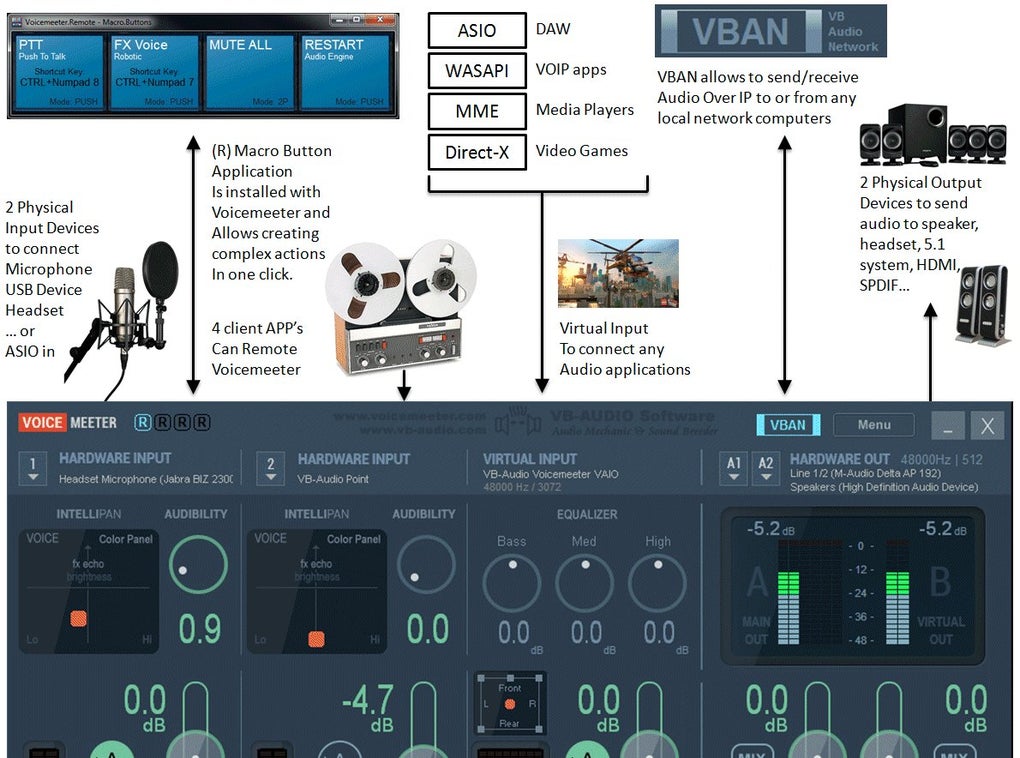
The two main versions, Banana and Potato, offer a similar core functionality but differ in their complexity and feature set. Banana is a more streamlined version, ideal for users who need a simpler audio mixer without overwhelming options. Potato, on the other hand, offers a more extensive set of controls and features, providing greater flexibility and advanced mixing capabilities. Many users find the extra features in Potato to be worth the slightly steeper learning curve.
Regardless of the version chosen, the Virtual Audio Cable is a highly recommended companion. This additional component provides extra virtual input and output channels, dramatically increasing the flexibility of Voicemeeter’s routing capabilities. The free version of the software provides some virtual input and outputs, while the purchase of the Virtual Audio Cable adds significantly more, offering a powerful upgrade for those working with numerous audio sources.
Navigating the Voicemeeter Interface
Upon launching Voicemeeter, you are presented with a control panel that may initially seem complex, but with some exploration, its layout becomes intuitive. The interface is organized into distinct sections to manage input and output sources and their respective settings.
The left side of the interface features the input section. Here, you’ll find several hardware inputs, typically representing physical audio devices connected to your computer, such as your microphone, webcams, and playback devices. Additionally, you’ll find three virtual inputs: one for Desktop audio (sounds originating from your operating system and applications), one for Communication applications (e.g., Skype, Discord), and one for Music (your media player, or other music-related software). Each input can be configured individually with detailed settings.
The bottom right corner houses the master section, which manages output routing. This section is divided into physical outputs, mirroring the physical audio devices connected to your system, and virtual outputs (A1, A2, B1, B2 for Potato, with slight variation in Banana), allowing you to route audio to different destinations. The exact configuration of output channels might differ between the Banana and Potato versions.
Configuring Inputs and Outputs
Each input and output channel in Voicemeeter offers a detailed set of control options for fine-tuning audio signals. These include:
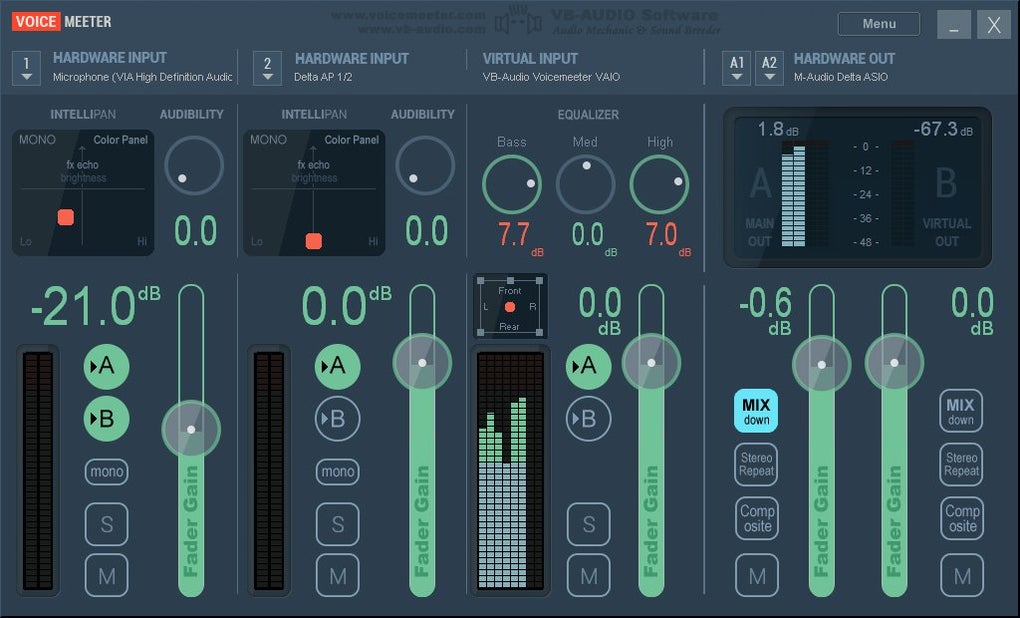
- Device Selection: Choose the specific physical audio device or application to associate with each input.
- IntelliPan: This section provides an Equalizer (EQ) for adjusting the frequency balance of the audio signal. Right-clicking within the IntelliPan square reveals additional effects options.
- Audibility: This section contains a compressor to control dynamic range and a noise gate to reduce background noise levels. Adjusting the settings within this tab can significantly improve the overall audio clarity and reduce unwanted sounds.
- Special and External FX: These slots can be used to route audio through external effects plugins (VST effects are not directly supported but work through workarounds depending on your DAW.)
- Audiometer and Gain Fader: The audiometer displays the audio level of the input. The gain fader allows you to control the signal strength, acting in the opposite direction to a noise gate – useful for adjusting volume levels precisely.
The process for configuring inputs and outputs is consistent across the various inputs. Simply select the desired audio source, adjust the parameters within the IntelliPan, Audibility, and other sections, and set the desired output levels using the gain fader and audiometer.
Utilizing the Virtual Audio Cable
The VB-Audio Virtual Cable is a key component that elevates Voicemeeter’s capabilities. This virtual audio device acts as a bridge, routing audio between applications and Voicemeeter. This is invaluable for situations where you want to capture audio from a specific application, such as a web browser, and route it into Voicemeeter for mixing with other sources.
To use the Virtual Audio Cable, first ensure that it’s installed alongside Voicemeeter. Then, within the Voicemeeter input section, select the desired application, such as your web browser, and specify the Virtual Audio Cable as the input source. In the Windows Sound settings (“App volume and device preferences”), configure the output device of that application as the Virtual Audio Cable. Now, any audio played through that application will be routed to Voicemeeter, ready for mixing with other inputs.
Comparing Voicemeeter with Alternatives
While Voicemeeter stands out as a powerful and free option, it’s worthwhile to consider alternative solutions, both software and hardware-based. Competitors include Audacity (a free, open-source audio editor), Equalizer APO (a parametric equalizer), and Reaper (a powerful but paid Digital Audio Workstation - DAW). These tools can be used in conjunction with Voicemeeter to further enhance audio processing and mixing capabilities.
For a more tangible approach, GoXLR is a hardware-based alternative to a virtual audio mixer. This device provides a physical interface for managing audio inputs and outputs, offering a more tactile experience.
Voicemeeter’s Strengths and Weaknesses
Voicemeeter provides many advantages:
- Comprehensive Audio Control: It offers an unparalleled level of control over audio routing and mixing on a Windows PC.
- Versatile Applications: It caters to a wide range of uses, from streaming and podcasting to music recording and mixing.
- Free to Use: Its free licensing model makes it accessible to a broad audience.
- Community Support: A large and active online community provides support and resources for troubleshooting and learning.
However, it also has some drawbacks:
- Steep Learning Curve: The initial setup and understanding of its various features can be challenging for beginners. The user interface, although powerful, can be overwhelming for newcomers.
- Complexity: The abundance of features and options can be daunting, even for experienced audio users.
Conclusion
Voicemeeter is a powerful and versatile free virtual audio mixer that offers unmatched control over audio on Windows PCs. While it requires time and effort to master its many features, the capabilities it provides make it a worthwhile investment of time and learning. The flexibility it provides, especially when paired with the Virtual Audio Cable, makes it a highly sought-after tool for audio professionals and enthusiasts alike. Whether you’re a streamer, podcaster, musician, or simply need a robust way to manage your computer’s audio, Voicemeeter is a tool deserving of consideration. The community support and continuous development from VB-Audio Software ensure that it continues to improve and offer new features for users.
File Information
- License: “Free”
- Latest update: “December 30, 2024”
- Platform: “Windows”
- OS: “Windows 10”
- Language: “English”
- Downloads: “351.8K”
- Size: “25.93 MB”


