
Wake-on-LAN (WoL), often referred to as “Magic Packet,” is a powerful networking technology that allows you to remotely power on a computer over a network. This functionality proves invaluable in various scenarios, from managing servers in a data center to conveniently turning on your home PC from your smartphone. This comprehensive guide delves into the intricacies of Wake-on-LAN, exploring its mechanisms, practical applications, and potential troubleshooting issues.
Understanding the Magic Packet: How Wake-on-LAN Works
At the heart of Wake-on-LAN lies the “magic packet,” a specifically crafted network packet that triggers the power-on sequence in a compatible computer. This packet isn’t magical in the literal sense, but its unique structure and function earn it the moniker. The process involves several key steps:
-
Network Interface Card (NIC) Configuration: The foundation of WoL lies in the computer’s NIC. The NIC must be configured to support Wake-on-LAN. This typically involves enabling a setting within the NIC’s BIOS or device manager. This setting allows the NIC to listen for network activity even when the computer is in a low-power state, such as Sleep or Hibernate. Crucially, the NIC must also be configured to allow “Wake on Magic Packet” or a similar option, depending on the NIC manufacturer and operating system.
-
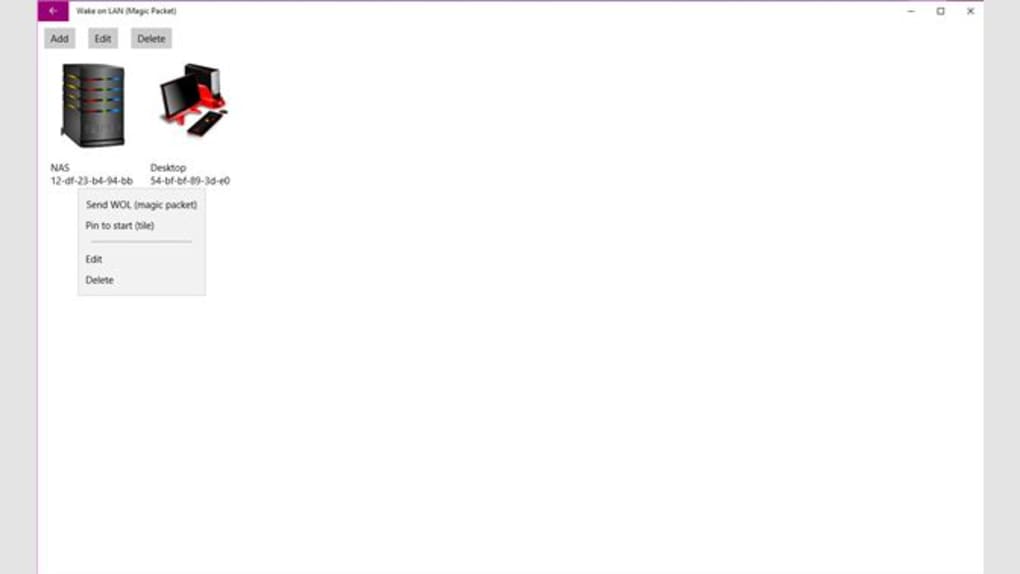
Magic Packet Generation: A WoL-enabled application or tool generates the magic packet. This packet contains a unique 102-byte sequence. The first 6 bytes are all ‘FF’ (255 in decimal), representing a broadcast address. The remaining 16 bytes are repeated six times and comprise the computer’s Media Access Control (MAC) address. This MAC address is a unique identifier hardcoded into the NIC, acting as the target for the magic packet.
-
Packet Transmission: The generated magic packet is then transmitted across the network using a network utility or program. This transmission utilizes the broadcast address, ensuring the packet reaches all devices on the local network. The computer being targeted must be connected to the network either via a wired Ethernet connection or a Wi-Fi connection, which needs to be explicitly enabled for WoL support.
-
NIC Reception and Power-On: The target computer’s NIC, constantly listening for network activity, receives the magic packet. Upon recognizing its own MAC address within the packet, the NIC triggers an interrupt, sending a signal to the computer’s motherboard to initiate the power-on sequence. The computer then boots up normally, as if the power button had been physically pressed.
Practical Applications of Wake-on-LAN
The versatility of Wake-on-LAN extends across numerous contexts:
-
Remote Server Management: In data centers and server rooms, administrators can remotely power on servers for maintenance, updates, or troubleshooting without physically accessing the machines. This reduces downtime and improves overall efficiency.
-
Home Automation: Home users can leverage WoL to conveniently turn on their home PCs from their smartphones or tablets. This allows for effortless access to files, applications, or media streaming services, eliminating the need to physically approach the computer.
-
File Transfer and Access: WoL facilitates remote file transfer. You can wake your computer to initiate a file transfer to or from the machine even when you are not at its physical location. This is especially beneficial for large files or backup operations.
-
Gaming and Remote Desktop: Gamers can use WoL to prepare their gaming rigs ahead of a session, eliminating the waiting time required for the system to boot. Similarly, WoL can enable quick access to a remote desktop session for seamless work or productivity.
-
Software Monitoring and Automation: WoL can be integrated into monitoring systems to automatically restart failed services or applications. Upon detection of an issue, the system can send a magic packet to wake the machine and initiate recovery procedures.
Setting Up and Configuring Wake-on-LAN
Successfully implementing Wake-on-LAN requires careful configuration on both the hardware and software sides. Here’s a step-by-step guide:
1. BIOS/UEFI Settings:
- Access your computer’s BIOS or UEFI settings by pressing the appropriate key during startup (often Del, F2, F10, or F12). This key varies based on your motherboard manufacturer.
- Locate the power management settings. These settings may be labeled differently depending on the motherboard, but look for options related to PCI-E devices, Wake-on-LAN, or power-on by PCI-E device.
- Enable the Wake-on-LAN feature. This typically involves selecting an option to allow the network adapter to wake the computer from sleep or hibernate modes.
- Save the BIOS/UEFI settings and exit.
2. Operating System Settings:
- Open the Device Manager (search for it in the Windows search bar).
- Expand the “Network adapters” section.
- Right-click on your network adapter and select “Properties”.
- Navigate to the “Power Management” tab.
- Ensure that the “Allow this device to wake the computer” checkbox is selected.
- Also, ensure that the “Allow this device to turn off to save power” checkbox is unchecked, especially if you need uninterrupted network listening.
3. Network Configuration:
- If you’re using a router, ensure it’s configured to forward broadcast packets. Many routers handle this automatically, but some may require specific configuration within the router’s settings.
- Verify network connectivity. Your computer must be reachable on the network for the magic packet to work effectively. This involves checking network cables, IP addresses, and firewall settings.
4. Choosing a WoL Application:
Several free and commercial applications facilitate WoL. These apps handle the process of generating and sending the magic packet, simplifying the process for users. Research different WoL applications to find one that best suits your operating system and needs.
Troubleshooting Common Wake-on-LAN Issues
Despite proper configuration, Wake-on-LAN can sometimes encounter issues. Here are some common problems and their solutions:
- Computer Doesn’t Wake Up: This is often due to BIOS settings not properly enabled. Double-check your BIOS settings, ensuring Wake-on-LAN is correctly enabled. Also, inspect power saving settings in your operating system and ensure network adapter power settings allow the computer to wake up.
-
Network Connectivity Problems: Confirm network connectivity both on the sending and receiving ends. Check network cables, IP addresses, and router configurations. Test network connectivity using other methods to isolate any network-related issues.
-
Firewall Issues: Firewalls can sometimes block the broadcast magic packet. Temporarily disable your firewall to test if this is the cause. If the problem is resolved, configure your firewall to allow the specific port or application used for sending the magic packet.
-
Driver Issues: Outdated or corrupted network adapter drivers can interfere with WoL. Update or reinstall the network adapter drivers from the manufacturer’s website.
-
Incorrect MAC Address: Verify you’re using the correct MAC address of the target computer. Using an incorrect MAC address will render the magic packet ineffective.
-
Sleep/Hibernate Settings: Ensure your computer is configured to allow network activity in its sleep or hibernate states. Inconsistent or conflicting power saving settings can prevent the NIC from responding to the magic packet.
-
Link Aggregation and Virtual NICs: Avoid using network features like link aggregation or virtual network interfaces unless specifically supported by your WoL software.
By understanding the intricacies of Wake-on-LAN, its applications, and potential troubleshooting methods, you can effectively utilize this powerful networking technology to remotely manage and access your computers efficiently and conveniently. Remember to always prioritize security and configure your network settings accordingly to prevent unauthorized access.
File Information
- License: “Free”
- Version: “1.6.1.0”
- Latest update: “February 19, 2024”
- Platform: “Windows”
- OS: “Windows 10”
- Language: “English”
- Downloads: “1.5K”


