
WhoCrashed is a free Windows utility designed to analyze system crashes, providing users with insights into the potential causes. While it doesn’t offer solutions directly, it pinpoints likely culprits, empowering users to troubleshoot effectively. This detailed analysis explores its functionality, strengths, weaknesses, and alternatives, offering a comprehensive understanding of its role in diagnosing and resolving Windows crashes.
Understanding WhoCrashed’s Functionality
WhoCrashed excels in its speed and efficiency at examining crash dump files. These files, generated during a system crash, contain valuable information about the state of the system just before the failure. WhoCrashed processes these files rapidly, generating a concise report detailing the suspected cause of the crash. This report typically identifies the faulting module, the involved processes, and other relevant system details. This information is crucial for experienced users who can then utilize this data to pinpoint the problem’s source, whether it be a problematic driver, faulty application, or hardware issue.
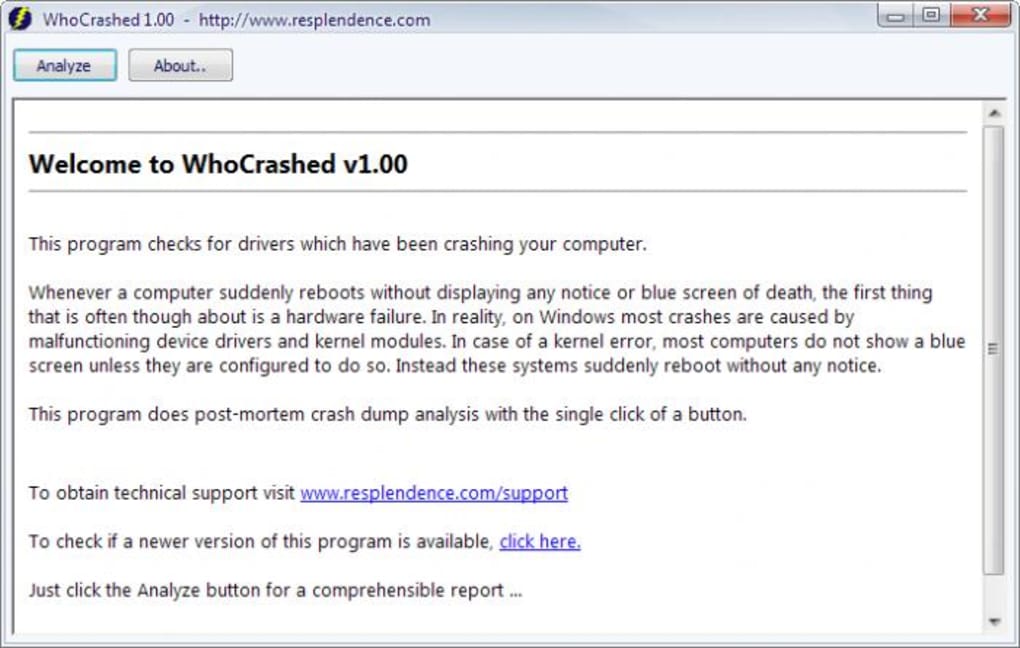
The program’s strength lies in its simplicity. It presents complex technical information in an easily digestible format. The user interface, while arguably somewhat basic in its design, prioritizes clarity and ease of navigation. This straightforward approach makes it accessible to a broader range of users, even those with limited technical expertise. The reports produced by WhoCrashed are detailed enough to be useful to advanced users, yet clear enough for less experienced users to understand the general nature of the problem.
WhoCrashed: Pros and Cons
As with any software, WhoCrashed has its advantages and disadvantages. Understanding these is key to determining its suitability for your needs.
Pros:
- Speed and Efficiency: WhoCrashed is remarkably quick at analyzing crash dump files, providing almost instant results. This rapid analysis saves valuable time during troubleshooting.
- Detailed Reports: The reports generated provide comprehensive information, including the faulting module, involved processes, and other system details. This allows for targeted troubleshooting efforts.
- Ease of Use: Despite dealing with potentially complex technical information, WhoCrashed boasts a user-friendly interface. Navigation is intuitive, making it accessible to both novice and experienced users.
- Free of Charge: WhoCrashed is available free of charge, making it an attractive option for users on a budget. This accessibility expands the reach of its crash analysis capabilities to a wider audience.
- Focus on Information Delivery: The program doesn’t attempt to fix the problems; instead, it focuses on accurately identifying the source of the crash, leaving the resolution to the user. This direct approach ensures accuracy in its diagnostic capabilities.
Cons:
- Diagnosis, Not Solution: WhoCrashed solely identifies the likely cause of the crash; it doesn’t provide solutions. Users must have the technical knowledge to interpret the report and take appropriate action. This requires a degree of technical competence from the user.
- Occasional Inaccuracy: While generally accurate, WhoCrashed might occasionally fail to identify the exact root cause. This limitation emphasizes the need for users to utilize their own expertise in conjunction with the program’s output.
- Basic Interface: The interface, while user-friendly, is somewhat basic and lacks advanced features. This might be considered a drawback by users who prefer more sophisticated tools.
- Windows-Only Compatibility: WhoCrashed is exclusively compatible with Windows operating systems. Users of other operating systems cannot utilize its crash analysis capabilities.
- Limited Troubleshooting Tools: The application’s functionality is limited strictly to crash analysis. It doesn’t provide additional troubleshooting tools or resources.
Alternatives to WhoCrashed
Several alternatives exist for analyzing Windows crashes, each offering different features and strengths. Choosing the right alternative depends on individual needs and technical expertise.
-
BlueScreenView: This free utility offers a similar function to WhoCrashed, presenting crash information in an easily readable format. However, it differs in its visual representation and might be preferable for users who prefer a different interface style.
-
Anticrash: Unlike WhoCrashed, Anticrash focuses on preventing crashes rather than analyzing them after they occur. This proactive approach is valuable for users who want to avoid crashes altogether.
-
GeekBuddy: This option offers a more comprehensive service, providing remote technical assistance in addition to diagnostics. While not free, its 24/7 support makes it suitable for users who need immediate help resolving complex issues.
- Other Tools: Many other diagnostic and troubleshooting tools are available, each with its unique set of features and capabilities. Exploring these alternatives is recommended for users seeking a more comprehensive suite of capabilities.
WhoCrashed in the Ecosystem of Windows Troubleshooting
WhoCrashed holds a unique position within the larger ecosystem of Windows troubleshooting tools. It excels in its speed and ease of use, providing concise reports that can be invaluable for diagnosing crash causes. While it doesn’t offer solutions directly, it significantly simplifies the process of identifying the root cause, empowering users to effectively troubleshoot and resolve issues. Its free availability further enhances its accessibility and makes it a valuable tool for users of all skill levels. However, users should be aware of its limitations, particularly its reliance on user interpretation of the generated reports and its lack of built-in problem-solving capabilities. The choice of using WhoCrashed should be weighed against the availability of alternative tools offering broader functionalities or more comprehensive support. The selection depends on the user’s technical skills and their preference for a proactive crash prevention approach versus reactive analysis.
File Information
- License: “Free”
- Latest update: “May 20, 2025”
- Platform: “Windows”
- OS: “Windows 8.1”
- Language: “English”
- Downloads: “55.9K”
- Size: “11.42 MB”


