
Win32 Disk Imager is a free, open-source application designed for writing disk images to various storage media. Its simplicity and effectiveness make it a popular choice for users needing to create backups, install operating systems from ISO images, or work with disk images for various purposes. This guide provides a detailed overview of Win32 Disk Imager, its features, uses, and alternatives.
Key Features and Functionality
Win32 Disk Imager serves as a virtual disk drive, eliminating the need for complex installation procedures. Its core functionality revolves around writing image files to physical storage devices. This means users can easily transfer data from one storage medium to another, including USB drives, SD cards, and even hard drives (though caution should be exercised when working with hard drives). The program is particularly valuable for tasks like:
-
Creating bootable USB drives: This is arguably its most popular use case. Win32 Disk Imager excels at writing operating system ISO images to USB drives, creating bootable media for installation or troubleshooting purposes. Users can download an operating system ISO image, and with a few clicks, create a bootable installation medium. This eliminates the need for a physical CD or DVD.
-
Backing up data: The program allows users to create bit-for-bit copies (also known as disk images) of their data. This is crucial for backing up valuable information from USB drives, SD cards, or other storage devices. These backups can then be restored later if the original device fails or data is lost. The creation of these images is straightforward, offering a level of security often not readily available through simpler copying methods.
-
Cloning drives: While not its primary design purpose, Win32 Disk Imager can effectively clone smaller storage devices. By creating a complete image of a source drive and then writing that image to a destination drive, a user can create an exact duplicate. However, it’s important to note limitations discussed later regarding sector-level access.
-
Working with disk images: Beyond creating images, the application allows users to work with existing disk images. This capability is beneficial for those who need to access or manipulate the contents of existing image files (provided they have the necessary permissions). This makes it useful for software developers and system administrators who routinely work with virtual machines and disk images.
Supported Image Formats: Win32 Disk Imager primarily supports ISO image files. While it’s capable of handling other formats depending on the underlying file system, its strength lies in its ISO image handling. This focus on ISO images aligns perfectly with its common use case of creating bootable USB drives for operating system installation.
Ease of Use: The application’s interface is remarkably straightforward, prioritizing ease of use. The minimalist design makes it accessible even to users with limited technical expertise. The steps involved in creating a disk image or writing an image to a drive are minimal, contributing to its widespread popularity among both novice and experienced users.
Limitations and Considerations
Despite its strengths, Win32 Disk Imager has some limitations that users should be aware of:
-
Sector-level limitations: The program may not always write to every single sector on a storage device. The exact behavior depends on the device’s properties and the image file being written. While this usually doesn’t pose a significant problem for most tasks, it’s crucial to understand that it might result in some data not being copied, particularly with large storage media or specific image formats.
-
Image size: While capable of handling large files, extremely large images might push the limits of the application’s resource management. Processing large images may require more time and system resources, potentially leading to slowdowns or errors.
-
Lack of advanced features: Win32 Disk Imager is a basic tool lacking the advanced features found in more sophisticated disk imaging software. Features like compression, encryption, or data verification are not present, limiting its use for situations requiring such functionalities. Users needing more robust features should consider alternative applications.
-
Limited error handling: The program’s error handling is relatively basic. While it provides error messages, they might not always be informative enough to help users diagnose and resolve problems effectively. This lack of detail may make troubleshooting more difficult for those less experienced with technical issues.
-
Not all storage devices are supported: While Win32 Disk Imager works with various storage devices, it may not be compatible with all devices. Compatibility issues can arise due to differences in drivers or hardware specifications. It’s always essential to ensure the device is properly recognized by the system before attempting to use Win32 Disk Imager.
Alternative Applications
While Win32 Disk Imager is an excellent choice for many, users may find alternative applications more suitable depending on their needs and preferences. Here are a few popular alternatives:
-
Rufus: Rufus is a widely used utility specifically designed for creating bootable USB drives. It offers a more polished interface and additional features like secure erase options, making it a strong contender for operating system installation.
-
Etcher: Etcher is another popular choice, emphasizing ease of use and security. Its focus on creating bootable drives for various operating systems, and its cross-platform compatibility, make it a viable alternative for users beyond the Windows ecosystem.
-
ImageUSB: This tool provides similar functionality to Win32 Disk Imager but may offer enhanced support for certain types of image files or storage devices. Its compatibility and potential for handling more niche scenarios should be considered.
-
PowerISO: This more comprehensive disk imaging application allows users to create, edit, and convert various disk image files, offering a broader set of features beyond simple writing capabilities. It’s a superior choice when advanced image manipulation is needed.
The selection of the optimal tool depends entirely on the specific tasks and the user’s needs. While Win32 Disk Imager is a reliable and simple tool, more sophisticated needs might require the capabilities of alternative software.
Using Win32 Disk Imager: A Step-by-Step Guide
The simplicity of Win32 Disk Imager makes the process straightforward. However, a step-by-step guide ensures users avoid potential pitfalls:
-
Download and Run: Download the Win32 Disk Imager executable from a trusted source. It’s a portable application, meaning it doesn’t require installation. Simply extract the downloaded archive and run the executable.
-
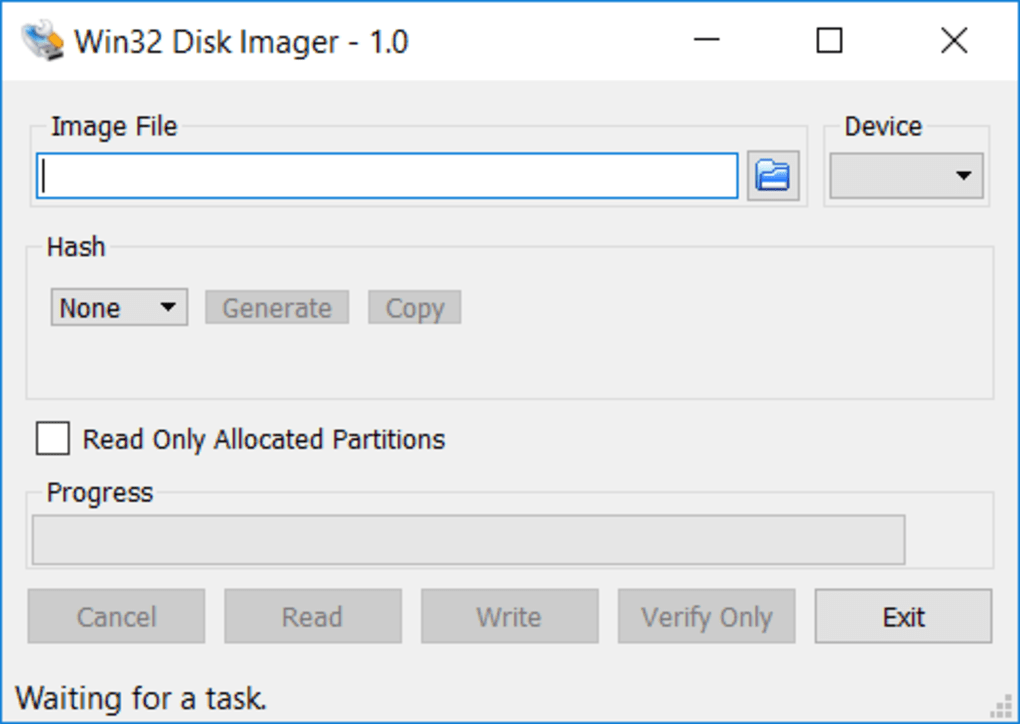
Select the Image File: Locate and select the image file (.iso) you wish to write. Use the file browser to navigate to the location of your downloaded image file. Ensure the file is a valid disk image file.
-
Select the Device: Identify the target device (USB drive, SD card, etc.) from the dropdown menu. Carefully select the correct drive letter or device path. Mistakes here can lead to data loss, so double-check this step.
-
Write the Image: Click the “Write” button to initiate the writing process. This will copy the contents of the selected image file to the chosen storage device. Depending on the image size and device speed, this might take several minutes or even longer.
-
Verification (Optional): While Win32 Disk Imager doesn’t include built-in verification, it’s recommended to verify the success of the operation, especially when working with bootable drives. Boot from the newly created drive and confirm that it functions correctly.
-
Safe Removal: After the writing is complete, safely remove the storage device from the computer. Follow standard operating system procedures for ejecting the device to prevent data corruption.
Important Note: Always back up your data before using any disk imaging software. Errors during the writing process could potentially damage or overwrite data on the target device. Choosing the correct device in step 3 is critical to avoid irreversible data loss.
Conclusion
Win32 Disk Imager provides a simple and effective way to write disk images to various storage media. Its ease of use makes it accessible to a wide range of users. However, understanding its limitations and considering available alternatives is crucial for selecting the right tool for the job. While its simplicity is a strength, users requiring advanced features or needing to handle more complex scenarios should explore the alternatives mentioned previously. Always prioritize data safety and carefully follow the steps outlined to avoid any data loss during the process.
File Information
- License: “Free”
- Version: “1.0.0.0”
- Latest update: “July 25, 2022”
- Platform: “Windows”
- OS: “Windows 10”
- Downloads: “22.1K”


