
Windows 11, while boasting a visually refreshed interface, faced criticism upon its release for alterations to the user experience that some found disruptive and unnecessary. Specifically, changes to the taskbar and context menus left many users longing for the familiarity of their Windows 10 setups. Enter Windows 11 Fixer, a free and open-source portable utility designed to address these concerns and provide a streamlined way to customize various aspects of the Windows 11 operating system. Developed by 99natmar99, this lightweight application offers a straightforward approach to modifying the taskbar, context menus, file explorer options, and more, all within an intuitive interface.
Understanding Windows 11 Fixer’s Functionality
Windows 11 Fixer tackles the most common user complaints about the Windows 11 interface. Its core strength lies in its ability to simplify otherwise complex system modifications, particularly concerning the taskbar and context menus. The tool offers a range of options for customizing these elements, allowing users to revert to a more familiar layout or simply fine-tune the existing functionality to their preferences.
Beyond taskbar and context menu adjustments, Windows 11 Fixer extends its capabilities to file explorer settings. This allows for modifications to file and folder options, providing users with greater control over how their files and folders are displayed and managed. This feature is particularly valuable for users who prefer a specific file explorer configuration that better suits their workflow.
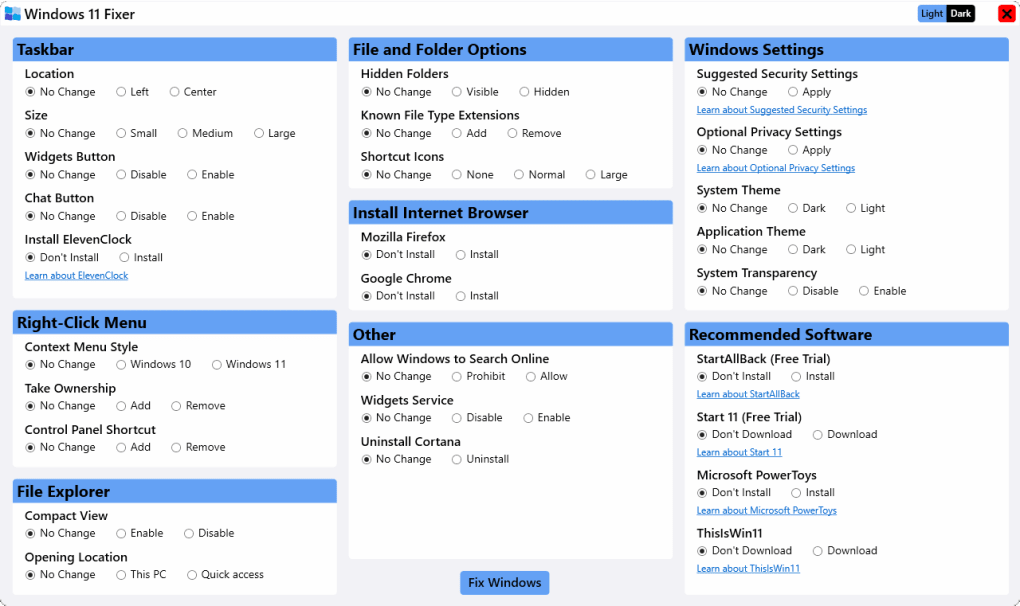
The application also integrates a program installer section. While not a full-fledged package manager, it simplifies the process of installing popular browsers like Firefox and Chrome. This added convenience eliminates the need for users to navigate to individual browser websites for installation, streamlining the setup process and making Windows 11 Fixer a more comprehensive solution for users looking to customize their computing environment.
The User Interface and Ease of Use
One of the standout features of Windows 11 Fixer is its remarkably intuitive user interface. The design prioritizes clarity and simplicity, ensuring that even users with limited technical experience can navigate the application and make desired changes without difficulty. All settings and options are clearly labeled and organized, allowing users to quickly locate and modify the settings they wish to adjust. This straightforward approach minimizes the learning curve, making the customization process efficient and hassle-free.
Upon launching the application, users are presented with a clear overview of all available options. The clean design eliminates unnecessary clutter and presents the user with a concise set of choices. Changes are implemented directly through the application’s interface. After making adjustments, a simple system reboot is usually all that’s needed for the modifications to take full effect, making the application refreshingly responsive.
Features and Capabilities: A Detailed Look
Windows 11 Fixer offers a suite of features designed to cater to a range of user preferences. These features extend beyond the simple adjustments to the taskbar and context menus, making it a more versatile tool than initially perceived.
Taskbar Customization: This is arguably the most significant aspect of the application. It offers a selection of options for customizing the Windows 11 taskbar, ranging from altering its size and behavior to restoring features that may have been removed or altered in the default Windows 11 configuration. This allows users to tailor the taskbar to their specific needs and workflow preferences.
Context Menu Modification: Similarly, Windows 11 Fixer allows users to customize the context menu – the menu that appears when you right-click on files, folders, or other elements within the Windows interface. This gives users the flexibility to add or remove items, reorder entries, and tailor the context menu to better suit their work habits.
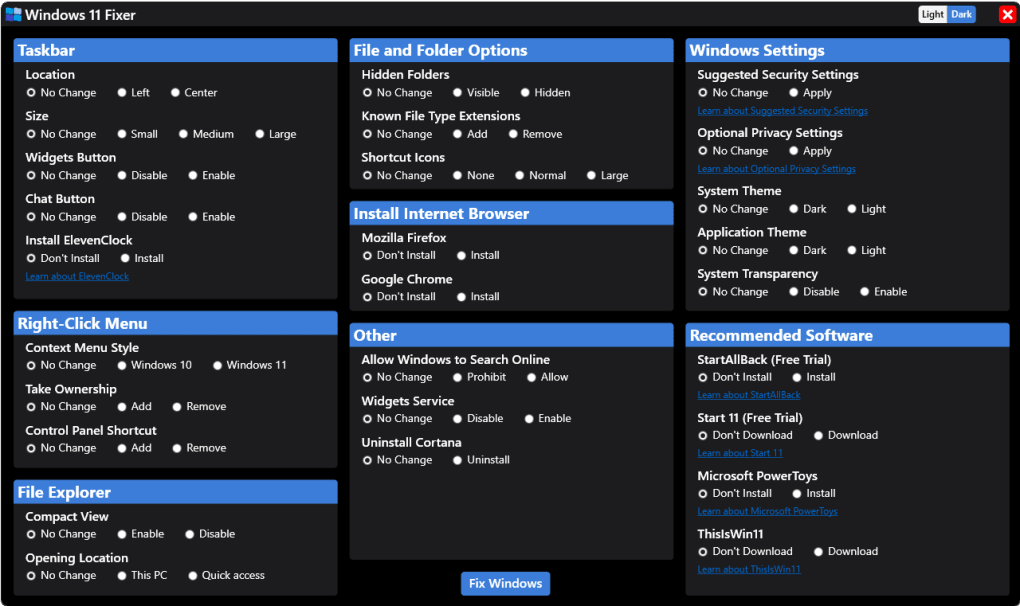
File Explorer Adjustments: The ability to fine-tune file explorer settings adds another layer of customization. This allows users to change how files and folders are displayed, sorted, and managed, further enhancing the overall user experience.
Software Installation: The integrated software installer simplifies the installation process for commonly used applications. While not a replacement for dedicated software installers, it offers a streamlined method for adding key applications, such as web browsers, directly within the Windows 11 Fixer interface.
Recommended Software: The app also incorporates a section dedicated to recommending other useful applications. This added feature is particularly helpful for new users of Windows 11, offering a curated list of programs that can enhance their system.
Cortana and Online Search Control: A significant feature is the option to disable Cortana and prevent Windows from performing online searches. This is valuable for users concerned about privacy or those who prefer a less intrusive operating system experience.
Comparing Windows 11 Fixer to Other Tweaking Tools
While Windows 11 Fixer offers a user-friendly approach to customizing certain aspects of Windows 11, it’s important to note that it isn’t the only tool available for this purpose. Many other applications provide more extensive customization options, ranging from deeper system modifications to more extensive visual customization features. The choice of which tool to use often comes down to the user’s specific needs and level of technical expertise.
Compared to more advanced tweaking utilities, Windows 11 Fixer excels in its simplicity and ease of use. Its focus on core functionality and straightforward interface makes it an ideal choice for users who want to make specific adjustments without delving into complex system settings or configurations. Users looking for extensive, granular control over all aspects of their system might find more robust tools more suitable, while those who prioritize ease of use and a streamlined experience will appreciate Windows 11 Fixer’s simplicity.
Pros and Cons of Windows 11 Fixer
Pros:
- Intuitive Interface: The user-friendly design makes it accessible to users of all technical skill levels.
- Easy Modification Process: Changes are implemented quickly and easily through a clear and concise interface.
- Focus on Key Features: The application concentrates on addressing common user complaints regarding the taskbar and context menus.
- Software Recommendations: The inclusion of recommended software helps users discover additional useful applications.
- Portable Application: No installation is required, offering flexibility and ease of use.
Cons:
- Limited Customization Options: Compared to other tweaking tools, the range of customization options is more restricted.
- Reliance on Reboots: Some changes may require system reboots to take full effect.
- Potential for System Instability: Improper use of any system tweaking tool can lead to instability, highlighting the importance of caution and understanding the changes being made.
Conclusion: Is Windows 11 Fixer Right for You?
Windows 11 Fixer is a valuable tool for users seeking a simple and effective way to customize key aspects of their Windows 11 experience, particularly the taskbar and context menus. Its straightforward interface and easy-to-use design make it an excellent choice for users who want to address common Windows 11 frustrations without needing extensive technical knowledge. While it may not offer the same extensive customization capabilities as some more advanced tweaking applications, its simplicity and ease of use are significant strengths. If you are looking for a quick and easy way to personalize your Windows 11 experience, focusing on taskbar and context menu adjustments, Windows 11 Fixer is worth considering. However, users needing more comprehensive system-level customization should explore other, more feature-rich alternatives.
File Information
- License: “Free”
- Version: “1.1.0”
- Latest update: “December 8, 2021”
- Platform: “Windows”
- OS: “Windows 11”
- Language: “English”
- Downloads: “922”
- Size: “61.50 MB”


