
Windows 7, the successor to Windows Vista, marked a significant step forward in Microsoft’s operating system history. Built upon the Vista kernel, it wasn’t merely a superficial upgrade; rather, it addressed many of Vista’s shortcomings while retaining its visually appealing Aero interface. The result was an operating system lauded for its reliability, intuitive user interface, and improved performance compared to its predecessor. This article delves into the key features, system requirements, and lasting impact of Windows 7, exploring why it remains a popular choice for many users even years after its official end-of-life support.
Understanding Windows 7: A Refined Operating System
Windows 7, released in 2009, offered a compelling alternative to Windows Vista, resolving many of the performance and usability issues that plagued its predecessor. The improvements extended beyond mere aesthetics; Windows 7 boasted a significant performance boost, particularly in boot times and overall responsiveness. This enhanced speed, coupled with the familiar and refined Aero interface, contributed to a smoother and more efficient user experience.
One of the most noticeable changes was the improved task management. Windows 7 handled multitasking more efficiently, making it suitable for a wider range of computing tasks, from everyday browsing to resource-intensive applications. The operating system’s stability also garnered significant praise, becoming known for its dependability and consistent performance. Its broad software compatibility ensured users could seamlessly run a wide variety of applications, minimizing compatibility issues that sometimes plagued earlier Windows versions.
The user experience in Windows 7 was a key differentiator. Its intuitive design and customizable features catered to both novice and experienced users. The streamlined interface minimized complexity, allowing users to navigate easily and access necessary functions without unnecessary hurdles. This focus on ease of use, combined with its robust performance and extensive software compatibility, solidified Windows 7’s position as a reliable and user-friendly operating system. Furthermore, the compatibility with the widely used Microsoft Office suite (Word, Excel, PowerPoint, etc.) made it a seamless transition for millions of users already accustomed to this productivity software.
Key Features that Defined Windows 7
Windows 7 introduced a collection of innovative features that significantly enhanced the overall user experience and set it apart from its predecessors. While superficially resembling a polished version of Vista’s Aero theme, the underlying system was a substantial departure, reflecting a significant engineering effort to address the shortcomings of its predecessor. Here are some of the most significant features:
1. Enhanced User Interface: Windows 7 refined the user interface introduced in Vista, focusing on enhanced usability and accessibility. The interface was streamlined, making it easier for users of all technical skill levels to navigate and access functions. This simplicity, coupled with the visual appeal of the Aero interface, resulted in a more pleasing and intuitive computing experience.
2. Improved Performance: The performance enhancements were a cornerstone of Windows 7’s success. The operating system boasted faster boot times and more responsive application launching compared to Vista. This improvement stemmed from internal optimizations and refinements to the underlying system architecture. The responsiveness made the system feel significantly snappier, resulting in a more satisfying user experience.
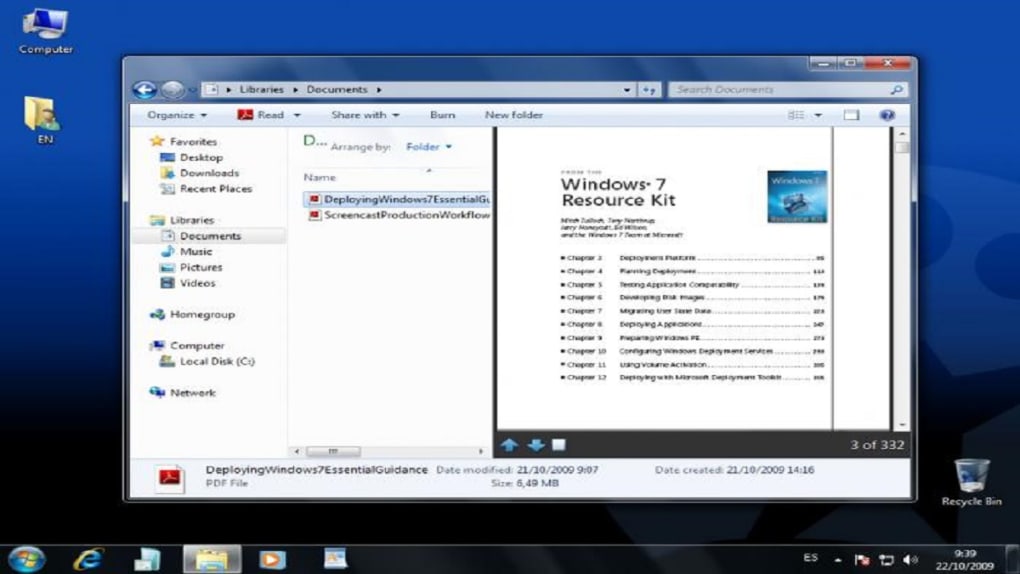
3. Libraries: The introduction of Libraries provided a more organized approach to file management. Users could group folders from diverse locations on their hard drive into Libraries, simplifying access through a single click from the Windows Explorer left panel. This feature offered a more flexible and user-friendly method for managing documents, images, and other files, effectively overcoming the limitations of traditional folder structures. Users could easily create and delete Libraries, and Windows 7 included pre-configured public and private library folders.
4. Enhanced Security: Security received significant attention in Windows 7. The inclusion of Windows Defender and User Account Control (UAC) provided enhanced protection against malware and unauthorized access. UAC, in particular, reduced the risk of malicious software installations by prompting users for confirmation before making system-level changes. The improved security features minimized vulnerabilities and offered greater control over security settings, allowing users to adjust the level of security based on their individual needs.
5. Windows Aero Enhancements: The Aero interface, while present in Vista, received significant refinements in Windows 7. The translucent windows and smoother animations contributed to a more visually appealing and modern look. Aero also introduced or improved features like Aero Snap, Aero Shake, and Aero Peek, which enabled users to resize, move, and manage open windows more efficiently. These features added a layer of intuitive interaction, making window management more fluid and less cumbersome.
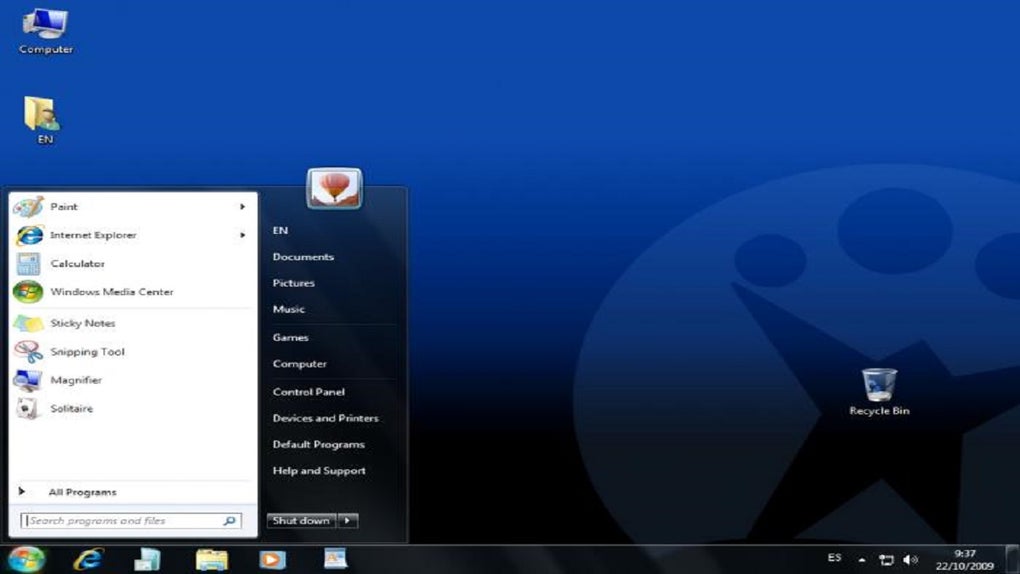
6. Refined Taskbar: The taskbar underwent a significant makeover, becoming more efficient and functional. It not only provided a cleaner look but also offered enhanced functionalities, including Jump Lists and the ability to pin frequently used applications for quick access. Jump Lists allowed users to easily access recently opened files and frequently used tasks within an application, enhancing productivity. Pinning applications made accessing commonly used programs instantaneous.
7. Jump Lists: Jump Lists improved access to frequently used files and tasks within a specific application. Accessible from the Start Menu and taskbar, they appeared upon right-clicking an application’s icon, providing quick access to commonly used items. This feature increased productivity by reducing the steps needed to access frequently needed files and functions.
8. Action Center: Introduced in Windows 7 and further developed in later versions, the Action Center provided a central location for system messages. Accessible through a small flag icon in the lower-right corner of the screen, it aggregated system notifications, allowing users to address them at their convenience. This consolidated approach to system alerts helped to avoid distractions and enabled users to manage alerts efficiently.
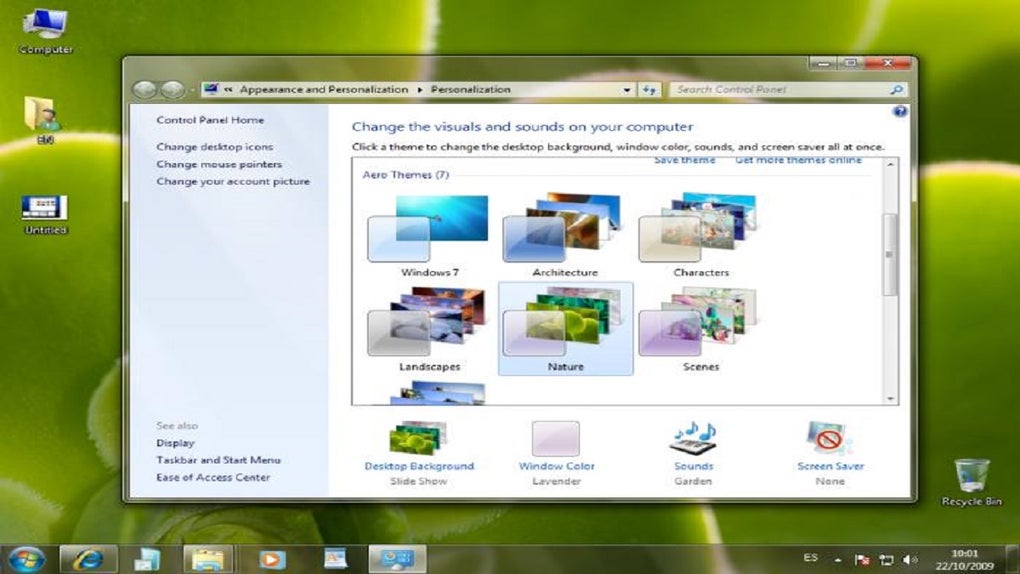
9. Themes: While present in Vista, themes in Windows 7 received significant enhancements. Themes, comprising customized wallpapers, system sounds, and other visual elements, allowed for personalized customization of the Windows experience. Pre-designed themes were available through the Control Panel, with additional options accessible through Microsoft downloads. This capability enhanced user personalization, allowing individuals to adapt their Windows experience to their individual preferences.
10. Windows Search: Windows Search provided a quicker way to locate files and folders. Positioned as a text box within the Start Menu, it offered efficient search functionality. The search results weren’t simply presented as a long list; instead, they were categorized (Programs, Documents, Music, etc.), making information retrieval faster and easier. This improved organization of search results made finding specific information considerably easier.
11. Gadgets (Widgets): Known as Gadgets in previous Windows iterations, these were small applications that ran in the sidebar on the desktop, providing quick access to information like weather, news, clocks, and more. Users could download additional gadgets to customize the information displayed. These interactive gadgets provided personalized information and enhanced the user experience.
Windows 7 System Requirements
To run Windows 7 smoothly, the following system requirements were recommended:
- Processor: 1 GHz or faster processor (both 32-bit and 64-bit versions)
- RAM: 1 GB for 32-bit, 2 GB for 64-bit
- Storage: 16 GB available space for 32-bit, 20 GB available space for 64-bit
Reasons to Consider Windows 7 (Acknowledging End-of-Life Support)
While Windows 7 is no longer receiving security updates from Microsoft, its legacy continues to resonate for users who prioritize reliability and familiarity. The reasons for its enduring popularity include:
- Improved Performance: Its speed and efficiency remain attractive to users accustomed to its responsive nature.
- User-Friendly Interface: Its intuitive design and simple navigation remain appealing, particularly for users who find newer operating systems overly complex.
- Enhanced Security (with caveats): Although no longer receiving official updates, its security features were robust for their time. Users should be aware that running Windows 7 exposes them to significant security vulnerabilities.
- Elegant Aero Interface: The visual appeal of the Aero interface continues to be appreciated by many.
- Simplified File Organization: Libraries provided a more user-friendly way to organize files compared to previous versions of Windows.
- Touchscreen Support: This feature was ahead of its time and provided a more intuitive interaction for users with touchscreen devices.
- Stability and Broad Compatibility: Its stability and broad compatibility with legacy software remain attractive to those who need to run older applications.
While Windows 7 offers a dependable and familiar computing experience, it’s crucial to acknowledge that its lack of security updates makes it significantly vulnerable to malware and cyber threats. Therefore, using Windows 7 is strongly discouraged unless absolutely necessary and coupled with robust third-party security measures. The lack of official support from Microsoft means it is no longer a recommended operating system for everyday use.
The information provided in this article is for informational purposes only and should not be considered an endorsement of using outdated operating systems. Users should prioritize their security and update to a supported operating system for optimal protection against cyber threats.


