
Upgrading your operating system can feel like a daunting task, especially when it involves migrating all your precious data from an older system to a new one. The transition from Windows XP to Windows 7, while a significant leap forward in technology, presented precisely this challenge. Fortunately, Microsoft anticipated this need and provided a solution: Windows 7 Easy Transfer. This free utility simplified the process of transferring files, settings, and more between Windows XP and Windows 7, making the upgrade experience far less stressful. This detailed guide will explore the features, functionality, and advantages of Windows 7 Easy Transfer, helping you understand why it was such a valuable tool for millions of users.
Understanding the Need for a Smooth Transition
The release of Windows 7 marked a significant advancement in computing. It brought improvements in performance, security, and user interface, making it a highly desirable upgrade for users of older operating systems like Windows XP. However, the prospect of manually transferring countless files, personal settings, and applications across operating systems was a significant deterrent. The sheer volume of data accumulated over years of use – documents, photos, music, videos, emails, and browser bookmarks – made the task time-consuming and prone to errors. Imagine the frustration of losing irreplaceable photos or crucial documents during the process. Windows 7 Easy Transfer alleviated this anxiety by offering a streamlined, user-friendly solution.
Windows 7 Easy Transfer: Features and Functionality
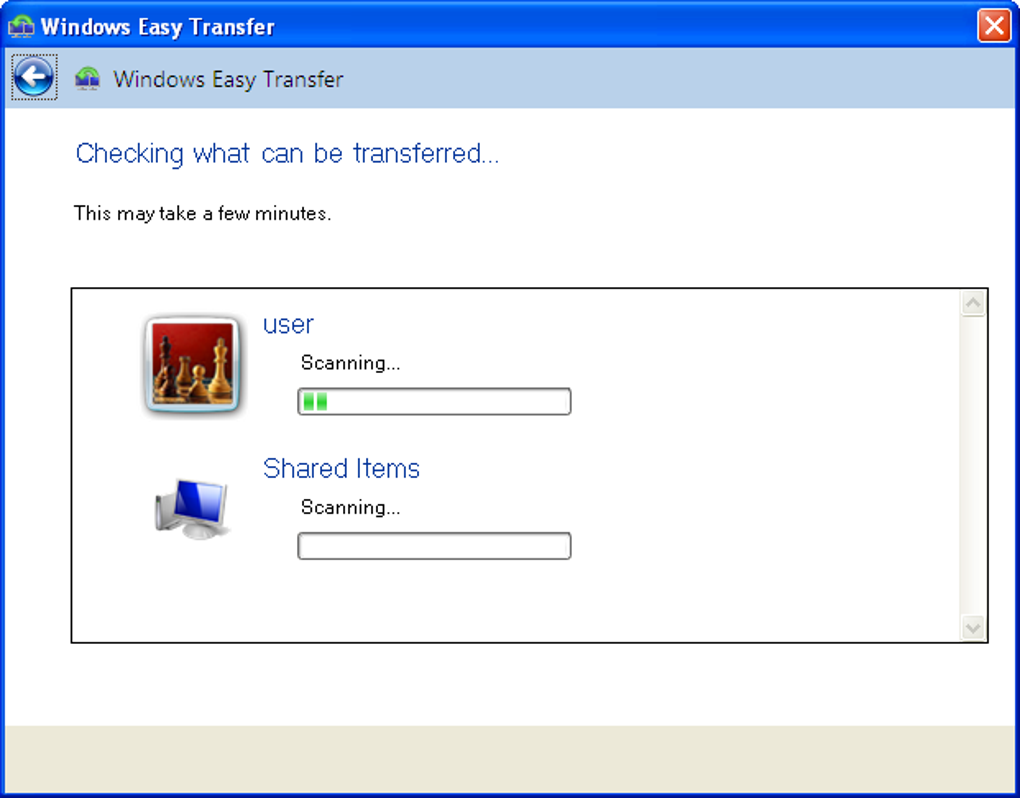
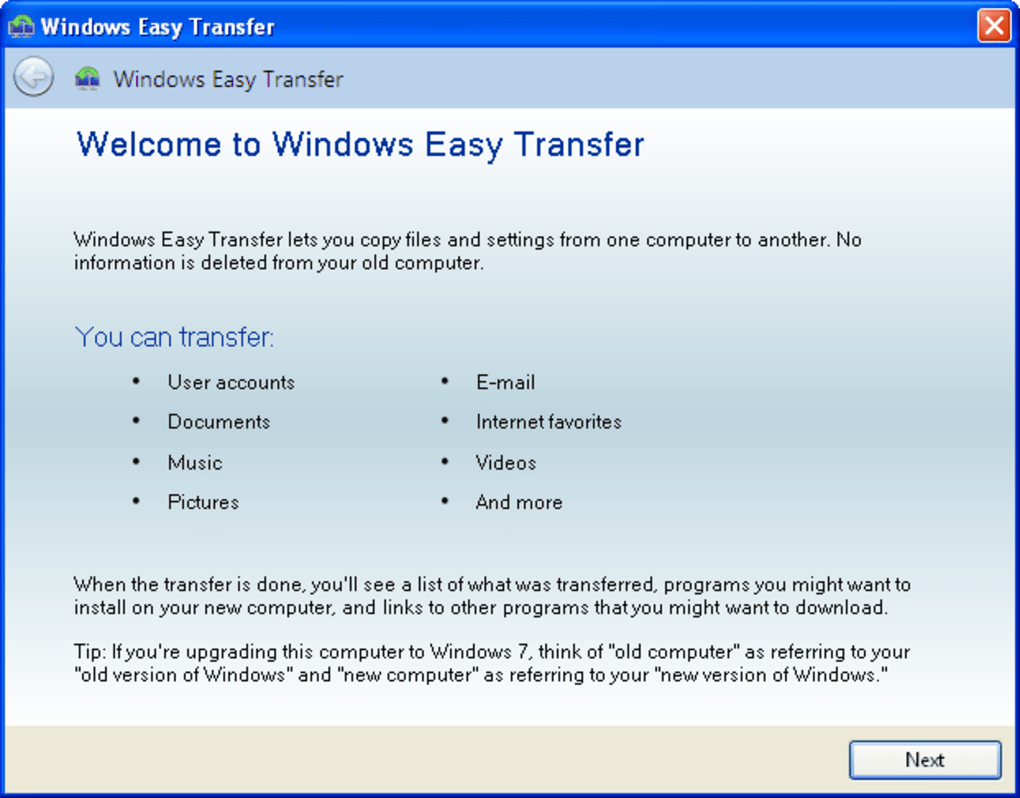
Windows 7 Easy Transfer acted as a bridge between the old Windows XP system and the new Windows 7 environment. Its primary function was to migrate user data and settings, ensuring a relatively seamless transition. The tool offered a guided, step-by-step process, making it accessible even to users with limited technical expertise. This intuitive approach involved simple instructions and clear visual cues, minimizing the chances of user error.
The software supported a range of transfer methods, enhancing its versatility. Users could choose from three primary options:
-
Easy Transfer Cable: Microsoft offered a dedicated Easy Transfer cable, designed specifically for connecting two computers and facilitating a direct transfer of data. This method offered a secure and often faster transfer, especially for larger datasets. The cable acted as a physical link, bypassing potential network issues that could arise with other transfer methods.
-
Network Connection: For users with a home or office network, the software supported network-based transfers. This eliminated the need for a dedicated cable, allowing users to transfer data over an existing network infrastructure. While convenient, this method’s speed was subject to network performance and could be slower than the cable-based transfer, especially in environments with heavy network traffic.
-
External Storage Device: The most flexible option involved using an external hard drive or USB flash drive as an intermediary storage device. The user would first back up data onto the external drive and then restore it onto the new Windows 7 system. This method provided the most flexibility, allowing users to transfer data at their convenience and potentially use the backup for other purposes.
Regardless of the chosen method, the transfer process involved a few simple steps:
-
Running the Wizard: Initiating the process started with running the Easy Transfer wizard on both the source (Windows XP) and destination (Windows 7) computers.
-
Selecting Transfer Options: The wizard guided users in selecting the specific data they wanted to transfer. Users could opt for a complete transfer, including all user profiles, settings, and files, or choose a more selective approach, transferring only specific file types or folders.
-
Choosing the Transfer Method: The next step involved selecting the desired transfer method (cable, network, or external drive), ensuring compatibility with the available hardware and network configuration.
-
Data Transfer: Once the transfer method was chosen, the actual data transfer commenced. The duration varied based on the volume of data and the transfer method’s speed.
-
Password Protection (Optional): Users had the option of password-protecting the transferred data file, adding an extra layer of security. This feature was vital for users concerned about data confidentiality, ensuring unauthorized access was prevented.
-
Completion and Verification: Upon successful completion, the software verified the transfer, notifying the user of any potential errors or issues.
Benefits of Using Windows 7 Easy Transfer
The advantages of using Windows 7 Easy Transfer were numerous, making it an invaluable tool for those upgrading from Windows XP.
- Simplicity and Ease of Use: The software’s intuitive design and straightforward instructions made it user-friendly, even for users lacking extensive technical skills. The step-by-step wizard eliminated the complexity of manual file transfers and reduced the risk of errors.
-
Comprehensive Data Transfer: The software transferred a wide range of data, including documents, pictures, music files, videos, email settings, browser favorites, and even user account settings. This comprehensive approach minimized the need for manual transfers and ensured a holistic migration.
-
Flexible Transfer Methods: The availability of three different transfer methods catered to various user needs and hardware setups. Whether a dedicated cable, network connection, or external storage device, the software offered a solution for most upgrade scenarios.
-
Enhanced Security: The optional password protection feature enhanced data security, protecting sensitive information from unauthorized access during the transfer and after the completion of the upgrade process.
-
Time Savings: While the transfer time varied depending on the volume of data, using the software was significantly faster than manually transferring individual files and folders. This automation saved users valuable time and effort.
Limitations of Windows 7 Easy Transfer
Despite its numerous advantages, Windows 7 Easy Transfer had some limitations:
-
Transfer Time: Large data sets could take a considerable amount of time to transfer, especially using slower network connections or external drives with limited transfer speeds.
-
Compatibility: While designed for Windows XP to Windows 7 migration, it didn’t transfer all applications and settings seamlessly. Some applications required manual reinstallation.
-
System Requirements: The software had specific system requirements, and older systems might not have met the minimum specifications, limiting its usability in some cases.
-
No Support for certain file types: Certain types of files, especially those with unusual formats or extensions, might not have been transferred properly.
Alternative Methods for Data Transfer
While Windows 7 Easy Transfer was a powerful tool, alternative methods were available for transferring data between Windows XP and Windows 7. These included:
-
Manual Copying: This involved manually selecting and copying files and folders to an external storage device and then pasting them to the new Windows 7 system. While simple, it was highly time-consuming and prone to errors.
-
Third-Party Migration Tools: Various third-party migration tools offered additional features and enhanced functionality compared to Windows 7 Easy Transfer. These often provided greater flexibility and support for a wider range of applications and file types. However, these typically came with a price tag.
-
Cloud Storage Services: Cloud-based services, such as Dropbox, Google Drive, or OneDrive, provided a convenient way to store files in the cloud and then access them on the new Windows 7 system. This eliminated the need for physical transfer methods but relied on a stable internet connection.
Conclusion: A Legacy of Smooth Transitions
Windows 7 Easy Transfer played a critical role in facilitating the upgrade from Windows XP to Windows 7 for millions of users. Its simple interface, comprehensive transfer capabilities, and flexible transfer methods made the often-daunting task of data migration significantly easier. Though the software is no longer supported by Microsoft, its legacy highlights the importance of streamlined migration tools in helping users transition smoothly to newer operating systems. While alternative methods now exist, Windows 7 Easy Transfer remains a testament to Microsoft’s commitment to providing user-friendly solutions for a smoother upgrade experience. Its success served as a benchmark for subsequent data migration tools, shaping the design and functionality of similar utilities in later operating systems.
File Information
- License: “Free”
- Version: “6.1.7600”
- Latest update: “September 18, 2020”
- Platform: “Windows”
- OS: “Windows XP”
- Language: “English”
- Downloads: “457.5K”
- Size: “7.61 MB”


