
Windows 8.1 Update 1, released by Microsoft, served as a significant update for the Windows 8.1 operating system. Functioning much like a service pack, it bundled a collection of patches, performance enhancements, and notable interface improvements aimed at refining the user experience and addressing several criticisms leveled against the original Windows 8 and 8.1 releases. This update was offered free of charge to users through Windows Update (for Windows 8.1) and the Windows Store (for Windows 8). While the installation process involved specific patch order requirements, as detailed below, the resulting improvements significantly enhanced the overall usability and functionality of the system.
Enhanced Start Screen and User Interface
One of the most impactful changes introduced by Windows 8.1 Update 1 was the enhancement of the Start screen. This update directly addressed user frustrations regarding the lack of readily accessible power options and search functionalities. Prior to this update, accessing options to shut down, restart, or hibernate the computer involved navigating through various menus, a process considered cumbersome and inconvenient by many users.
With Windows 8.1 Update 1, Microsoft added dedicated Power and Search buttons directly to the Start screen. This seemingly small change drastically improved the accessibility of these crucial functions, saving users time and effort. The inclusion of these buttons streamlined the shutdown process and made the search functionality significantly more intuitive and readily available. The addition of these buttons represented a direct response to user feedback and underscored Microsoft’s commitment to improving the operating system’s user-friendliness.
Furthermore, a long-standing user request for a direct boot to the desktop was addressed. While Windows 8.1 allowed this functionality, it was not enabled by default. The operating system would typically boot directly to the Start screen, a feature many found inconvenient, particularly for desktop and laptop users who preferred the familiar desktop environment. Windows 8.1 Update 1 changed this default behavior, enabling direct boot to the desktop for various devices, simplifying the startup experience for a substantial portion of the user base. This adjustment catered to users who didn’t necessarily require the full-screen Start interface immediately upon booting their systems.
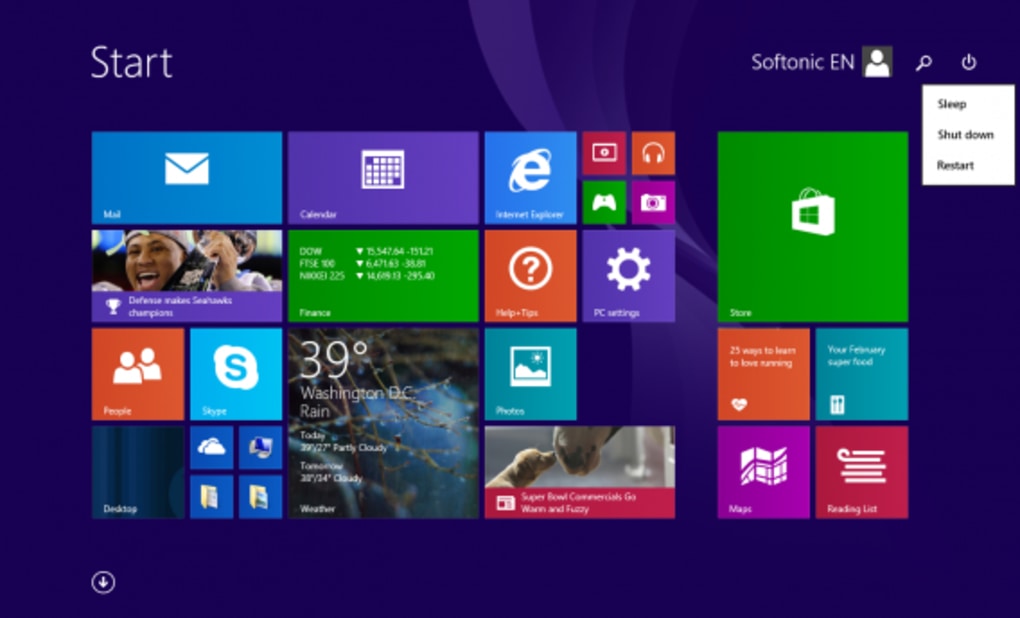
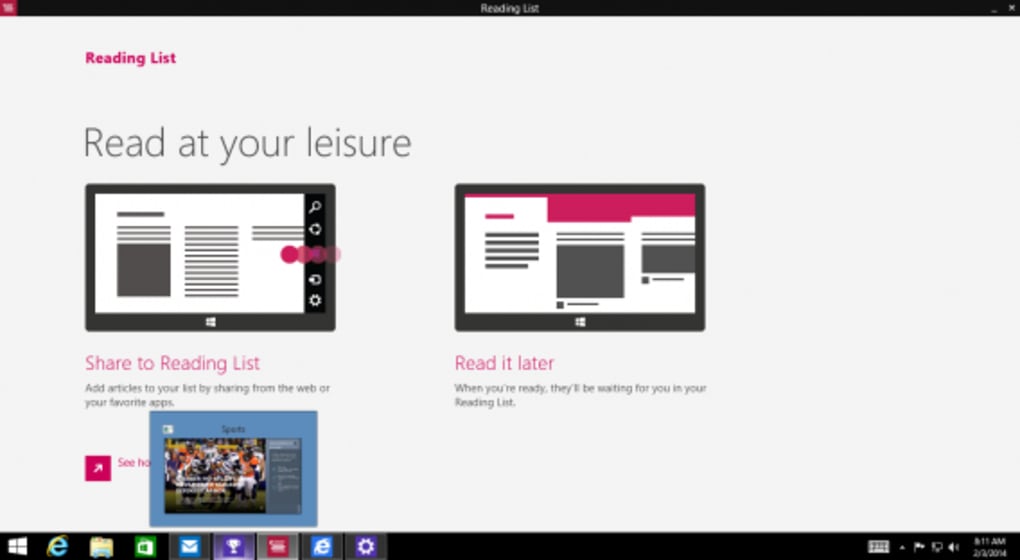
Another notable improvement was the ability to pin Metro apps (modern applications) to the taskbar. Before the update, accessing Metro apps necessitated navigating the Start screen, a process deemed inefficient by many. With the addition of the taskbar pinning feature, users could easily launch frequently used apps directly from the desktop without the need to switch to the Start screen. This enhanced workflow promoted efficiency and contributed to a more streamlined user experience. Moreover, the update facilitated easy app switching by allowing users to switch between pinned apps by moving the cursor to the bottom edge of the screen.
The right-click context menu was extended to Start Screen tiles. This addition enabled users to quickly perform various actions directly from the Start screen, such as unpinning tiles, pinning them to the taskbar, adjusting tile sizes, or uninstalling apps. This granular control over the Start screen’s tile management considerably improved customization options and the overall manageability of the system’s layout and applications.
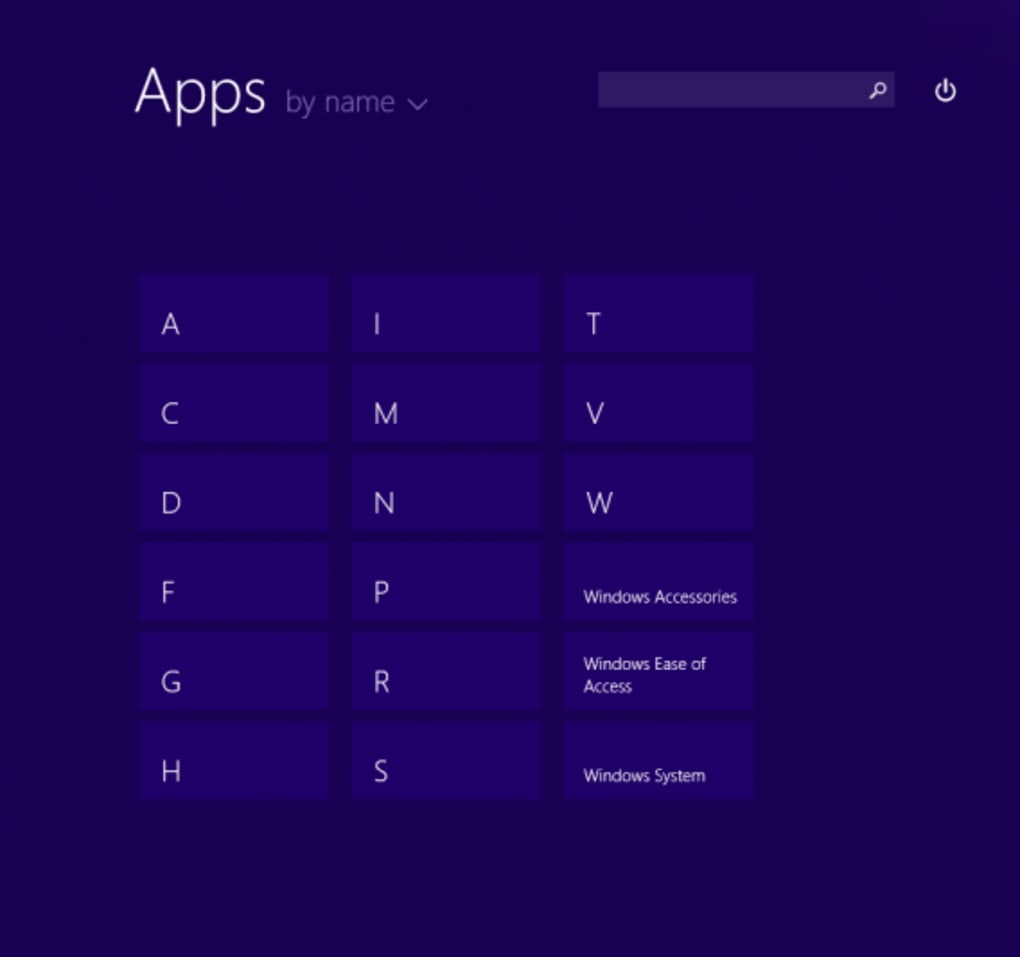
Finally, the update ensured that the Windows Store was pinned to the taskbar by default, making accessing the app store more convenient and readily accessible. This was coupled with an improved notification system for newly installed apps, both Metro apps and desktop programs, indicating their presence with a small arrow and count on the Start screen. These updates demonstrated a greater focus on user feedback and an understanding of user expectations regarding system clarity and app management.
Internet Explorer 11 Enhancements and Overall Performance
Windows 8.1 Update 1 also included performance improvements and UI refinements for Internet Explorer 11. While the specifics of these enhancements were not extensively detailed in the original release notes, they contributed to a more stable and responsive browsing experience. These improvements, along with the other UI modifications, addressed many of the performance-related complaints frequently associated with earlier versions of Windows 8 and 8.1.
The update’s focus on user experience was evident in several aspects. It addressed many of the frequent criticisms directed at the initial release, which had drawn considerable flak for its interface and user experience. The update attempted to bridge the gap between the touch-friendly interface designed for tablets and the traditional desktop experience favored by users of conventional desktop and laptop systems. By integrating elements that catered to both user groups, Microsoft sought to achieve greater user satisfaction and improve the overall adoption rate of the operating system.
Installation Process and Patch Ordering
The installation process for Windows 8.1 Update 1 involved downloading and installing specific patches. The order of installation was crucial, as some patches were dependent on others. This strict installation order, while potentially intimidating to some users, was necessary to ensure the smooth and complete implementation of the update.
For 64-bit systems, the recommended order was KB2919442, KB2932046, KB2919355, KB2938439, and KB2937592. The order was the same for 32-bit systems and ARM devices, highlighting the importance of following the prescribed sequence to avoid potential conflicts or installation failures. It is important to note that KB2919442 was a prerequisite for the main update and had to be installed before attempting to install KB2919355. This prerequisite underscored the importance of adhering to the precise installation sequence. Deviation from this order could result in installation problems and prevent the successful implementation of the update’s features.
Conclusion: A Step Towards Improved Usability
Windows 8.1 Update 1 represented a substantial effort by Microsoft to address many of the shortcomings and criticisms associated with Windows 8 and 8.1. The update introduced several significant interface improvements, enhancing the Start screen’s usability, simplifying the power options access, enabling direct boot to the desktop, and adding taskbar pinning for Metro apps. The enhancements to Internet Explorer 11 further contributed to a more streamlined and user-friendly experience.
While the stringent installation process might have seemed daunting to some users, the benefits offered by the update, including improved accessibility, enhanced performance, and a more intuitive user interface, greatly outweighed the potential inconvenience. The update successfully integrated user feedback, resulting in a more polished and user-friendly operating system, significantly bridging the usability gap between earlier versions and the expectations of a broader user base. The improvements served as a substantial step toward enhancing the overall user experience and solidifying the place of Windows 8.1 in the market.
File Information
- License: “Free”
- Latest update: “June 16, 2020”
- Platform: “Windows”
- OS: “Windows 8.1”
- Language: “English”
- Downloads: “65.9K”


