
The Windows 8 operating system, released in 2012, marked a significant shift in Microsoft’s design philosophy. Its introduction of the Metro interface (later renamed Modern UI) and the removal of the traditional Start button sparked considerable debate among users. For those hesitant to upgrade or lacking the resources to install the developer preview, the Windows 8 Simulator offered a glimpse into the new operating system without requiring a full installation. This article will explore the Windows 8 Simulator, its features, limitations, and its place in the history of Windows OS previews.
A Virtual Window to Windows 8
Before the widespread adoption of virtual machines and readily available ISO images, accessing pre-release versions of operating systems was a significantly more involved process. Users typically had to dedicate a significant portion of their hard drive to a separate partition, download the often-large ISO file, and manually install the preview. This process wasn’t just technically challenging; it also carried the risk of data loss or system instability if something went wrong during the installation. The Windows 8 Simulator aimed to circumvent these obstacles, providing a relatively lightweight and readily accessible alternative.
The simulator presented itself as a small application window, mimicking the look and feel of the Windows 8 interface within its constrained space. This allowed users to experience the new Start screen, the tiled application layout, and the overall design aesthetics without the commitment of a full installation. This “virtualized” environment provided a safe space to explore the new features and get comfortable with the significantly altered user experience before making the leap to a full-fledged upgrade. In essence, it was a low-risk, low-commitment way to engage with a new OS version.
Features and Functionalities: A Limited but Useful Preview
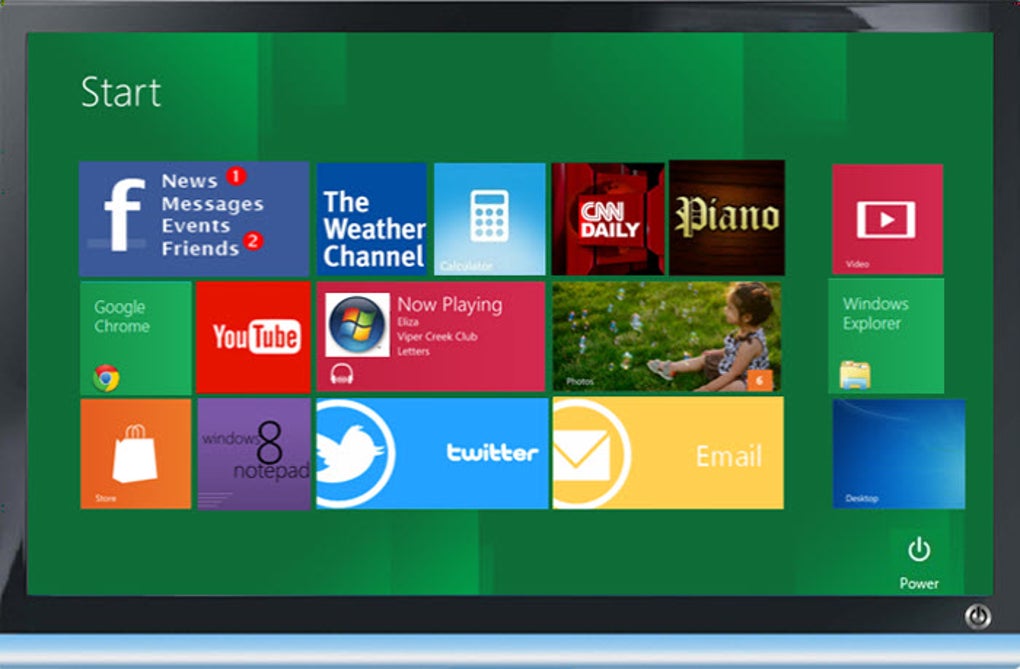
While the Windows 8 Simulator did not provide the full functionality of the actual operating system, it served its primary purpose admirably: offering a visual and interactive preview. Users could navigate the Start screen, see how the live tiles functioned, and get a feel for the overall responsiveness of the interface. The simulator emphasized the visual aspects of Windows 8, showcasing the new design elements. This was critical for many users, as the visual overhaul was the most immediately noticeable and frequently discussed aspect of the new OS.
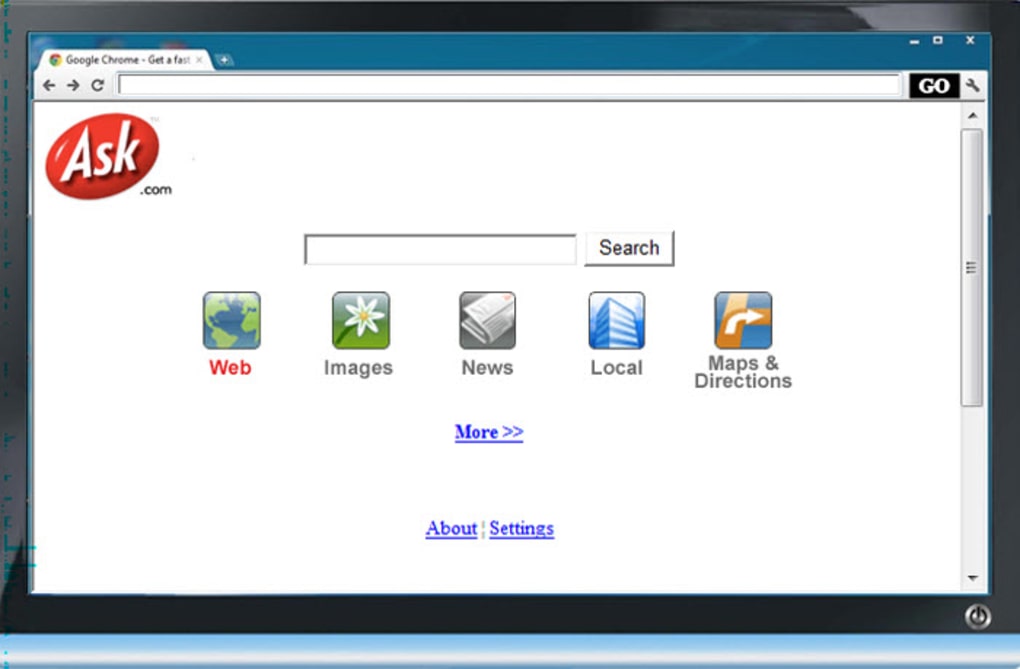
However, it’s crucial to understand the simulator’s limitations. The program’s most significant drawback was its limited functionality. Users could not run applications or interact with the system beyond the basic navigation of the Start screen and a few simulated app representations. It was purely a visual demonstration; any deeper engagement with the operating system’s capabilities was impossible. This limitation was a deliberate choice; a fully functional simulator would have required vastly more resources and would have defeated the purpose of its lightweight nature.
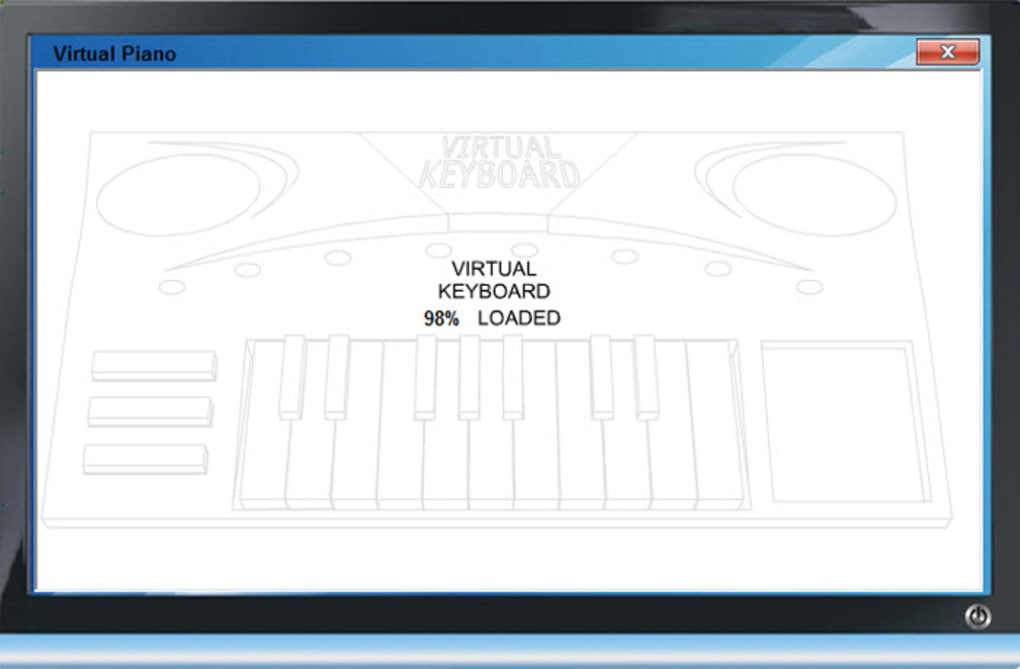
The simplicity of the simulator, however, also served as a benefit. The small footprint, minimal storage requirements, and quick launch time made it accessible even on lower-spec machines that may not have been suitable for running a full Windows 8 installation. This broadened access to the preview, allowing more users to explore the new OS and form opinions before deciding to upgrade.
Pros and Cons: Weighing the Advantages and Disadvantages
The Windows 8 Simulator, like any software, possessed both advantages and disadvantages. The primary advantage was its ease of use and minimal resource requirements. Users could experience the core visual changes of Windows 8 without significant technical expertise or the need for a system partition or extensive downloads. The quick launch time made it ideal for quick demonstrations or casual exploration. It served as an effective introductory tool, allowing potential users to get a feel for the new interface before committing to an upgrade.
On the other hand, the simulator’s limitations were significant. The restricted functionality severely curtailed its practical use. Users couldn’t test applications, explore system settings deeply, or gauge the performance under load. The reported stability issues and the reliance on Flash Player (a technology that eventually fell out of favor and is now deprecated) further diminished its appeal. The simulator was effective as a visual preview, but it did not provide a comprehensive experience of what it was like to actually use Windows 8.
Alternatives and Evolution of OS Previews
The Windows 8 Simulator was one of several methods available for experiencing Windows 8 before its official release. The most comprehensive method was, of course, installing the developer preview. This option provided complete functionality but came with significant technical demands. Other, less comprehensive alternatives may have included video demonstrations or blog posts that described the new features. The simulator aimed to occupy a middle ground, bridging the gap between casual observation and full installation.
The way operating system previews are provided has evolved significantly since the Windows 8 era. Virtual machines became increasingly popular, offering full OS functionality in a sandboxed environment. Furthermore, the availability of ISO images and easier-to-use virtual machine software made the process of installing and testing previews more user-friendly. While a dedicated simulator application like the Windows 8 Simulator might be less common today, the basic need it fulfilled – providing a glimpse of a new OS without the commitment of full installation – remains, albeit with more technologically advanced solutions.
Conclusion: A Snapshot in Time
The Windows 8 Simulator represented a specific point in the evolution of OS previews. Its approach, a lightweight visual simulator, served a purpose in its time, allowing casual users to get a sense of Windows 8’s new interface before investing in an upgrade. While its limited functionality prevented it from being a truly comprehensive preview, it played a role in disseminating information about the new OS to a wider audience. Its existence reflects the technical limitations and the methods employed before the widespread adoption of more sophisticated methods for OS preview access, demonstrating a historical moment in the ongoing evolution of software distribution and user engagement. While its relevance has faded with advancements in technology, it remains a noteworthy example of early attempts to make OS preview access easier and more accessible.
File Information
- License: “Free”
- Latest update: “November 12, 2018”
- Platform: “Windows”
- OS: “Windows XP”
- Language: “English”
- Downloads: “34.5K”
- Size: “9.40 MB”


