
In an increasingly digital world, managing personal and sensitive information on our computers has become paramount. While many users focus on robust antivirus solutions and complex encryption methods, sometimes the need is simpler: to keep certain drives or partitions out of immediate sight, especially on shared computers. Enter Windows Drive Hider, a straightforward and free utility designed to offer a basic layer of digital discretion by making selected drives invisible within File Explorer. Developed by SecurityXploded, this application serves a specific, albeit limited, purpose, appealing to users seeking an easy way to declutter their digital workspace or prevent casual snooping.
The concept behind Windows Drive Hider is elegantly simple. It addresses the common scenario where a computer is used by multiple individuals—family members, colleagues, or students. In such environments, while full-scale security might be overkill or impractical, there’s often a desire to prevent others from easily browsing through specific storage locations. Imagine having a dedicated drive for personal backups, sensitive work projects, or private media that you don’t want others to stumble upon accidentally. Windows Drive Hider provides a quick and accessible means to achieve this, offering a sense of order and a rudimentary form of privacy without demanding technical expertise or significant system resources.
How Windows Drive Hider Works: Simple Steps to Digital Discretion
Windows Drive Hider stands out for its user-friendly interface and straightforward operational process. When launched, the application presents a clear and concise list of all recognized drives connected to your system. This includes not only your primary hard drive partitions (like C:, D:, etc.) but also any attached USB drives, network drives, and even optical drives such as CD, DVD, or Blu-ray drives. The intuitive design means users don’t need to navigate complex menus or understand intricate system settings to achieve their goal.
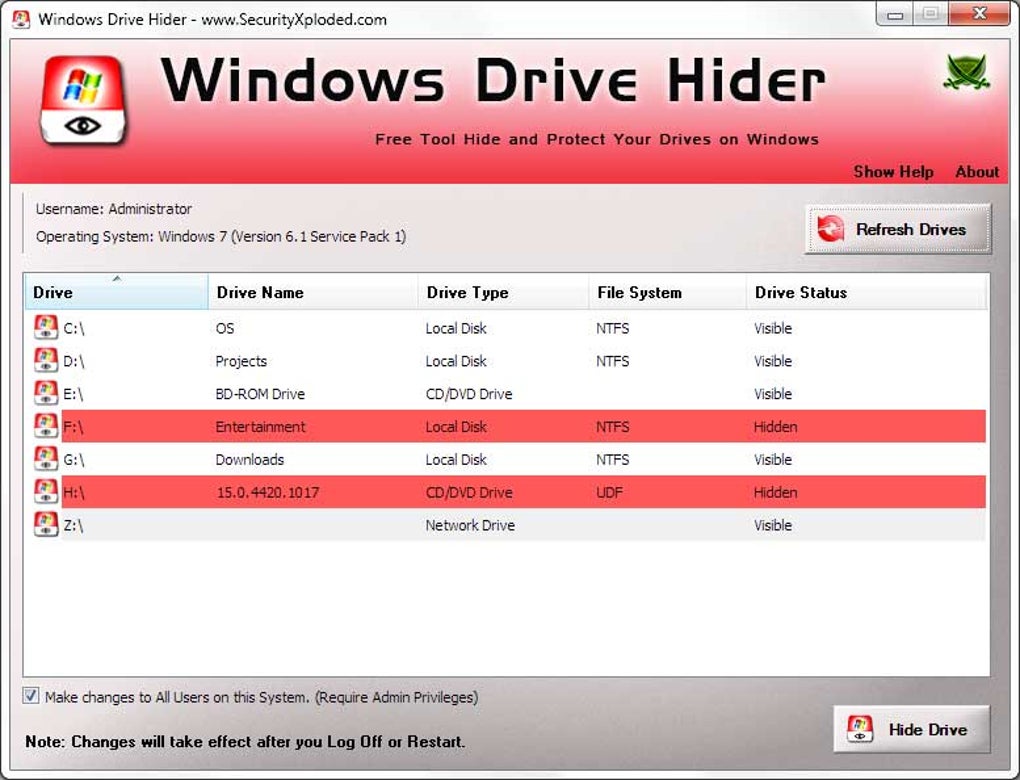
To hide a drive, the process involves just a few clicks:
- Launch the Application: Open Windows Drive Hider on your PC.
- View Drive List: The main window immediately displays a comprehensive list of all accessible drives, each identified by its assigned letter (e.g., C:, D:, E:).
- Select Drive(s): From this list, simply click on the drive or partition you wish to conceal. The application allows for easy selection.
- Initiate Hiding: Once your selection is made, a prominent “Hide Drive” button is available. Clicking this button triggers the hiding mechanism.
- Restart for Effect: A crucial step in the process is the requirement to restart your PC. The changes made by Windows Drive Hider are not applied instantly but only become active after a system reboot. This ensures that the operating system properly registers the modification and updates the File Explorer view accordingly.
Once the system has restarted, the selected drive will no longer appear in File Explorer (or “My Computer” in older Windows versions). This provides an immediate visual absence, making it seem as though the drive doesn’t exist to a casual observer. To unhide a drive, the process is equally simple: launch Windows Drive Hider again, select the previously hidden drive, and click the “Unhide Drive” button, followed by another PC restart. This cyclical process underscores the utility’s design for ease of use and quick toggling of drive visibility.
The primary benefit here is the sheer simplicity and accessibility. Unlike methods involving Group Policy Editor or registry edits, which can be daunting for average users, Windows Drive Hider provides a graphical interface that demystifies the process. This makes it an ideal solution for individuals who need a quick fix without delving into the complexities of Windows system administration. The application’s lightweight nature (only 2.61 MB) further ensures it doesn’t consume significant system resources, making it suitable even for older PCs running Windows XP, its originally supported platform.
However, it’s vital to understand the nature of this “hiding.” While effective at removing drives from File Explorer’s view, Windows Drive Hider does not encrypt, lock, or secure the drive’s contents in any robust way. The files and folders within a hidden drive remain physically present and logically accessible. If someone knows the exact path (e.g., D:\MySecretFolder), they can still manually type it into the File Explorer address bar or a command prompt and access the contents. This critical limitation transforms Windows Drive Hider from a security tool into more of a privacy or organization utility, suitable for preventing accidental access or discouraging casual curiosity rather than thwarting determined intruders.
Security & Privacy: A Broader Perspective on Digital Protection
In the vast landscape of digital security, tools like Windows Drive Hider occupy a specific, niche position. While it offers a basic form of privacy by obscuring drives from immediate view, it is imperative to understand its role within the broader context of Security & Privacy. Digital protection encompasses a multitude of strategies and tools, ranging from robust encryption to vigilant network security, all designed to safeguard data, maintain confidentiality, and ensure system integrity.
The “hide disks and optical drives from prying eyes” functionality of Windows Drive Hider directly touches upon user privacy. For users of shared PCs, where others might have legitimate access to the system, basic measures to keep personal data out of sight are invaluable. It prevents casual browsing and accidental data exposure, fostering a sense of control over one’s digital space. However, this is merely one facet of privacy. True digital privacy often involves protecting data from unauthorized access, surveillance, and exploitation, whether by malicious actors, intrusive services, or even overzealous advertisers.
When we consider more comprehensive security measures, Windows Drive Hider serves as a useful reminder that not all privacy solutions are equally robust. For genuinely sensitive data, relying solely on hiding a drive from File Explorer would be a critical oversight. Instead, users should explore more powerful security applications and practices:
- Encryption: This is the gold standard for data confidentiality. Full disk encryption (like BitLocker on Windows Pro editions, or open-source alternatives like VeraCrypt) renders an entire drive’s contents unreadable without the correct decryption key. File and folder encryption tools offer granular control, protecting specific files or directories. Encryption actively transforms data, making it inaccessible even if someone gains physical access to the storage device.
- Access Control: This category of tools goes beyond simple hiding by enforcing rules on who can access what. Tools like AppLocker (mentioned in relation to PhanMemFree.org’s offerings) or Lock My PC can restrict access to specific applications or even the entire computer. Windows itself offers robust user permission settings, allowing administrators to define what each user account can do and access. These measures ensure that even if a drive is visible, unauthorized users cannot open certain files or run particular programs.
- Password Management: Strong, unique passwords are the first line of defense for almost every online and offline account. A dedicated password manager helps users generate and securely store complex passwords, reducing the risk of brute-force attacks or credential stuffing. While not directly related to hiding drives, robust password practices protect the user accounts that can access the drives.
- Anti-Spam & Anti-Spy / Antivirus: These tools protect against malicious software that could bypass simple hiding mechanisms, log keystrokes, or steal data directly from the system. A comprehensive antivirus suite actively scans for and neutralizes threats, ensuring the integrity of your operating system and files, regardless of whether they are hidden.
- Firewalls & VPNs: For network security, firewalls monitor and control incoming and outgoing network traffic, preventing unauthorized access to your computer from the internet or local networks. VPNs (Virtual Private Networks) encrypt your internet connection, masking your IP address and protecting your online activities from surveillance. While these don’t hide local drives, they form critical layers of protection against threats that could ultimately compromise any data on your system.
Windows Drive Hider, being a free utility from SecurityXploded, operates on a different plane. It’s about managing visibility for convenience and a very basic level of privacy, rather than enforcing unbreakable security. Its strength lies in its simplicity and effectiveness for its stated purpose: to make drives invisible to the casual observer browsing through File Explorer. It’s a tool that complements a broader security strategy but should never be considered a standalone solution for protecting truly sensitive or confidential information. Understanding this distinction is key to building a robust and effective digital security posture.
Utilities & Tools: Enhancing Your Windows Experience
In the vast ecosystem of software, Utilities & Tools form a crucial category, encompassing applications designed to enhance, optimize, and simplify various aspects of computer usage. From system maintenance and file management to specialized functions, these utilities empower users to get more out of their operating system. Windows Drive Hider comfortably fits into this category as a focused utility aimed at a specific system customization task: managing drive visibility.
The essence of a good utility is its ability to perform a discrete function efficiently and without unnecessary complexity. Windows Drive Hider perfectly embodies this principle. It doesn’t aim to be a comprehensive security suite or a full-fledged file manager; instead, it specializes in the single task of hiding and unhiding drives from File Explorer. This focused approach makes it lightweight, easy to use, and effective for its intended purpose.
Within the broader “Utilities & Tools” landscape, we find a diverse range of applications that cater to different needs:
- File Managers: While Windows File Explorer is the default, many third-party file managers offer advanced features like dual panes, tabbed browsing, and more robust search capabilities. Windows Drive Hider, while not a file manager itself, interacts directly with how File Explorer presents storage.
- File Compression: Utilities like WinRAR or 7-Zip help reduce file sizes, saving storage space and making files easier to transfer.
- Data Recovery: Tools designed to retrieve lost or accidentally deleted files, often a lifesaver in unforeseen circumstances.
- Screen Capture: Applications that allow users to take screenshots or record screen activity, essential for tutorials, troubleshooting, or content creation.
- Clocks & Alarms: Simple yet effective tools for time management and reminders.
Windows Drive Hider’s placement among these utilities highlights its role in system personalization and basic organization. For instance, a user might have multiple partitions on their hard drive: one for the OS, one for games, one for work, and one for media. If the “media” drive is rarely accessed but often clutters File Explorer, hiding it can streamline navigation. This makes Windows Drive Hider a tool for system tidiness as much as it is for privacy.
Comparing it to other privacy-focused utilities mentioned by PhanMemFree.org, such as “Folder Password Lock Pro” or “USB Disk Security,” helps further define its niche:
- Folder Password Lock Pro: This type of utility focuses on protecting specific folders with passwords, often employing stronger locking mechanisms or even basic encryption. It targets a more granular level of protection than Windows Drive Hider, which operates at the drive level and merely hides.
- USB Disk Security: This utility specifically targets threats originating from removable storage devices, scanning for malware and preventing unauthorized access to USB drives. It’s a security tool for a specific vector, whereas Windows Drive Hider deals with visibility across all drive types.
In essence, Windows Drive Hider is a simple, effective utility for a specific administrative task within Windows. It’s a convenient tool for maintaining a less cluttered File Explorer or for providing a very superficial layer of privacy against the most casual of observers. It exemplifies the category of utilities that offer practical, everyday solutions without demanding advanced technical knowledge from the user, contributing to a more customized and manageable Windows experience. The fact that it is free and easy to use further cements its position as a valuable, albeit basic, addition to a user’s collection of system tools.
Productivity: Streamlining Your Digital Workflow
At first glance, a drive-hiding utility might not seem directly related to Productivity. Productivity tools are typically associated with tasks like document creation (Office Suites), project management, email communication, or financial tracking. However, a well-managed and organized digital environment significantly contributes to overall productivity by reducing distractions, streamlining access to necessary resources, and fostering peace of mind. In this indirect but meaningful way, Windows Drive Hider can play a supporting role in enhancing a user’s daily workflow.
Consider the scenario of a busy professional or a student working on a computer with multiple drives or partitions. Over time, the File Explorer can become cluttered with numerous visible drive letters, some of which might contain data that is rarely accessed, is purely for backup, or is designated for personal use outside of work or study hours. This visual clutter can lead to:
- Cognitive Overload: Too many options or items on a screen can make it harder to find what you’re looking for, even if you know where it is.
- Accidental Navigation: Users might inadvertently click into a drive not relevant to their current task, causing a momentary distraction and loss of focus.
- Increased Search Time: While search functions are powerful, navigating a visually clean interface is often quicker for direct access.
By using Windows Drive Hider to conceal drives that are not actively used for current work or study, users can create a more focused and streamlined File Explorer interface. This decluttering effect leads to several productivity benefits:
- Improved Focus: With fewer distractions in the File Explorer, users can concentrate better on the drives and folders pertinent to their active tasks.
- Faster Navigation: A less cluttered view means quicker identification and access to the relevant storage locations, saving precious seconds that add up over a day.
- Reduced Errors: By hiding non-essential drives, the risk of accidentally saving files to the wrong location or deleting important data from an unrelated drive is minimized, especially for less tech-savvy users.
- Enhanced Organization: The act of intentionally deciding which drives to hide encourages a more thoughtful approach to digital organization, leading to a more structured and efficient file system overall.
While Windows Drive Hider itself is not a spreadsheet application or a project manager, its ability to help users tailor their digital environment contributes to a more efficient and less stressful computing experience. It’s a tool that supports the principle of “less is more” in interface design, allowing the user to display only what is immediately necessary. This subtle form of system personalization empowers users to create a workspace that is optimized for their specific tasks and preferences, ultimately leading to greater productivity.
In the broader context of productivity tools, we often see applications designed for managing documents, emails, schedules, and projects. Windows Drive Hider, by contributing to a clean and focused digital workspace, aligns with the philosophy of reducing friction and distractions to help users achieve their goals more effectively. It ensures that the basic infrastructure—the way drives are presented—supports rather than hinders the productive flow of work.
Developer and Technical Specifications
Windows Drive Hider, developed by SecurityXploded, is a testament to the fact that effective tools don’t always need to be complex. SecurityXploded is a company known for producing a range of security and privacy-focused utilities, often catering to niche requirements within the Windows operating system. Their focus on specific functionalities, rather than broad suites, is evident in Windows Drive Hider’s design.
The application’s technical specifications are modest, reflecting its focused purpose and age:
- License: Free. This is a significant advantage, making it accessible to anyone without a financial barrier.
- Version: 1.0. This indicates that the software was released as a stable initial version, and while there hasn’t been significant version progression, its core functionality remains relevant for drive hiding.
- Latest Update: October 24, 2013. This timestamp is important. It means the software was last updated over a decade ago. While it still functions on many modern Windows systems (like Windows 7, 8, 10, and often 11), it was originally designed for older platforms, specifically Windows XP. Users on newer operating systems should test its compatibility, though its simple function often translates well across Windows versions.
- Platform: Windows OS. It is exclusively for Microsoft Windows environments.
- Language: English.
- Size: 2.61 MB. This extremely small footprint ensures it’s lightweight, quick to download, and minimally impacts system resources.
- Downloads: PhanMemFree.org reports 3.6K total downloads and 9 last month’s downloads, indicating a steady, albeit niche, interest.
The fact that Windows Drive Hider is relatively old (last updated in 2013) is a double-edged sword. On one hand, it demonstrates the enduring nature of its simple function; the core mechanism of hiding drives from File Explorer hasn’t drastically changed in Windows. On the other hand, its age means it might not leverage the latest Windows APIs or security practices, though for its specific function, this is less of a concern than for a full security suite. Users looking for similar functionality on modern systems might find more contemporary alternatives, but for a free, simple solution, Windows Drive Hider from PhanMemFree.org remains a viable option for basic drive visibility management.
Conclusion
Windows Drive Hider offers a straightforward and accessible solution for a common digital dilemma: how to manage the visibility of various drives and partitions on a Windows PC. Its primary appeal lies in its ease of use, allowing users to quickly hide disks, USB drives, network drives, and optical media from File Explorer with just a few clicks and a system restart. For shared computers, this provides a convenient way to prevent casual snooping or accidental access, serving as a basic layer of digital discretion.
However, it is crucial to temper expectations regarding its security capabilities. While effective at removing drives from File Explorer’s view, Windows Drive Hider does not encrypt or truly secure the data. The contents of a hidden drive remain accessible if someone knows the exact path, rendering it vulnerable to determined users. Therefore, it should be regarded as a privacy utility for convenience and organization, rather than a robust security tool.
As a free utility from SecurityXploded, available on PhanMemFree.org, Windows Drive Hider remains a valuable addition to a user’s collection of system tools, particularly for those on older Windows versions or who prioritize simplicity over advanced security features. It is an excellent example of a niche application that, despite its limitations, effectively addresses a specific user need, contributing to a more organized and personalized computing experience. For comprehensive data protection, however, users are encouraged to explore more advanced encryption and access control solutions that complement, rather than rely solely on, the basic hiding functionality offered by Windows Drive Hider.
File Information
- License: “Free”
- Version: “1.0”
- Latest update: “October 24, 2013”
- Platform: “Windows”
- OS: “Windows XP”
- Language: “English”
- Downloads: “3.6K”
- Size: “2.61 MB”


