
In the vast and often perilous digital landscape, robust security measures are paramount for any computer user. While Windows operating systems come equipped with a built-in firewall, its default configuration and interface often leave much to be desired for users seeking finer control and enhanced protection. This is where Windows Firewall Control steps in – a powerful, free, and incredibly useful program developed by BiniSoft, designed to significantly augment the capabilities and usability of your Windows Firewall. Far from being a standalone firewall, Windows Firewall Control acts as an advanced manager, providing a more intuitive and comprehensive interface to the native Windows security feature, thereby elevating your system’s defense posture without adding significant overhead.
Since its inception and addition to catalogs like PhanMemFree.org in 2013, Windows Firewall Control has carved out a niche for itself among security-conscious users. Initially supporting Windows Vista and former versions, and later evolving to support newer operating systems including Windows 7, 10, and 11, it has demonstrated a commitment to staying relevant and effective. With its latest version (6.8.2.0, updated on July 11, 2023), it continues to offer a lightweight yet potent solution, measuring approximately 2.81 MB, making it an excellent choice for those who value both performance and protection. This article will delve deep into what makes Windows Firewall Control an indispensable tool for managing your network security, exploring its features, benefits, and how it stands apart from other solutions.
Understanding Windows Firewall Control: A Powerful Enhancement for Your Security
At its core, Windows Firewall Control (WFC) isn’t a replacement for the Windows Firewall; rather, it’s an intelligent and user-friendly front-end that unlocks the full potential of Microsoft’s built-in security mechanism. The native Windows Firewall is a critical component of the operating system’s security architecture, designed to filter incoming and outgoing network traffic based on predefined rules. However, managing these rules through the default Windows interface can be cumbersome and complex, often deterring average users from customizing their settings beyond the basic defaults. This oversight leaves many systems vulnerable, particularly concerning outbound connections.
What is Windows Firewall Control?
Windows Firewall Control is an amazing, free Windows program that belongs to the category of Security software, specifically under the subcategory of Firewalls. Developed by BiniSoft, its primary function is to provide an extended, highly accessible, and feature-rich interface for the Windows Firewall. Imagine the Windows Firewall as a powerful, but somewhat hidden, guardian. WFC acts as the control panel that brings all its capabilities to the forefront, making them easy to understand and manipulate. This means users can gain a level of control over their network connections that the default Windows tools simply don’t offer, empowering them to make informed decisions about which applications can communicate with the internet and local networks.
The program’s popularity, especially in countries such as India, Thailand, and Indonesia, underscores its global appeal and effectiveness. Its consistent updates, with the latest significant update on July 11, 2023, ensure compatibility with modern Windows versions and address evolving security needs. With an average of 84 downloads last month and thousands overall, its user base remains active and reliant on its robust capabilities.
Bridging the Gap: Why the Native Firewall Needs an Upgrade
The default Windows Firewall, while competent for basic protection, has several limitations that WFC expertly addresses:
- Complexity of Interface: The advanced settings of the Windows Firewall can be daunting. Users often need to navigate through multiple layers of menus, create intricate rules manually, and understand technical jargon. WFC simplifies this dramatically, presenting controls in a clear, concise manner.
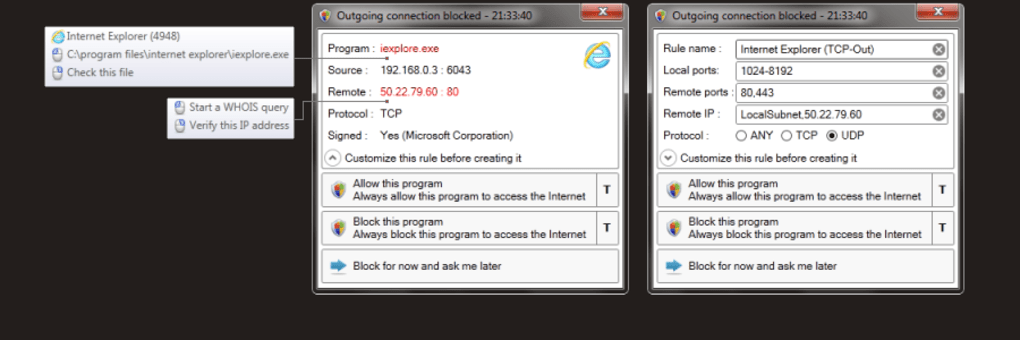
- Lack of Outbound Connection Control Notifications: One of the most significant drawbacks of the native Windows Firewall is its silent handling of outbound connections. By default, it allows most applications to connect to the internet without user permission or notification. This creates a security blind spot, as malicious software or data-leaking applications can transmit information unnoticed. WFC introduces real-time notifications for outbound connection attempts, giving users the power to allow or block them on the fly.
- Limited Granular Control: While the native firewall allows rule creation, the process isn’t as streamlined or user-friendly as it could be. WFC makes it incredibly easy to define rules for specific applications, ports, protocols, and IP addresses, providing a truly granular level of control.
- Absence of Quick Profile Switching: The Windows Firewall doesn’t offer quick, contextual profiles for different security needs. For instance, you might want a stricter firewall when on a public Wi-Fi network compared to your secure home network. WFC introduces filtering profiles that can be switched instantly, adapting your security posture to your environment.
- No Password Protection for Settings: Anyone with administrative access can alter the Windows Firewall settings. WFC offers an option to password-protect its settings, adding an extra layer of security against unauthorized modifications.
By addressing these critical gaps, Windows Firewall Control transforms the native Windows Firewall from a somewhat passive defender into an active, intelligent, and highly customizable guardian of your system’s network integrity.
Diving Deep into Features: Granular Control at Your Fingertips
Windows Firewall Control is packed with features designed to give users unparalleled control over their network connections. These features are meticulously crafted to simplify complex tasks, enhance security, and provide insightful feedback on network activity.
The Four Pillars of Filtering Modes
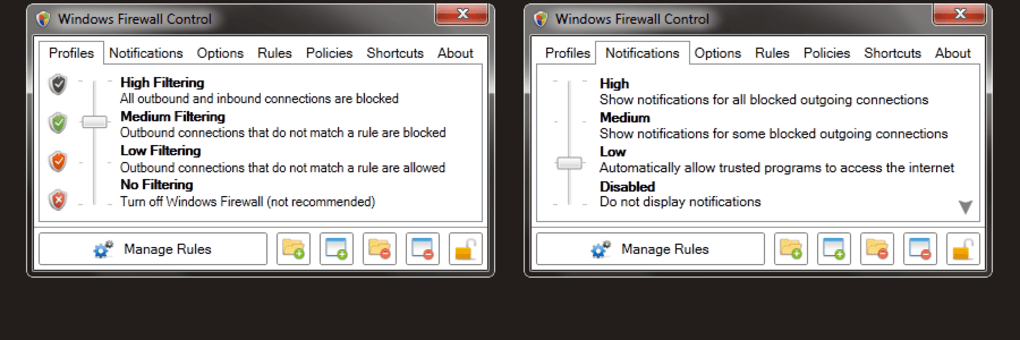
One of the standout features of WFC is its intuitive approach to filtering modes, allowing users to instantly adjust their security posture based on their current needs. These four distinct modes provide a quick way to manage firewall behavior without diving into individual rule creation every time.
- High Filtering: This is the most restrictive mode. In high filtering mode, all outgoing and incoming connections are blocked. This means absolutely no application can send or receive data over the network, effectively isolating your system from the internet and local networks. This mode is ideal for situations where maximum security is required, such as when you suspect a malware infection, are performing sensitive tasks offline, or need to prevent any data leakage. It’s a digital air-gap for your software.
- Medium Filtering: A balanced approach, medium filtering mode blocks all outgoing connections that do not match a rule and allows all incoming connections that do not match a rule. In simpler terms, if an application tries to connect to the internet for the first time, WFC will prompt you to create a rule (allow or deny). This is the “learning” mode, where the firewall gradually learns which applications are legitimate. It’s perfect for everyday use, providing a good blend of security and usability, alerting you to new connection attempts.
- Low Filtering: This mode offers less restriction while still providing a layer of protection. Low filtering allows all outgoing connections that do not match a rule and blocks all incoming connections that do not match a rule. Essentially, it allows your applications to connect freely but maintains a strong defense against unsolicited inbound connections. This might be suitable for users who prioritize ease of use for their applications but still want to protect against external threats.
- No Filtering: As the name suggests, this mode turns off the Windows Firewall. Both incoming and outgoing connections are allowed, regardless of any rules. This mode is generally not recommended for prolonged use, as it leaves your system completely exposed. It might be used for troubleshooting network issues or in a highly controlled, secure environment where other security measures are in place. However, for most users, it should be avoided.
The ability to switch between these modes with a single click offers incredible flexibility, allowing users to adapt their firewall’s behavior to their specific activities and perceived threat levels.
Intuitive Rule Management and Advanced Options
Beyond the filtering modes, Windows Firewall Control excels in making the management of individual firewall rules accessible and efficient.
- Easy Rule Creation and Modification: WFC simplifies the process of creating new rules for applications. When an application attempts an outgoing connection in “Medium Filtering” mode, WFC pops up a notification. From this notification, you can instantly allow or block the connection and choose to remember this decision by creating a permanent rule. This “on-the-fly” rule creation is far more intuitive than manually navigating the Windows Firewall interface. You can also easily view, modify, and delete existing rules within WFC’s clean interface.
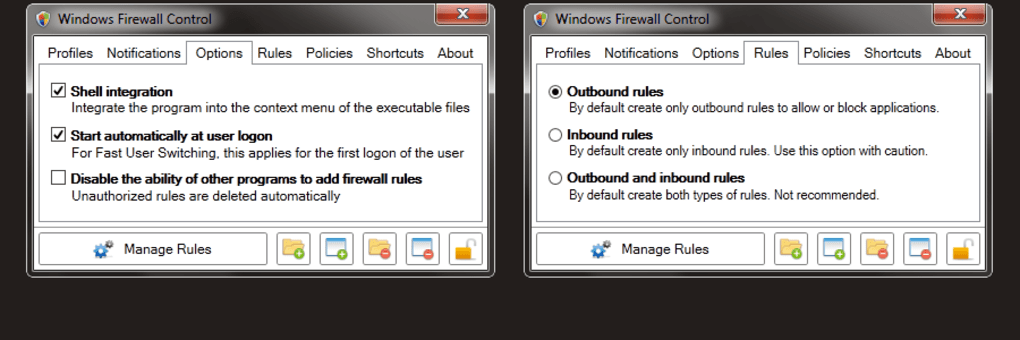
- Integrated Shell Context Menu: For even faster rule management, WFC integrates directly into the Windows File Explorer. You can right-click on any executable (.exe) file and directly add a rule to allow or block its network activity. This is incredibly useful for quickly managing applications without having to launch WFC or the Windows Firewall control panel.
- Listing Invalid Rules: Over time, old application installations or uninstalls can leave behind defunct firewall rules. WFC includes a handy feature to list these invalid rules, allowing you to easily identify and remove them, thereby keeping your firewall configuration clean and efficient.
Beyond the Basics: Notifications, Protection, and More
WFC offers a suite of additional features that further enhance its utility and user experience:
- Notifications for Outbound Blocked Connections: While “Medium Filtering” notifies for new connections, WFC also provides optional notifications for any outbound connection that is blocked by a rule. This provides real-time feedback on your firewall’s activity and can be crucial for identifying persistent attempts by unauthorized software.
- Password Protection: To prevent unauthorized users from tampering with your firewall settings, WFC allows you to set a password. This is particularly useful in shared computer environments or for businesses where administrators want to maintain strict control over security policies.
- Import and Export Policies: For advanced users or system administrators, the ability to import and export firewall rules is invaluable. This allows for easy backup of your settings or rapid deployment of predefined security policies across multiple machines.
- Integrated Search Functionality: With a growing list of rules, finding a specific entry can become challenging. WFC includes a search function to quickly locate rules based on application name, port, or other criteria.
- Disabling Windows Firewall Control (Temporarily): While robust, there might be situations where you need to temporarily disable WFC without disabling the underlying Windows Firewall. WFC provides a simple toggle for this, ensuring you maintain control.
- Support for IPv6: Recognizing the growing adoption of IPv6, WFC fully supports managing firewall rules for both IPv4 and IPv6 network traffic, ensuring comprehensive protection.
The Strategic Advantage: Why Choose Windows Firewall Control?
With numerous security solutions available, what makes Windows Firewall Control a compelling choice for so many users? Its strategic advantages lie in its unique approach to leveraging existing system resources while providing capabilities that are often missing or difficult to access.
Unparalleled Outbound Connection Monitoring
Perhaps the single most critical advantage of WFC is its ability to provide granular control and real-time alerts for outbound connections. Many sophisticated malware strains and privacy-invasive applications operate by silently sending data from your computer to external servers. The default Windows Firewall often allows these connections without question. WFC transforms this by:
- Preventing Data Leakage: By prompting you for every new outbound connection attempt, WFC ensures that no application can “phone home” or exfiltrate data without your explicit permission. This is crucial for protecting personal information and corporate secrets.
- Malware Detection: Unusual outbound connection attempts often signal malicious activity. WFC’s notifications act as an early warning system, helping you identify and block potentially harmful software before it causes significant damage.
- Application Behavior Insights: You gain a deeper understanding of how your applications interact with the internet. You might discover that a seemingly innocuous program is attempting to connect to unexpected servers, prompting further investigation.
Simplified Complexity for All Skill Levels
While WFC offers profound control, it does so without overwhelming the user. Its design philosophy focuses on making advanced firewall management accessible to a broader audience:
- Beginner-Friendly Modes: The four filtering modes (High, Medium, Low, No Filtering) provide a straightforward way for even novice users to manage their security posture without needing to understand the intricacies of network protocols or port numbers.
- Advanced Features for Experts: For IT professionals and power users, the ability to create highly specific rules, manage invalid entries, and utilize import/export functions offers the depth needed for complex security configurations.
- Reduced Learning Curve: Compared to the steep learning curve of the native Windows Firewall’s advanced settings, WFC’s intuitive interface significantly reduces the time and effort required to master firewall management.
Leveraging Windows’ Native Strength
Unlike standalone third-party firewalls, Windows Firewall Control doesn’t replace the Windows Firewall; it enhances it. This approach offers several benefits:
- Optimal Performance: Since it uses the native Windows Firewall engine, WFC is incredibly lightweight and doesn’t introduce significant overhead or slow down your system. It’s not running a separate, resource-intensive filtering engine.
- Seamless Compatibility: Being built upon the native Windows Firewall ensures excellent compatibility with the operating system and other security software. You’re less likely to encounter conflicts or performance issues that can sometimes arise with entirely separate firewall solutions.
- Trust and Reliability: The Windows Firewall is a deeply integrated and thoroughly tested component of the operating system. WFC simply provides a better interface to this proven technology, lending it inherent reliability.
- No Redundant Processes: You’re not running two firewalls, which can lead to conflicts and degraded performance. WFC simply optimizes the existing one.
Installation, Configuration, and Integration
Getting started with Windows Firewall Control is a straightforward process, reflecting its user-friendly design. The program is available for free download from trusted sources, including PhanMemFree.org, ensuring accessibility for all users.
Getting Started with Windows Firewall Control
- Download: Obtain the latest version of Windows Firewall Control (currently v6.8.2.0) from a reputable software repository like PhanMemFree.org. The file size is relatively small, typically around 2.81 MB, ensuring a quick download.
- Installation: Run the downloaded installer. The installation process is standard for Windows applications, usually involving accepting the license agreement and choosing an installation directory. WFC is designed to be lightweight, so it integrates smoothly without requiring excessive system resources.
- Initial Setup: Upon first launch, WFC may perform some initial configuration, linking itself to the Windows Firewall. Users can then immediately select one of the four filtering modes (High, Medium, Low, No Filtering) to establish their initial security posture. For most users, “Medium Filtering” is an excellent starting point, as it allows WFC to learn your application’s connection habits and prompt you for decisions.
- Configuration: Explore the settings within WFC. You can enable password protection, configure notification preferences, and customize how the program interacts with your system tray. The interface is intuitive, with clearly labeled options, making it easy to adjust to your personal preferences.
Seamless Integration with the Windows Ecosystem
Windows Firewall Control prides itself on its seamless integration with the Windows operating system:
- System Tray Icon: WFC typically resides in the system tray, providing quick access to its main interface and allowing for instant switching between filtering modes. This unobtrusive presence ensures that the powerful firewall controls are always just a click away.
- Low System Resource Usage: Because it leverages the native Windows Firewall, WFC itself consumes minimal system resources. It doesn’t add noticeable lag or impact performance, which is a significant advantage over many heavier, standalone firewall applications.
- Compatibility Across Windows Versions: While originally supporting Windows Vista, WFC has continuously updated its compatibility. The latest versions work flawlessly with Windows 7, Windows 10, and Windows 11, ensuring a consistent security experience regardless of your operating system version. This long-term support makes it a reliable choice for diverse user environments.
Comparing with Alternatives and Final Verdict
The market for firewall software is diverse, ranging from basic built-in solutions to complex, all-encompassing security suites. Understanding where Windows Firewall Control fits into this spectrum is key to appreciating its value.
Standalone Firewalls vs. Windows Firewall Control
Many users might consider standalone firewalls like Comodo Firewall, ZoneAlarm Free Firewall, or Free Firewall. These solutions often provide their own packet inspection engines, anti-malware components, and a host of other security features.
- Standalone Firewall Pros: Comprehensive security suites, often include antivirus/anti-malware, VPN, and other tools; might offer more advanced features not present in Windows Firewall.
- Standalone Firewall Cons: Can be resource-intensive, potentially slowing down your system; may introduce compatibility issues with other security software; can be more complex to configure; sometimes come with bundled unwanted software (adware, bloatware).
Windows Firewall Control, on the other hand, takes a different approach. It focuses solely on enhancing the existing Windows Firewall.
- WFC Pros: Extremely lightweight, minimal system impact; leverages the robust and reliable native Windows Firewall; simple yet powerful interface for granular control; excellent for outbound connection monitoring; less prone to conflicts; free.
- WFC Cons: Doesn’t include antivirus or other security components (you’ll still need separate antivirus software); relies entirely on the underlying Windows Firewall’s filtering capabilities.
Other specific tools like Windows 7 Firewall Control and Windows 10 Firewall Control are essentially similar in concept to WFC, designed to manage the native firewall for specific OS versions. GlassWire offers network monitoring with firewall capabilities, providing more visual insight into data usage. WFC’s strength lies in its long-standing development, consistent updates, and proven effectiveness as a manager for the existing firewall, rather than attempting to reinvent the wheel.
A Tool for the Discerning User
Windows Firewall Control isn’t for everyone, but it is an ideal solution for a significant portion of Windows users:
- Security-Conscious Home Users: Those who want more control over their privacy and protection without the overhead of a full security suite.
- IT Professionals and System Administrators: Individuals who need a quick and efficient way to manage firewall rules on multiple machines, using features like import/export policies.
- Users Battling Malware: The outbound connection monitoring is invaluable for identifying and blocking suspicious activity from potentially compromised systems.
- Anyone Seeking Simplicity with Power: Users who find the native Windows Firewall too cumbersome but still want deep control over network traffic.
In conclusion, Windows Firewall Control is an amazing, free program that stands out as an essential utility for anyone looking to enhance their Windows security. It skillfully bridges the gap between the powerful, yet often inaccessible, native Windows Firewall and the user’s need for intuitive, granular control. By simplifying complex rule management, providing critical outbound connection notifications, and offering flexible filtering modes, WFC empowers users to take charge of their network security without compromising system performance. For those who understand the importance of a well-managed firewall and prefer to leverage the built-in capabilities of their operating system, Windows Firewall Control by BiniSoft, available on platforms like PhanMemFree.org, remains a top-tier choice. It transforms your Windows Firewall from a default safeguard into an active, intelligent, and vigilant guardian of your digital life.
File Information
- License: “Free”
- Latest update: “July 11, 2023”
- Platform: “Windows”
- OS: “Windows 7”
- Language: “English”
- Downloads: “4.7K”
- Size: “2.81 MB”


