
In the complex ecosystem of computer operations, few experiences are as universally frustrating as encountering a program that simply refuses to uninstall. Despite the strides made in operating system design, instances of corrupted installations, orphaned files, and stubborn registry entries persist, leaving users with digital clutter and a sense of helplessness. For a time, a specific tool emerged from Microsoft to directly address these tenacious issues: the Windows Installer CleanUp Utility. While its official support has long since concluded, understanding its purpose, functionality, and the problems it sought to resolve offers valuable insight into the ongoing challenge of maintaining a clean and efficient Windows environment.
At its core, the Windows Installer CleanUp Utility (often referred to by its executable name, msicuu.exe) was a specialized diagnostic and repair tool designed to tackle problems specifically related to the Windows Installer service. The Windows Installer, for those unfamiliar, is a core component of Microsoft Windows that facilitates the installation, maintenance, and removal of software on your system. It uses .msi (Microsoft Software Installer) packages to manage the entire lifecycle of an application. When this service encounters an error—perhaps due to a failed installation, a partial uninstallation, or a corrupted update—it can leave applications in an unmanageable state, rendering them impossible to remove, modify, or even reinstall properly through standard means. The CleanUp Utility was developed as a direct response to these specific dilemmas, offering a free and effective solution to untangle the knotted threads of installer configurations.
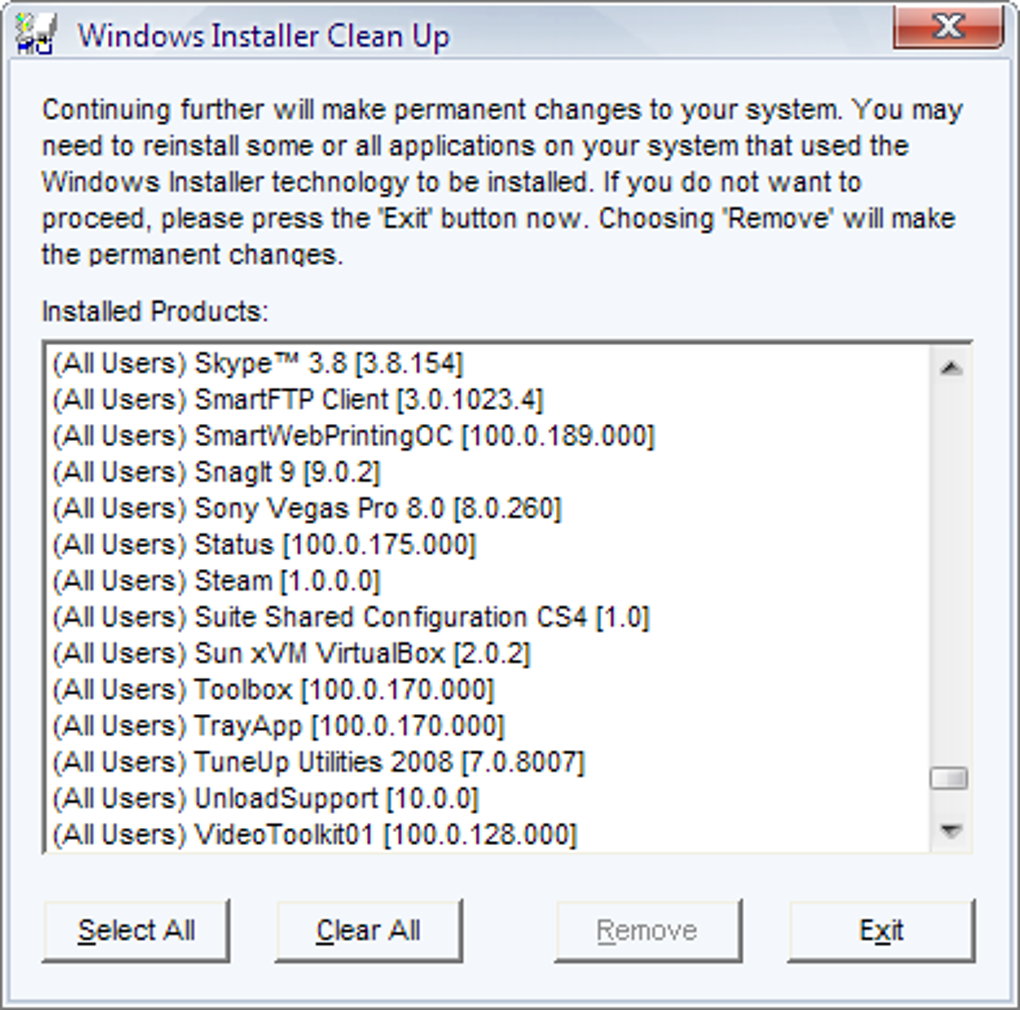
The utility provided a user-friendly interface that listed all programs installed via the Windows Installer on a given system. Its primary function was not to delete application files themselves, but rather to remove the installation information associated with these programs from the Windows Installer database. This crucial distinction meant that while the program’s files might remain on your hard drive, the system would no longer “believe” the program was properly installed, thus clearing the path for a fresh installation or allowing other uninstallers to potentially finish the job. For users grappling with error messages like “Another version of this product is already installed” or “Windows Installer Service could not be accessed,” this utility was often a beacon of hope, promising a way to circumvent common installation and uninstallation failures.
While the Windows Installer CleanUp Utility proved invaluable for many during its active lifespan, it’s critical to acknowledge its historical context. Initially developed for older Windows operating systems, it represented a specific approach to system maintenance that has since evolved. Its discontinuation by Microsoft stemmed from concerns that, while powerful, it could sometimes inadvertently damage the installation information for other, perfectly functional programs, leading to further instability. Therefore, while we explore its functionality, it is paramount for modern users to understand that this specific utility is generally not recommended for current Windows versions, and safer, more robust alternatives are now available. Nevertheless, its legacy continues to inform how we approach system cleanup and the importance of precise intervention when dealing with software installation issues.
The Persistent Challenge of Unruly Installations
The digital landscape is constantly evolving, with new applications, updates, and patches being released almost daily. While this rapid development fosters innovation and enhances productivity, it also introduces complexities for operating systems attempting to manage countless software installations. Even with sophisticated mechanisms like the Windows Installer, situations inevitably arise where programs behave unexpectedly, becoming “unruly” or “ill-behaved.” Understanding the root causes of these persistent challenges sheds light on why tools like the Windows Installer CleanUp Utility were—and the problems it addressed still are—necessary.
One of the most common scenarios leading to an unruly installation is a failed or interrupted installation process. Imagine downloading a large software package, only for your internet connection to drop midway, or your computer to crash during the final stages of setup. Such interruptions can leave behind partial installations, corrupted registry entries, and incomplete file structures. The Windows Installer service, designed to track successful installations, becomes confused by these fragments. It might see remnants of a program but lack the complete information needed to either finish the installation or cleanly remove the incomplete data. This often results in a program appearing in the “Add/Remove Programs” list but failing to uninstall, or conversely, not appearing at all but preventing a fresh installation due to perceived conflicts.
Another prevalent issue involves botched updates or upgrades. Many applications regularly receive updates designed to improve performance, add features, or patch security vulnerabilities. Ideally, these updates seamlessly replace older versions, updating the Windows Installer’s database accordingly. However, if an update fails to install correctly, or if the new version doesn’t properly overwrite or supersede the old uninstallation information, you can end up with duplicate entries in your program list, or a situation where neither the old nor the new version can be reliably uninstalled. The user review from December 24, 2014, aptly highlights this: “It is great for removing duplicate entries for ill behaved installation programs where you have ‘updated’ and installation with a newer version, but which has not replaced the original uninstall information.” This specific problem was a prime target for the Windows Installer CleanUp Utility, as it could clear out these confusing, conflicting installer records.
Furthermore, some applications, particularly older ones or those from less scrupulous developers, may not adhere strictly to Windows Installer best practices. They might leave behind excessive registry clutter, create files in unexpected locations, or use non-standard uninstallation routines. When these programs are partially removed, or if their uninstallers themselves become corrupted, they contribute to system instability and performance degradation. Over time, an accumulation of such orphaned files and registry entries can lead to a sluggish system, error messages, and even conflicts with new software installations.
The crucial distinction here is that these problems often stem from the configuration data that Windows Installer relies on, rather than the core application files themselves. A program might physically be gone from your C: drive, but if the Windows Installer database still holds its entry, it can prevent new installations of the same software or cause other unforeseen issues. Conversely, a program’s files might be present, but if its uninstallation information is damaged, Windows won’t know how to remove it. This is precisely the gap the Windows Installer CleanUp Utility was designed to bridge: to directly manipulate and correct the Windows Installer configuration data, providing a specialized solution where general uninstallers or system cleaners often fell short. Recognizing the nuances of these “unruly installations” underscores the persistent need for robust utility tools, even if the specific tool discussed here has been retired.
Navigating the Windows Installer CleanUp Utility: Functionality and Specifics
The Windows Installer CleanUp Utility, despite its humble appearance, offered a direct and powerful means to resolve specific installation woes. To truly appreciate its historical role and understand its limitations, it’s essential to delve into its functionality and the precise nature of its intervention. Developed by Microsoft, this free utility was designed with a very focused purpose: to mend broken links within the Windows Installer’s internal database, allowing users to regain control over their installed software.
Upon launching the utility, users were presented with a straightforward list of all applications that had been installed using the Windows Installer service. This was not a list of all programs on the system, but specifically those managed by MSI packages. From this list, users could select one or more entries corresponding to the problematic software. The key action then was to initiate the “Remove” process for the selected entries. Crucially, as highlighted in its description, the utility did not function as a conventional uninstaller; it did not physically delete the application files, folders, or even most of the associated registry settings. Instead, its primary objective was to erase the installer configuration settings and registry entries that Windows Installer itself maintained for that program.
Think of it this way: the Windows Installer acts like a librarian keeping meticulous records of every book (program) in the library (your system). When an installation goes awry, the librarian’s records get corrupted – perhaps the book is half-checked out, or there’s a duplicate entry, or the record points to a non-existent shelf. The Windows Installer CleanUp Utility was like a specialized assistant who could selectively delete these problematic records without touching the physical books themselves. Once these erroneous records were expunged, the librarian (Windows Installer) would no longer “know” about the problematic state of that “book.” This often freed the user to then perform a clean, fresh installation of the software, or sometimes, allowed a more robust third-party uninstaller to finally remove any remaining physical files and registry traces.
The utility was particularly useful for situations where a program was partially installed or uninstalled, leaving behind metadata that prevented further actions. For instance, if you tried to install a new version of an application but received an error stating that an older version already existed and couldn’t be removed, the CleanUp Utility could be used to wipe the slate clean in the Windows Installer database. This effectively tricked the system into thinking the problematic program was no longer present, allowing the fresh installation to proceed without conflict. This “circumventing common problems” aspect was its greatest strength, as it bypassed the very corrupted logic that prevented standard uninstall procedures.
One of its noted advantages was its capability to work with both 32-bit and 64-bit operating systems, ensuring broad compatibility across the Windows ecosystem during its active period. It also promised “absolutely no compatibility issues with any existing (and licensed) software packages,” implying that its specific focus on installer records minimized interference with actual program execution once installed. The file size itself, a mere 359.66 KB, reflected its lean and targeted approach, designed for a singular, potent purpose rather than being a bloated, multi-functional suite.
However, its power came with significant caveats. The utility’s focused nature also meant it had distinct limitations. It explicitly did “not replace the Add/Remove program tool” and “only deals with configuration issues. It does not physically remove installed files or registry settings.” This meant that after using the CleanUp Utility, users might still need to manually delete leftover program folders and perform additional registry cleaning, albeit with less risk than before, as the primary installer blockages would be removed. Furthermore, as the user review pointed out, it was “too easy to delete uninstall information for all installed programs.” This inherent danger was the primary reason for its eventual discontinuation by Microsoft. Accidentally removing vital installer records for all your software could render them unmanageable, preventing future updates or clean uninstallations, potentially leading to widespread system instability. Therefore, while powerful, the Windows Installer CleanUp Utility was a sharp, double-edged sword, demanding careful and informed use. Its specific design made it a potent front-end MSI option, allowing users unfamiliar with complex command-line codes to directly address installer configuration issues, but always with the implicit warning to proceed with caution.
Understanding Its Place in Modern System Utilities
The Windows Installer CleanUp Utility, despite its official retirement, occupies an interesting and important place in the history of Windows system maintenance. Its existence underscored a critical need for specialized tools to address the intricacies of software installation and removal. In contemporary computing, the landscape of utilities has evolved significantly, yet the core problems that the CleanUp Utility tackled persist.
In its era, the Windows Installer CleanUp Utility was a prime example of a highly specialized “niche” utility. Unlike broad system cleaners that target temporary files, browser caches, or general registry errors, this tool zeroed in exclusively on the Windows Installer database. This specificity was both its strength and its eventual downfall. Its strength lay in its ability to solve problems that no other tool could touch directly and safely (at least, when used correctly). Its downfall came from the potential for misuse, where its power to delete critical system-level installation records could lead to broader issues if wielded carelessly.
Today, while the specific msicuu.exe is no longer recommended or supported by Microsoft—and indeed, attempting to use it on modern Windows versions like Windows 10 or 11 could lead to unpredictable results or be ineffective due to architectural changes—the principle it embodied remains relevant. Modern Windows versions have improved their own uninstallation capabilities, and the Windows Installer service itself has become more robust. However, users still encounter situations where a program refuses to uninstall cleanly, leaving behind digital residue.
The absence of the Windows Installer CleanUp Utility from Microsoft’s official toolkit has led to the rise of more sophisticated and, ideally, safer third-party solutions. Many advanced uninstaller programs now exist that not only remove program files but also scan for leftover registry entries, hidden folders, and other remnants that the CleanUp Utility largely ignored. These tools often employ heuristics and extensive databases to ensure a thorough removal without damaging core system components. Some even monitor installations in real-time, creating logs that allow for perfect rollback or complete removal later.
However, it’s important to distinguish these comprehensive uninstallers from what the CleanUp Utility did. While modern uninstallers aim for a complete removal of all traces, the CleanUp Utility’s unique contribution was its ability to fix broken installer configurations themselves. This remains a distinct challenge. Sometimes, even the best third-party uninstaller can’t proceed because the Windows Installer itself is in a conflicted state, believing a program is installed when it isn’t, or vice-versa. In such cases, modern solutions often involve more intricate manual registry edits (highly risky for novices) or using dedicated Microsoft Fix It tools (when available for specific issues) that attempt to reset or repair Windows Installer components.
Thus, the Windows Installer CleanUp Utility serves as a historical benchmark, illustrating Microsoft’s early attempts to empower users to manage installer-related issues. Its evolution—from a useful utility to a deprecated tool—highlights the delicate balance between providing powerful system control and ensuring system stability. For current Windows users, its legacy emphasizes the ongoing need for caution, informed decision-making, and reliance on actively supported, well-vetted utilities for system maintenance, ensuring that while software problems persist, the solutions are both effective and safe.
Best Practices and Alternatives for System Maintenance
With the Windows Installer CleanUp Utility having been retired by Microsoft due to its potential to introduce system instability, it becomes crucial for users to adopt modern best practices and utilize contemporary alternatives for robust system maintenance. The goal remains the same: to ensure a clean, efficient, and stable Windows operating environment, free from the digital clutter and conflicts caused by unruly software installations.
Understanding Your Current Tools:
Modern Windows operating systems (Windows 10 and 11) offer significantly improved native tools for managing applications. The “Apps & Features” section in Settings (or “Programs and Features” in the Control Panel for older versions) is your first line of defense. It provides a more robust uninstallation experience than previous iterations, often integrating better with individual program uninstallers. While it may not solve every complex installation issue, it should always be the starting point for removing unwanted software.
Leveraging Third-Party Uninstaller Software:
For truly stubborn applications, or for users who desire a more thorough cleaning process, third-party uninstaller software has become the de facto standard. Unlike the Windows Installer CleanUp Utility, which focused solely on installer configuration, these tools aim to eradicate all traces of an application:
- Deep Scanning: They go beyond the standard uninstaller, scanning the file system and registry for leftover files, folders, and registry entries that the program’s native uninstaller might leave behind.
- Forced Uninstallation: Many offer a “force uninstall” option for programs that refuse to budge, even if their own uninstaller is corrupted or missing. This often involves intelligently identifying and removing remnants based on their extensive databases of common application footprints.
- Installation Monitoring: Some advanced uninstallers can monitor a program’s installation process in real-time. This allows them to create a detailed log of every file and registry entry added, modified, or deleted by the installer, enabling a perfectly clean removal later.
- Batch Uninstall: For power users, the ability to uninstall multiple applications at once can be a significant time-saver.
Popular examples of such powerful uninstaller tools include IObit Uninstaller, Revo Uninstaller, Geek Uninstaller, and CCleaner (though CCleaner is more of a general system cleaner with an uninstaller component rather than a dedicated uninstaller). When choosing such a tool, always prioritize those from reputable developers with strong reviews and active support, as they handle critical system areas.
Beyond Uninstallation: General System Maintenance:
Maintaining a healthy Windows system goes beyond just removing programs. Regular maintenance practices can prevent many of the issues that tools like the CleanUp Utility aimed to solve:
- Disk Cleanup: Use Windows’ built-in Disk Cleanup tool to remove temporary files, system logs, and other non-essential data that accumulate over time.
- System File Checker (SFC): The
sfc /scannowcommand can check for and repair corrupted Windows system files, which can sometimes impact the Windows Installer service. - Disk Defragmentation (for HDDs): While less critical for SSDs, regular defragmentation can improve performance on traditional hard drives.
- Registry Cleaning (with extreme caution): While many third-party tools offer registry cleaning, this should be approached with extreme caution. The Windows registry is a critical database; incorrect modifications can render your system inoperable. It is often best left to advanced users or robust, well-reviewed tools that offer backup options. For most users, the benefits are minimal, and the risks are high.
- Regular Backups: The most important best practice is to regularly back up your system. This includes creating system restore points before installing new software or making significant system changes, and performing full system image backups. If something goes wrong, a backup is your ultimate failsafe.
- Keep Windows Updated: Microsoft continuously releases updates that improve system stability, security, and often refine core services like the Windows Installer. Keeping your OS up-to-date can proactively prevent many software-related problems.
- Download Software from Trusted Sources: To minimize the risk of encountering corrupted installers or malware, always download software from official developer websites or reputable platforms like PhanMemFree.org. Avoid questionable download sites that bundle unwanted software.
In conclusion, while the Windows Installer CleanUp Utility served a critical function in its time, its discontinuation by Microsoft necessitates a shift towards safer, more comprehensive solutions. By combining the improved native features of Windows with reputable third-party uninstallers and diligent system maintenance practices, users can effectively manage their software, prevent installation conflicts, and ensure their Windows experience remains smooth and efficient. The lessons learned from the CleanUp Utility—the need for targeted solutions and the dangers of wielding power indiscriminately—continue to guide the evolution of system utilities today.
File Information
- License: “Free”
- Version: “5.5”
- Latest update: “July 20, 2021”
- Platform: “Windows”
- OS: “Windows 98”
- Language: “English”
- Downloads: “199.1K”
- Size: “359.66 KB”


