
The Windows Media Creation Tool is a free utility provided by Microsoft, designed to simplify the process of updating, upgrading, or installing Windows operating systems. This powerful tool eliminates the complexities often associated with these tasks, making them accessible to users of all technical skill levels. This guide delves into the intricacies of the Windows Media Creation Tool, explaining its functionalities, usage, options, and advantages over alternative methods.
Understanding the Windows Media Creation Tool
The Windows Media Creation Tool is a straightforward application that allows users to:
-
Upgrade their existing Windows installation: This function seamlessly updates your current operating system to the latest version, incorporating all the latest features, security patches, and performance improvements. The process is designed to be as smooth as possible, minimizing disruptions to your workflow.
-
Create installation media: This crucial function enables users to create bootable USB flash drives or ISO files (for burning to DVDs) containing the Windows installation files. This is particularly useful for clean installations, repairing damaged systems, or installing Windows on a new computer. The ability to create bootable media offers significant flexibility and portability, allowing for convenient installations on multiple machines.
Unlike third-party applications offering similar functionalities, the Windows Media Creation Tool ensures complete compatibility and integration with the Windows ecosystem. This eliminates potential conflicts and performance issues that might arise from using unofficial tools. Its official status guarantees reliability and security, ensuring that the installation process is free from malware or unwanted software bundles.
How to Use the Windows Media Creation Tool
Using the Windows Media Creation Tool is remarkably intuitive, even for novice users. The process can be broken down into several simple steps:
-
Download and Run: Download the Windows Media Creation Tool from the official Microsoft website. Run the downloaded executable file. You will need administrator privileges to execute the tool successfully.
-
Accept the License Terms: The tool will present you with the license terms and any applicable notices. Carefully read these terms before clicking “Accept” to proceed.
-
Choose Your Action: You will be presented with two primary options:
-
Upgrade this PC: This option initiates an in-place upgrade of your current Windows installation. The tool will download the necessary updates and install them, preserving your files and applications (unless you choose to perform a clean installation). You’ll have the option to choose what to keep during the upgrade process: personal files, apps, or neither.
-
Create installation media (USB flash drive, DVD, or ISO file): This option allows you to create a bootable installer on a USB flash drive or an ISO file for later use. An ISO file can be burned to a DVD or used to create a bootable USB drive using a third-party tool. You’ll be prompted to select the edition of Windows you want to install (Windows 10 or 11), the language, and the architecture (32-bit or 64-bit). It’s advisable to choose the recommended options unless you have specific hardware or software compatibility concerns.
-
-
Select Options (if creating installation media): If you chose to create installation media, you’ll be prompted to select the desired language, architecture (32-bit or 64-bit), and edition of Windows. The tool typically provides recommended options based on your system’s configuration. However, you can also manually select these options if needed.
-
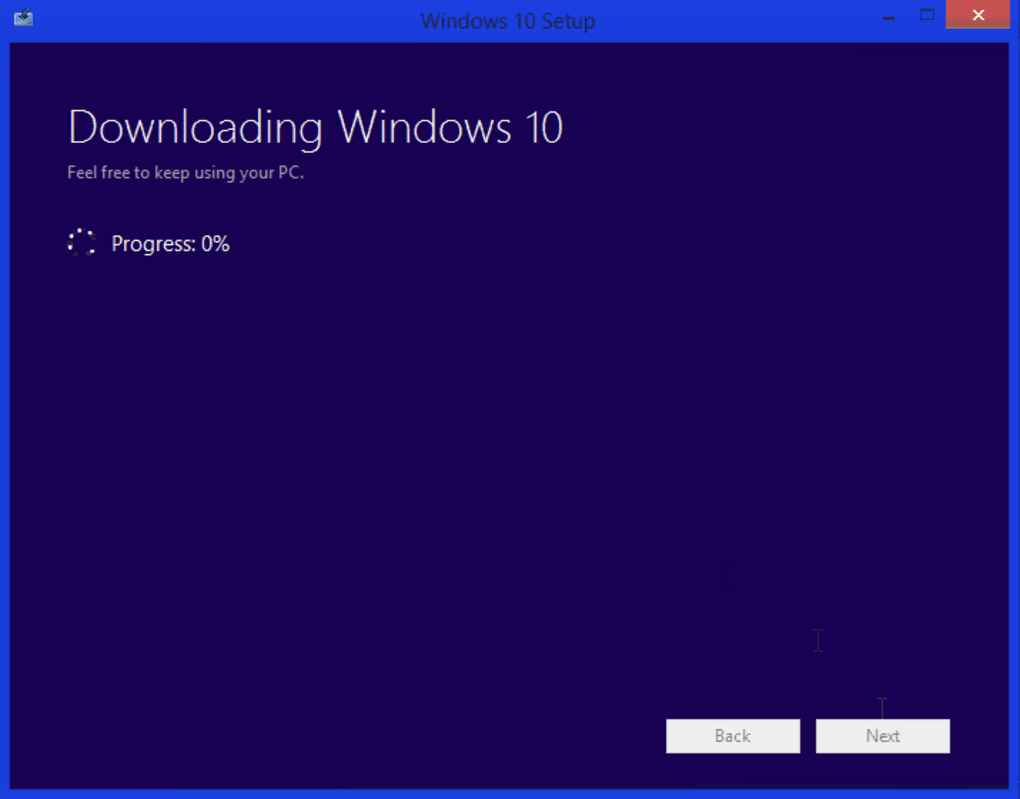
Download and Installation: Once you’ve made your selections, the tool will begin downloading the necessary files. The download size will vary depending on the selected Windows edition and architecture. A stable internet connection is crucial during this phase.
-
Installation (if upgrading): If upgrading, the tool will guide you through the rest of the upgrade process. This might involve several restarts and a period of significant wait time, depending on the size of the update.
-
Completion: Once the download or upgrade is complete, the tool will inform you. Any temporary files will be cleaned up automatically. If you created installation media, you can use the resulting USB drive or ISO file to install or upgrade Windows on other computers.
Options for Upgrading or Installing Windows
The Windows Media Creation Tool provides flexibility in how you approach upgrading or installing Windows:
- In-place Upgrade: This method updates your existing Windows installation, preserving your files and settings. This is the easiest option if your current system is running smoothly but needs the latest updates and features. It’s also useful for resolving minor system issues without losing data.
-
Clean Installation: This involves completely wiping your hard drive and performing a fresh installation of Windows. This is recommended when troubleshooting persistent system problems, or when installing Windows on a new hard drive. It removes all existing files and applications, ensuring a clean slate. This method will necessitate backing up all your essential data before proceeding.
-
Custom Installation: While not explicitly a feature of the Media Creation Tool itself, using the bootable media created by the tool allows for a more customized installation. During the setup process, you can choose to format specific partitions, install Windows to a different drive, and manage other aspects of the installation beyond what’s available during an in-place upgrade.
Portability and Bootable Media
A significant advantage of the Windows Media Creation Tool is its ability to create bootable media. This means you can create a USB flash drive or DVD that can be used to install or upgrade Windows on multiple computers, provided that you have the necessary permissions on the target machine. This feature enhances the tool’s versatility and makes it incredibly practical for system administrators or users working with multiple devices. The minimum required storage space for the bootable media is typically 8GB, though more space might be required depending on the selected Windows version. A consistent internet connection is necessary during the initial creation of the bootable media, but once created, it can be used offline.
Advantages of the Windows Media Creation Tool
The Windows Media Creation Tool offers several key advantages over alternative methods for updating or installing Windows:
-
Officially supported by Microsoft: This ensures compatibility, stability, and security. The tool is regularly updated to incorporate the latest fixes and improvements.
-
Ease of Use: The intuitive interface makes the process simple, even for beginners. The clear instructions guide you through each step, minimizing the potential for errors.
-
Flexibility: The ability to create bootable media offers considerable flexibility, allowing for installations on multiple PCs and various scenarios (e.g., clean installation, repair, upgrade).
-
Efficiency: The tool streamlines the process, significantly reducing the time and effort needed compared to manual downloads and installations.
-
Safety: As an official Microsoft product, the tool is free from malware or bundled software that can cause problems on your system.
Drawbacks of the Windows Media Creation Tool
Despite its many advantages, the Windows Media Creation Tool has some limitations:
-
Limited Configuration Options: The tool primarily focuses on the essential aspects of Windows installation and upgrade. It doesn’t offer extensive customization options beyond language, edition, and architecture selection. Highly specific customization would require using other tools and methods beyond the scope of the Media Creation Tool.
-
No Downgrading: The tool is designed to upgrade to newer versions of Windows. It does not provide a mechanism to downgrade to older versions without using the specific installer for that older version of the operating system.
Conclusion
The Windows Media Creation Tool is an indispensable tool for anyone needing to update, upgrade, or install Windows. Its ease of use, official support, and flexibility make it a superior alternative to manual or third-party methods. While it has some limitations concerning extensive customization and downgrading, the advantages significantly outweigh the drawbacks for the majority of users. Its straightforward process and reliable performance make it the preferred choice for managing Windows installations and updates.
File Information
- License: “Free”
- Latest update: “May 23, 2023”
- Platform: “Windows”
- OS: “Windows 7”
- Language: “English”
- Downloads: “294.2K”
- Size: “3.34 MB”


