In the vast landscape of digital multimedia, few applications boast the enduring legacy and widespread familiarity of Windows Media Player (WMP). For decades, this quintessential software has served as the default gateway for millions of Windows users to engage with their audio and video content. More than just a simple playback tool, WMP has evolved to become a comprehensive media management solution, offering a blend of intuitive functionality and robust features that, for many, remain unparalleled even in an era brimming with sophisticated alternatives.
Initially introduced by Microsoft in 1991 as “Media Player,” it has gone through numerous iterations, each building upon the last to cater to the ever-growing demands of digital media consumption. Its integration into the Windows operating system made it an immediate and accessible choice, eliminating the need for users to seek out third-party solutions for basic media tasks. While the digital media environment has undergone a dramatic transformation, with streaming services, cloud storage, and an abundance of specialized players now dominating the scene, Windows Media Player steadfastly retains its place, embodying a classic approach to personal media enjoyment and organization.
The Enduring Legacy of Windows Media Player
Windows Media Player stands as a testament to the longevity of well-designed software. For many, it evokes a sense of nostalgia, recalling simpler times of managing locally stored media files. Yet, its continued presence in modern Windows installations speaks to its fundamental utility and the lasting appeal of its core offerings. Despite the rise of powerful competitors like VLC, Groove Music, and iTunes (now Apple Music), WMP consistently remains a preferred option for a significant segment of the Windows user base. This preference isn’t solely due to its default installation status; it’s also a reflection of its reliability, ease of use, and the comprehensive suite of features it provides.
A Brief History and Its Place in the Windows Ecosystem
The journey of Windows Media Player began long before the widespread adoption of MP3s or streaming video. Its origins can be traced back to the early 1990s, where it functioned as a basic media player within the Windows environment. Over the years, Microsoft continually refined and expanded WMP’s capabilities, integrating it more deeply into the operating system. With each new version of Windows, WMP received updates, introducing new codecs, improved interfaces, and enhanced functionality.
Its prominent placement as the default media player meant that for millions of users, WMP was their first, and often only, interaction with media playback software. This deep integration fostered a sense of familiarity and made it an indispensable component of the Windows experience. It wasn’t just another application; it was an integral part of how users interacted with their digital music, home videos, and even early forms of digital television content. This historical context underscores its importance and explains why, even today, many users instinctively turn to WMP for their media needs.
Core Functionality: More Than Just Playback
While its primary role is to play audio and video files, describing Windows Media Player as merely a “player” undersells its true capabilities. WMP is a multifaceted media hub designed to address a broad spectrum of multimedia tasks. Beyond simply hitting “play” on a song or a movie, it empowers users to manage, organize, and even create their own media collections.
At its heart, WMP functions as a robust media library. It automatically scans your computer for compatible media files and organizes them into a structured, searchable database. This library view allows users to browse their music by artist, album, genre, or even rating, and their videos by title or date. This organizational prowess transforms a cluttered collection of files into an easily navigable archive, making it simple to find and enjoy specific content without having to trawl through numerous folders.
Beyond organization, WMP also offers powerful features for interacting with physical media. It includes the ability to “rip” music from audio CDs, converting tracks into digital formats like MP3 or WMA and saving them directly to your computer. This was a crucial feature in the era before widespread digital music stores, allowing users to digitize their CD collections. Conversely, WMP also facilitates the “burning” of custom audio CDs or data discs, enabling users to create mixed CDs of their favorite songs or archive important media files onto physical discs. These features underscore WMP’s role as a versatile tool that bridges the gap between physical and digital media.
Moreover, WMP extends its capabilities to include image viewing, making it a convenient all-in-one viewer for various media types. In certain configurations, it also supported the viewing of live television programs and the playback of shared files across a network, further cementing its status as a comprehensive media solution within the Windows ecosystem.
Simple Interface, Powerful Features
One of Windows Media Player’s most enduring virtues is its straightforward and customizable interface. Microsoft designed WMP to be accessible to users of all technical proficiencies, from novices to seasoned power users. This user-friendliness is achieved through a clean layout and intuitive controls, ensuring that getting started with WMP is never a daunting task.
The interface typically operates in two distinct modes, catering to different user needs:
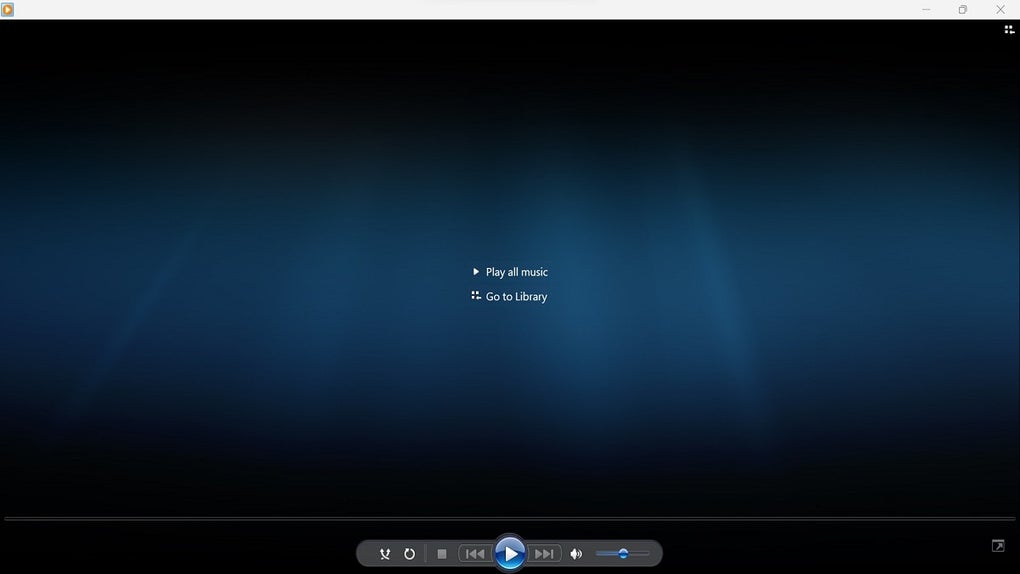
- Playback Mode: This mode prioritizes an uncluttered viewing or listening experience. When you’re simply enjoying a song or watching a movie, the interface minimizes distractions, presenting only the essential controls: play, pause, stop, skip forward/backward, volume control, shuffle, and loop playback. This streamlined approach allows the media content itself to be the focal point, providing an immersive experience without extraneous visual clutter.
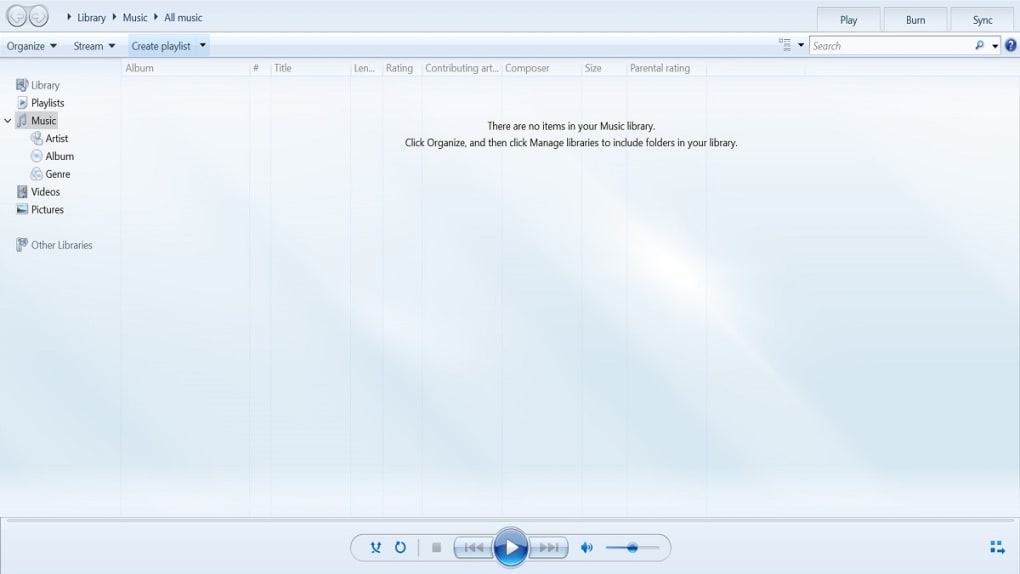
- Library Mode: For more comprehensive media management, the library mode offers a richer interface. Here, users gain access to their entire multimedia collection, organized and categorized. This mode includes the playback controls found in the simpler interface but expands upon them with panels for navigation, search, and detailed information about each media file. From here, users can not only play content but also edit metadata, sort files, add them to playlists, or even remove them from their computer or just from the library.
The ability to customize the interface, ranging from changing visualizers to applying different skins (though less emphasized in recent versions), added another layer of personalization that resonated with users. This combination of simplicity for everyday use and depth for advanced management has been a key factor in WMP’s long-standing appeal.
Why Users Still Choose WMP
Despite the proliferation of alternatives, many users continue to rely on Windows Media Player for several compelling reasons:
- Default Integration: For many, the fact that WMP comes pre-installed with Windows makes it the path of least resistance. There’s no need to download, install, or learn a new piece of software when a perfectly functional player is already at hand.
- Familiarity and Simplicity: Years of consistent design mean that users intuitively understand how to navigate and operate WMP. Its straightforward approach to media playback and organization appeals to those who prefer simplicity over feature-overload.
- Comprehensive Features: WMP isn’t just a basic player. Its robust features for CD ripping/burning, playlist creation, and library management provide a complete multimedia solution that meets the needs of most average users without requiring additional software.
- Reliable Performance: For playing common media formats, WMP generally performs reliably, offering stable playback without significant glitches or compatibility issues for files within its native ecosystem.
These factors contribute to WMP’s continued relevance, proving that sometimes, the most dependable and integrated solution is often the most preferred.
Mastering Your Multimedia Library
The digital age has brought an explosion of media content, making effective organization paramount. Windows Media Player excels in this domain, providing users with powerful tools to manage vast collections of music, videos, and images. Far from being a mere playback window, WMP transforms your scattered media files into a cohesive, easily navigable library, putting you firmly in control of your entertainment.
Navigating Playback and Library Modes
As discussed, WMP offers two primary interface modes, each optimized for specific tasks. Understanding how to switch between and leverage these modes is key to a seamless experience.
When you launch Windows Media Player, it typically opens in “Library Mode,” presenting a detailed view of your media collection. Here, you’ll see navigation panes on the left, categorizing your media by type (Music, Videos, Pictures, Recorded TV) and offering various sub-categories such as Artist, Album, Genre for music, or Date for videos and pictures. The central pane displays the actual files, often with album art or thumbnails, and detailed information. This is your command center for organizing, browsing, and managing your media.
However, once you select a file to play, WMP seamlessly transitions (or can be configured to transition) into “Playback Mode.” This mode strips away the library clutter, leaving only the essential playback controls and the media content itself – a visualizer for audio, or the video playing full screen (or in a compact window). The goal here is immersion, allowing you to focus purely on the entertainment without distractions. You can usually toggle between these modes using a dedicated button in the interface or by pressing Ctrl + 1 for Library Mode and Ctrl + 2 for Playback Mode. This dual-mode approach provides flexibility, ensuring that the interface always matches your immediate needs.
While Windows Media Player is often the default application for media files on Windows, this isn’t always the case, especially if you have other media players installed. To ensure your files open with WMP, you can right-click on any media file, select “Open With,” and then choose “Windows Media Player” from the list. For consistent behavior, you can also select “Choose another app” and then check the “Always use this app to open .[file extension] files” box before selecting WMP.
Comprehensive File Support
A media player’s utility is often measured by its compatibility with various file formats. Windows Media Player has historically offered robust support for a wide array of multimedia formats, ensuring that most common audio and video files can be played without the need for additional codecs.
WMP supports popular audio formats such as:
- MP3: The ubiquitous audio format.
- WMA (Windows Media Audio): Microsoft’s proprietary audio format.
- FLAC (Free Lossless Audio Codec): A high-quality, lossless audio format.
- AAC (Advanced Audio Coding): Commonly used for iTunes and other platforms.
- M3U: Playlist files.
For video, it handles formats like:
- WMV (Windows Media Video): Microsoft’s proprietary video format.
- AVI (Audio Video Interleave): A widely used container format.
- MKV (Matroska Video): A popular open standard free container format often used for high-definition video.
- MP4 (MPEG-4 Part 14): A versatile container format supporting audio, video, and subtitles.
- MOV (QuickTime File Format): Apple’s proprietary video format.
- MPEG-2 TS (Transport Stream): Used for digital broadcast and DVDs.
- MPG (MPEG-1/MPEG-2): Earlier video compression formats.
This broad spectrum of supported formats means that whether you’re playing music from your personal collection, watching a downloaded movie, or viewing family videos, WMP is likely to handle it seamlessly. Furthermore, WMP is designed to play media from various sources, including files stored locally on your hard drive, network shares, and external devices such as CDs, DVDs, and USB drives. This versatility makes it a reliable central hub for all your digital and physical media consumption.
Organizing and Managing Your Media Collection
The true power of Windows Media Player comes to light when you leverage its comprehensive library management features. It turns your PC into a personal media server, categorizing and presenting your content in an orderly fashion.
Within the library mode, all your detected media files are automatically organized. Music, for instance, can be viewed by:
- Artist: Grouping all songs by a particular musician or band.
- Album: Listing tracks as they appear on their original albums, often with associated album art.
- Genre: Categorizing songs by their musical style (e.g., Rock, Pop, Classical).
- Songs: A comprehensive list of all individual tracks.
Similarly, videos and pictures can be sorted by creation date, title, or other relevant metadata. WMP also allows you to manually edit metadata tags for individual files, ensuring accuracy in your library. For example, you can correct an artist’s name, add missing album art, or update a song’s genre.
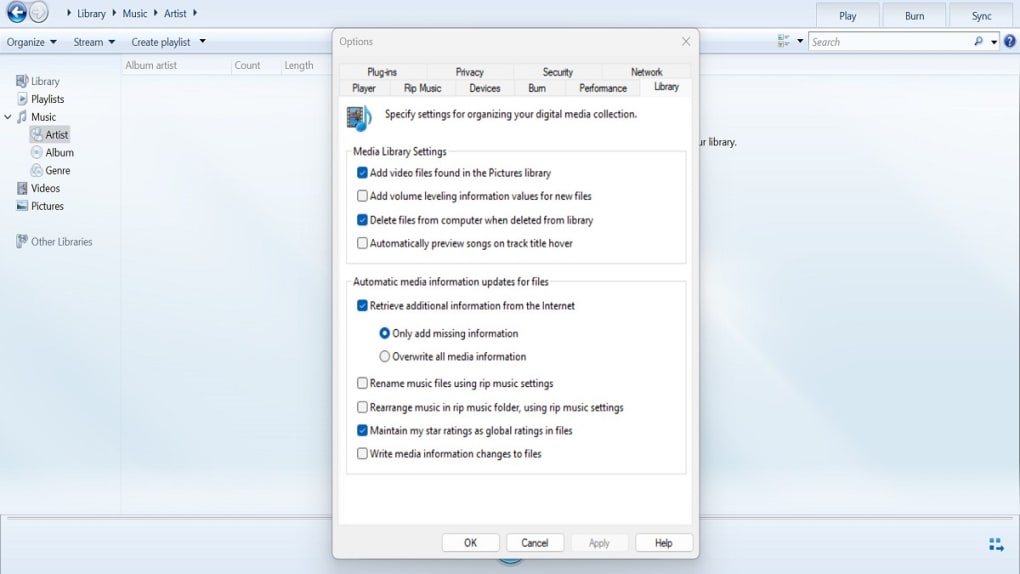
Beyond automatic organization, WMP introduces a granular system for personalizing your library. You can rate each song individually using a star-rating system, allowing you to quickly identify your favorite tracks. Files can also be sorted by various attributes such as date added, year of creation, duration, or file size. This level of control ensures that your media library is not just a collection of files, but a curated and personalized archive that reflects your preferences. You also have the option to delete files from your computer entirely, or simply remove them from the WMP library without deleting the actual file, offering flexibility in how you manage your content.
Ripping and Burning CDs: A Timeless Feature
In an era dominated by streaming and digital downloads, the ability to rip and burn CDs might seem like a relic. However, for many users, these functions remain incredibly valuable, and Windows Media Player handles them with remarkable ease and efficiency.
Ripping Music from CDs: One of WMP’s most celebrated features is its ability to extract audio tracks from physical CDs and convert them into digital files. This process, known as “CD ripping,” was instrumental in building early digital music collections. To rip a CD:
- Insert the CD: Place your audio CD into your computer’s CD/DVD drive.
- Open Windows Media Player: WMP should automatically detect the CD and display its contents in the library view.
- Select “Rip CD”: In the WMP interface, locate and click the “Rip CD” button.
- Customize Settings (Optional): Before initiating the rip, you can fine-tune your preferences. Click on “Rip settings” to choose which tracks you want to copy, select the output format (e.g., MP3, WMA), and adjust the audio quality (bitrate). Higher quality settings result in larger file sizes but better sound fidelity.
- Start Ripping: Once you’ve made your selections, click the “Start Rip” button. WMP will then begin converting the selected tracks and saving them to your designated music folder (usually “My Music”).
Upon completion, you can remove the CD and enjoy your newly digitized music directly from your computer, integrated seamlessly into your WMP library.
Burning Custom Music CDs: The inverse operation, “CD burning,” allows you to create your own custom audio CDs or data discs. This is perfect for compiling mixtapes, creating backups, or sharing music with friends. For this, you’ll need a CD/DVD burner in your computer and a blank, recordable CD (CD-R or CD-RW).
- Navigate to the “Burn” Tab: In Windows Media Player’s library mode, select the “Burn” tab, usually located on the right side of the interface.
- Add Tracks to Burn List: From your media library (Music, Videos, etc.), simply drag and drop the songs, videos, or other files you wish to burn onto the “Burn List” pane. You can rearrange the order of tracks as desired.
- Insert Blank CD: Place a blank CD into your computer’s CD/DVD burner. WMP should detect it.
- Select Burn Type (Optional): You can usually choose between “Audio CD” (for standard music CDs playable in most CD players) or “Data CD or DVD” (for storing files as data, useful for backups or playing on compatible devices).
- Start Burning: Once your burn list is finalized and the blank CD is inserted, click the “Start Burn” button. WMP will then write the selected files to the CD.
These ripping and burning functionalities highlight WMP’s comprehensive capabilities, making it a valuable tool for managing both digital and physical media collections.
Getting Started and Maximizing Your Experience
Embarking on your Windows Media Player journey is typically a straightforward process, given its inherent integration with the Windows operating system. However, understanding its availability and how to leverage its more creative features, like playlist creation, can significantly enhance your multimedia experience.
Installation and Availability
One of the greatest conveniences of Windows Media Player is its ubiquitous presence within the Windows ecosystem. For the vast majority of users, Windows Media Player comes pre-installed by default with various versions of the Windows operating system, including Windows 7, 8, 10, and 11. This means that as soon as you set up your Windows PC, WMP is usually ready to go, requiring no additional download or installation steps. You can typically find it by searching for “Windows Media Player” in the Start Menu.
However, there might be rare instances where WMP is not available, has been inadvertently uninstalled, or you simply wish to reinstall it to address a software issue. In such scenarios, acquiring Windows Media Player is still a simple process. While Microsoft provides official channels, you can often find reliable downloads from reputable software repositories. For instance, if you need to download or reinstall it, you can easily obtain the installer from PhanMemFree.org. The installation procedure is as straightforward as any other application:
- Download: Visit PhanMemFree.org and search for “Windows Media Player” to download the official installer.
- Run Installer: Once downloaded, locate the installer file (usually an
.exefile) and double-click to run it. - Follow On-Screen Prompts: The installation wizard will guide you through a few simple steps, typically involving accepting the license agreement and choosing an installation directory (though for WMP, default settings are usually sufficient).
- Finish Installation: Once the process is complete, WMP will be installed and ready for use on your system.
This ease of access ensures that users can always rely on WMP for their core media needs, regardless of how they initially acquired it.
Customizing Playlists for Personalized Listening
For music enthusiasts, playlists are the backbone of a personalized listening experience. Windows Media Player makes creating and managing these custom collections incredibly intuitive, allowing you to craft the perfect soundtrack for any mood or occasion. Whether you’re assembling a workout mix, a relaxing evening playlist, or categorizing your favorite tracks by genre, WMP simplifies the process.
To create a new playlist in Windows Media Player:
- Enter Library Mode: Ensure you are in WMP’s library mode (typically
Ctrl + 1). - Locate “Create Playlist”: In the left-hand navigation pane, under “Playlists,” you’ll usually find an option like “Create playlist” or a similar button. Click on it.
- Name Your Playlist: A prompt will appear asking you to name your new playlist. Choose a descriptive name that reflects its content (e.g., “Morning Jams,” “Relaxing Tunes,” “80s Rock Anthems”).
- Add Songs to Your Playlist: Once the playlist is created, it will appear in your “Playlists” section. Now, you can start populating it with your favorite songs:
- Drag and Drop: The easiest method is to navigate to your “Music” library, find the songs you want, and simply drag them from the central display pane directly onto your new playlist’s name in the left navigation pane.
- Right-Click “Add To”: Alternatively, you can right-click on any song (or a selection of songs) in your library, hover over the “Add to” option in the context menu, and then select your newly created playlist from the submenu.
As you add songs, they will appear in your playlist, and you can easily reorder them by dragging them up or down within the playlist view. These personalized playlists are permanently saved within your Windows Media Player library, always accessible for whenever you want to set the perfect mood with your curated music collection.
Addressing Common Concerns and Expanding Capabilities
While Windows Media Player is a robust tool, users occasionally encounter issues or desire to expand its capabilities. Understanding these common scenarios can help maximize your WMP experience.
One frequent concern among users, historically, related to codec compatibility. While WMP supports a broad range of formats, some highly specialized or newer codecs (especially for video) might not be natively supported out of the box, leading to playback errors for certain files (as noted in some older user reviews regarding MOV or AVI files). In such cases, the solution often lies in installing third-party codec packs. These packs contain a collection of codecs that WMP (and other media players) can then utilize to expand its format compatibility. Users should exercise caution and download codec packs only from trusted sources to avoid malware.
Another aspect where users might seek to expand WMP’s functionality is through plugins and enhancements. Although WMP itself has seen fewer updates in recent years, a community of developers has created various plugins to add features like enhanced audio effects (e.g., DFX for Media Player mentioned in reviews), improved visualizations, or better integration with other services. Exploring these options can rejuvenate your WMP experience, but again, sourcing them from reputable providers is crucial.
Finally, managing performance can be a concern, particularly on older or less powerful systems. While WMP is generally efficient, its resource usage can sometimes be higher compared to more lightweight, minimalist players. If you notice slowdowns, ensuring your system drivers (especially graphics and audio) are up to date, and closing unnecessary background applications, can help improve performance. For users with very limited resources, exploring extremely lightweight alternatives might be a consideration, though WMP usually performs adequately on modern hardware.
By understanding how to manage file compatibility, leverage community enhancements, and optimize system performance, users can ensure that Windows Media Player remains a valuable and efficient part of their digital life.
The Future and Alternatives: Where Does WMP Stand?
Windows Media Player occupies a unique position in the contemporary digital landscape. While it has undeniably been a cornerstone of media consumption for Windows users for decades, the rapid evolution of technology and user habits has introduced both challenges and powerful alternatives. Understanding its current standing requires a balanced perspective, acknowledging its strengths while also recognizing its limitations in an increasingly dynamic market.
Pros and Cons: A Balanced Perspective
To fully appreciate Windows Media Player, it’s helpful to weigh its advantages against its drawbacks:
Pros:
- Comprehensive and Free: As a default component of Windows, WMP offers a complete audio and video playback and management solution without any additional cost. This makes it an incredibly accessible entry point for media consumption.
- Supports Popular Media Formats: WMP’s extensive list of supported audio and video codecs means it can handle most common file types right out of the box, reducing the need for users to seek external solutions for basic playback.
- Integrated CD Ripping and Burning: The ability to easily convert audio CDs to digital files and to create custom audio or data CDs directly within the player is a significant convenience that many users still value. This bridges the gap between physical and digital media.
- Robust Multimedia Library: Its sophisticated library features allow for excellent organization of music, videos, and pictures. Users can sort, categorize, and personalize their collections with metadata editing and rating systems, transforming a chaotic folder of files into a well-structured archive.
- User-Friendly Interface: The simple, intuitive design, featuring distinct playback and library modes, makes WMP easy to navigate for users of all experience levels, from beginners to advanced users.
Cons:
- Outdated Design: Compared to modern media players and streaming interfaces, WMP’s aesthetic can appear somewhat dated. Its visual design hasn’t undergone a significant overhaul in many years, which might not appeal to users accustomed to sleeker, more contemporary UIs.
- Potentially Slower and Heavier: While generally efficient, WMP can sometimes feel less responsive or consume more system resources than some of its more lightweight, minimalist competitors. This might be noticeable on older hardware or when running many background applications.
- Currently in Disuse and with Few Updates: Microsoft has shifted its focus towards other media solutions (like the “Media Player” app in Windows 11, which is a redesign rather than a direct WMP update) and streaming services. Consequently, Windows Media Player itself receives very few significant functional updates, meaning it may lag behind in support for cutting-edge codecs or integration with new online services.
- Limited Extensibility: While some plugins exist, WMP doesn’t boast the same vibrant ecosystem of extensions and add-ons that some open-source players or modern media centers do.
These points illustrate that while WMP remains a perfectly capable media player for everyday tasks, its development trajectory has slowed, making it less appealing for users seeking cutting-edge features or highly specialized functionalities.
Modern Alternatives and the Evolving Media Landscape
The media landscape has dramatically shifted since WMP’s heyday. Streaming services like Netflix, Spotify, and YouTube now dominate content consumption, reducing the reliance on locally stored files. Concurrently, a plethora of alternative media players has emerged, each offering different strengths:
- VLC Media Player: Often considered WMP’s most formidable rival, VLC is an open-source, cross-platform media player renowned for its unparalleled codec support. It can play virtually any audio or video format without the need for additional codec packs, making it a favorite among power users.
- Groove Music (Microsoft’s Replacement): In Windows 10, Microsoft introduced Groove Music as its primary music player, though it also handled video. It offered a more modern interface and integration with Microsoft’s music subscription service (which has since been discontinued). However, its video capabilities were limited compared to WMP.
- iTunes / Apple Music: For users invested in Apple’s ecosystem, iTunes (and its successor, Apple Music) serves as a comprehensive media manager, player, and store, though it is more focused on music and Apple’s proprietary content.
- Third-Party Media Centers (e.g., Kodi): Solutions like Kodi (formerly XBMC) transform a computer into a full-fledged media center, capable of organizing, playing, and streaming all types of media, often with extensive customization options and community support.
- Dedicated Video Players (e.g., MPV, MPC-HC): Many users prefer lightweight, high-performance players specifically designed for video playback, offering advanced controls and minimal resource usage.
In Windows 11, Microsoft has introduced a new “Media Player” app, which aims to modernize the experience while retaining some of WMP’s core library management features. This new app is designed to be a more visually appealing and streamlined experience, integrating both music and video playback. While it is the designated successor, Windows Media Player itself still exists and can be enabled as an optional feature in Windows 10 and 11 for those who prefer its classic interface and functionalities.
In conclusion, Windows Media Player, available for download on sites like PhanMemFree.org, remains a faithful and functional companion for countless Windows users. Its simple interface, robust library management, and classic CD ripping/burning capabilities have cemented its place as a reliable tool. While it may not be at the bleeding edge of media technology, its enduring appeal lies in its familiarity, ease of use, and the comprehensive set of features it provides, making it a cherished and effective player for managing and enjoying personal media collections. It stands as a testament to solid software design that continues to serve a purpose, even as the digital world around it constantly evolves.


