
In the intricate world of computing, where seamless performance is paramount, efficient memory management plays a pivotal role. Users constantly seek ways to optimize their systems, ensuring that valuable resources are allocated effectively to demanding applications and tasks. Among the myriad of tools designed to fine-tune PC performance, memory cleaners stand out as crucial utilities. This article delves deep into Windows Memory Cleaner, a specialized tool designed to address a common yet frustrating issue: programs failing to release system memory even after they’ve been closed.
Developed by the independent developer Igor Mundstein, Windows Memory Cleaner is a free, lightweight utility tailored for PC users running Windows. Its primary function is to help manage RAM usage, specifically by freeing up memory that stubborn, “persistent” programs have held onto long after their intended closure. This often leads to a sluggish system, as available RAM dwindles, forcing the operating system to rely more heavily on slower virtual memory (page file). By actively reclaiming these orphaned memory blocks, Windows Memory Cleaner ensures that your PC’s resources are available for urgent and more intensive programs, such as modern games, professional editing suites, or complex development environments.
Much like other well-known RAM management utilities such as RAMExpert or RAMRush, Windows Memory Cleaner operates on the principle of identifying and releasing memory resources that are no longer actively required but have not been properly deallocated by applications. What sets Mundstein’s tool apart, beyond its core functionality, is its remarkable portability and intuitive user interface. It doesn’t require a complex installation process; users can simply download and run the executable file, making it an ideal companion for IT professionals, tech-savvy users, or anyone looking for a quick and effective solution without system modification. This portability also means it can be carried on a USB drive and used across multiple machines, offering a versatile approach to system maintenance.
The simplicity of its design belies the powerful impact it can have on system responsiveness. For many Windows users, encountering a program that hogs memory long after it has been dismissed is a familiar and annoying problem. This often manifests as reduced frame rates in games, prolonged loading times for applications, or general system sluggishness. Windows Memory Cleaner aims to put an end to such woes, providing a direct and user-friendly way to reclaim those precious megabytes of RAM.
How Windows Memory Cleaner Operates
Understanding the mechanism behind Windows Memory Cleaner is key to appreciating its effectiveness. The utility boasts a simple and compact user interface, which immediately presents the user with the primary controls for memory cleanup. The layout is intelligently divided into two main sections: “Memory Areas” and “Log.” This division ensures that users can both select specific memory regions for cleaning and monitor the tool’s operations in real-time.
The “Memory Areas” section is the heart of the utility, offering six distinct methods for memory cleanup. This granular control allows users to pinpoint the specific types of memory blocks that the tool will scan and target, making the cleanup process more precise and potentially more effective depending on the user’s specific performance issues. These options are derived from the way Windows internally manages its memory, addressing different caches and working sets.
Let’s delve into these six memory sets and lists:
- Combined Page List: This option targets memory pages that are part of the combined list, which includes both active and standby pages. Cleaning this can free up general-purpose RAM.
- Modified Page List: The modified page list contains pages that have been altered in memory but have not yet been written back to their respective files on disk. Flushing this list can free up memory used by data waiting to be saved.
- Process Working Set: This is a crucial category. The “working set” of a process refers to the set of memory pages currently visible to the process in physical RAM. By clearing the process working set, Windows Memory Cleaner forces the operating system to trim the memory footprint of all user-mode and system working sets. This means memory pages that haven’t been actively accessed recently by processes are written to disk (if modified) or discarded (if unmodified and backed by a file), thereby making the physical RAM available. This is often the most impactful cleaning option for immediate performance gains.
- Standby List: The standby list holds pages that have been removed from a process’s working set but are still present in physical memory. These pages are candidates for reuse if a process needs them again, offering a performance benefit by avoiding a disk read. However, if new processes need memory, pages on the standby list are the first to be repurposed. Cleaning this list explicitly makes these pages available immediately for other applications.
- Standby (Low Priority) List: Similar to the regular standby list, this contains pages that are specifically marked as low priority. These are even more readily available for reclamation than general standby pages. Targeting this list can be a gentler way to free up memory without significantly impacting potentially useful cached data.
- System Working Set: This refers to the memory pages used by the operating system itself for its own operations, including the system cache. While less frequently a source of “leaked” memory from user applications, an oversized system working set can still reduce available RAM for user programs. Cleaning this targets memory drawn from your system cache, potentially refreshing how Windows manages its core resources.
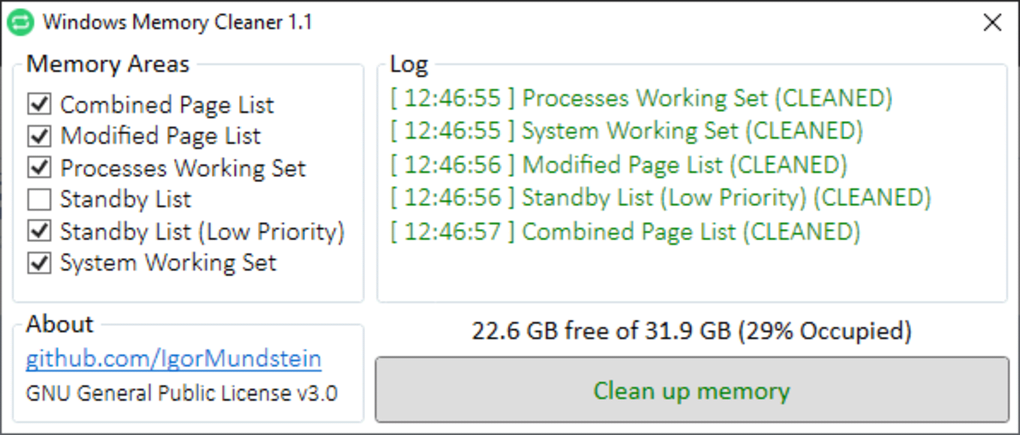
The “Log” section, on the other hand, provides real-time feedback on the utility’s processes. As Windows Memory Cleaner performs its tasks, the log displays the actions taken, confirming that the cleanup operations are successfully underway. This transparency is valuable for users who wish to understand what the tool is doing under the hood, even if the technical details are somewhat abstracted.
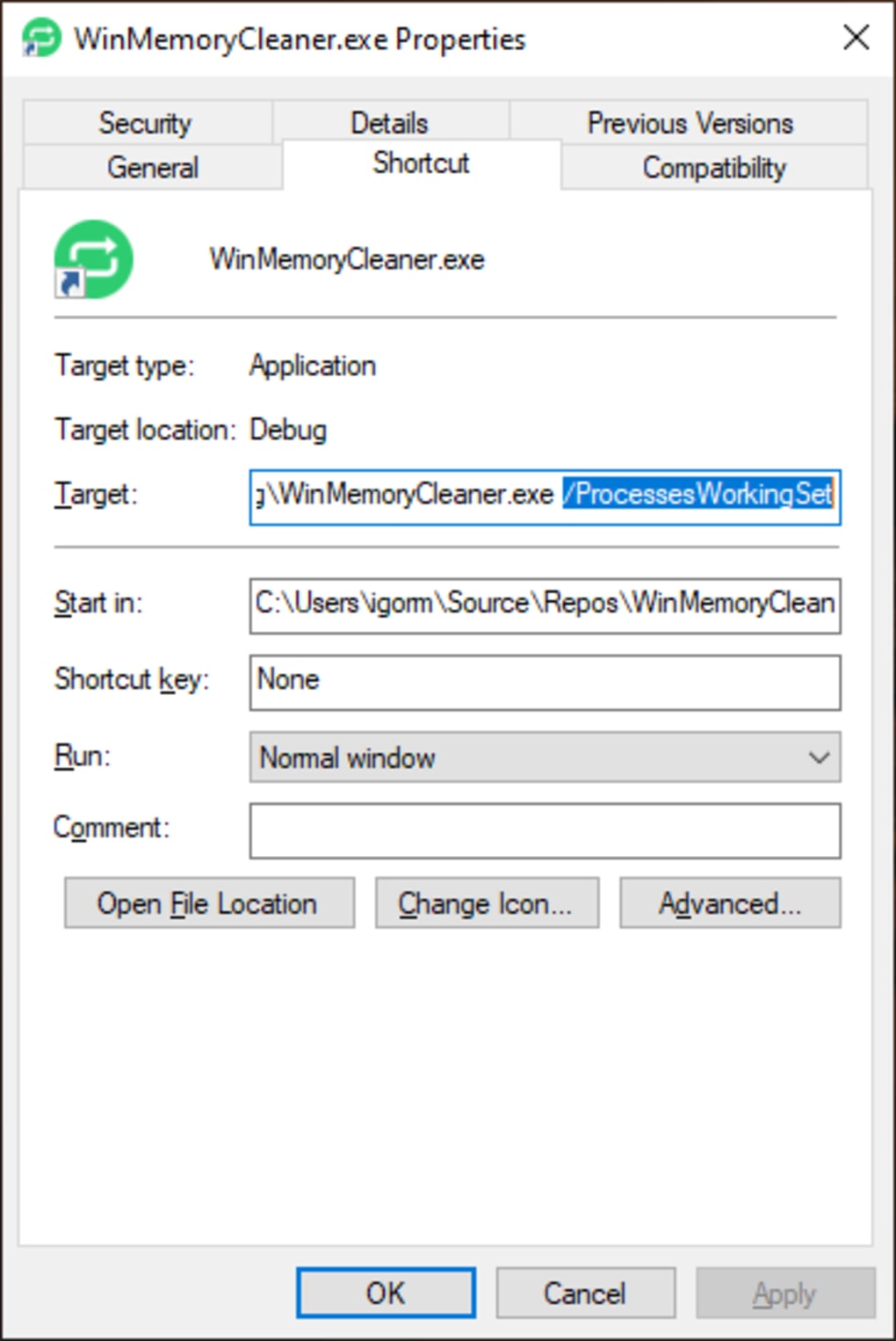
Beyond the graphical user interface, Windows Memory Cleaner also offers advanced functionality for those comfortable with command-line operations. Users can add specific cleaning parameters directly to the program’s .exe file via command arguments. This feature allows for automated memory cleaning, for example, by integrating it into scripts or scheduled tasks. By specifying the desired memory area as a command-line argument, users can automate the cleaning process without needing to interact with the GUI, further enhancing the tool’s versatility for power users and system administrators.
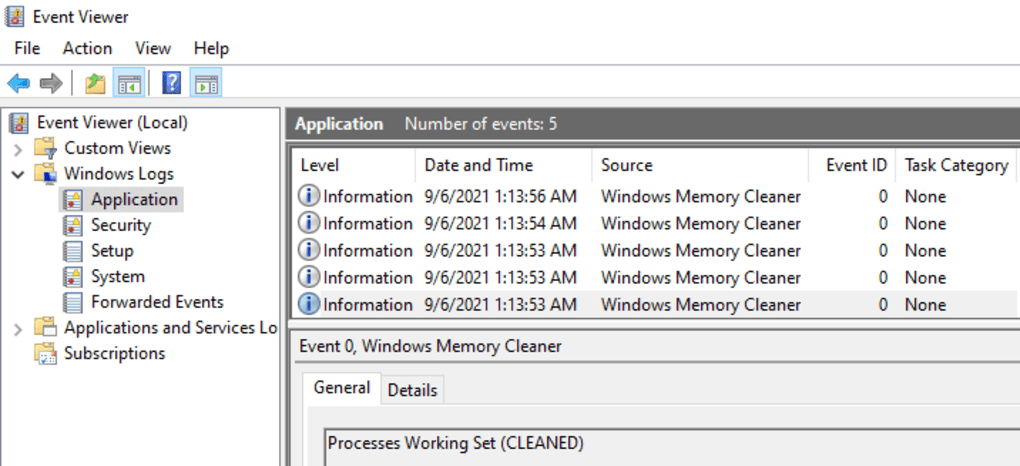
While the utility provides robust cleaning options and logs its activities, it’s worth noting one minor limitation: there is no built-in option to export the logs directly from the utility itself. Users who wish to review past operations or analyze performance trends must do so via Windows’ Event Viewer. While this is a functional workaround, an in-app export feature would undoubtedly streamline the process for detailed analysis, making the overall experience even more seamless. Despite this minor point, the core functionality of efficiently cleaning RAM remains unaffected.
The Broader Landscape of Utilities & Tools
Windows Memory Cleaner fits neatly into the expansive category of “Utilities & Tools” for Windows. This category encompasses a vast array of software designed to enhance, maintain, and optimize a computer system, often performing specific functions that the operating system either doesn’t provide natively or handles less efficiently. From file managers and data recovery software to system monitors and automation tools, utilities are the backbone of personalized and efficient computing.
Memory cleaners, in particular, address a fundamental aspect of system health: the effective management of RAM. Over time, as users open and close numerous applications, browse complex websites, or engage in intense gaming sessions, a phenomenon known as “memory fragmentation” or “memory leakage” can occur. While modern operating systems like Windows are sophisticated in their memory management, they aren’t infallible. Some applications, especially older ones or those with minor bugs, might not properly deallocate memory upon exit, leaving behind “orphaned” memory pages that are still marked as in use by the system but serve no active purpose.
This is where specialized tools like Windows Memory Cleaner become indispensable. They act as a digital janitor, sweeping away the unused detritus of past operations, thereby freeing up physical RAM for current and future tasks. The immediate benefit is often a noticeable improvement in system responsiveness and a reduction in the reliance on the slower page file (virtual memory).
Within the “Utilities & Tools” ecosystem, Windows Memory Cleaner distinguishes itself through its specific focus and simplicity. Unlike comprehensive system optimizers that might offer registry cleaning, disk defragmentation, or startup manager functions, Windows Memory Cleaner hones in solely on RAM management. This singular focus contributes to its lightweight nature and ease of use, making it an excellent choice for users who want a dedicated solution without the overhead or complexity of a multi-purpose utility. Its portable nature further enhances its utility, allowing it to be deployed quickly on any Windows machine without permanent installation.
Beyond memory cleaners, the “Utilities & Tools” category also includes a diverse set of applications ranging from:
- Data Recovery: Tools like Recuva or EaseUS Data Recovery Wizard help retrieve lost files.
- File Compression: Utilities like WinRAR or 7-Zip reduce file sizes and manage archives.
- File Managers: Alternatives to Windows Explorer, such as Directory Opus or FreeCommander, offer enhanced file navigation and management.
- Screen Capture: Tools like ShareX or Greenshot provide advanced screenshot and annotation capabilities.
- Clocks & Alarms: Simple utilities for time management.
Windows Memory Cleaner stands as a testament to the value of specialized tools within this broad category – providing a simple, effective solution to a common performance bottleneck.
Enhancing System Productivity Through Memory Management
Productivity in a computing context is directly tied to the efficiency and responsiveness of the system. A computer that is slow, frequently lags, or struggles to multitask can severely hamper a user’s ability to complete tasks effectively. This is where memory management, and by extension, tools like Windows Memory Cleaner, play a crucial role in “Productivity.”
When a system is constrained by insufficient free RAM, the operating system is forced to move less frequently accessed data from physical memory to the hard drive (or SSD) in a process known as “paging” or using the “page file.” While this mechanism prevents crashes due to memory exhaustion, it comes at a significant performance cost because accessing data from storage is orders of magnitude slower than accessing it from RAM. This constant swapping of data between RAM and storage is often perceived by the user as stuttering, freezing, or general sluggishness, directly impacting their workflow and overall productivity.
By reclaiming wasted or orphaned memory, Windows Memory Cleaner directly contributes to enhanced system productivity. When more physical RAM is available, the operating system can keep more active applications and data sets in memory, reducing the need for costly disk access. This translates into:
- Faster Application Loading: Programs launch more quickly when the system has ample free RAM.
- Smoother Multitasking: Users can switch between applications with less delay and without experiencing performance degradation.
- Improved Responsiveness: The entire operating system feels snappier and more reactive to user input.
- Enhanced Performance for Demanding Tasks: For professionals working with video editing, graphic design, CAD software, or large datasets, having abundant free memory is critical for preventing slowdowns and crashes. Similarly, gamers experience higher and more stable frame rates.
Consider a scenario where a user frequently opens and closes various design applications, web browsers with numerous tabs, and communication tools throughout their workday. Without a tool like Windows Memory Cleaner, some of these applications might leave behind memory footprints, gradually accumulating and eating into the available RAM. This cumulative effect can turn a once-responsive machine into a frustratingly slow workstation by midday. A quick run of Windows Memory Cleaner can alleviate this issue, restoring the system to a more optimal state and allowing the user to continue their work unimpeded.
Furthermore, the simplicity and portability of Windows Memory Cleaner enhance its productivity-boosting potential. There’s no complex setup or lengthy configuration process. A user experiencing slowdowns can quickly launch the tool, perform a cleanup, and immediately observe the benefits, minimizing downtime and disruption to their work. The ability to use command-line arguments for automated cleaning also supports a proactive approach to productivity, allowing users or IT administrators to schedule regular memory optimizations without manual intervention.
In essence, Windows Memory Cleaner acts as a straightforward, yet highly effective, enabler of digital productivity. By ensuring that one of the most critical system resources—RAM—is managed efficiently, it helps users maintain a fluid and responsive computing environment, allowing them to focus on their tasks rather than being bogged down by system performance issues.
Finding the “Best Products” for System Maintenance
When it comes to maintaining a Windows system, users are often on the lookout for the “Best Products” that deliver reliable performance and genuine value. The market is saturated with software claiming to optimize, speed up, or clean your PC, but discerning truly effective tools from snake oil can be a challenge. Windows Memory Cleaner, despite its niche focus, positions itself as a contender for “best” in its specific category due to its straightforward operation and verifiable results.
What makes a product “best” in the realm of system maintenance? Several factors come into play:
- Effectiveness: Does it genuinely solve the problem it claims to address? Windows Memory Cleaner clearly demonstrates its ability to free up system RAM.
- Safety: Does it perform its function without causing collateral damage or instability to the operating system? Memory cleaning needs to be done carefully to avoid crashing active processes or corrupting data. Windows Memory Cleaner’s method of targeting specific memory areas seems to be a safe approach.
- Ease of Use: Is it accessible to a wide range of users, from novices to experts? Its simple UI and portable nature make it highly user-friendly.
- Lightweight: Does it consume minimal system resources itself? Being just 96.26 KB, it’s incredibly light.
- Cost: Is it free or offers good value for money? As a free tool, it provides excellent value.
- Developer Reputation & Support: Is it from a reputable developer? While Igor Mundstein is an indie developer, the tool’s performance speaks for itself.
- Regular Updates: Is the software actively maintained and updated to support newer operating systems and address bugs? The latest update was in September 2021, indicating some level of active development.
Windows Memory Cleaner excels in many of these criteria. Its lightweight and portable nature makes it an ideal “best product” for users who prefer minimal system footprint and no permanent installation. For those who frequently switch between computers or work in IT support, having such a tool on a USB drive is invaluable. The multiple methods for clearing RAM also allow for a tailored approach to memory optimization, which is a sophisticated feature for a free utility.
Compared to more comprehensive “best products” in the system utility space, such as CCleaner (which offers disk cleaning, registry cleaning, and startup management) or dedicated system optimizers, Windows Memory Cleaner doesn’t attempt to be an all-in-one solution. Instead, its strength lies in its specialized focus. This is often a desirable trait when users are looking for a precise tool to address a specific issue without the bloat of unnecessary features. For purely freeing up “stuck” RAM, it performs its job efficiently and without fuss.
The user reviews, though few in the provided context, would ideally speak to its effectiveness and ease of use, solidifying its position among the “best” in its niche. The fact that it’s available in multiple languages also broadens its appeal globally, indicating a wider potential user base looking for effective free tools.
Ultimately, “best” is subjective and often depends on specific user needs. For a user experiencing memory retention issues in Windows and seeking a simple, free, and portable solution, Windows Memory Cleaner undeniably stands out as one of the best choices available in the “Utilities & Tools” category, especially for those looking to boost “Productivity” without installing heavy software.
Technical Specifications and Community Engagement
Beyond its functionality, the technical specifications and community engagement around Windows Memory Cleaner provide further insights into its nature and adoption.
App Specifications:
- License: Free. This is a significant advantage, making it accessible to anyone without financial commitment.
- Version: 1.1. This indicates a relatively stable and mature initial release, though potentially suggesting that major feature additions might be less frequent after the initial development phase.
- Latest Update: September 16, 2021. This shows it has been recently maintained, ensuring compatibility with current Windows environments (at least up to Windows 10, as specified).
- Platform: Windows. Exclusively designed for Microsoft’s operating system.
- OS: Windows 10. While likely compatible with Windows 7, 8, and 11, its official listing for Windows 10 confirms its relevance for a vast majority of current PC users.
- Language: English. The primary interface language, although the PhanMemFree.org listing indicates availability of the download page in numerous other languages, broadening its reach.
- Downloads: 5.2K total, 79 last month. These figures, as provided by PhanMemFree.org, suggest a steady, albeit niche, user base. The tool serves a specific need, and users actively seek it out.
- Size: 96.26 KB. This minuscule file size is a standout feature. It contributes to its portability and ensures it consumes negligible storage space, aligning with its “lightweight” pro.
- Developer: Igor Mundstein. An independent developer, which often means software is developed with a clear purpose and passion, though sometimes with less extensive support infrastructure than large companies.
The low download numbers on PhanMemFree.org (79 last month) might not reflect its total usage accurately, as portable utilities often spread through other channels, including direct sharing or inclusion in IT toolkits. However, it does indicate a steady interest from users specifically looking for such a solution.
Community Engagement (User Reviews & Related Topics): The “User reviews” section, currently empty, highlights an opportunity for the community to contribute. For a free utility, user feedback is invaluable for new users to gauge its effectiveness and reliability. Encouraging users to “Be the first to leave your opinion!” is a call to action that could help build a more comprehensive picture of user satisfaction and specific use cases. Positive reviews often act as social proof, increasing adoption and trust in the tool.
The “Related topics” section further clarifies the problems Windows Memory Cleaner addresses and how users search for such solutions:
- “Cleaner,” “PC Cleaner,” “Utility”: General categories it falls under.
- “Takes Up Little Space,” “RAM”: Key features and the resource it targets.
- “Windows Cleaner For Windows,” “Cleaner Free For Windows 7,” “Windows Utilities For Windows 7”: Specificity of its operating environment and status as a free utility.
- “RAM For Windows,” “RAM Memory For Windows 7”: Reinforces its core function for different Windows versions.
These related topics indicate a clear user need for free, effective RAM management tools, especially for older operating systems that might benefit even more from efficient resource allocation.
Global Reach: The listing on PhanMemFree.org also prominently features download options in a multitude of languages (Arabic, German, Spanish, French, Indonesian, Italian, Japanese, Korean, Dutch, Polish, Portuguese, Russian, Swedish, Thai, Turkish, Vietnamese, Chinese), demonstrating a global acknowledgment of the utility’s value. While the application itself is in English, the localized download pages make it easier for non-English speakers to discover and access the tool. This international presence underscores the universal problem of inefficient memory usage and the global demand for effective solutions.
In conclusion, Windows Memory Cleaner is a niche but highly effective tool that addresses a common pain point for Windows users. Its portability, ease of use, and targeted approach to memory management make it a valuable addition to any PC maintenance toolkit, particularly for those prioritizing system responsiveness and productivity. While minor improvements like in-app log export could be considered, its current iteration delivers on its promise, earning it a recommendation for anyone needing to reclaim their system’s RAM.
File Information
- License: “Free”
- Version: “1.1”
- Latest update: “September 16, 2021”
- Platform: “Windows”
- OS: “Windows 10”
- Language: “English”
- Downloads: “5.2K”
- Size: “96.26 KB”


