
Windows Password Unlocker is a software utility designed to help users regain access to their Windows systems when they’ve forgotten or lost their passwords. This guide provides a detailed overview of the software, its functionality, usage instructions, pros and cons, and explores alternative solutions.
Understanding Windows Password Unlocker
Forgetting your Windows password can be incredibly frustrating, effectively locking you out of your own computer and its crucial data. Windows Password Unlocker aims to resolve this issue by providing a means to bypass or reset the forgotten password. The software typically involves creating a bootable disc (CD or USB drive) containing the unlocker application. This bootable media allows you to start your computer independently of the standard Windows boot process, giving the unlocker access to the system’s password settings. From there, you can reset the password, enabling you to regain access to your system.
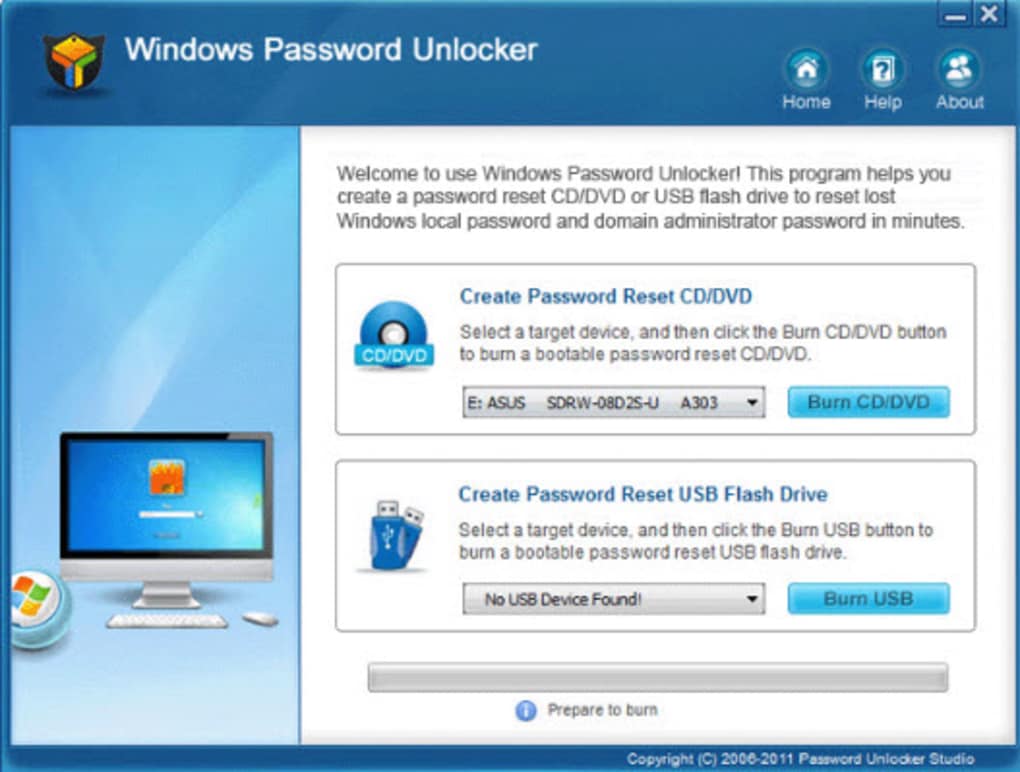
The process generally involves three main stages:
-
Preparation: This stage involves downloading the Windows Password Unlocker software and burning its ISO image to a blank CD, DVD, or USB drive. This creation of a bootable media is crucial; the software won’t work if launched directly from within Windows.
-
Booting from the Bootable Media: After creating the bootable media, you insert it into your computer and restart your system. You then need to access your computer’s BIOS (Basic Input/Output System) settings. This is usually done by pressing a specific key (such as Del, F2, F10, F12, or Esc) repeatedly during the initial boot-up sequence. The exact key varies depending on your computer’s manufacturer and motherboard. Within the BIOS, you need to configure the boot order to prioritize the bootable media (CD/DVD/USB drive) over your hard drive. This ensures that the computer boots from the Windows Password Unlocker media instead of Windows itself.
-
Password Reset: Once the computer boots from the bootable media, the Windows Password Unlocker application launches. This application provides a user interface to select the user account whose password needs to be reset and then allows you to set a new password. After setting the new password, you can restart your computer normally, and you should be able to log in with your newly created password.
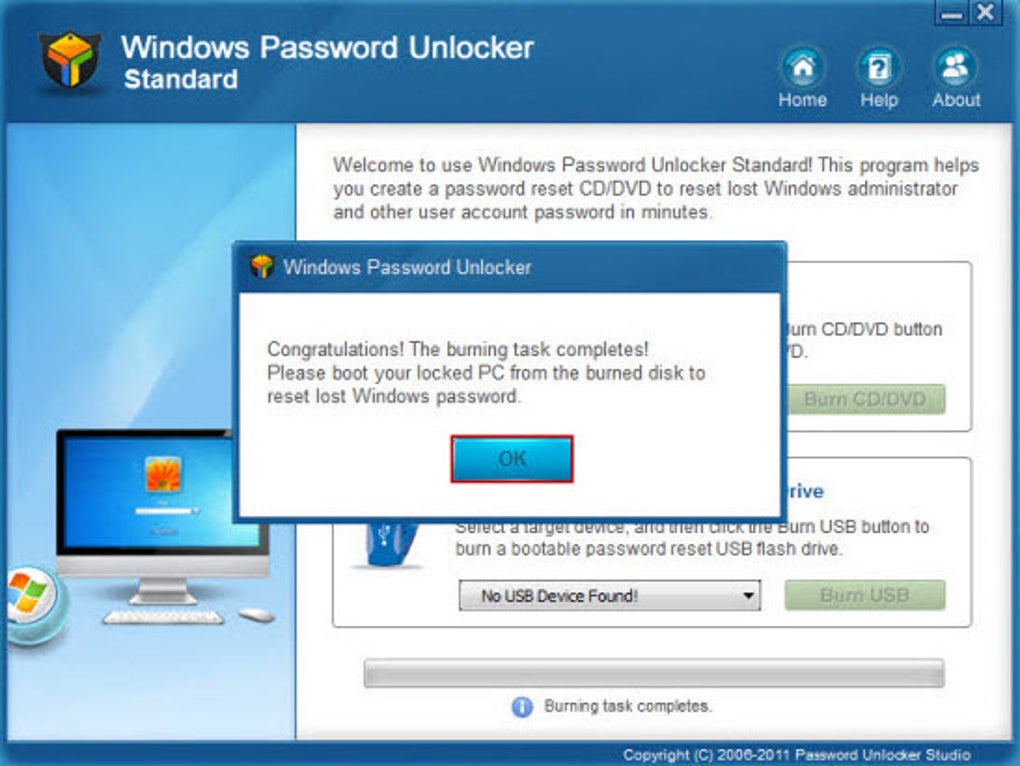
It’s important to note that the process can seem technically challenging for users unfamiliar with BIOS settings and boot order adjustments. However, many password unlocker programs, including Windows Password Unlocker, include comprehensive help files or tutorials to guide you through each step. These guides often contain visual aids and detailed explanations to simplify the process.
Features and Functionality
While the core function of Windows Password Unlocker remains straightforward – resetting forgotten Windows passwords – the software’s implementation may vary depending on the version and edition. Some versions might offer advanced features, such as support for various Windows operating systems (including Windows 7, XP, Vista, 2000, and Server versions), options for resetting local and domain passwords, and the ability to create bootable media from different sources (CD, DVD, or USB). Different editions (Standard, Professional, Enterprise) might cater to varying user needs and levels of complexity, potentially offering additional features or support.
Pros and Cons of Using Windows Password Unlocker
Like any software solution, Windows Password Unlocker has its advantages and disadvantages.
Pros:
- Effectiveness: Its primary function—resetting forgotten passwords—is generally effective, providing a solution to a common and frustrating problem.
- Comprehensive Tutorials: Most versions include user-friendly tutorials and help files, guiding users through the process, even for those with limited technical experience.
- Wide Operating System Compatibility: It often supports a wide range of Windows operating systems, addressing the needs of users with diverse system setups.
- Relative Ease of Use (Once Understood): While the initial steps might seem complex, the actual password reset process, once the bootable media is created and the system booted from it, is usually straightforward.
Cons:
- Technical Complexity: The initial steps, particularly modifying the BIOS boot order and creating bootable media, can be intimidating for users lacking technical expertise.
- Trial Version Limitations: Trial versions may have limitations, such as preventing the actual password reset, allowing users to only go through the steps up to the point of the reset without actually changing the password.
- Potential for Errors: Incorrectly following the instructions or making mistakes during the BIOS configuration can lead to problems.
- Security Concerns: While reputable software developers prioritize security, using third-party password recovery tools introduces a degree of risk, particularly if downloaded from untrusted sources.
Alternative Methods for Windows Password Recovery
While Windows Password Unlocker is a viable option, several alternatives exist for recovering lost Windows passwords. These options offer varying levels of complexity and technical expertise requirements.
-
Built-in Windows Features (for some situations): Depending on the Windows version and configuration, some built-in features might help. For example, some versions allow password resets using a Microsoft account or a local administrator account.
-
Microsoft Account Reset: If your account is linked to a Microsoft account, you might be able to reset your password online using the Microsoft account recovery process. This method bypasses the need for any third-party software.
-
Local Administrator Account: If another user account on the computer has administrator privileges, that user can easily reset the forgotten password through the Windows user management settings.
-
Other Password Recovery Software: Numerous alternative password recovery tools are available, offering similar functionality to Windows Password Unlocker but with potentially different interfaces, features, and ease of use. Carefully research and choose reputable software from trusted sources.
-
Professional IT Support: For situations where other methods fail or are too complex, seeking assistance from a professional IT support service is a reliable option.
Choosing the Right Password Recovery Method
The optimal method for Windows password recovery depends on individual circumstances and technical skills. Consider the following factors:
-
Technical Proficiency: If you’re comfortable with BIOS settings and manipulating boot orders, Windows Password Unlocker or similar tools might be suitable. However, if you’re less tech-savvy, simpler options like the Microsoft account reset or seeking professional help might be preferable.
-
Urgency: If you need immediate access, professional IT support might be the fastest option, although it involves a cost.
-
Risk Tolerance: Using third-party software always involves a degree of risk. Carefully evaluate the trustworthiness of the software source before downloading and using it.
Conclusion
Windows Password Unlocker offers a functional solution for resetting forgotten Windows passwords. However, its technical complexity might deter less tech-savvy users. Before resorting to third-party tools, exploring built-in Windows features or simpler alternatives should be considered. Always prioritize downloading software from reputable sources to mitigate security risks. For individuals lacking confidence in tackling technical aspects, seeking professional assistance is a reliable and efficient alternative. Remember to always practice good password management techniques to avoid the need for password recovery tools in the future. This includes using strong, unique passwords and employing password managers to securely store them.
File Information
- License: “Trial version”
- Version: “5.2”
- Latest update: “August 25, 2011”
- Platform: “Windows”
- OS: “Windows 2003”
- Language: “English”
- Downloads: “40.3K”
- Size: “24.48 MB”


