
In the evolving landscape of operating systems, compatibility has always been a significant hurdle. Each new iteration of Windows brought with it advancements, but also the potential for older, essential software and hardware to become incompatible. This challenge was particularly pronounced with the transition from the widely beloved and long-standing Windows XP to the more modern Windows 7. Recognizing the critical need for businesses and individual users to maintain access to their legacy applications, Microsoft introduced a remarkable solution: Windows XP Mode.
Windows XP Mode is a free virtualization software designed primarily for Windows 7 users, allowing them to run a fully functional instance of Windows XP within a virtual machine environment. While it offered rudimentary support for other Windows operating systems, its core strength lay in seamlessly bridging the compatibility gap between Windows 7 and its predecessor. Provided directly by Microsoft, it was free to download and install, though it inherently required a valid Windows XP license key to be fully utilized. Its key appeal, as noted in many technical evaluations, including those on PhanMemFree, was its impressive performance, often outperforming many competing third-party virtual machines when running on the same operating system. This unique offering addressed a crucial demand, allowing users to leverage the benefits of Windows 7 while retaining the ability to execute applications that were specifically designed for the Windows XP ecosystem.
The Genesis and Purpose of Windows XP Mode
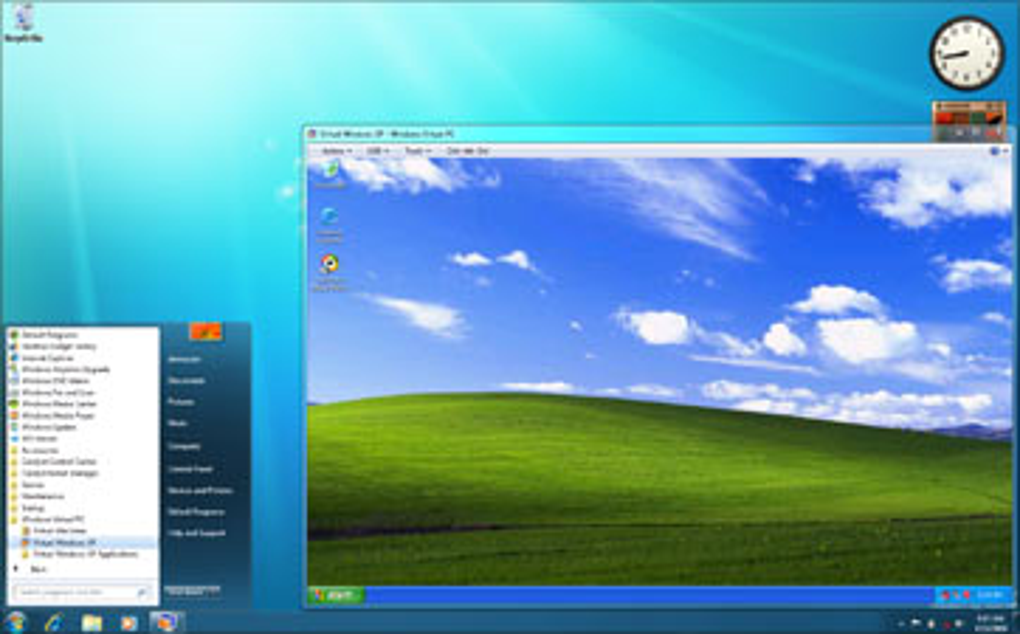
The introduction of Windows XP Mode was not a mere technical add-on; it was a strategic response to a pressing market need. Windows XP, released in 2001, had an incredibly long and successful run, becoming the backbone for countless businesses and personal computers worldwide. Its widespread adoption meant a vast ecosystem of applications, peripherals, and custom software solutions had been developed specifically for it. When Windows 7 was released in 2009, bringing with it a more robust kernel, enhanced security features, and a revamped user interface, it also introduced a degree of backward incompatibility. Many older applications, particularly those with deep system hooks or designed with specific XP-era dependencies, simply would not run correctly, if at all, on Windows 7.
This posed a significant dilemma for organizations and individuals. Upgrading to Windows 7 offered clear advantages in terms of performance, security, and modern features, but the thought of abandoning mission-critical legacy software or replacing expensive, custom-built hardware was a non-starter for many. Businesses, in particular, often relied on bespoke applications for inventory management, accounting, specialized manufacturing processes, or diagnostic tools that might have cost tens of thousands of dollars to develop and could not be easily ported or replaced.
Microsoft’s solution was Windows XP Mode, which leveraged their existing virtualization technology, Microsoft Virtual PC. The fundamental idea was to create a virtual environment that mimicked a complete Windows XP Service Pack 3 installation, allowing these stubborn applications to run within their native habitat. By providing this as a free, first-party solution, Microsoft aimed to smooth the transition to Windows 7, encouraging adoption while mitigating one of the biggest deterrents: application compatibility. Users could install Windows XP Mode, set up their legacy applications within it, and crucially, even integrate these applications into the Windows 7 Start Menu, making them appear as if they were running natively on the Windows 7 desktop. This seamless integration was a hallmark feature, distinguishing it from simply running a generic virtual machine and requiring users to switch between environments explicitly. It was an elegant compromise that offered the best of both worlds, ensuring productivity wasn’t hampered by an OS upgrade.
Core Features and Technical Specifications
Windows XP Mode, combined with Microsoft Virtual PC, brought forth a suite of features designed to make running legacy applications as straightforward and performant as possible. Its architecture and design choices reflected a clear understanding of the needs of users struggling with compatibility.
First-Party Virtualization and Performance Advantages
At its heart, Windows XP Mode was a first-party virtualisation solution from Microsoft itself. This native development provided several inherent advantages. Unlike third-party virtualization software that had to guess or reverse-engineer certain aspects of Windows, Microsoft’s direct control over both the host (Windows 7) and guest (Windows XP) operating systems allowed for deeper integration and optimization. This is precisely why, as observed by reviewers on PhanMemFree, Windows XP Mode was “quite a bit faster in our tests than other VMs” of its time. This superior performance wasn’t accidental; it was a result of specialized optimizations tailored for the specific scenario of running Windows XP on Windows 7 via Microsoft Virtual PC. These optimizations likely included streamlined input/output operations, optimized memory management, and closer integration with the host’s hardware virtualization capabilities. For users relying on performance-sensitive legacy applications, this speed advantage translated directly into greater productivity and a more responsive user experience within the virtualized environment.
Wide Hardware Compatibility and Seamless Peripheral Integration
One of the most critical aspects of enabling legacy application support is ensuring that the virtualized environment can interact effectively with various hardware. Many legacy applications were designed to communicate directly with specific peripherals, such as specialized printers, barcode scanners, manufacturing equipment, or diagnostic tools. Windows XP Mode excelled in this area, boasting “a wide variety of hardware compatibility: it’s on par with Windows XP itself in terms of usability with different keyboards, mice, printers and other peripherals.” This meant that once these peripherals were connected to the Windows 7 host, they could often be made available to the virtualized Windows XP environment with minimal fuss. Users could, for example, print from an XP-era application running in XP Mode to a printer connected to their Windows 7 machine, or use a proprietary USB device that only had XP drivers. This comprehensive peripheral support was a major differentiator and a key factor in its utility for businesses that could not simply upgrade their specialized hardware. The ability to “pass-through” USB devices directly to the virtual machine was particularly useful for dongle-based licensing or unique hardware interfaces.
System Requirements and Security Considerations
To run Windows XP Mode, users needed specific prerequisites on their Windows 7 host machine. The most crucial requirements included:
- Windows 7 Edition: Only Windows 7 Professional, Enterprise, or Ultimate editions supported Windows XP Mode. Home Premium and Starter editions were excluded, reflecting Microsoft’s targeting of business and power users.
- Hardware Virtualization: The host CPU needed to support hardware virtualization technology, such as Intel VT (Virtualization Technology) or AMD-V (AMD Virtualization). While many modern CPUs had this, older systems might not have, or it might have been disabled in the BIOS/UEFI, requiring users to enable it manually.
- RAM and Disk Space: A minimum of 2GB RAM was recommended for the Windows 7 host, with additional RAM allocated to the Windows XP virtual machine (typically 256MB to 512MB). Adequate disk space was also necessary for the virtual hard disk image of Windows XP, which could grow significantly depending on the installed applications.
- Windows XP License Key: Although Windows XP Mode was a free download from Microsoft, it technically provided a pre-configured virtual hard disk image of Windows XP Service Pack 3. Users were still legally obligated to provide a valid Windows XP license key to activate and use the guest operating system.
In terms of security, Windows XP Mode offered “proper protection for the host operating system.” This meant that the virtualized Windows XP environment was isolated from the Windows 7 host. Even if the Windows XP instance became infected with malware or experienced crashes, the host operating system remained largely unaffected. However, it’s crucial to remember that the guest OS itself was still Windows XP, which reached its end-of-life for support in 2014. Running an unsupported operating system, even in a virtual machine, carries inherent security risks if it has network access, as it no longer receives security updates. Users were advised to keep the XP Mode isolated from direct internet access if running sensitive applications, or to ensure robust antivirus and firewall solutions were in place within the XP environment itself.
Installation and Configuration: A User’s Journey
While Windows XP Mode presented a powerful solution, its installation and initial configuration were often highlighted as a potential hurdle for “typical consumers.” The process, though logical, involved several steps that required a degree of technical understanding.
The journey began with downloading two distinct components from Microsoft’s website:
- Windows Virtual PC: This was the underlying virtualization platform, the hypervisor responsible for creating and managing virtual machines.
- Windows XP Mode Virtual Hard Disk: This was a pre-configured virtual machine image containing a licensed copy of Windows XP Service Pack 3.
Once both components were downloaded, the installation typically involved installing Windows Virtual PC first, followed by the Windows XP Mode package. The latter would set up the virtual hard disk and integrate it with Virtual PC.
Upon the first launch of Windows XP Mode, users were greeted by a setup wizard. This wizard guided them through crucial initial configurations, such as accepting the Windows XP license terms, setting up an administrative password for the virtual XP environment, and deciding whether to enable automatic updates for the virtual machine. A critical decision point during this setup was whether to enable integration features. Enabling these features allowed for seamless interaction between the host Windows 7 system and the guest Windows XP environment. This included:
- Shared Clipboard: Copying text or files between Windows 7 and XP Mode.
- Shared Drives: Accessing Windows 7 drives directly from within Windows XP Mode.
- USB Device Pass-through: Connecting a USB device to the Windows 7 host and having it appear directly in the Windows XP Mode, crucial for legacy hardware.
- Seamless Application Mode: This was arguably the most innovative feature. Once an application was installed within Windows XP Mode, its shortcut could be published to the Windows 7 Start Menu. Clicking this shortcut would launch the virtual machine in the background and display the XP application directly on the Windows 7 desktop, making it appear as if it were a native Windows 7 application. This level of integration minimized the user’s awareness that they were interacting with a virtualized environment, significantly enhancing usability.
However, despite these integration features, “setting it up can require significant effort by the standards of typical consumers.” This often stemmed from:
- BIOS Configuration: Users might need to enter their computer’s BIOS/UEFI settings to enable hardware virtualization (Intel VT-x or AMD-V), a task many casual users are unfamiliar with or hesitant to perform.
- Driver Installation: While many peripherals worked out of the box, some specialized hardware might still require manual driver installation within the Windows XP Mode environment.
- Network Configuration: Configuring network access for the virtual machine, especially for specific business environments, could sometimes be complex.
- Understanding Virtualization Concepts: Even with the seamless mode, some users found it challenging to grasp the concept of an operating system running within another, leading to confusion when troubleshooting.
For power users and IT professionals, these steps were generally manageable. For the average home user who simply wanted an old game to run, the process could be daunting, often leaving them “relying on the documentation or on themselves” due to the “limited tech support” mentioned by PhanMemFree. This meant that while the tool was free and powerful, its effective deployment often depended on the user’s technical aptitude or access to internal IT support.
Advantages and Disadvantages of Using XP Mode
Windows XP Mode, despite its specific niche and eventual obsolescence, offered a compelling set of pros and cons during its active lifecycle. Understanding these helps contextualize its impact and why it was a vital tool for many.
The Right Mode: Advantages of Windows XP Mode
The benefits of Windows XP Mode, particularly for its target audience, were substantial:
- First-Party Virtualization: Being a Microsoft product, it offered a level of integration and optimization that third-party solutions often struggled to match. This native approach often translated into better performance and fewer compatibility quirks within the virtual environment itself.
- Superior Performance: As highlighted by PhanMemFree, it was “very fast” and “quite a bit faster” than many competing virtual machines of the era. This speed was crucial for running resource-intensive legacy applications without significant slowdowns, making the virtualized experience feel more native.
- Extensive Hardware Compatibility: Its ability to work seamlessly with a “wide variety of hardware” was a game-changer. For businesses with specialized, XP-dependent peripherals (e.g., industrial control devices, medical equipment, old point-of-sale systems), XP Mode meant they could upgrade to Windows 7 without replacing costly, functional hardware.
- Free and Accessible: Provided directly by Microsoft as a free download, it removed the financial barrier associated with acquiring third-party virtualization software. This made it an accessible solution for both individual users and budget-conscious businesses (barring the need for an XP license key).
- Seamless Application Integration: The ability to publish XP applications directly to the Windows 7 Start Menu and run them in “seamless mode” was a standout feature. It allowed users to interact with legacy software almost as if it were a native Windows 7 application, significantly improving the user experience and reducing the cognitive load of switching between operating systems.
- Critical for Business Continuity: For many organizations, XP Mode was not just convenient; it was essential for business continuity. It allowed them to migrate to a more modern and secure OS (Windows 7) while preserving access to vital, un-upgradable legacy applications, thus avoiding costly downtime or re-development efforts.
The Fast and The Featureless (and Its Quibbles): Disadvantages
Despite its strengths, Windows XP Mode was not without its drawbacks, some of which became more pronounced over time:
- Limited OS Support: Its primary compatibility was with Windows 7 Professional, Enterprise, and Ultimate editions. Users of Windows 7 Home Premium, Starter, or later Windows versions (like Windows 8 or 10) were largely left out, unable to utilize this specific Microsoft-provided solution. While community workarounds existed, they were not officially supported.
- Limited Tech Support: As noted on PhanMemFree, there was “limited tech support.” Users were often left “relying on the documentation or on themselves” to troubleshoot issues. This could be particularly frustrating for non-technical users encountering installation or configuration problems.
- Setup Complexity: The installation process, requiring multiple downloads and potential BIOS adjustments for hardware virtualization, was considered “significant effort by the standards of typical consumers.” This barrier could deter less tech-savvy individuals.
- Hardware Virtualization Requirement: The absolute necessity for CPU hardware virtualization (Intel VT or AMD-V) meant that some older PCs, even if running Windows 7, might not be able to use XP Mode, creating an unexpected compatibility wall.
- End-of-Life Concerns for Windows XP: The biggest long-term disadvantage became the end-of-life (EOL) status of Windows XP itself. Microsoft officially ceased support for Windows XP in April 2014. Running an unsupported operating system, even in a virtual machine, carries significant security risks, especially if the virtualized XP environment has network access. Without security patches, it becomes vulnerable to new threats, potentially compromising data within the VM or even providing an attack vector to the host system if not properly isolated.
- Resource Consumption: While fast, running a full operating system in a virtual machine still consumed significant system resources (RAM, CPU cycles, disk I/O). On systems with limited resources, this could lead to overall performance degradation for both the host and guest OS.
- No DirectX Hardware Acceleration: For certain legacy applications, particularly older games or graphics-intensive software that relied heavily on DirectX hardware acceleration, XP Mode might not have performed optimally, as it typically relied on software rendering or limited virtualized graphics capabilities.
Overall, Windows XP Mode was a fantastic and fast virtualization option on compatible machines, offering sufficient hardware support for most routine virtualization tasks. However, its limitations in OS support, tech assistance, and the inherent risks of running an unsupported OS meant it was a transitional solution, brilliant for its time but ultimately superseded by newer technologies and the natural progression of operating system lifecycles.
The Legacy and Modern Alternatives
Windows XP Mode, while no longer actively supported or commonly used in its original form, carved out an important place in the history of operating system transitions and virtualization. Its legacy is multifaceted, reflecting both the challenges of managing backward compatibility and the ingenuity required to overcome them.
The Paving of a Path: XP Mode’s Enduring Influence
The significance of Windows XP Mode extends beyond its direct functionality. It demonstrated a concrete commitment from Microsoft to support its enterprise and prosumer users through challenging OS upgrades. By providing a first-party, free, and highly integrated solution, Microsoft validated the need for legacy application support in a way that resonated deeply with the market.
This approach influenced subsequent Microsoft efforts in compatibility. For instance, while not a direct successor, the concept of running older applications in a managed environment continued to evolve, leading to features like Hyper-V on Windows 8/10/11 Pro/Enterprise editions. Hyper-V, Microsoft’s native hypervisor, offers a more robust and feature-rich virtualization platform for running various guest operating systems, including older Windows versions, though without the specific “XP Mode” seamless integration bundle.
Windows XP Mode also highlighted the commercial viability and technical feasibility of offering highly optimized virtualization solutions. Its success spurred further development and adoption of virtualization technologies across the industry, normalizing the idea of running multiple operating systems concurrently on a single physical machine. It implicitly encouraged businesses to consider virtualization as a strategy for application longevity, even when direct OS upgrades rendered certain software obsolete.
Modern Alternatives for Legacy Software
Today, as Windows XP is long past its official end-of-life and Windows 7 is also unsupported, Windows XP Mode is largely obsolete. However, the need to run legacy software persists. Several modern alternatives exist, offering more robust, secure, and widely supported platforms for virtualization:
- VirtualBox: A free and open-source virtualization software from Oracle. VirtualBox is highly popular due to its broad support for various host and guest operating systems (including Windows XP, 7, 10, Linux, macOS) and its extensive feature set, including snapshots, shared folders, and USB pass-through. It is a go-to choice for individuals and small businesses needing to run older OSes.
- VMware Workstation Player / Workstation Pro: VMware offers powerful virtualization solutions. Workstation Player is free for personal use and allows users to run existing virtual machines, while Workstation Pro is a commercial product offering advanced features for IT professionals and developers. VMware products are known for their performance and stability.
- Microsoft Hyper-V: Built into Windows 10 Pro, Enterprise, and Education editions (and Windows Server), Hyper-V is Microsoft’s native hypervisor. It provides a robust and efficient platform for creating and managing virtual machines. While it lacks the pre-packaged XP image and seamless integration of XP Mode, it offers powerful tools for virtualizing any operating system, including older versions of Windows, for those who need a high-performance, integrated solution.
- DOSBox: For extremely old, command-line DOS-based games or applications, DOSBox remains the definitive emulator. It’s specifically designed to run DOS programs, offering excellent compatibility and performance for that particular era of software.
- Containerization (e.g., Docker): While not traditional virtualization, containerization offers an alternative for running applications in isolated environments. For certain types of legacy applications (especially server-side or stateless ones), packaging them in containers might be a more lightweight and efficient approach, though it’s less suited for full desktop OS environments or those requiring direct hardware interaction.
- Cloud Virtual Machines: Increasingly, businesses with legacy applications are moving them to cloud-based virtual machines (e.g., Azure, AWS, Google Cloud). This offers scalability, high availability, and managed infrastructure, reducing the burden of on-premise hardware and local virtualization setup.
When considering running legacy software today, users must prioritize security. Running an unsupported operating system like Windows XP, even in a virtual machine, should only be done with extreme caution. Isolation from the internet, robust host security, and careful network configuration are paramount to mitigate the risks associated with unpatched vulnerabilities.
In conclusion, Windows XP Mode was a testament to Microsoft’s understanding of its user base’s needs during a significant OS transition. It offered a “fantastic and fast virtualisation option” that prolonged the life of countless legacy applications and hardware, ensuring productivity wasn’t sacrificed for progress. While its direct utility has faded with time, its innovative approach to compatibility and seamless integration laid important groundwork for how we approach managing diverse software ecosystems in a constantly evolving technological landscape.
File Information
- License: “Free”
- Latest update: “November 10, 2021”
- Platform: “Windows”
- OS: “Windows 7”
- Language: “English”
- Downloads: “142.2K”
- Size: “492.60 MB”


