
Windows10Debloater, a free and open-source utility created by independent developer Richard Newton (Sycnex), offers advanced users and system administrators a powerful tool to customize and optimize their Windows 10 (and, to some extent, Windows 11) experience. This comprehensive guide explores the functionalities, usage, advantages, disadvantages, and alternatives to this versatile system-tweaking tool.
Understanding Windows10Debloater’s Functionality
At its core, Windows10Debloater is a collection of PowerShell scripts designed to modify various aspects of the Windows operating system. Unlike simpler system utilities, it provides granular control, allowing users to remove pre-installed apps, disable background processes, and streamline scheduled tasks—all contributing to a potentially faster and more efficient system. The scripts are not a simple “one-click solution”; they require a degree of technical understanding and caution to use effectively.
The power of Windows10Debloater lies in its ability to target specific system components that many users find unnecessary or resource-intensive. This includes:
-
Removing pre-installed apps: Windows often bundles numerous applications that many users never utilize. Windows10Debloater enables selective removal of these apps, reclaiming disk space and improving system performance by reducing startup load. This is particularly useful for users who prefer a clean, minimalist system environment. However, caution is paramount; removing critical system components can lead to instability.
-
Disabling background services: Many background processes run continuously, consuming system resources even when not actively used. Windows10Debloater can help identify and disable these services, resulting in noticeable performance gains, particularly on less powerful hardware. This requires careful consideration, as disabling essential services can compromise system functionality.
-
Managing scheduled tasks: Scheduled tasks, while useful for automated maintenance, can also contribute to system slowdowns if poorly managed. Windows10Debloater allows for selective disabling or modification of these tasks, further optimizing system performance. Again, caution is necessary; interfering with critical scheduled tasks can hinder system updates and maintenance.
Using Windows10Debloater: Three Approaches
Windows10Debloater offers three distinct interfaces, catering to users with varying levels of technical expertise:
-
Windows10SysPrepDebloater.ps1(Silent Mode): This script operates silently in the background, performing pre-defined actions without requiring user interaction. This is ideal for experienced users comfortable with the potential consequences of automated changes. It’s a powerful option for mass deployment or unattended system customization. The lack of user interaction, however, eliminates the possibility of making selective choices. -
Windows10Debloater.ps1(Interactive Mode): This script offers a more interactive experience, prompting users to make choices about which components to remove or disable. This provides a degree of control and allows for a more tailored approach to system optimization. It strikes a balance between automation and user control, making it suitable for intermediate-level users who want a customized experience. -
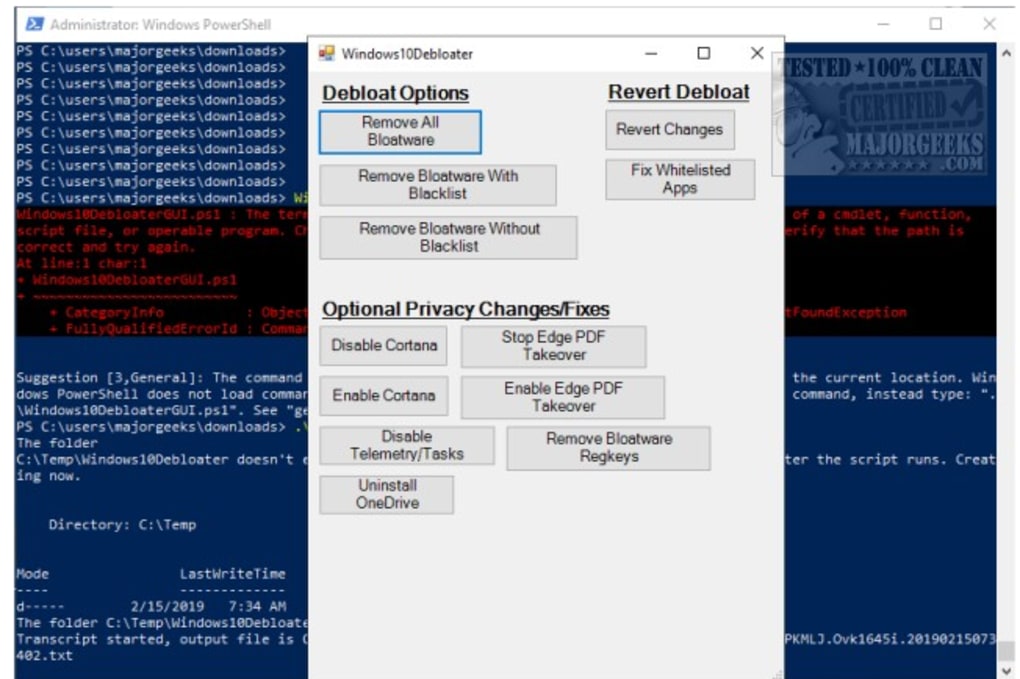
Windows10DebloaterGUI.ps1(Graphical User Interface): Designed for beginner users, this script provides a user-friendly graphical interface, simplifying the process of selecting and applying changes. The visual interface reduces the learning curve significantly, making it more accessible to users unfamiliar with PowerShell commands. However, it might not offer the same level of granular control as the interactive script.
Regardless of the chosen script, running Windows10Debloater requires administrative privileges within Windows PowerShell and potentially the enabling of unrestricted script execution (depending on your security settings). Incorrect usage can lead to system instability or data loss. Always back up your system before making any significant changes.
Advantages and Disadvantages of Using Windows10Debloater
Advantages:
- Granular control: Offers fine-grained control over various aspects of the Windows operating system.
- Improved performance: Can significantly improve system performance by removing unnecessary apps and services.
- Increased efficiency: Reduces the system’s resource consumption, leading to a more responsive experience.
- Open-source and free: Available free of charge and open for review and modification.
- Multiple interfaces: Caters to different user skill levels through its various execution modes.
- Customization: Allows for a personalized Windows experience tailored to individual needs and preferences.
Disadvantages:
- Steep learning curve: Requires a good understanding of Windows internals and PowerShell to use effectively.
- Potential for errors: Incorrect usage can lead to system instability, data loss, or unexpected behavior.
- Limited Windows 11 support: While some functionality may carry over, it’s primarily designed for Windows 10.
- Security concerns: Disabling security features or services can leave the system vulnerable.
- Irreversible changes (potentially): While some changes can be reversed, others might require system restoration or reinstallation.
- No official support: Being an independent project, users rely solely on community support and documentation.
Alternatives to Windows10Debloater
Several alternative tools offer similar functionalities, each with its own strengths and weaknesses:
-
Win Toolkit: A comprehensive suite of tools for creating custom Windows installations, tweaking system settings, and optimizing performance. Offers a wider range of functionalities than Windows10Debloater, but also a steeper learning curve.
-
Debloat Windows 10: A dedicated tool for removing pre-installed Windows 10 apps. Simpler to use than Windows10Debloater but offers less granular control.
-
Windows 11 Debloater: Similar in function to its Windows 10 counterpart, but tailored to the Windows 11 operating system.
-
Extended GodMode: Provides access to a wide range of system settings and configurations, albeit through a less targeted approach than Windows10Debloater.
-
Bloatbox: Aimed at streamlining the Windows app ecosystem, focusing on uninstalling unwanted software. Offers a simpler interface than Windows10Debloater.
The choice of the best alternative depends on individual needs and technical skills. Users seeking advanced, granular control might find Windows10Debloater suitable, while those preferring simplicity and ease of use might opt for simpler alternatives.
Conclusion:
Windows10Debloater is a powerful tool for experienced users seeking to optimize their Windows experience. However, its complexity demands caution and a thorough understanding of the potential risks. Before using it, users should back up their systems, carefully research the functions of each script, and proceed with awareness of the potential consequences. For less technically inclined users, simpler alternatives may offer a more user-friendly approach to system optimization. Always prioritize responsible usage and understand that any modification to the operating system carries inherent risks.
File Information
- License: “Free”
- Version: “varies-with-devices”
- Latest update: “July 20, 2021”
- Platform: “Windows”
- OS: “Windows 7”
- Language: “English”
- Downloads: “6.8K”
- Size: “24.87 KB”


