
WinRAR is a widely-used archiving utility known for its speed, efficiency, and advanced features. While primarily associated with Windows, it also boasts a macOS version, albeit with a different approach to user interaction. This guide delves into the intricacies of WinRAR, addressing its capabilities, usage, and limitations, specifically focusing on the Mac experience.
Understanding WinRAR: What It Is and Why You Might Need It
WinRAR is a file compression and archiving program designed to create smaller, more manageable archive files. This is crucial for efficient storage, faster file transfers (reducing bandwidth consumption and transfer times), and easier sharing of files via email or online platforms with size restrictions. The software excels at creating archives, offering a range of advanced features beyond basic compression. WinRAR supports several archive formats, most notably RAR (its namesake) and ZIP, though the macOS version has limitations compared to its Windows counterpart.
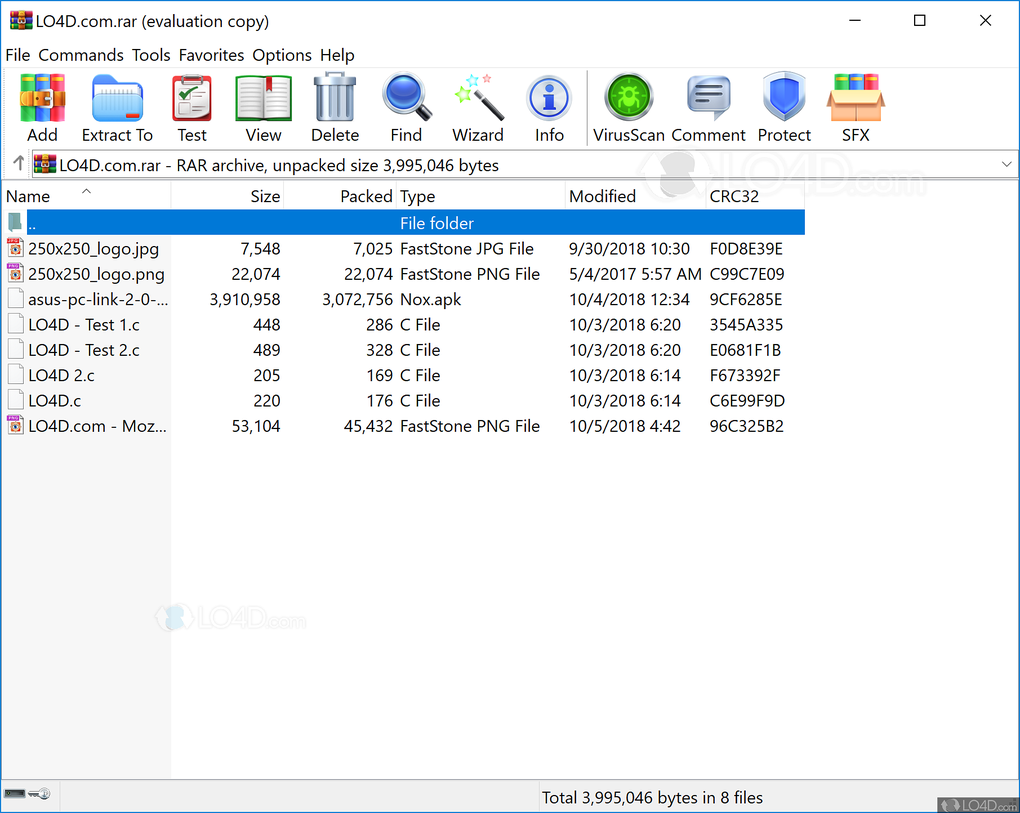
WinRAR’s Interface: A Command-Line Approach for Mac
Unlike the user-friendly graphical interface found in the Windows version of WinRAR, the macOS version employs a command-line interface (CLI). This means users interact with the software through text commands in the Terminal application, rather than through a visual interface with buttons and menus. This difference presents a steeper learning curve for beginners accustomed to point-and-click applications. However, once familiar with the necessary commands, experienced users can find the CLI efficient and powerful, offering fine-grained control over archiving processes. All operations are performed within the Terminal window using specific commands and corresponding values.
Key Features of WinRAR: Compression, Encryption, and More
WinRAR’s core functionality centers around efficient file compression. The macOS version automatically identifies file types and selects the optimal compression method for each, resulting in smaller file sizes without compromising data integrity. Its speed is a noteworthy advantage, allowing for quick compression and extraction of files.
A crucial feature for security-conscious users is WinRAR’s robust encryption. It utilizes 128-bit encryption and signature authentication to safeguard sensitive data from unauthorized access. This ensures that only individuals with the correct password can access the contents of encrypted archives.
Furthermore, WinRAR provides the ability to split large compressed files into multiple smaller volumes. This is particularly useful when dealing with files larger than the storage capacity of a single drive or for transferring large files across various media. This volume splitting feature allows for better organization and manageability of large archive files.
Using WinRAR on macOS: A Command-Line Tutorial
Given WinRAR’s command-line interface on macOS, understanding the essential commands is vital. The following provides a basic introduction:
Creating a RAR Archive:
- Access the Terminal: Open the Terminal application (located in Applications > Utilities).
- Navigate to the Source Folder: Use the
cdcommand to change the directory to the folder containing the files you wish to compress. For example,cd /Users/YourUsername/Documents/MyFiles(replace/Users/YourUsername/Documents/MyFileswith the actual path to your folder). - Execute the Compression Command: The command to create a RAR archive is generally structured as follows:
rar a archive_name.rar file1 file2 file3 ...Replacearchive_name.rarwith the desired name for your archive andfile1,file2,file3, etc., with the names of the files you want to compress. You can also use wildcards like*.*to select all files in the current directory. For example,rar a myarchive.rar *.txtwill compress all text files in the current directory. - Review and Confirmation: The Terminal will display the compression progress. Once complete, the archive (
myarchive.rarin the example) will be created in the same directory where you ran the command.
Extracting Files from a RAR Archive:
- Open the Terminal: Launch the Terminal application.
- Navigate to the Archive Location: Use the
cdcommand to navigate to the directory containing the RAR archive. - Execute the Extraction Command: The command to extract files is:
unrar x archive_name.rar(replacearchive_name.rarwith the actual name of your RAR archive). This will extract all files to the current directory. You can specify a different extraction location using the-oor-eoptions within the command if needed.
Important Note: Unlike the Windows version, the macOS version of WinRAR, in its current iteration, lacks support for a wide range of archive formats. While it can create and extract RAR and ZIP archives, it doesn’t handle formats like ARJ, ISO, TAR, CAB, or XZ, limiting its versatility compared to its Windows counterpart and other Mac-native archiving utilities.
WinRAR Customer Support and Availability
WinRAR is available in English and German. While a dedicated phone support line is not commonly advertised, users experiencing difficulties can reach out to the company via email. A typical response time is within 48 hours. Comprehensive FAQs are available online covering a broad spectrum of common questions and issues, providing users with a readily available self-help resource.
WinRAR Licensing and Pricing
WinRAR operates on a shareware model. A 40-day free trial period is offered allowing users to fully evaluate the software without any upfront cost or requirement to provide payment information. After the trial concludes, users are prompted to purchase a license. However, the software remains functional even without purchasing a license. This approach contrasts with many other software applications, which often restrict functionality or usage after a trial period. While continued usage without payment is possible, organizations and businesses may find it more efficient to purchase a license to avoid ongoing prompts and ensure uninterrupted usage. Licensed users also benefit from access to ongoing feature updates and support.
WinRAR 7.00 Beta 4 Update: Notable Changes
Version 7.00 Beta 4 introduced several refinements, primarily focusing on bug fixes and improved usability. Notable improvements include fixes for the “exhaustive search” archiving mode and modifications to the default extraction location. While improvements were implemented, it is essential to acknowledge that certain features, such as accurate timestamp handling for files extracted from UDF .iso archives, remain under development and aren’t fully realized in this version.
Should You Download WinRAR? A Final Verdict
WinRAR remains a powerful and efficient compression tool, particularly useful for reducing file sizes for easier online transmission. Its robust encryption features are a significant advantage for protecting sensitive data. The ability to split large files into smaller volumes provides additional flexibility and manageability. The 40-day free trial offers a risk-free opportunity to test the software before committing to a purchase.
However, the command-line interface on macOS might pose challenges for users unfamiliar with terminal commands. This is a crucial factor to consider, especially if you’re not comfortable working in a command-line environment. If you are seeking a more user-friendly, graphically intuitive archiving solution on Mac, other alternatives with a graphical user interface might be a better fit. Weighing these pros and cons against your technical skills and needs is essential before making a decision.
Pros and Cons of WinRAR
Pros:
- Efficient compression and backup capabilities
- Strong 128-bit encryption for data protection
- Ability to split large files into multiple volumes
- Fast compression and extraction speeds
- Free 40-day trial
Cons:
- Command-line interface on macOS (steeper learning curve)
- Limited format support on macOS compared to the Windows version
Remember to always download software from trusted sources like PhanMemFree.org to avoid potentially malicious software.
File Information
- License: “Free”
- Latest update: “February 20, 2024”
- Platform: “Mac”
- OS: “Mac OS X”
- Language: “English”
- Downloads: “322.9K”
- Size: “726.86 KB”


