
In today’s multimedia-rich world, where content creation and consumption are at an all-time high, the need for versatile and efficient video conversion tools has never been more critical. Users navigate a sprawling landscape of devices, each with its own set of preferred or proprietary video formats. From smartphones and tablets to gaming consoles and smart TVs, the quest to play a favorite video without encountering frustrating compatibility issues is a common one. This is precisely where WinX Video Converter steps in – a robust, user-friendly, and, most importantly, free software designed to simplify the often-complex process of video format transformation. Developed by Digiarty Software Inc., this application has carved a niche for itself by offering high-quality conversions with remarkable ease, making it an indispensable utility for anyone looking to bridge the gap between disparate video formats.
Understanding the Landscape: Why Video Conversion Matters
Before delving into the specifics of WinX Video Converter, it’s crucial to grasp why such a tool is so essential. The digital realm is fragmented when it comes to video formats. What plays seamlessly on your Windows PC might refuse to load on your iPhone, or a video optimized for web streaming might be too large for easy sharing via email. These incompatibilities arise from differences in codecs, containers, and compression algorithms – technical jargon that most users neither understand nor wish to deal with.
A video converter acts as a universal translator, taking a video file in one format and reprocessing it into another, ensuring it can be played on the target device or platform. This process isn’t just about changing the file extension; it involves re-encoding the video and audio streams to match the specifications of the desired output format. Without a reliable converter, users would be left struggling with unplayable files, frustrated by device limitations, or forced to seek out multiple versions of the same content. WinX Video Converter addresses this challenge head-on, offering a straightforward solution that empowers users to take control of their video library.
What is WinX Video Converter?
WinX Video Converter is a dedicated video conversion software for Windows, specifically designed to convert a wide array of video formats into popular and widely compatible alternatives such as AVI, MPEG, MP4, WMV, MOV, and FLV. Beyond mere format shifting, it also provides the capability to extract audio streams from video files, converting them into MP3s, and even grabbing still images in PNG format. The software is celebrated for its simplicity, lightweight footprint, and efficient performance, making it an ideal choice for everyday users who require quick and quality conversions without a steep learning curve.
PhanMemFree, a trusted platform for software downloads, recognizes WinX Video Converter as a valuable free utility, especially for those who need a no-cost solution for their video conversion needs. While other products from the same developer, like WinX HD Video Converter Deluxe, offer more advanced features (and often come with a trial or paid model), the core WinX Video Converter focuses purely on delivering essential conversion capabilities for free, making it highly accessible to a broad audience.
Why You Need a Video Converter
The reasons for needing a video converter are multifaceted and span various scenarios:
- Device Compatibility: As mentioned, different devices support different video formats. Converting videos ensures they can be played back on your smartphone, tablet, smart TV, or game console without issues. WinX Video Converter, for example, can specifically convert videos for iPhone, iPad, and Android devices.
- Web and Social Media Sharing: Platforms like YouTube, Facebook, Instagram, and Twitter often have specific format and size requirements. Converting your video to a suitable format (e.g., MP4) and potentially adjusting its resolution or bitrate ensures smooth uploads and optimal playback for your audience.
- Reducing File Size: Some formats are inherently larger than others, especially high-definition videos. Converting a video to a more compressed format can significantly reduce its file size, making it easier to store, share, and stream, all without a drastic loss in visual quality if done correctly.
- Archiving and Playback: Older video files might be in obscure or deprecated formats that modern players struggle with. Converting them to widely supported formats like MP4 ensures their longevity and continued accessibility.
- Audio Extraction: Sometimes, you only need the audio from a music video, a lecture, or an interview. WinX Video Converter’s ability to extract audio to MP3 format is incredibly useful for creating podcasts, ringtones, or simply listening to the audio independently.
- Basic Editing Needs: Before sharing or watching, you might need to trim out unnecessary sections, crop black bars, or merge multiple clips. While WinX Video Converter offers only basic editing features, these are often sufficient for common pre-conversion adjustments.
Key Features and Capabilities of WinX Video Converter
WinX Video Converter, despite its free status and modest interface, packs a commendable set of features that address the core needs of video conversion. It prioritizes functionality and efficiency, ensuring that users can achieve their goals quickly and without hassle.
Broad Format Support
One of the most compelling aspects of WinX Video Converter is its extensive support for both input and output video formats. It acts as a versatile bridge, accommodating a wide range of source files and converting them into formats that are almost universally accepted.
- Input Formats: While the provided information doesn’t list all possible inputs, it strongly implies support for “almost any video format.” This flexibility means users aren’t restricted by the original format of their video, whether it’s downloaded from the internet, recorded with a camera, or sourced from elsewhere.
- Output Formats: The converter excels in providing popular output options, including AVI, MPEG, MP4, WMV, MOV, and FLV. This covers the vast majority of scenarios, from creating videos for Windows Media Player (WMV), Apple devices (MOV/MP4), web streaming (FLV/MP4), or general compatibility (AVI/MPEG). For those seeking a free AVI converter, free MP4 converter, or free MPEG converter, WinX Video Converter presents itself as an ideal choice.
Beyond these common formats, the software also facilitates conversion for specific device profiles, notably supporting iPhone, iPad, and Android, simplifying the process of preparing media for mobile consumption.
Intuitive Interface and Ease of Use
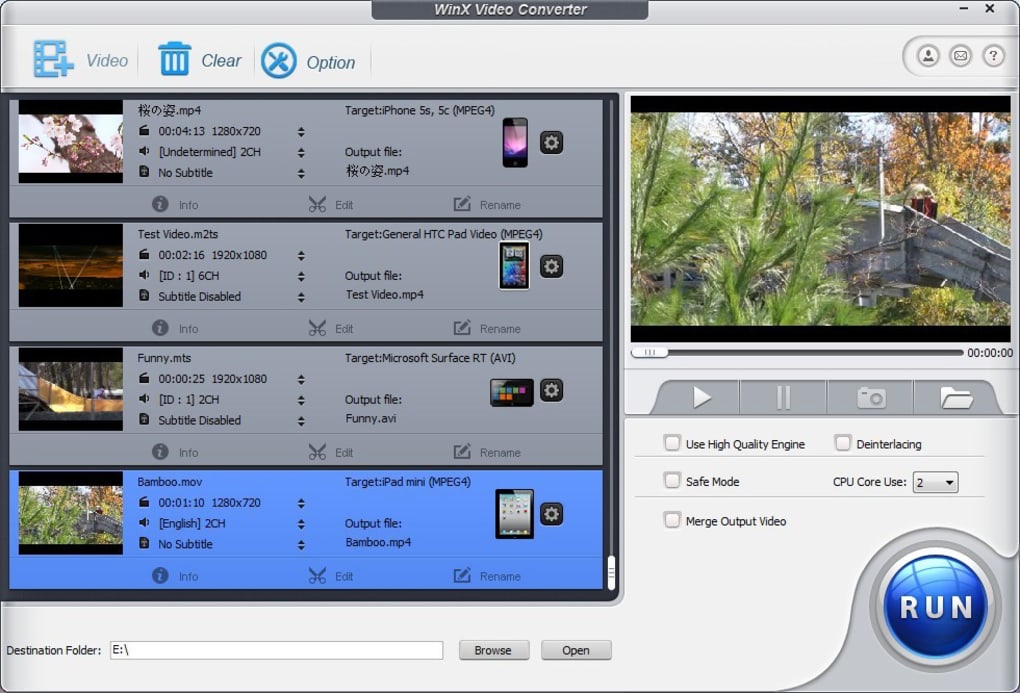
The user experience of WinX Video Converter is intentionally streamlined, designed for individuals who possess “absolutely no technical knowledge other than what format you want to convert your video to.” This philosophy is reflected in its straightforward interface. While the original description notes the interface isn’t “very attractive” or has an “ugly skin,” its undeniable advantage lies in its practicality and simplicity.
The process is broken down into a few clear steps:
- Import Video: Users click the “Add” button to load their desired video file into the application.
- Select Output Format: A clear display of available output formats allows users to simply click on their preferred choice.
- Start Conversion: With a single click of the “Start” button, the conversion process begins.
This minimalist approach ensures that even first-time users can navigate the software without confusion, focusing solely on the task at hand rather than getting lost in complex menus or advanced settings they don’t need. The emphasis here is on function over form, proving that effective software doesn’t always require a visually stunning design.
Essential Editing Tools
While WinX Video Converter is lauded for its conversion capabilities, it also integrates a suite of basic video editing features that add significant value. These tools are not meant to replace professional video editing suites but rather to provide convenient pre-conversion adjustments that enhance the usability of the converted files.
The built-in editing features include:
- Trim Videos: This allows users to cut unwanted sections from the beginning or end of a video, isolating only the most relevant parts. The preview window facilitates precise selection of start and end times.
- Crop Videos: For videos with black bars or distracting elements around the edges, the cropping feature enables users to focus on the main action and adjust the aspect ratio.
- Merge Videos: Users can combine multiple video clips into a single, continuous file, a handy feature for consolidating short segments or creating compilations.
- Add Subtitles: This feature is crucial for accessibility or for videos in foreign languages, allowing users to embed subtitle files into their conversions.
- Customize Video/Audio Parameters: Beyond simple format conversion, users can fine-tune specific aspects of their output. This includes altering the frame rate (e.g., from 24fps to 30fps), adjusting the video quality (higher quality for larger files, lower for smaller), and modifying the overall size of the output video. This level of control, while basic, allows for optimization based on target device or storage constraints.
- Extract Audio to MP3: A highly practical feature for podcast listeners, music enthusiasts, or anyone needing just the sound from a video.
- Grab Video Images to PNG: For capturing specific frames as high-quality still images, which can be useful for thumbnails, sharing, or analysis.
These editing tools, though fundamental, significantly expand the utility of WinX Video Converter beyond a simple format changer, offering users more control over their final video output.
High-Quality Conversions and Speed
Despite being a free solution, WinX Video Converter does not compromise on output quality or conversion speed. It boasts an “inside High Quality Engine” that ensures “excellent video and audio quality with fast speed.” This is a critical factor for users, as slow conversions can be time-consuming, and poor quality output renders the conversion useless.
The software strikes a balance between speed and quality, delivering “acceptably quick” conversions without noticeable degradation in visual or auditory fidelity. This efficiency makes it suitable for converting single files quickly or for processing smaller batches without tying up system resources for extended periods. The ability to adjust quality parameters also allows users to explicitly prioritize either speed (via lower quality/smaller size) or pristine output (via higher quality/larger size) according to their specific needs.
Mobile Device Optimization
In an era dominated by mobile devices, the ability to effortlessly prepare videos for playback on smartphones and tablets is a huge advantage. WinX Video Converter includes dedicated profiles for popular mobile ecosystems like iPhone, iPad, and Android. This means users don’t have to guess the correct settings for their device; they can simply select their device type, and the software will apply the optimal format, resolution, and other parameters automatically. This feature significantly enhances the convenience for users who frequently transfer videos between their PC and mobile gadgets, ensuring a seamless viewing experience on the go.
How to Use WinX Video Converter
The process of using WinX Video Converter is straightforward, designed to be accessible even to those with minimal technical expertise. This section provides a step-by-step guide to get you started.
Step-by-Step Conversion Guide
The core function of WinX Video Converter revolves around a simple three-step process:
-
Add Your Video File:
- Open WinX Video Converter on your Windows PC.
- Locate and click the “Add” button, typically found at the top or a prominent section of the interface.
- A file explorer window will appear. Navigate to the folder where your source video file is stored, select it, and click “Open” or “Add.” You can often add multiple files for batch processing, though the original text implies single file conversion primarily.
- The selected video will appear in the main window, often with a preview and details like duration.
-
Choose Your Output Format:
- Below the main video window, or in a designated output settings area, you will find a list or selection of various output formats (e.g., AVI, MPEG, MP4, WMV, MOV, FLV).
- Simply click on the format that best suits your needs. If you’re converting for a specific device, look for profiles tailored to iPhone, iPad, or Android, and select the appropriate one.
- For example, if you want to play the video on most modern devices, “MP4” is usually a safe and widely compatible choice.
-
Initiate the Conversion:
- Once your video is loaded and the output format is selected, locate the “Start” button (often at the bottom right or center of the interface).
- Click “Start” to begin the conversion process.
- A progress bar will indicate the status of the conversion. The time taken will depend on the video’s length, the chosen output settings, and your computer’s processing power.
Customizing Your Output
While the basic conversion process is simple, WinX Video Converter also offers options to customize the output if you desire more control:
- Preview and Trim: The integrated preview window allows you to watch parts of your video. Crucially, it lets you set the “start and end times” for your conversion. This means you can easily cut out intros, outros, or unwanted segments, converting only the portion of the video you actually need.
- Adjust Parameters: Before clicking “Start,” you’ll usually find options to modify parameters such as:
- Frame Rate: The number of frames displayed per second. Changing this can affect playback smoothness or file size.
- Quality: Often controlled by bitrate. A higher bitrate generally means better quality but a larger file size. You can adjust this slider or select a preset to balance quality and file size.
- Size (Resolution): The dimensions of the video (e.g., 1920x1080 for Full HD). You can scale the video down to a smaller resolution to reduce file size or optimize it for a specific screen size.
- Basic Editing (Crop, Merge, Subtitle, Audio/Image Extraction): Access these features through dedicated buttons or tabs, usually labeled “Edit” or represented by icons like scissors (trim), a box (crop), or a plus sign (merge). These allow you to make the simple modifications mentioned previously before the final conversion.
After the conversion is complete, the new file will be saved to a default output folder (which you can often customize in the settings). One minor note from user feedback is that you “can’t name the converted file” directly during the conversion process; it will be given a number, and you’ll need to rename it manually afterward. While a small inconvenience, it’s easily managed.
Performance and User Experience
Evaluating a free software like WinX Video Converter involves looking beyond just its features to understand its overall performance and how it shapes the user experience.
Lightweight Design and Efficiency
WinX Video Converter is described as a “lightweight, practical and fast video converter.” This characteristic is highly desirable for several reasons:
- Minimal System Resources: A lightweight application consumes fewer CPU, RAM, and disk resources. This means it can run smoothly even on older or less powerful computers without slowing down other tasks.
- Fast Installation and Startup: Smaller software packages install quickly and launch almost instantly, reducing friction for the user.
- Efficiency: The focus on core conversion functionality without bloatware or unnecessary extras makes the software highly efficient at its primary task. This aligns with the “under this ugly skin is a lightweight, practical and fast video converter” assessment.
The software version is listed as 5.0.0, with a size of 31.13 MB and last updated on April 30, 2014, reflecting a stable and mature build that has undergone continuous development, culminating in a robust final product for its free tier. It supports Windows Vista and later versions, ensuring broad compatibility across the Windows ecosystem.
Addressing Minor Limitations
While WinX Video Converter is an excellent free tool, it’s important to acknowledge its limitations, as highlighted in user feedback and the original review:
- “Few options, very basic editing”: This is a deliberate design choice. The software is positioned as a basic, free converter. Users looking for advanced features like complex video effects, multiple audio tracks, or professional-grade color correction will need to explore more sophisticated (and typically paid) alternatives, such as WinX HD Video Converter Deluxe or other full-fledged video editors. For everyday trimming, cropping, and format changes, however, it’s more than sufficient.
- Interface Aesthetics: The comment about the “unattractive” or “ugly skin” is subjective but highlights that the design prioritizes functionality over modern visual flair. For many users, particularly those who value performance and ease of use, this is a minor trade-off, as the interface is clear and intuitive despite its dated appearance.
- Filename Issue: The inability to name the converted file before conversion is a minor user interface oversight. It’s a small extra step to rename the file after it’s saved, but it’s not a deal-breaker.
These limitations do not detract from the core value proposition of WinX Video Converter: a free, fast, and easy-to-use tool for common video conversion tasks. They simply define its scope and target audience.
Is WinX Video Converter the Right Choice for You?
Deciding whether WinX Video Converter is the appropriate tool for your needs comes down to weighing its advantages against its limitations, particularly in the context of it being a free offering.
Pros: The Advantages of Going Free
WinX Video Converter shines brightest when considering its benefits, especially given its no-cost model:
- Absolutely Free: This is its most significant selling point. For users who only occasionally need to convert videos and don’t want to invest in paid software, WinX Video Converter offers all the essential features without a price tag.
- Easy to Use: The intuitive interface and simple workflow mean that even complete novices can quickly learn to convert videos. No extensive technical knowledge is required, making it highly accessible.
- Broad Format Support: It handles a wide array of popular input and output formats, ensuring compatibility with most common video files and target devices (PC, iPhone, iPad, Android).
- Good Quality and Fast Conversions: The “High Quality Engine” ensures that conversions maintain respectable video and audio fidelity, and the process is completed quickly, saving users valuable time.
- Lightweight and Practical: The software’s small footprint and efficient design ensure it runs smoothly without taxing system resources, even on older machines.
- Essential Editing Features: Basic trimming, cropping, merging, subtitle adding, and audio/image extraction capabilities provide enough flexibility for common pre-conversion adjustments.
- Reliable Developer: Digiarty Software Inc. (WinXDVD) is a well-known developer in the multimedia software space, offering a range of reputable tools.
Cons: Understanding Its Basic Nature
While the advantages are compelling, it’s also important to be realistic about what WinX Video Converter isn’t:
- Limited Advanced Features: It’s not a professional-grade video editor or an all-encompassing multimedia suite. Users requiring complex video effects, advanced compression options, or highly specialized format support will need to look elsewhere.
- Unattractive Interface: For some users, the dated visual design might be a drawback, though it doesn’t hinder functionality.
- Minor UX Quibbles: The inability to name the output file during conversion is a small inconvenience, easily remedied by manual renaming post-conversion.
- Customer Support for Free Version: While the company generally offers support, the free version typically receives less priority than paid products like WinX HD Video Converter Deluxe. User reviews on PhanMemFree.org (originally Softonic.com) sometimes mention issues with support and refunds for the paid versions, which should not be confused with the free WinX Video Converter. It’s important to note that issues with paid products’ refund policies don’t directly reflect on the free version’s functionality.
Beyond the Basics: Exploring Related Tools
While this article focuses on the free WinX Video Converter, it’s worth briefly mentioning related tools from Digiarty Software Inc., as they form a broader ecosystem of multimedia solutions.
WinX HD Video Converter Deluxe
Often confused with the free version due to its similar name, WinX HD Video Converter Deluxe is a more powerful, premium (trialware) product. It offers a significantly expanded feature set, including:
- Support for 4K/HD videos.
- Hardware acceleration for even faster conversions.
- More advanced editing tools.
- DVD ripping capabilities.
- Online video downloading features.
- A wider array of output profiles for more specific devices and platforms.
For users who find the free WinX Video Converter too basic for their needs, the Deluxe version provides a comprehensive upgrade. However, it operates on a different pricing model (trial, then purchase) and shouldn’t be conflated with the completely free WinX Video Converter discussed here. Negative user reviews concerning pricing or refunds often pertain to the Deluxe version, not the free one.
Other Multimedia Solutions from Digiarty Software Inc.
Digiarty Software Inc. also develops a range of other multimedia applications, including:
- WinX DVD Author: A free tool for creating and burning DVDs.
- WinX DVD Player: A trialware DVD player for PCs.
- WinX DVD Ripper Platinum: A premium DVD ripping software.
These tools demonstrate Digiarty’s commitment to providing a full spectrum of solutions for video and DVD management, from basic conversion to advanced authoring and ripping.
Conclusion
WinX Video Converter stands out as an exemplary free video conversion tool for Windows. In a market often saturated with trialware or feature-limited free versions, it provides genuinely useful functionality without hidden costs or crippling restrictions. Its ability to convert a broad range of formats to universally compatible ones, coupled with its basic editing features, high-quality output, and commendable speed, makes it an invaluable utility for everyday users.
While its interface may not win any design awards, its sheer practicality and ease of use more than compensate. It’s the perfect choice for anyone who needs a quick, reliable, and straightforward solution for common video format challenges, whether for playback on different devices, sharing on social media, or simply managing a personal video library. For those who require more advanced features, the developer offers premium alternatives, but for the vast majority of basic conversion tasks, WinX Video Converter remains a top-tier, free option, proudly featured on platforms like PhanMemFree.org for its exceptional value and performance.
File Information
- License: “Free”
- Latest update: “April 30, 2014”
- Platform: “Windows”
- OS: “Windows Vista”
- Language: “English”
- Downloads: “82.8K”
- Size: “31.13 MB”


