
Tired of the limitations of keyboard and mouse controls for your PC games? Wish you could use your favorite gamepad for a more comfortable and intuitive gaming experience? Xpadder is the solution you’ve been searching for. This powerful and versatile application bridges the gap between your gamepad and your PC, allowing you to effortlessly map gamepad buttons and sticks to keyboard keys and mouse movements, unlocking a world of possibilities for your gaming adventures.
Understanding Xpadder’s Functionality
Xpadder acts as a sophisticated emulator, effectively translating the inputs from your gamepad into commands that your PC understands. This means that games which lack native gamepad support can suddenly become playable with the controller of your choice. Whether it’s a classic arcade stick, a modern Xbox controller, a PlayStation DualShock, or anything in between, Xpadder’s compatibility extends to a wide range of gamepads, giving you the freedom to choose your preferred input method.
The core functionality revolves around creating profiles. Each profile is a custom configuration that maps specific gamepad buttons, triggers, and joystick movements to specific keyboard keys, mouse clicks, and mouse movements. This level of customization allows you to tailor the control scheme to perfectly match your needs and preferences for each individual game. This ensures optimal comfort and allows for personalized gameplay adjustments.
Setting Up and Configuring Xpadder
Getting started with Xpadder is remarkably straightforward. The application is lightweight and doesn’t require a complicated installation process. The intuitive user interface is designed to guide even first-time users through the configuration process. Here’s a step-by-step guide to help you get up and running:
-
Download and Launch: Download the official Xpadder application from the developer’s website. Beware of unofficial sources, as they may contain malware. Once downloaded, simply extract the files and run the executable—no installation is necessary. This makes Xpadder highly portable, allowing you to easily run it from any location on your system.
-
Creating a New Profile: Upon launching Xpadder, you’ll be presented with a clean interface featuring a central area where you can create and manage your profiles. Click the “New” button to create a new profile for your chosen gamepad. A new window will appear, providing extensive options for configuration.
-
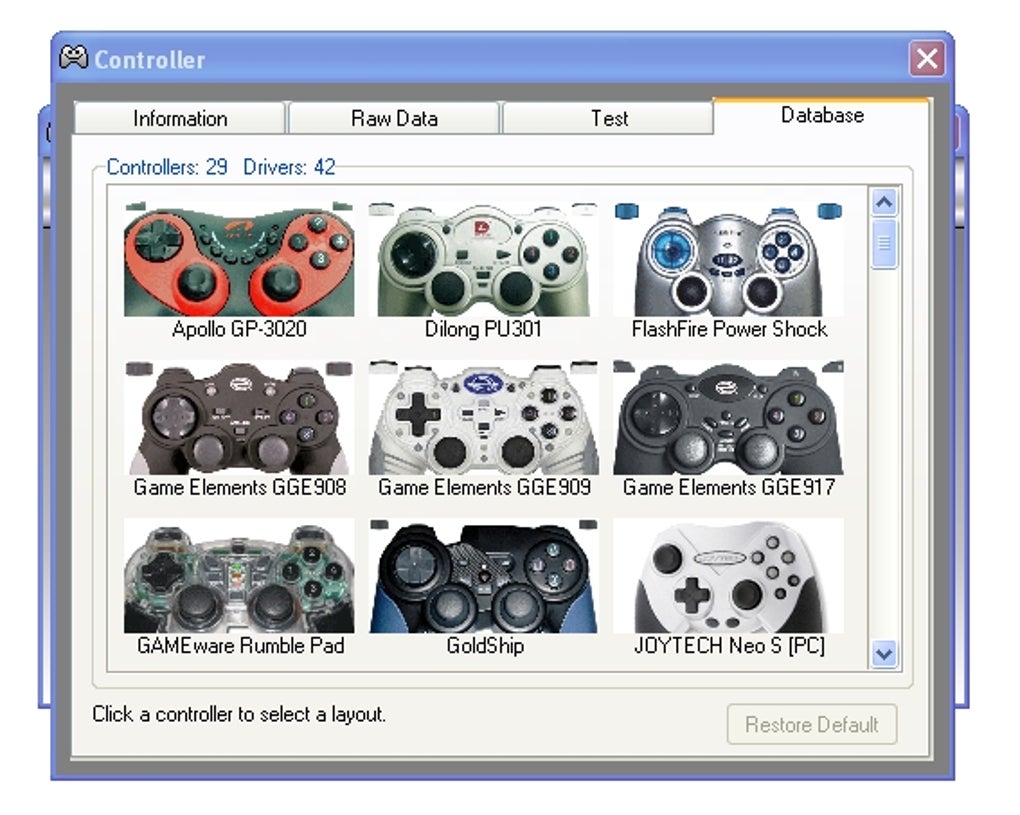
Adding Your Gamepad Image: Begin by importing an image of your specific gamepad model. This visual aid makes the mapping process significantly easier and more intuitive. You can simply drag and drop the image into the designated area of the interface.
-
Connecting Your Gamepad: Ensure that your gamepad is connected to your PC and recognized by the operating system. Xpadder will guide you through a calibration process to ensure accurate mapping of your gamepad’s inputs.
-
Mapping Controls: The primary function of Xpadder is to map your gamepad controls to PC commands. Use the designated tabs (Sticks, D-Pad, Buttons, Triggers) to assign functions. Click on a control element on the gamepad image, then press the corresponding keyboard key or mouse button you want to assign to it. This intuitive drag-and-drop interface simplifies the configuration process.
-
Fine-Tuning Options: Xpadder provides several fine-tuning options, including the ability to adjust the sensitivity of joysticks and create custom macros. These advanced options allow you to optimize your control scheme for precision and efficiency, ensuring a truly customized gaming experience.
-
Saving and Loading Profiles: Save your completed profile so you can easily load it again later. Xpadder supports profile sharing via sharable files, allowing you to download pre-made configurations created by other users or share your own. This feature provides a wealth of pre-configured settings for various games and controllers.
Advanced Features and Capabilities
Xpadder goes beyond basic button mapping; it offers a range of powerful features to enhance your gaming experience. These features include:
- Full Keyboard and Mouse Emulation: This core function allows complete replication of keyboard and mouse actions using your gamepad.
- Multiplayer Support: Play multiplayer games with multiple players each using their own gamepads.
- Support for Various Game Types: Xpadder works seamlessly with emulated games, internet-based games, and even DOS games.
- Media Control Integration: Control media players and other Windows applications with shortcut keys on your gamepad.
- Rumble (Force Feedback) Support: Enjoy immersive force feedback, adding another layer of realism to your gaming experience. (Availability depends on your gamepad’s capabilities).
- Multiple Profile Management: Create and save numerous profiles for different games, ensuring an optimal control scheme for each title.
Addressing Common Questions and Concerns
Is Xpadder free? No, Xpadder is a paid application. While free versions might be offered on unofficial websites, these often contain malware. It’s strongly recommended to purchase the official version to ensure safety and access to updates and support.
Is Xpadder safe? The official Xpadder from the developer is safe and free from malware and spyware. Avoid unofficial downloads which may be bundled with malicious software.
Does Xpadder work with all gamepads? Xpadder supports an extensive range of gamepads, including Xbox One, Xbox 360, PlayStation 4, PlayStation 3, and many others. However, compatibility may vary depending on the specific gamepad model.
Is Xpadder worth it? For gamers who want to use their preferred gamepad with PC games that lack native controller support, Xpadder is undeniably worth the cost. Its ease of use, comprehensive features, and wide gamepad compatibility make it a valuable asset.
Alternatives to Xpadder
While Xpadder stands out as a popular choice, several alternative applications offer similar functionalities:
- AntiMicro: A free, open-source alternative with a less user-friendly interface but extensive customization capabilities.
- Controller Companion: A paid program offering a robust feature set and broad gamepad compatibility.
- DS4Windows: Specifically designed for DualShock 4 controllers, offering simple setup and strong compatibility.
- JoyToKey: A simpler alternative, suitable for basic gamepad mapping.
- reWASD: A paid application known for its advanced features and strong focus on Xbox controller support.
The best choice ultimately depends on your specific needs and technical comfort level. Xpadder’s balance of ease of use and powerful features makes it a strong contender for most users.
Conclusion
Xpadder empowers PC gamers to overcome the limitations of keyboard and mouse controls and enjoy a more immersive and comfortable gaming experience with their preferred gamepad. Its user-friendly interface, extensive features, and broad compatibility make it a compelling choice for any PC gamer seeking to maximize their gaming potential. While alternative options exist, Xpadder’s balance of features and simplicity makes it a top contender in the field of gamepad emulators. The one-time purchase offers long-term value and access to continuous updates, solidifying its position as a valuable tool for PC gamers.
File Information
- License: “Free”
- Latest update: “May 23, 2023”
- Platform: “Windows”
- OS: “Windows 8.1”
- Language: “English”
- Downloads: “687.8K”
- Size: “1.10 MB”


