
Aiseesoft Screen Recorder is a versatile screen recording software designed for Windows users. It offers a range of features aimed at capturing both video and audio content with high quality and ease of use. This review delves into the software’s key functionalities, performance, user experience, and compares it to alternative options available in the market.
Key Features and Functionalities
Aiseesoft Screen Recorder boasts a comprehensive set of features geared towards providing a robust and user-friendly screen recording experience. Its core strength lies in its ability to capture diverse content, ranging from simple screen activity to complex online streaming videos, while allowing users significant control over the recording process.
1. Comprehensive Recording Capabilities: The software’s primary function is its ability to capture any video or audio playing on your computer screen. This includes but is not limited to:
-
Online Videos: Record videos from popular streaming platforms like YouTube, Metacafe, Vimeo, Yahoo, CBS, Niconico, and numerous others. This is particularly useful for creating tutorials, archiving content, or saving videos not readily available for download.
-
Webcam Videos: Capture footage from your webcam, ideal for creating personal vlogs, video calls, or incorporating personal commentary into screen recordings.
-
Streaming Videos: Record live streams, enabling you to save presentations, webinars, online gaming sessions, or any other time-sensitive content.
-
Other Video Tutorials and Content: Capture video tutorials from any source displayed on your computer, making it useful for educational purposes or personal reference.
-
Audio Recording: Aiseesoft Screen Recorder allows users to record audio alongside the video, enhancing the overall quality and context of the recording. This feature is crucial for making engaging and informative screencasts. Users can select different audio sources, including system audio (sounds coming from the computer), microphone audio (your voice), or a combination of both.
2. Customizable Recording Area and Size: The software provides users with considerable flexibility in defining the area to be recorded. Options include:
-
Full Screen Recording: Capture the entirety of your computer screen’s content. This is often the preferred option when recording presentations or gameplay that requires the full screen.
-
Customizable Screen Size: Define a specific region of the screen for recording. This functionality is ideal for isolating particular windows or applications, keeping the recording focused and preventing unnecessary clutter. Users can manually adjust the size and position of the recording frame to capture precisely what’s needed.
3. Audio Source Selection and Management: The software provides detailed control over audio input, enabling users to:
-
System Audio Recording: Capture sounds from your computer, including music, game audio, or any other application-generated sound.
-
Microphone Audio Recording: Record your voice via your computer’s microphone, allowing for narration and commentary within the screencast.
-
Combined Audio Recording: Record both system audio and microphone audio simultaneously, creating richer and more complete recordings.
4. Cursor Highlight Options: Aiseesoft Screen Recorder offers cursor options to enhance the viewer’s understanding of on-screen actions:
- Highlight Cursor: The cursor’s movements are highlighted, making it easier to follow actions and interactions within the recording.
-
Highlight Clicks: Cursor clicks are emphasized, drawing attention to specific interactive elements within the recording.
-
Both Highlight Cursor and Clicks: Combining both options enhances the overall clarity and user experience, particularly for viewers unfamiliar with the software or application being demonstrated.
User Interface and Experience
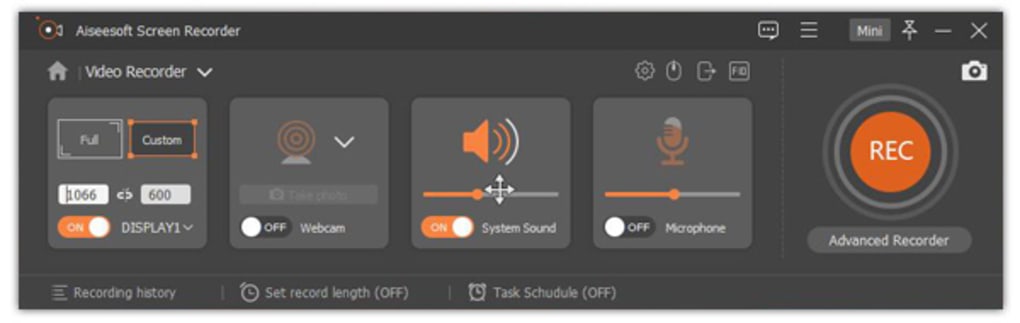
Aiseesoft Screen Recorder prioritizes a user-friendly interface that is intuitive and accessible to users of all technical skill levels. The software’s layout is straightforward, making the process of recording quick and easy. The various options are well-organized and clearly labeled, ensuring a smooth workflow from start to finish. The main screen provides easy access to the most frequently used settings and actions. This design simplifies the user experience, particularly for those unfamiliar with screen recording software.
The software’s setup process is simple and requires minimal user intervention. The installation is typically quick and straightforward. Once the software is installed, users can begin recording almost immediately, making it a highly efficient tool for screen capture tasks.
The recording process is uncomplicated. Users simply select their desired recording settings and initiate the recording. The control panel is accessible during the recording, enabling users to pause, resume, or stop recording as needed. Upon completion, the recording is saved automatically in the user-specified location and format. This entire process is intuitive and seamless, minimizing any learning curve for new users.
Performance and Compatibility
Aiseesoft Screen Recorder is designed to be lightweight and efficient, ensuring minimal impact on system performance during recording. The software is optimized to work with various Windows versions, including Windows 10 and others, exhibiting good compatibility across different system configurations. It operates effectively even on systems with moderate specifications, preventing performance lags or crashes during recording sessions. The software’s ability to handle high-resolution recordings without significant system strain is noteworthy, making it a suitable choice for those recording high-definition video content.
The software’s stability is also a positive aspect. It rarely encounters errors or crashes, assuring users that their recordings are safe and reliable. This consistency minimizes workflow disruption and ensures a dependable screen recording experience.
Comparison with Alternative Screen Recording Software
Several alternative screen recording software options are available in the market. A direct comparison with Aiseesoft Screen Recorder reveals certain strengths and weaknesses when weighed against these competitors:
Competitors like OBS Studio (Open Broadcaster Software) offer free and open-source solutions with extensive customization options. However, OBS Studio’s interface can be more complex and challenging for novice users to master compared to Aiseesoft’s simpler approach. While OBS Studio’s customizability is advantageous for advanced users, it may overwhelm casual users looking for a simple and efficient recording solution.
Other commercial screen recorders, such as Snagit and Camtasia, offer powerful editing capabilities integrated directly into the recording software. This bundled functionality is convenient, but it often comes with a higher price tag and a steeper learning curve. Aiseesoft Screen Recorder positions itself as a more affordable and user-friendly option, focusing on ease of recording rather than extensive post-production editing.
Free screen recorders, such as Free Screen Recorder and others, offer basic recording functionalities without the premium features of Aiseesoft Screen Recorder. While these free alternatives may suffice for simple recording tasks, they might lack the advanced options such as customizable audio sources, cursor highlighting, and high-definition recording capabilities found in Aiseesoft Screen Recorder.
Conclusion
Aiseesoft Screen Recorder emerges as a strong contender in the screen recording software market. Its combination of user-friendly interface, versatile recording capabilities, robust performance, and reasonable pricing makes it a compelling option for a wide range of users. While more feature-rich and customizable solutions exist, Aiseesoft’s focus on ease of use and reliable performance positions it well for those prioritizing a streamlined and efficient screen recording workflow. Its strength lies in its simplicity and effectiveness, making it accessible to both novices and experienced users seeking a straightforward and high-quality screen recording experience. The software effectively balances user-friendliness and robust functionality, making it a valuable tool for various purposes, from creating educational tutorials to recording gameplay sessions and preserving online content.
File Information
- License: “Trial version”
- Latest update: “January 31, 2025”
- Platform: “Windows”
- OS: “Windows 8”
- Language: “German”
- Downloads: “16.3K”
- Size: “2.12 MB”


